Calculation Merge Tags – List Field Calculations
The GravityWP List Number Format add-on extends the standard Gravity Forms List field by enabling number formatting and built-in calculations. This documentation outlines how merge tags can be used for list field calculations, such as column totals and row-level operations inside List fields.
Functionality overview
When number formatting is enabled on a List field column, you can:
- Reference specific columns in calculations
- Perform row-level calculations inside the List field
- Calculate column totals using a Number field outside the List
- Count the number of rows in a List field
Merge tags are context-aware. The same tag may return a row value or a column sum depending on where it’s used.
Column totals and row count in Number field calculations
You can use merge tags in a Number field outside the List to display the sum of a specific column or count the number of rows in the list.
Column total (sum)
{List:1.2}
- Returns the sum of all values in column 2 of List field ID 1.
- For a single-column List field, use column 1:
{List:1.1}.
Row count
{List:1}
- Returns the number of rows currently filled in List field ID 1.
These are commonly used for subtotals or summary fields. In the formula of a Number field, the Insert Merge Tag dropdown lists them as –
and (Row count)
. Only columns with Enable Number Format checked are listed.
Row-level calculations inside the List
You can configure a column in a List field to calculate its value using other columns in the same row.
Example:
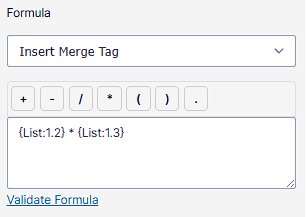
{Order Items:1.2} * {Order Items:1.3}If column 2 is Quantity and column 3 is Unit Price, this formula used in a later column, such as Amount, will calculate the total per row. When used inside the List field, merge tags like {List:1.2} refer to the value of that column in the current row.
The column number comes after a dot: {Order Items:1.2} is column 2 of List field 1. Do not use a colon, as in {Order Items:1:2}: Gravity Forms reads the part after a second colon as a merge tag modifier, not as a column.
Set up a calculated column
Row-level calculations are available in List fields with Enable multiple columns checked.
- Select the List field in the form editor.
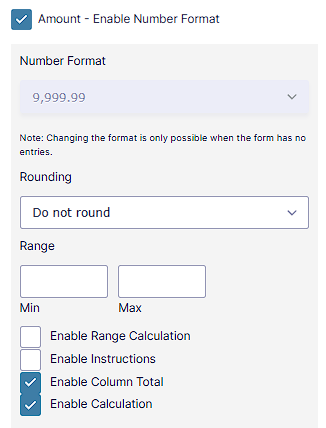
- Below the columns in the Columns setting, check
– Enable Number Format for the column that shows the result, and for the columns you use in the formula. - For the result column, check Enable Calculation.
- Build the formula in the Formula box. Use Insert Merge Tag to add a column of this List field, listed as
- –
(Column row value) +,-,/,*,(,)and.. - Click Validate Formula to check the formula, then save the form.
How a calculated column works:
- The column is read-only: visitors cannot type in it.
- The result is calculated for every row, including rows that the visitor adds later, and is updated when a value in the formula changes.
- The result uses the number format and rounding of the column.
- When the formula uses another form field, a change in that field updates the column in every row.
Calculations on submit
When the form is submitted, Gravity Forms calculates Number field formulas again on the server. List Number Format replaces the List merge tags in those formulas with the column sum or the row count of the submitted rows, so the saved entry gets the correct result. Payment add-ons such as Stripe that read the total from the form also get the correct amount.
Merge tag syntax for List field calculations
| Merge Tag Format | Description |
|---|---|
| {List:FieldID.Column} | Value of a column in a row or total (depends on context) |
| {List:FieldID} | Total number of rows in the list |
Labels are optional
Gravity Forms and GravityWP merge tags only require a valid field ID — the label part is ignored. This means the following examples are all valid:
{:1}— Refers to field ID 1{:1.1}— Refers to column 1 of List field ID 1{notthelabel:1}— Still works, because only the field ID matters
Use any label or even omit it entirely — as long as the field ID is correct, the merge tag will function.
Notes
- Merge tags work in any Number field or calculated List column.
- The same merge tag can return different values depending on where it’s used.
- If merge tags do not appear in the dropdown, you can manually type them.
Frequently Asked Questions
The column number must come after a dot, as in {Order Items:1.2}; after a second colon Gravity Forms reads it as a modifier.
A column with Enable Calculation checked is read-only, because List Number Format fills it with the result of the formula for every row.
Yes. The formula of a calculated column can use other form fields, such as a Number field with a discount percentage, next to columns of the same row.
Yes. When a Number or Product field calculates with a column sum such as {List:1.3}, Gravity Forms calculates it again on submit with the submitted rows, so payment add-ons such as Stripe get the correct amount.