Enable Number Format
Enable Number Format is the List Field setting of the GravityWP List Number Format add-on that turns a Gravity Forms List Field column into a number column. Use it when visitors enter amounts, quantities or hours in a list and you want every row to hold a valid number, with rounding, a range and a column total.
When the List Field Number Format add-on is activated, you’ll get an extra option when selecting a Gravity Forms List Field.
Turn on number format for a List Field column
- Open the form in the form editor and select the List Field.
- For a single-column List Field, check Enable Number Format under Number Format in the field settings.
- For a List Field with Enable multiple columns checked, check
– Enable Number Format below the columns in the Columns setting, for each column that should hold numbers. Other columns stay plain text. - Choose the settings described below and save the form.
Settings
- Click on the ‘Enable Number Format‘ checkbox
- You have different options:
- Number Format: point decimals, comma decimals and Currency.
- Rounding: Up to 5 numbers after the decimal.
- Rounding Direction: Round closest, Round up, Round down
- Range: Define a minimum and maximum number.
- Enable Range Instructions: When clicked it will show instructions about the minimum and maximum number.
- Enable Column Total: Will add an extra row at the bottom of your list with the column total calculation.
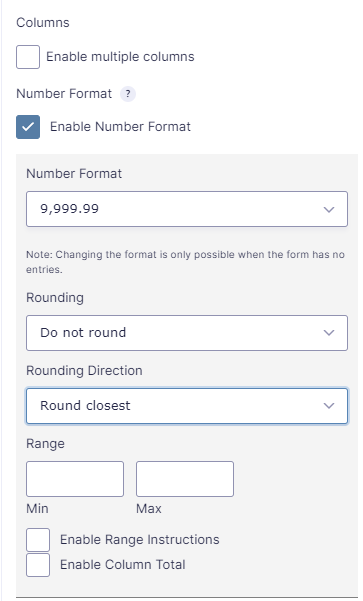
Single-column and multi-column List Fields have almost the same settings:
| Setting | Single column | Multiple columns |
|---|---|---|
| Number Format, Rounding, Rounding Direction | Yes | Yes, per column |
| Fixed point notation | Yes | Yes, per column |
| Range (Min and Max) | Yes | Yes, per column |
| Range instructions | Enable Range Instructions | Enable Instructions |
| Enable Range Calculation | No | Yes |
| Enable Column Total | Yes | Yes, per column |
| Enable Calculation | No | Yes |
Number format
Choose how numbers are written:
- 9,999.99: point as decimal separator, comma as thousands separator.
- 9.999,99: comma as decimal separator, point as thousands separator.
- Currency: the currency set in Forms → Settings.
When a visitor leaves an input, the value is rewritten in the chosen format. You can change the number format only while the form has no entries; after the first entry the dropdown is disabled, with the note “Changing the format is only possible when the form has no entries.”
Rounding and rounding direction
Rounding sets the number of decimals: Do not round, or 0 to 5 decimals. For the Currency format you can choose 0 or 2 decimals.
When you choose a number of decimals, Rounding Direction appears: Round closest, Round up or Round down.
Fixed point notation
Fixed point notation keeps the trailing zeros, so every value shows the same number of decimals. With Rounding set to 2, 5.5 shows as 5.50 and 7 as 7.00.
The option appears when Rounding is set to 1 to 5 decimals and the number format is not Currency.
Range
Enter a Min and a Max value to limit the numbers visitors can enter. Leave one of them empty to set only a lower or an upper limit.
A value outside the range gets a warning below the input as soon as the visitor leaves it, for example “This column cannot be more than 10”. When the form is submitted, the value gets an error message (see “Validation when the form is submitted” below).
Range instructions
Check Enable Range Instructions (single-column List Field) or Enable Instructions (multi-column List Field) to show the range below every input of the column, for example “Please enter a value between 1 and 10.”
Range instructions work with a fixed Min and Max. When Enable Range Calculation is checked, the option is hidden.
Enable Range Calculation
In a multi-column List Field, Enable Range Calculation replaces the fixed Min and Max with a Min Formula and a Max Formula. Each row then gets its own limits, calculated from other columns in the same row.
- Check Enable Range Calculation for the column.
- In Min Formula and Max Formula, use Insert Merge Tag to add columns of this List Field, listed as
- –
(Column row value) +,-,/,*,(,)and.. You can leave one of the formulas empty. - Click Validate Formula to check each formula.
Example: an order list (List Field ID 1) with the columns Product, In stock and Quantity, with Enable Number Format checked for In stock and Quantity. To make sure nobody orders more than the stock, set the Quantity column’s Min Formula to 1 and its Max Formula to:
{Order Items:1.2}
A visitor who enters 12 in a row where In stock is 10 sees “This column cannot be more than 10”.
Enable Range Calculation is not available for single-column List Fields; use a fixed Min and Max there.
Enable Column Total
Enable Column Total adds a total row at the bottom of the list with the sum of the column. The total updates while visitors enter values, and it is also shown in the entry, in merge tag output such as {all_fields} and in Gravity PDF documents.
To use the sum of a column in another field, see Calculation Merge Tags – List Field Calculations.
Enable Calculation
In a multi-column List Field, Enable Calculation turns the column into a calculated column: you enter a Formula with other columns in the same row or other form fields, for example quantity times unit price. The column becomes read-only and is calculated for every row, including rows added later. See Calculation Merge Tags – List Field Calculations for the setup.
Validation when the form is submitted
For number columns with a range (a fixed Min or Max, or range formulas), List Number Format checks every row on the server when the visitor submits the form or goes to the next page. The List Field then gets one of these error messages:
- A value that is not a number in the column’s format: “The column ‘Price’ requires a value in 9,999.00 format.” In a single-column List Field: “Requires a value in 9,999.00 format.” The example number follows the number format and rounding of the column.
- A value outside the range: “The column ‘Quantity’ requires a value between 1 and 10.”, “… greater than or equal to 1.” or “… less than or equal to 10.”
For calculated ranges, the limits are calculated again on the server with the values of the submitted row.
Demo List Field Number Format
Frequently Asked Questions
The number format can only be changed while the form has no entries, so that the values already saved keep the format they were entered in.
Fixed point notation appears only when Rounding is set to 1 to 5 decimals and the number format is 9,999.99 or 9.999,99, not Currency.
No. Enable Range Calculation is available in List Fields with multiple columns; a single-column List Field uses a fixed Min and Max.
Range instructions show a fixed Min and Max only, so they are hidden when Enable Range Calculation is checked for the column.