Calculated min / max range
This feature calculates the allowed input range dynamically, based on other values in your Gravity Form using Merge Tags.
Enable Minimum / Maximum Value Calculation
You can select ‘Enable Minimum Value Calculation’. You see that under ‘Range’ the ‘min’ input is greyed out, since we’re going to use a calculation to determine what the minimum value of the range should be. You can use Merge Tags to determine the minimum value. If you are not familiar with calculations in Gravity Forms see https://docs.gravityforms.com/using-calculations/. Also you can add a Minimum Value Instruction which will be visible to the user. It works the same way with Maximum Value Calculation.
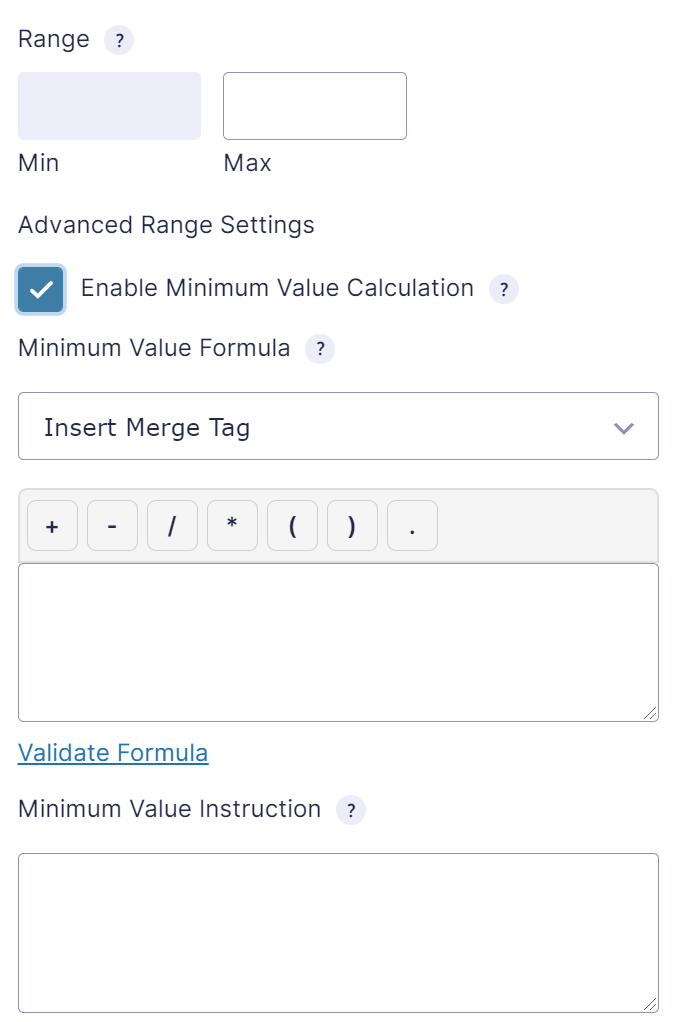
Example
If you want the minimum value to be the sum of the value of Field 1 and Field 2 (where 1 and 2 are the field ID) the formula looks like this:
{Number:1} + {Number:2}
Sliders follow the range while the form is filled in
For a field with Show as Slider, the minimum and maximum of the slider are calculated in the browser. When a field that is used in the formula changes, the range of the slider is updated and a slider value outside the new range moves to the nearest allowed value. See Range Slider Settings.
For a Number field without a slider, the calculated range is checked when the form is submitted.
Error message for a value outside the range
When the form is submitted, Advanced Number Field calculates the minimum and maximum again on the server, with the submitted values of the other fields. A value outside the range is rejected and the field shows one of these messages:
This value should be greater than or equal to 10
This value should be less than or equal to 100
The number in the message is the calculated minimum or maximum, formatted like the field value (for example with fixed decimals or a custom unit). The check runs after the regular Gravity Forms validation of the field, and its message is used instead of the Custom Validation Message of the field.