Advanced Merge Tags settings
GravityWP Advanced Merge Tags has two places with settings: the plugin settings, which apply to the whole site, and the form settings, which decide who may read the entries of a form with merge tags like gwp_get_matched_entry_value. This page explains every setting and when you need it.
Plugin settings
Go to Forms → Settings → Advanced Merge Tags. Under Plugin settings you find three settings.
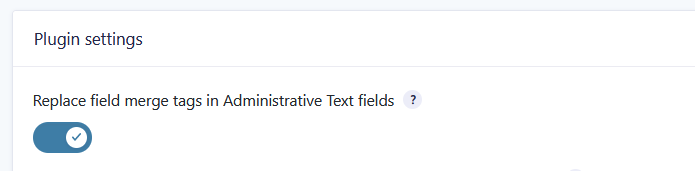
Replace field merge tags in Administrative Text fields
Off by default. When on, field merge tags like {Name:1} in the default value of a Single Line Text field with Administrative visibility are replaced when the entry is saved, so the field stores the submitted values. See Replace field merge tags in administrative field’s default value for details and a filter to support other field types.
Replace merge tags in post content
Off by default. When on, merge tags in the content of posts and pages are replaced when the page is shown, before WordPress formats the text. There is no form or entry on a page, so use merge tags that do not need one, for example:
{gwp_eeid:1}to show a value of the entry passed in the URL, see gwp_eeid{gwp_user:first_name},{gwp_url type=path index=0},{gwp_parent_slug},{gwp_now format="d-m-Y"}and{gwp_current_timestamp}{gwp_get_matched_entry_value value="…" …}and{gwp_count_matched_entries value="…" …}with a fixed value- Gravity Forms merge tags that work without an entry, like
{user:display_name}and{embed_url}
Display errors as merge tag output when something goes wrong
Decides what a merge tag shows when it is used incorrectly, for example with a missing option or without access to the entries of another form:
| Option | Output |
|---|---|
| Disable display errors (default) | Nothing. |
| Display standard error message | #### |
| Display detailed errors | The reason, like ## missing required argument ## or ## access not allowed ##. |
Use the detailed errors while you set up a form and turn them off again on a live site. Errors are always written to the Gravity Forms log, whatever you choose here; turn on logging in Forms → Settings → Logging to see them.
Form settings
Open a form and go to Settings → Advanced Merge Tags. The settings of a form decide who may read the values of this form’s entries through Advanced Merge Tags, so you set them on the form you read from, not on the form where you place the merge tag.
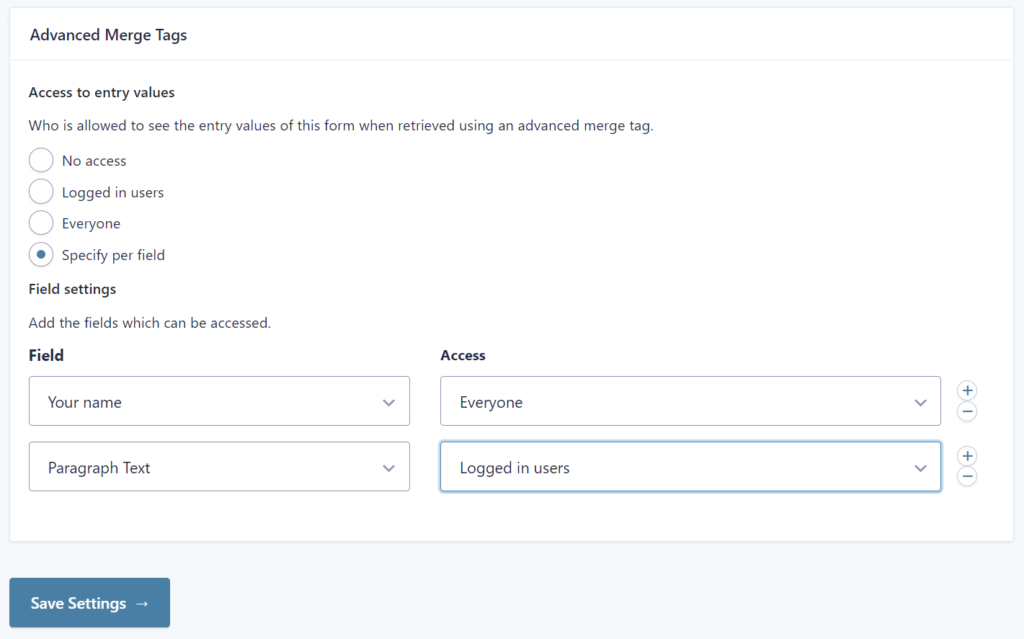
Entry access
Access to entry values has four choices:
| Choice | Who sees the values |
|---|---|
| No access (default) | Nobody. The merge tags return nothing or an “access not allowed” error. |
| Logged in users | Only visitors who are logged in. Values are also returned during a scheduled task (WP cron), for example a notification or Gravity Flow step that runs later, when nobody is logged in. |
| Everyone | All visitors, also visitors who are not logged in. |
| Specify per field | Choose per field: Logged in users or Everyone. Fields that are not in the list are not accessible. |
With Specify per field, the Field settings list appears. Click the plus button, choose a field or entry property (like Created by (user), Entry ID or Entry Date) and choose its access level. Add a row for every field you want to read, including the fields you use in return_id.
These settings are used by:
- gwp_get_matched_entry_value, as modifier and as merge tag, also inside gwp_gview_advanced_filter
- gwp_get_matched_entries_values
- gwp_sum_matched_entries_values
gwp_count_matched_entries only counts entries and does not use these settings. gwp_eeid does not use them either: it only shows the entry whose encrypted ID is in the URL.
Before you allow access, consider whether a visitor can change the value that is matched, for example with a URL parameter or a form field, and so read entries they should not see. Only allow access to fields without sensitive information, and prefer Logged in users or Specify per field over Everyone.
User access
Allow the :gwp_user_role modifier to be used with entry values from this form is off by default. Turn it on in the form where you use the gwp_user_role modifier; without it the modifier returns nothing or an “access not allowed” error. This permission is separate from Entry access.
Frequently Asked Questions
Most often the form you read from still has Entry access set to No access; turn on Display detailed errors in the plugin settings to see the reason, like ## access not allowed ##.
On the form whose entries you read, the one in form_id, not on the form that contains the merge tag.
Yes, values for Logged in users are also returned when the merge tag runs during a WP cron event, for example in a delayed notification or a Gravity Flow step that runs later.
Yes, choose Specify per field and add only the fields you want to share, each with the access level Logged in users or Everyone.