Configuring the feed
A Field to Entries feed tells the add-on which field of a form to split into items, in which target form to create an entry for each item, and which values to put in those entries. You add the feed in the settings of the form that people submit, the source form.
Add a feed
- Open the source form and go to Settings → Field To Entries.
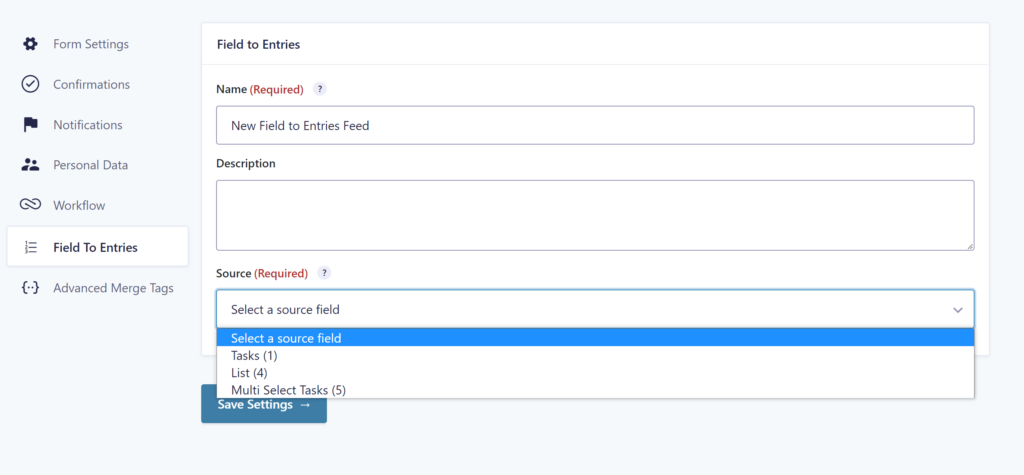
- Click Add New and give the feed a Name.
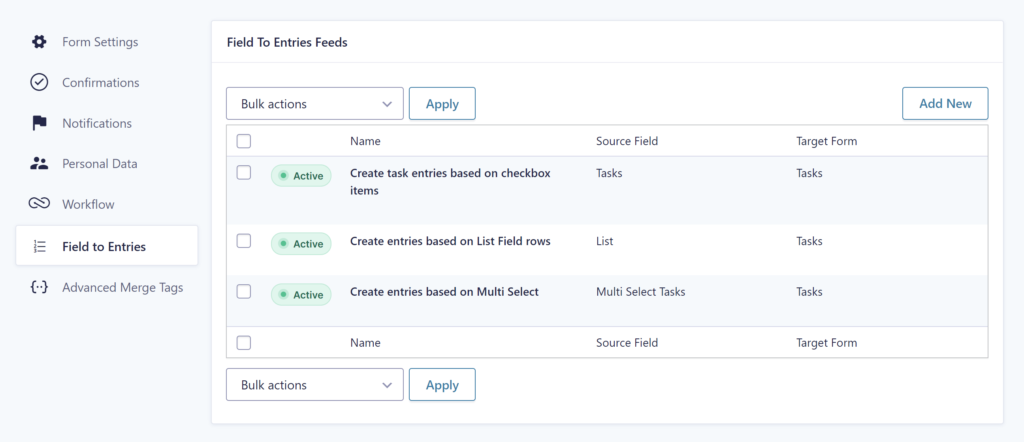
Select a source field
The Source is the field whose items become entries. The drop down lists the fields of the form that can be used:
| Source field type | One entry per |
|---|---|
| Checkboxes | selected choice |
| Multi Select | selected choice |
| List | row |
| Single Line Text | item, split on the Text Field Separator |
| Radio Buttons, Drop Down | selected choice (one entry) |
For Checkboxes, Multi Select, Radio Buttons and Drop Down fields, each new entry gets the value of the selected choice. The value differs from the label only when show values is enabled on the field.
Text Field Separator
With a Single Line Text field as source, the Text Field Separator setting appears. Enter the character that separates the items; the default is a comma. Spaces around the separator are kept, so for a value like Apples, Pears use , (comma and space) as separator, or ask users to enter the items without spaces.
Select the target form
After selecting the source field, select the Target Form: the form in which the new entries are created. This is usually another form, for example a Participants form next to a Registration form.

Selecting the source form itself as target shows a warning. Every new entry would run the feed again, which creates entries until the server stops the request. Only do this with a feed condition that prevents the loop.
Map the fields
After you select the source field and the target form, you map the fields. The Field (target form) column is the field in the target form you want to fill. Under Value (source form) you select what to fill it with.
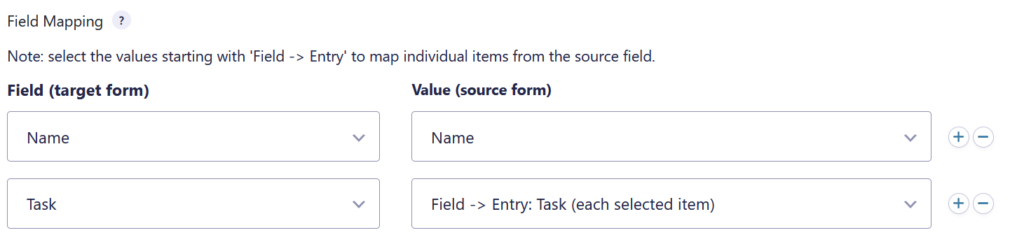
The ‘Field -> Entry’ value
The Value drop down has an extra option at the top, in this example Field -> Entry: Multi Select Tasks (each selected item). This is the value of one item: each new entry gets its own selected choice, List row or text item. A multi-column List field has a ‘Field -> Entry’ option for every column, so you can map each column to its own field.
Every feed needs at least one target field mapped to a ‘Field -> Entry’ value. Without it, the add-on has no item to put in the entries and creates none. Since version 1.2.8, the feed settings cannot be saved without one.
Map the ‘Field -> Entry’ value to a field that holds a single value, such as a Single Line Text, Hidden, Number or Drop Down field. Fields with several inputs, such as Checkboxes, Name or Address, store their values per input, so a single value mapped to the whole field is not saved. To use such a field, map the value to one of its inputs, for example Name (First). Since version 1.2.8, the feed settings show an error when a ‘Field -> Entry’ value is mapped to a whole field with several inputs.
Other values
All other mapped values are the same in every new entry: for example the name of the person who submitted the form, a date or the source entry ID. Map them like any Gravity Forms field mapping.
Custom values
You can also add custom values to the field map. Combine text with merge tags from the source form’s entry.

Modify the ‘Field -> Entry’ value with the {target} merge tag
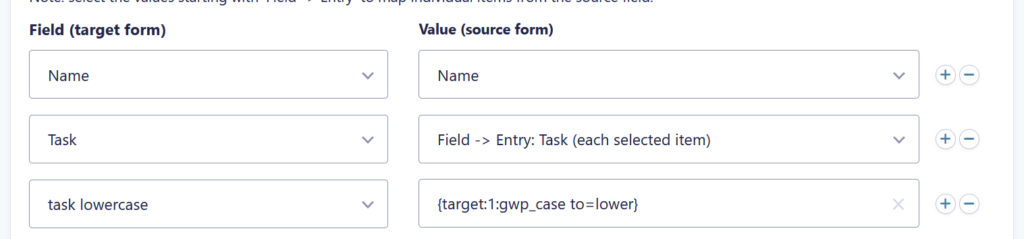
To change the ‘Field -> Entry’ value before it is saved, use the {target:field_id} merge tag in a custom value. It returns the value of a target form field, and only works for target form fields that are mapped to a ‘Field -> Entry’ value.
For example:
- In the target form, the Task field (field ID 1) is mapped to the ‘Field -> Entry’ value, so it gets one of the selected tasks.
{target:1}returns that task in a custom value for another field.- Add a modifier from the Advanced Merge Tags add-on to change it, for example
{target:1:gwp_case to=upper}.
Run the feed only when it applies
Under Feed Process Condition, check Enable and add rules to run the feed only for some submissions, for example only when a “Register participants” choice is selected. You can add several feeds to one form, each with its own source field, target form and condition.
Check the result
The feed runs when the source form is submitted, or in a Gravity Flow step (see Workflow step). Each time it runs, it adds a note to the source entry:
| Entry note | Meaning |
|---|---|
| Feed name processed: created 3 entries, 0 failures. | All items became entries. |
| Feed name processed: no entries created. Map at least one target field to a “Field -> Entry” value in the feed settings. | The feed has no ‘Field -> Entry’ mapping. |
| Feed name processed: created 0 entries, 0 failures. | The source field was empty, for example no choice selected or the field hidden by conditional logic. |
| No note | The feed did not run: it is inactive, its condition was not met, a Gravity Flow step runs it later, or the entry was not submitted through the form. |
For more detail, enable logging for GravityWP Field To Entries Add-On under Forms → Settings → Logging, submit the form again and view the log.
Frequently Asked Questions
Open the source entry and read the Field to Entries note at the bottom. Most often the feed has no target field mapped to a ‘Field -> Entry’ value, or the feed condition was not met.
Check what it is mapped to. A ‘Field -> Entry’ value mapped to a whole Checkboxes, Name or Address field is not saved; map it to a single value field or to one input of the field.
No. A feed runs once for each new submission, or when its Gravity Flow step runs. Editing or importing an entry does not run it.
No. The new entries are saved directly, so the target form’s notifications and feeds do not run. With Gravity Flow, a workflow on the target form does start for each new entry, and its notification steps can send emails. Developers can send the target form’s notifications with the after_add_entry hook.