Add-on: Text Field Variables for Gravity Forms
Text Field Variables lets you create custom placeholders for Gravity Forms text fields and replace those placeholders with defined values when you display or process the content.
For example, you can use variables such as **customer_name** or **company_name** inside supported fields. This makes the add-on useful for reusable letters, messages, internal notes, workflow text, and other content that you do not want to rewrite manually each time.
For the product overview, pricing, and changelog, visit the Text Field Variables product page.
Requirements
Text Field Variables requires:
| Requirement | Status |
| Gravity Forms | Required |
| GravityWP Text Field Variables add-on | Required |
| Gravity Flow | Optional, only needed for workflow step support |
Supported Fields
Text Field Variables is built for these Gravity Forms field types:
| Field type | Supported |
| Single Line Text | Yes |
| Paragraph Text | Yes |
You enable variables per field with the Allow Variables setting. As a result, you control exactly where variable replacement should apply.
Variable Format
Variables use double asterisks around the variable name.
Examples:
**customer_name**
**company_name**
In Form Settings → Text Field Variables, the add-on notes that it will wrap variables with double asterisks if you enter them without that format.
For example, if you enter:
customer_name
It can be formatted as:
**customer_name**
Configure Text Field Variables for Gravity Forms
You configure variables per form.
First, go to Forms → Your Form → Settings → Text Field Variables.
Next, under Edit variables, add your variable names and values.
Then, click Save Settings.
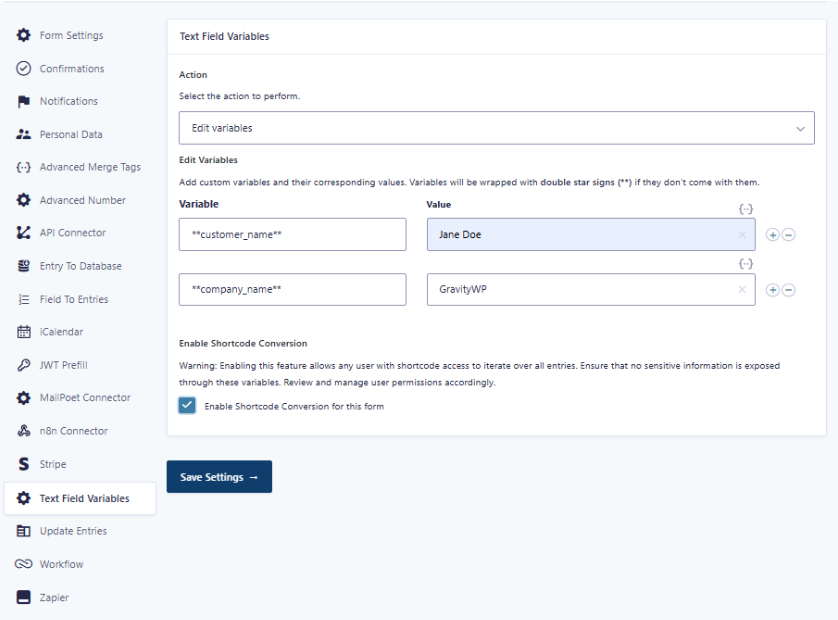
Example:
| Variable | Value |
| **customer_name** | Jane Doe |
| **company_name** | GravityWP |
The add-on uses these values when it replaces variables in supported output contexts.
Enable Text Field Variables on a Field
After you create your variables, enable variable support on the field where you want to use them.
First, open the form editor.
Next, select a supported field, such as a Single Line Text or Paragraph Text field.
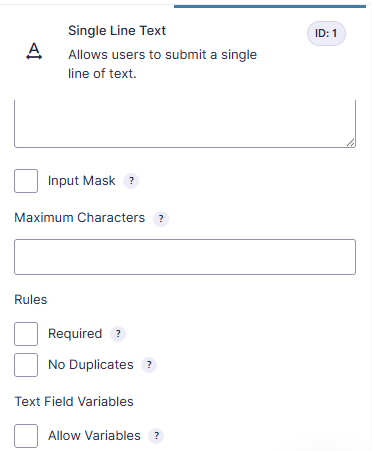
Then, in the field settings, enable Text Field Variables → Allow Variables.
Finally, save the form.
You should only use Text Field Variables content in fields where you have enabled Allow Variables.
Add Text Field Variables to Field Content
You can place variables inside supported text field content. For example, you can add them to the default value of a Paragraph Text field.
Example:
Dear **customer_name**,
Welcome to **company_name**.
After that, the shortcode, merge tag modifier, or Gravity Flow step can replace the variables with their configured values.
Example output:
Dear Jane Doe,
Welcome to GravityWP.
Enable Shortcode Conversion
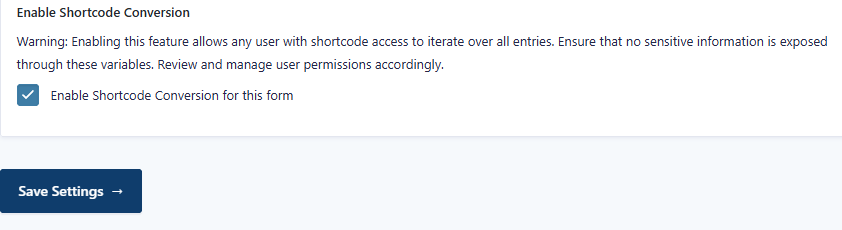
Text Field Variables includes a form-level setting called Enable Shortcode Conversion for this form.
You can find this setting in:
Forms → Your Form → Settings → Text Field Variables
Enable this setting when you want to use the replacement shortcode for that form.
However, enable shortcode conversion carefully. The setting includes a warning because shortcode access may allow users to output entry-based values. Therefore, only enable shortcode conversion when the displayed data is safe for the intended audience and user permissions are properly managed.
Render Text Field Variables Output with the Shortcode
The add-on provides a shortcode for rendering replaced output.
Example:
[replace_gwp_text_field_variables form_id="97" entry_id="999"]
Dear **customer_name**,
Welcome to **company_name**.
In this example:
| Shortcode part | What it does |
| form_id=”97″ | Tells the shortcode which form to use |
| entry_id=”999″ | Tells the shortcode which entry to reference |
| Shortcode content | Contains the text and variables to replace |
Example rendered output:
Dear Jane Doe,
Welcome to GravityWP.
Use the shortcode in places where WordPress supports shortcodes. Also, make sure you have enabled shortcode conversion for the form.
Use the Text Field Variables Merge Tag Modifier
Text Field Variables also supports a merge tag modifier for variable replacement in supported Gravity Forms merge tag contexts.
Gravity Forms uses Gravity Forms merge tags to insert submitted field values and other dynamic information into supported output areas.
The modifier is:
replace_gwp_text_field_variablesExample format:
{Field Label:3:replace_gwp_text_field_variables}In this example:
| Part | Meaning |
| Field Label | The field label |
| 3 | The field ID |
| replace_gwp_text_field_variables | The modifier that tells the add-on to replace Text Field Variables in the field output |
Use this modifier when you want the replaced version of a field value instead of the raw placeholder text.
If you need more advanced formatting, calculations, or transformations for Gravity Forms merge tag output, see Advanced Merge Tags for Gravity Forms.
Notes About Saved Values and Output
Text Field Variables does not automatically change every place where a field value appears.
For example, if you output the raw field value directly, the placeholders may still appear.
If a field contains:
Dear **customer_name**,
Welcome to **company_name**.
And you output the raw field value, the output may still show:
Dear **customer_name**,
Welcome to **company_name**.
To show the replaced version, use one of these replacement options:
| Output method | Best use case |
| Shortcode | Displaying replaced text on a WordPress page or shortcode-supported area |
| Merge tag modifier | Displaying replaced field output in supported merge tag contexts |
| Gravity Flow step | Replacing variables as part of a workflow process |
Because output contexts can behave differently, always test the exact place where you plan to use the replaced content. This is especially important for notifications, confirmations, GravityView layouts, pages, or workflow-generated content.
Text Field Variables and Gravity Flow Integration
When you install and activate Gravity Flow, Text Field Variables can appear as a workflow step type.
This lets you include variable replacement as part of a workflow. For example, you can replace variables after a review, approval, user input step, or another workflow action.
Common use cases include:
- Replace variables after an approval step.
- Generate finalized text after a staff review.
- Process reusable text after workflow data changes.
Gravity Flow is optional. You only need it if you want workflow-based variable replacement.
For a broader explanation of workflow steps, approvals, notifications, and user input steps, see our guide to Gravity Flow Workflow Steps.
You can also review the official Gravity Flow step types documentation to understand how workflow step types work.
Troubleshooting Text Field Variables for Gravity Forms
The Placeholders Still Appear in the Output
Check the following:
- The variable is defined in Form Settings → Text Field Variables.
- The field has Allow Variables enabled.
- The variable name matches the configured variable.
- The output is being rendered through the shortcode, merge tag modifier, or Gravity Flow step.
The Shortcode Does Not Return the Replaced Content
Check the following:
- Enable Shortcode Conversion for this form is enabled.
- The shortcode uses the correct form_id.
- The shortcode uses the correct entry_id.
- The variables are defined for the same form.
- The shortcode is being used in a location where WordPress shortcodes are supported.
- The user or context where the shortcode runs has the correct access.
The Shortcode Works on a Page but Not in a Notification
Shortcodes and merge tags are not always processed the same way in every output context.
If a notification sends the raw field merge tag, the placeholder text may still appear. For notifications, confirmations, or other merge tag-based output, use the merge tag modifier where appropriate:
{Field Label:3:replace_gwp_text_field_variables}Then test the notification or confirmation to confirm that the replaced output appears as expected.
The Gravity Flow Step Does Not Appear
Check the following:
- Gravity Flow is installed and active.
- Text Field Variables is installed and active.
- You are editing a Gravity Flow workflow for the correct form.
- The form has variables configured in Form Settings → Text Field Variables.