DateTime Field for Gravity Forms
The GravityWP DateTime Field add-on adds a dedicated Date/Time field to Gravity Forms. It allows users to enter both a date and a time in one field instead of using separate inputs.
This is useful for forms where the exact date and time matter, such as appointments, bookings, scheduling forms, event forms, and deadline-based workflows.
The field also includes Not before and Not after settings, so you can control the earliest and latest allowed value. These settings support merge tags, which makes it possible to create dynamic date and time rules based on other fields in the same form.
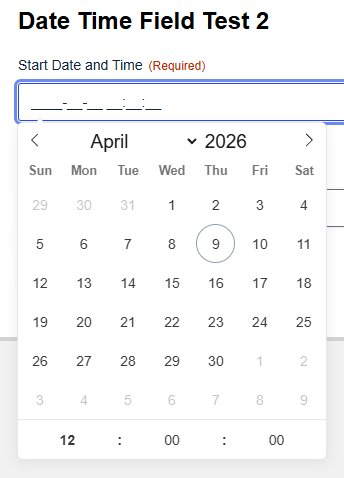
The DateTime Field gives you one field for collecting:
- a date
- a time
Instead of asking users to complete separate date and time inputs, you can collect one combined value in a simpler format.
Submitted values use this format:
YYYY-MM-DD HH:MM:SS
Example:
2026-04-10 10:00:00
DateTime Field for Gravity forms limits
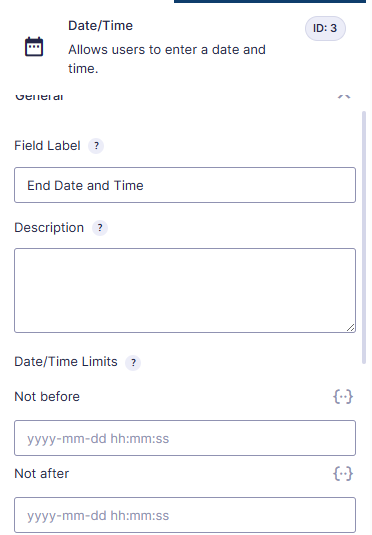
The field includes a Date/Time Limits section in its field settings.
You can use:
- Not before to set the earliest allowed date and time
- Not after to set the latest allowed date and time
These settings are useful when a form should only accept values inside a specific date and time window.
Examples:
- only allow bookings from 9:00 AM onward
- stop users from choosing a date after a deadline
- make sure an end date and time cannot be earlier than a start date and time
Using DateTime Field fixed limits
You can enter a fixed value directly into Not before or Not after.
Example:
- Not before:
2026-04-08 09:00:00 - Not after:
2026-04-09 17:00:00
With these settings:
2026-04-08 08:00:00is rejected2026-04-09 18:00:00is rejected- values inside the range are accepted
When a submitted value is outside the allowed range, the field shows a clear validation message.
Example messages:
Please enter a date/time on or after 2026-04-08 09:00:00.Please enter a date/time on or before 2026-04-09 17:00:00.
Using merge tags in limits
The Not before and Not after settings support merge tags.
This makes it possible to create dynamic rules based on another field in the same form.
A common example is a form with:
- Start Date and Time
- End Date and Time
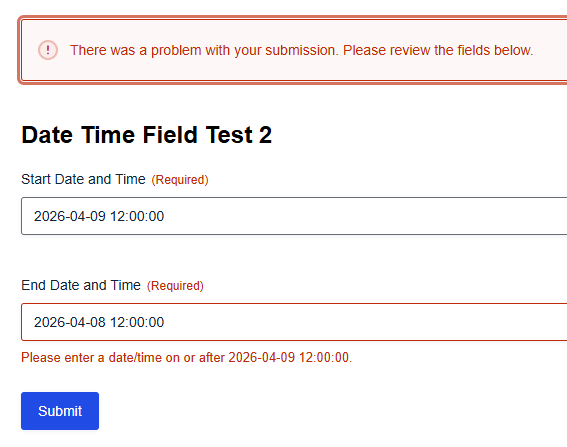
In this setup, you can set the End Date and Time field’s Not before value to the merge tag for Start Date and Time.
That means the form will only accept an end value that is equal to or later than the selected start value.
Example
Field setup:
- Start Date and Time
- End Date and Time
End field setting:
- Not before: merge tag for Start Date and Time
Behavior:
- Start:
2026-04-10 10:00:00 - End:
2026-04-10 09:00:00 - Result: rejected
- Start:
2026-04-10 10:00:00 - End:
2026-04-10 11:00:00 - Result: accepted
DateTime Field for Gravity Forms – Validation behavior
The DateTime Field validates submitted values against the configured limits.
Values outside the allowed range are blocked during submission, and the form shows a clear validation error under the field.
This applies to both:
- fixed limits
- merge-tag-based limits
That makes the field useful for workflows where the order of date and time values matters.
When to use this field
The DateTime Field is a good fit when your form needs one combined date and time value.
Common use cases include:
- appointment requests
- booking forms
- event scheduling
- registration windows
- start and end scheduling
- deadline-based forms
Notes
- The field uses one combined date and time input.
- The limit settings support both fixed values and merge tags.
- Submitted values use the format
YYYY-MM-DD HH:MM:SS.
DateTime Field for Gravity Forms – FAQ
Yes. The field is useful for booking and scheduling forms because it collects both date and time in one input and supports allowed date and time ranges.
Not before sets the earliest allowed value.
Not after sets the latest allowed value.
Yes. You can use a merge tag from another field to define the minimum allowed value for a DateTime field.
The form shows a validation error and blocks submission until the value matches the configured range.
Submitted values use this format:YYYY-MM-DD HH:MM:SS