Gravity Forms is powerful on its own. But once your site grows beyond simple contact forms, the bigger question usually becomes: which Gravity Forms add-ons should you use next?
Some websites need a direct payment, CRM, or email marketing integration. Others need better field behavior, front-end entry displays, approval workflows, API lookups, database storage, or automation tools.
That is where Gravity Forms add-on suites become useful.
The challenge is that these suites do not all solve the same problem. Official Gravity Forms add-ons, Gravity Perks, GravityKit, Gravity Flow, and GravityWP each support a different type of workflow. Choosing the right one depends less on which tool is “best” and more on what you are trying to build.
This guide answers the most practical questions users usually have when comparing Gravity Forms add-on suites, so you can match the right ecosystem to the workflow you need.
Last updated: May 2026. Add-on availability, features, and pricing can change, so check the Gravity Forms Marketplace, the GravityWP add-ons page, and each provider’s official product pages before making a final decision.
What Is a Gravity Forms Add-On Suite?
A Gravity Forms add-on suite is a group of tools that extends what Gravity Forms can do.
Some add-ons connect your forms to external services. Some improve how fields behave. Others help you display entries, manage approvals, update records, send data into automation tools, or reuse form data in more advanced ways.
The Gravity Forms Marketplace separates add-ons into Official Add-Ons, Certified Add-Ons, and Community Add-Ons. It also notes that Marketplace add-ons are developed and supported by their respective developers.
That distinction matters because not every Gravity Forms add-on comes from the same provider or serves the same purpose.
Here is a simple way to think about the main categories:
| Add-on type | What it usually helps with |
|---|---|
| Official add-ons | Standard integrations with supported services |
| Form enhancement suites | Field behavior, validation, and form UX improvements |
| Entry display suites | Showing, editing, searching, or managing entries |
| Workflow suites | Approvals, routing, assignments, and internal processes |
| Integration and data suites | APIs, automation tools, databases, merge tags, and entry updates |
This helps you avoid choosing a tool based only on popularity. A form enhancement problem, an entry management problem, and an automation problem usually need different solutions.
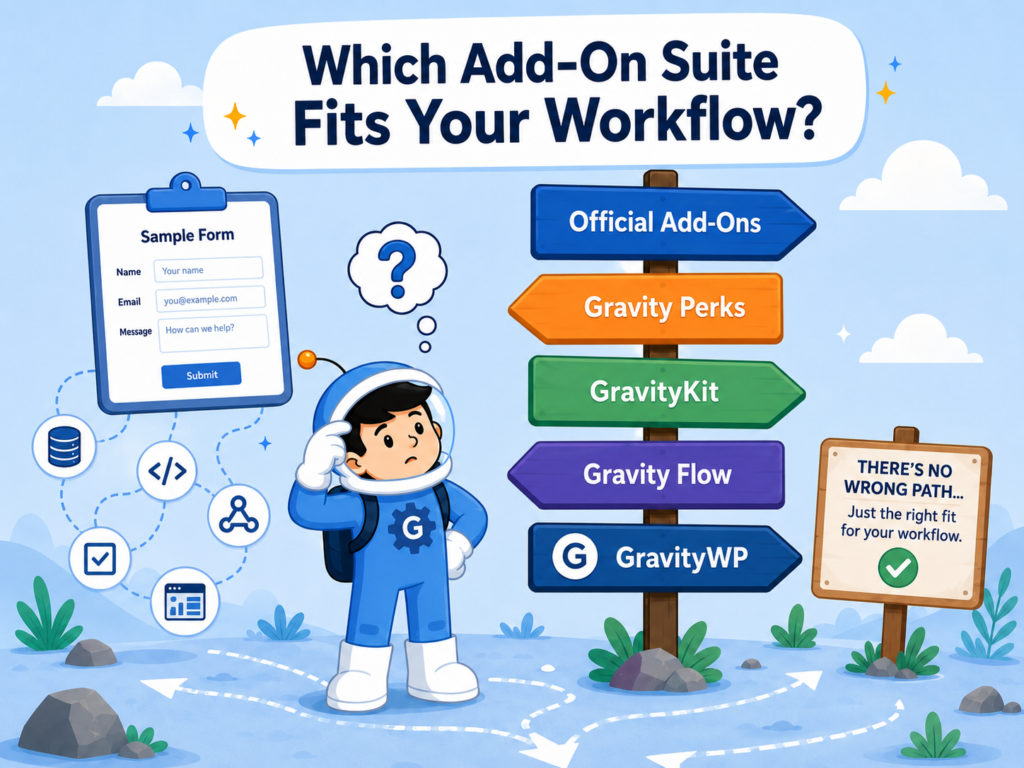
Which Gravity Forms Add-On Suite Fits Your Workflow?
The best Gravity Forms add-on suite depends on what you are trying to build.
| Suite / ecosystem | Best for | Strong fit when | Less ideal when |
|---|---|---|---|
| Official Gravity Forms Add-Ons | Standard supported integrations | You need a direct connection to a supported service | You need custom API lookups, response mapping, or unsupported workflow logic |
| Gravity Perks | Field behavior and form enhancements | You want to improve how fields, choices, validation, or form interactions work | Your main need is database syncing, n8n automation, or API response mapping |
| GravityKit | Front-end entry display and entry-based apps | You need directories, dashboards, portals, or searchable entry layouts | You only need to send one form submission to another app |
| Gravity Flow | Approval workflows and business process automation | You need multi-step approvals, assignments, routing, or workflow status tracking | You only need field formatting or a basic integration |
| GravityWP | Advanced Gravity Forms workflow utilities | You need API lookups, n8n automation, advanced merge tags, database workflows, List Field improvements, or entry updates | You only need a standard integration already covered by another official or dedicated add-on |
This table is not meant to pick one universal winner. In many real projects, these tools can work together.
For example, one site might use GravityKit to display entries, Gravity Flow to route approvals, and GravityWP to format output, connect to APIs, or update related entries.
The better question is not “Which suite is best overall?” It is:
What does your form need to do after someone submits it?
What Do Official Gravity Forms Add-Ons Help You Connect?
Official Gravity Forms add-ons help when your workflow needs a standard supported integration.
This is usually the safest starting point when Gravity Forms already supports the service you want to connect. For example, Gravity Forms documentation lists payment add-ons such as PayPal Checkout and Stripe, service add-ons such as Mailchimp, Trello, and Help Scout, plus the Zapier add-on for point-and-click integrations when a direct add-on is not available.
Official Gravity Forms add-ons make sense when:
- the service you need is already supported
- the workflow is standard
- you want a direct setup path
- you do not need custom API requests or response mapping
For example, if your form only needs to send a new subscriber to a supported email marketing platform, an official add-on may be enough.
But official add-ons are not meant to cover every possible workflow. If your form needs to search an external system, fetch data back, fill fields in real time, update related records, or connect to a less common API, you may need a more flexible integration tool.
For a deeper look at integration options, read our guide to the best Gravity Forms integrations.
What Can Gravity Perks Help You Improve Inside a Form?
Gravity Perks helps when your main problem is inside the form itself.
Gravity Perks, by Gravity Wiz, is a suite of plugins that adds new features and enhancements to Gravity Forms. It is often useful when you want to improve how fields behave, how choices are populated, how users interact with a form, or how complex input should work without custom code.
Gravity Perks can make sense for workflows involving:
- conditional field behavior
- dynamic form interactions
- nested or repeater-style input
- field population
- limits and restrictions
- improved form UX
- form-level enhancements
For example, a site owner may want a smarter way to populate choices, manage nested data, apply advanced calculations, or improve how users complete a complex form.
Gravity Perks and GravityWP are not direct replacements for each other. Gravity Perks is often the better fit when you want to enhance how the form behaves. GravityWP is usually more relevant when the workflow moves into APIs, n8n automation, entry updates, List Field improvements, database mapping, or advanced merge tag output.
What Can GravityKit or GravityView Help You Build with Form Entries?
GravityKit and GravityView help when Gravity Forms entries need to become something users can view, search, filter, edit, or manage on the front end.
GravityView, one of GravityKit’s main products, is listed as a Gravity Forms add-on. Its Gravity Forms listing describes it as a way to display, edit, search, and filter Gravity Forms entries on the front end. It also positions the tool for building directories, dashboards, profiles, and other entry-based applications.
That makes GravityKit useful for projects like:
- business directories
- member directories
- job boards
- searchable application lists
- client portals
- profile pages
- front-end dashboards
- entry review systems
A common question is:
How do I display Gravity Forms entries on the front end?
For that type of workflow, GravityKit is often one of the first ecosystems to review.
GravityWP can still support this kind of project, but it plays a different role. For example, GravityKit may handle the front-end layout, while GravityWP Advanced Merge Tags helps format or transform values before they appear in emails, PDFs, Views, or workflows.
For a more detailed guide, read our article on how to display Gravity Forms entries on the front end.
What Does Gravity Flow Help You Automate After Submission?
Gravity Flow helps when a submission needs to move through a process after the form is submitted.
Gravity Flow describes itself as a WordPress workflow solution for form-based processes. It can route form submissions and automate a process from start to finish.
That makes Gravity Flow a strong fit for workflows like:
- vacation requests
- purchase approvals
- hiring and onboarding
- admissions
- internal review processes
- document approvals
- support escalation
- multi-step task routing
Gravity Flow is especially useful when a submission needs to move through people, statuses, or decisions.
For example, a purchase request might need approval from a manager. A job application might need review by multiple people. A document request might need to move from submission to review, approval, and completion.
GravityWP can complement Gravity Flow when the same workflow also needs advanced data handling. For example, you may want to format merge tag output, pull data from an API, update related entries, or reuse values from existing submissions.
In that kind of setup, Gravity Flow handles the process, while GravityWP helps with the data layer around the process.
What Advanced Gravity Forms Workflows Can GravityWP Help With?
GravityWP helps when the form is not only collecting data.
It is useful when your Gravity Forms workflow needs to connect with another system, reuse entry data, format output, update records, work with List Fields, store submissions in a database, or send data into automation tools.
GravityWP is listed in the Gravity Forms developer directory, where Gravity Forms shows several GravityWP add-ons, including Entry to Database, Update Multiple Entries, List Text, List Datepicker, List Dropdown, Field to Entries, List Number Format, Advanced Number Field, JWT Prefill, Advanced Merge Tags, CSS Selector, and Merge Tags.
Here are the main workflow questions GravityWP can help answer.
How Can API Connector Help with API and CRM Lookups?
Use GravityWP API Connector when your form needs to communicate with an external API.
The API Connector can send GET or POST requests, use form values as request parameters, and map API responses back into Gravity Forms fields. It also supports common authentication methods such as API Key, Basic Auth, Bearer Token, and OAuth 2.0, depending on the API setup.
This can support workflows like:
- auto-filling customer details from a CRM
- checking a membership ID
- searching an external database
- fetching data from Airtable
- validating external records
- mapping API response values back into form fields
A normal webhook is often enough when a form only needs to send data out. API Connector becomes more useful when the form needs to send data out and receive useful data back.
How Can n8n Connector Support Automation Workflows?
Use GravityWP n8n Connector when a Gravity Forms submission needs to trigger an n8n workflow.
The n8n Connector sends form data through webhooks, supports saved n8n connections, lets users set a unique webhook path, and supports response modes such as Trigger Only, Immediate Update, and Delayed Update.
This can support workflows like:
- sending a submission to n8n
- starting a multi-step automation
- creating a task in another system
- receiving an ID, status, or result from n8n
- updating the original Gravity Forms entry with response data
This is different from a simple notification. In this setup, n8n acts as the automation layer, while Gravity Forms remains the data collection point.
You can also compare automation options in our guide to n8n vs Zapier for Gravity Forms.
How Can Entry to Database and Update Multiple Entries Help with Data Workflows?
Some Gravity Forms projects need more than the default entry list.
GravityWP Entry to Database lets users connect Gravity Forms to an internal or external database table. Its product page explains database integration, internal and external database connections, field mapping, insert actions, update actions, and unique identifiers for updating existing rows.
This can support workflows like:
- storing entries in a custom table
- syncing submissions with another database
- feeding reporting workflows
- keeping structured data outside the default entry list
- mapping form fields to database columns
GravityWP Update Multiple Entries solves a different problem. It can update matching entries in a target form from a single trigger form submission.
This can support workflows like:
- bulk status changes
- updating related entries
- correcting repeated data
- syncing values across forms
- running repeatable entry updates without writing custom PHP
How Can Advanced Merge Tags Improve Gravity Forms Output?
Merge tags are already part of Gravity Forms, but some workflows need more control over output.
GravityWP Advanced Merge Tags adds extra merge tag logic for formatting, calculating, and transforming field values. Gravity Forms has also published an article about using the GravityWP Advanced Merge Tags Add-On to do more with merge tags and modifiers in confirmations, notifications, Views, Workflows, and PDFs.
This can support workflows like:
- cleaner confirmation messages
- formatted notification values
- modified dates
- transformed text
- matched entry lookups
- reusable values inside emails, PDFs, Views, or workflow steps
For example, a notification could include a formatted value from a previous entry. A confirmation could show a cleaner version of a submitted value. A workflow step could use merge tag output that would otherwise require custom code.
For more context, read our guide to Gravity Forms merge tags.
How Can GravityWP List Field Add-Ons Improve Structured Input?
The Gravity Forms List Field is useful for repeatable rows of data, but many sites need more control over each column.
GravityWP List Dropdown lets users transform List Field columns into dropdown menus with predefined choices. The product page says it can work with single-column or multi-column List Fields and can enable dropdowns on one, some, or all columns.
GravityWP also has other List Field add-ons, such as List Datepicker, List Number Format, and List Text, which are listed in the GravityWP and Gravity Forms developer pages.
These tools can support workflows like:
- order forms with repeatable line items
- event registration rows
- quote request tables
- dropdown choices inside List Fields
- date selection inside rows
- row or column calculations
- cleaner structured input
This is a practical example of where GravityWP fits into the wider Gravity Forms ecosystem. It improves advanced form workflows that become harder to manage with the default field settings alone.
Can Different Gravity Forms Add-On Suites Work Together?
Yes. In many real projects, using more than one suite makes sense.
That does not mean installing every add-on you can find. It means choosing the right tool for each layer of the workflow.
For example, a training company might use Gravity Forms for course registration.
The basic form collects attendee details, course choices, and payment information. An official Gravity Forms add-on can handle a supported payment or email marketing connection. Gravity Flow can route high-value or custom registrations to an internal approval step. GravityKit can display approved registrants in a private dashboard for staff.
GravityWP can support the same workflow in a different layer. API Connector could check an external member database before submission. Advanced Merge Tags could format values in confirmation emails. Update Multiple Entries could update related registration records when a status changes.
In this example, no single add-on suite needs to do everything. Each one handles a specific part of the workflow.
That is the best way to think about Gravity Forms add-on suites: match the tool to the job.
What Mistakes Should You Avoid When Choosing Gravity Forms Add-Ons?
Choosing Gravity Forms add-ons becomes easier when you avoid a few common mistakes.
Are You Choosing a Tool Before Defining the Workflow?
Before comparing add-ons, define the workflow.
Ask:
- What triggers the action?
- Where does the data come from?
- Where should the data go?
- Does the form need data back?
- Does someone need to review or approve anything?
- Should entries be displayed, updated, or stored somewhere else?
Once the workflow is clear, the right add-on category becomes easier to spot.
Are You Using Automation When a Native Add-On Is Enough?
Not every project needs a complex automation setup.
If Gravity Forms already has an official add-on for the exact service you need, and the workflow is straightforward, start there. A simpler setup is often easier to maintain.
Are You Using a One-Way Webhook When the Form Needs Data Back?
Webhooks are useful for sending data out. But they may not be enough when the form needs to receive data back and use it inside fields, confirmations, notifications, or entries.
That is where an API-based tool can make more sense.
For example, API Connector is a better fit when a form needs to search an external system and map the response back into Gravity Forms fields.
Are You Using Custom Code Too Early?
Custom PHP can solve many Gravity Forms problems, especially for developers.
But if the workflow needs to be repeated, managed by non-developers, or adjusted over time, a dedicated add-on may be easier to maintain.
For example, updating multiple related entries can be done with custom code. But for repeatable admin workflows, an add-on like Update Multiple Entries may be easier to manage.
Are You Installing Too Many Overlapping Add-Ons?
A large plugin stack can become harder to maintain if several tools overlap.
Choose add-ons based on workflow ownership. One tool may handle entry display. Another may handle approvals. Another may handle API lookups. Avoid installing multiple tools for the same job unless there is a clear reason.
How Should You Choose the Right Gravity Forms Add-On Suite?
There is no single best Gravity Forms add-on suite for every site.
The best choice depends on what your form needs to do after someone submits it.
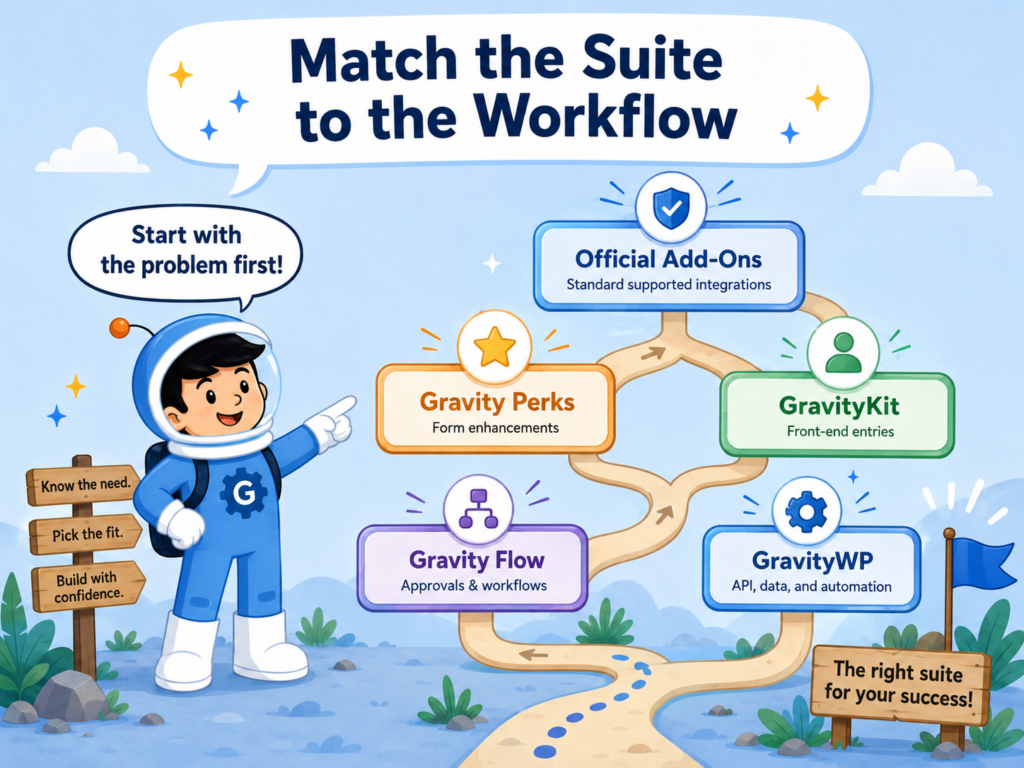
Use this decision table as a quick guide:
| If your workflow needs… | Start with… |
|---|---|
| A supported CRM, email, payment, or standard service integration | Official Gravity Forms add-ons |
| Better field behavior or form UX enhancements | Gravity Perks |
| Front-end entry display, editing, searching, or portals | GravityKit / GravityView |
| Approvals, assignments, routing, or workflow status tracking | Gravity Flow |
| API lookups, n8n automation, advanced merge tags, database sync, List Field upgrades, or entry update workflows | GravityWP |
A simple way to decide is to ask:
What happens after the user submits the form?
If the answer is “send the data to a supported service,” an official add-on may be enough.
When the answer is “make the form itself smarter,” Gravity Perks may be the better starting point.
But If the answer is “display and manage entries on the front end,” GravityKit fits that category.
If the answer is “route this submission through approvals,” Gravity Flow is built for that.
If the answer is “connect to an API, trigger n8n, update entries, store data in a database, improve List Fields, or control merge tag output,” GravityWP belongs on the shortlist.
Where Does GravityWP Fit If Your Workflow Is More Advanced?
GravityWP is not a replacement for every Gravity Forms add-on ecosystem.
It fits best when your form workflow needs more control over data, output, integrations, or repeatable admin actions.
That includes workflows involving:
- API lookups
- n8n automation
- database mapping
- advanced merge tags
- List Field improvements
- entry updates
- structured data handling
If your site only needs a basic supported integration, start with the official Gravity Forms add-on options. But if your workflow needs to connect systems, reuse data, format output, or update records, review the GravityWP add-ons for Gravity Forms to see which tool matches the job.
Pricing and licensing vary by provider, so check each official product page before making a final decision.
What Is the Final Recommendation?
Match the suite to the workflow.
Use official Gravity Forms add-ons when you need a standard supported integration, Then use Gravity Perks when you need better field behavior and form enhancements, But use GravityKit when entries need to become front-end directories, dashboards, or portals, And use Gravity Flow when submissions need to move through approvals, assignments, or internal workflow steps.
Use GravityWP when your Gravity Forms setup needs advanced workflow utilities, such as API connections, n8n automation, advanced merge tags, database workflows, List Field improvements, or entry updates.
The strongest Gravity Forms setups are not always built with one ecosystem. They are built by matching each part of the workflow to the tool that handles it best.
Next Step: How Can You Compare GravityWP Add-Ons by Workflow?
Building a more advanced Gravity Forms workflow? Browse the GravityWP add-ons for Gravity Forms and compare tools for API connections, n8n automation, advanced merge tags, database workflows, List Field improvements, and entry updates.
Start with the problem first. Then choose the add-on that solves that exact part of the process.
Frequently Asked Questions About Gravity Forms Add-On Suites
The best Gravity Forms add-on suites depend on what you are building. Official Gravity Forms add-ons are a good starting point for standard supported integrations. Gravity Perks is useful for form enhancements and field behavior. GravityKit is strong for front-end entry display and entry management. Gravity Flow is built for approvals and business process automation. GravityWP fits advanced workflows such as API connections, n8n automation, advanced merge tags, database workflows, List Field improvements, and entry updates.
Yes. GravityWP offers a collection of Gravity Forms add-ons focused on advanced workflows, including API connections, n8n automation, advanced merge tags, database workflows, List Field improvements, entry updates, and other form workflow utilities.
Use official Gravity Forms add-ons when the service you need is already supported and the workflow is simple. Use GravityWP when you need more flexible workflows, such as external API lookups, response mapping, n8n automation, advanced merge tag output, database syncing, List Field upgrades, or bulk entry updates.
Yes. These tools can support different parts of the same workflow. GravityKit can display entries on the front end, Gravity Flow can manage approvals, and GravityWP can help with API lookups, merge tag formatting, database mapping, List Field improvements, or entry updates.
Gravity Perks is mainly known for Gravity Forms feature enhancements and field behavior. GravityWP focuses more on advanced Gravity Forms workflows, including API connections, n8n automation, advanced merge tags, database workflows, List Field tools, and entry update utilities.
Not always. For a simple site, one add-on may be enough. For a more advanced business workflow, it can make sense to combine tools. The key is to choose each add-on based on the job it needs to handle, not just because it has many features.
Our Premium add-ons for Gravity Forms

API Connector
Connect Gravity Forms to External API's: Query the API using form field values and automatically fill other form fields with the API response.

n8n Connector
Connect Gravity Forms to n8n and automate your workflows with secure, flexible, and powerful webhooks. Go beyond simple notifications and build advanced, two-way automations.

Advanced Number Field
Functionality for Number Fields, like rounding or only absolute numbers, fixed point notation, range calculation, custom units like % or m2 & show as slider.

JWT Prefill
Fill forms with data you can trust. Prefill Gravity Forms fields with a secure token instead of links with editable url parameters, so your data is accurate, tamper-proof, and ready to use.
Read tutorials about

How to Validate Repeatable Contact Rows in Gravity Forms
Learn how to validate repeatable Gravity Forms List field rows with GravityWP List Text. This tutorial shows how to add email and regex validation, test invalid values, and confirm that valid team roster data is stored correctly.

Gravity Forms Airtable Integration: Create Records From Form Submissions
Learn how to build a Gravity Forms Airtable integration with GravityWP API Connector. Send form submissions to Airtable, create new records automatically, and save the returned Airtable Record ID and response back to Gravity Forms.

Gravity Forms Asana Integration: Create Tasks From Form Submissions
Learn how to connect Gravity Forms to Asana with GravityWP API Connector. This tested workflow creates Asana tasks from form submissions and saves the returned task ID and URL back to Gravity Forms.

Gravity Forms Google Calendar Integration: Create Events From Form Submissions
Connect Gravity Forms to Google Calendar with GravityWP API Connector. Learn how to create calendar events from form submissions, map event details, configure OAuth 2.0, handle time zones, and save the returned Event ID and URL.
