The best Gravity Forms integrations depend on the job behind the form. A CRM connection should move lead data into the sales system. An email connection should add or segment subscribers. A records setup may need Airtable or Dataverse. A custom process may need Webhooks, an API, Zapier, or n8n instead of one app-specific connector.
This guide compares 10 practical options by use case. It separates destination platforms from connection methods. It also explains the main limits and when a first-party feed is enough.
A Gravity Forms add-on can be the simplest choice when it already supports the full workflow. Other cases need an external platform or connection method. The goal is to integrate Gravity Forms with the right service without adding more setup than the workflow needs.
Quick answer: which option should you choose?
Start with the official option when it already supports the job you need. Use Webhooks for straightforward outbound HTTP requests. An API Connector when you need GET or POST requests, authentication, dynamic values, or response mapping. Use n8n Connector when one form submission needs to start a larger n8n process and optionally return data to the original entry.
Quick picks: best options by use case
| Best use case | Pick | Type | Main connection route |
|---|---|---|---|
| Multi-step n8n automation | n8n Connector | Flexible connection method | GravityWP n8n Connector |
| Direct API workflows | API Connector | Flexible connection method | GravityWP API Connector |
| CRM lead capture | HubSpot | Platform | Official Gravity Forms HubSpot Add-On |
| Enterprise CRM objects | Salesforce | Platform | Official Gravity Forms Salesforce Add-On |
| Microsoft CRM / Dataverse | Dynamics 365 | Platform | Third-party add-on or API Connector |
| Email automation + CRM | ActiveCampaign | Platform | Official Gravity Forms ActiveCampaign Add-On |
| Email list growth | Mailchimp | Platform | Official Gravity Forms Mailchimp Add-On |
| Structured records / operations | Airtable | Platform | Certified/third-party add-on or API Connector |
How did we choose these options?
We used five checks. We looked at the job each option supports, how data moves, the connection or authentication route, current official documentation, and whether GravityWP has a practical tested example.
A recommendation does not mean GravityWP tested every feature of the external platform. When GravityWP has reproduced a specific setup, this article names it. Other product claims are based on current official Gravity Forms, GravityWP, or platform documentation.
Gravity Forms separates first-party products from Marketplace products. Marketplace products are built and supported by third-party developers, so this guide labels those routes instead of treating every option as first-party.
Some of the best Gravity Forms add-ons are built for one platform. Others connect forms to broader workflow services. We also checked whether each option can automate a clear business task without unnecessary setup.
What is the best way to connect Gravity Forms?
Use the simplest route that meets the real requirement:
When official add-ons already support the platform, start there. For a platform-specific job, an add-on for Gravity Forms may be simpler than a general connector.
- Official feed: Best when Gravity Forms already supports the platform and the standard feed covers the job.
- Webhooks: Best for remote HTTP requests triggered by a form submission when you mainly need to send data outward.
- API Connector: Best when you need GET or POST requests, reusable authentication, dynamic request values, or API response data mapped into Gravity Forms fields.
- n8n Connector: Best when a submission needs to trigger a larger n8n process. It also fits when you need a specific response mode or want JSON response data mapped back to the original entry.
For the deeper method decision, see Gravity Forms Integrations: Native Add-Ons, Webhooks, or APIs.
Best Gravity Forms CRM Integrations
1. HubSpot
Best for: Lead capture, contact management, and marketing/sales follow-up.
Gravity Forms has an official HubSpot connection. Its HubSpot Add-On sends submission data into HubSpot and supports field mapping and conditional logic. It is currently included with all license tiers.
Connection options: Official HubSpot feed for standard form-to-HubSpot delivery; GravityWP API Connector for custom API lookups or response-driven form behavior.
Limitations: The official feed is the simpler route for supported HubSpot actions. A custom lookup or API response setup needs a different method and the required HubSpot API permissions.
Choose this when: Your team already uses HubSpot. The form should create or update sales contact data, or query an existing contact.
GravityWP proof: HubSpot contact lookup by email using OAuth 2.0 and API Connector.
2. Salesforce
Best for: Structured sales processes that create Salesforce objects from form submissions.
Gravity Forms now offers an official Salesforce connection. It can map form fields to Salesforce and create objects such as leads, contacts, and accounts. The Salesforce Add-On is currently included with Elite and Nonprofit licenses.
Connection options: Official Salesforce feed for object creation; API Connector for a custom Salesforce API lookup or response-mapping setup.
Limitations: Salesforce authentication and object permissions still depend on the Salesforce org. Gravity Forms Salesforce 2.0 also changed the connection process for new or reconnected accounts, so use the current official setup instructions.
Choose this when: Salesforce is the system of record and form submissions need to enter a defined sales, service, or account process.
GravityWP proof: Salesforce lookup using API Connector and SOQL.
3. Microsoft Dynamics 365
Best for: Teams already using Dynamics 365 or Microsoft Dataverse for customer and operational records.
Gravity Forms does not currently present Dynamics 365 as a first-party option. Its Marketplace lists third-party Dynamics CRM plugins, and GravityWP also documents a direct Dataverse Web API route with API Connector.
Connection options: A third-party Marketplace plugin for feed-style Dynamics CRM syncing, or API Connector for a direct Dataverse API setup.
Limitations: The Marketplace plugin is supported by its developer, not Gravity Forms. A direct Dataverse setup requires Microsoft Entra app setup, an Application User, the right security roles, and correct OAuth 2.0 client-credentials configuration.
Choose this when: Your organization already works in Microsoft Dynamics 365. The form must read from or write to the same Dataverse environment.
GravityWP proof: Dynamics 365 / Dataverse GET lookup and optional POST.
Gravity Forms Add-On Options for Email Marketing
4. ActiveCampaign
Best for: Email follow-up, subscriber segmentation, and contact data that supports campaign workflows.
The official ActiveCampaign Add-On can add subscribers to lists, map custom fields, apply tags, and use conditional logic. It is currently included with Basic, Pro, Elite, and Nonprofit licenses.
Connection options: Official ActiveCampaign feed for standard subscriber delivery; API Connector for custom contact lookups or response-driven setups.
Limitations: Use the official feed when its settings cover the job. API work adds authentication, endpoint, and response-mapping complexity.
Choose this when: The form should feed an ActiveCampaign list or campaign. Your team also needs richer segmentation than a simple newsletter signup.
GravityWP proof: ActiveCampaign contact lookup using API Connector.
5. Mailchimp
Best for: Straightforward audience growth, tags, groups, and segmented email follow-up.
The official Mailchimp Add-On can send new subscribers to a chosen audience and map custom fields. It can also assign groups and tags, use conditional logic, and support double opt-in. It is currently included with every license.
Connection options: Official Mailchimp feed.
Limitations: This is mainly an email-list and audience setup. If the form needs to query Mailchimp data or call a custom API route before submission, a different method may be required.
Choose this when: You want a dependable path from a Gravity Forms signup to a Mailchimp audience. You do not need a larger workflow stack.
Records and operational data
6. Airtable
Best for: Structured records, internal requests, project tracking, and lightweight operational databases.
Airtable is not a current first-party Gravity Forms option. The Marketplace lists third-party Airtable plugins, including certified options, and GravityWP has a tested direct API route using API Connector.
Connection options: Certified or community Airtable plugin for direct feed mapping, or API Connector for custom Airtable API requests and response storage.
Limitations: Airtable tokens need the right scopes and access to the target base. A custom API setup is not the same as continuous two-way synchronization unless you build and test that behavior separately.
Choose this when: The form should create or look up structured Airtable records and your team already uses Airtable for operations.
GravityWP proof: tested Airtable POST that creates a record and stores returned Airtable data.
Connect Gravity Forms With No-Code Tools
7. Zapier
Best for: Broad app-to-app workflows when you want a managed no-code platform and the required apps are already available in Zapier.
Gravity Forms has an official Zapier Add-On. A form submission can trigger a Zap. Zapier can also use Gravity Forms as an action to create a new entry. The Add-On is currently included with Pro, Elite, and Nonprofit licenses.
Connection options: Official Zapier feed.
Limitations: Zapier is a separate platform with its own task model, supported actions, and plan limits. Check the exact apps and action types you need before choosing it only for app count.
Choose this when: You want fast setup across many SaaS tools. You also prefer a managed service instead of self-hosting or custom API work.
Compare the platforms: n8n vs Zapier for Gravity Forms.
How to Integrate Gravity Forms With Webhooks and APIs
8. Webhooks Add-On
Best for: Sending a remote HTTP request when a Gravity Forms submission is processed.
Gravity Forms documents the Webhooks Add-On as a way to make remote HTTP requests to external services when a form is submitted. That makes it useful when a service can receive a webhook but does not have the exact first-party connector you need.
Connection options: Official Webhooks feed.
Limitations: A webhook feed is not automatically a full two-way connection. If the form must query an API, use reusable authentication, or map returned data into fields, use a method designed for that behavior.
Choose this when: You mainly need outbound delivery after submission. The receiving service already defines the endpoint and request it expects.
9. API Connector
Best for: Direct REST API calls that need GET or POST requests, dynamic values, authentication, or response mapping.
GravityWP API Connector v1.5.1 can send GET or POST requests and pass form values into requests. It supports several authentication methods and can map API response data back into fields. Recent releases also added JSON POST bodies, improved error handling, and a Results Picker for selectable API results.
This makes it useful when Gravity Forms data must be sent to an external service and the returned response matters to the form workflow.
Connection options: GravityWP API Connector with one or more reusable API connections and per-form feeds.
Limitations: API Connector does not make every external API identical. You still need the provider’s endpoint, authentication, permissions, request format, and response paths. Test the exact API and installed version before publishing the setup as confirmed.
Choose this when: A standard feed or webhook does not give enough control over the request or returned data.
Product: API Connector for Gravity Forms.
Documentation: GravityWP API Connector docs.
Gravity Forms Workflow Integration With n8n
10. n8n Connector
Best for: Multi-step n8n processes where a form submission starts the run and n8n may return data to the original entry.
GravityWP n8n Connector sends form data to an n8n webhook and supports three response modes: Trigger Only, Immediate Update, and Delayed Update. It can map outgoing form values to JSON keys and map selected n8n response values back into form fields.
Connection options: GravityWP n8n Connector with a saved n8n connection and a per-form connector feed.
Limitations: The connector handles the form-to-n8n handoff. The rest still depends on the n8n process, credentials, nodes, error handling, and the services it calls.
Choose this when: One submission needs routing, enrichment, or several downstream actions. It also fits when an n8n response must be stored back in the Gravity Forms entry.
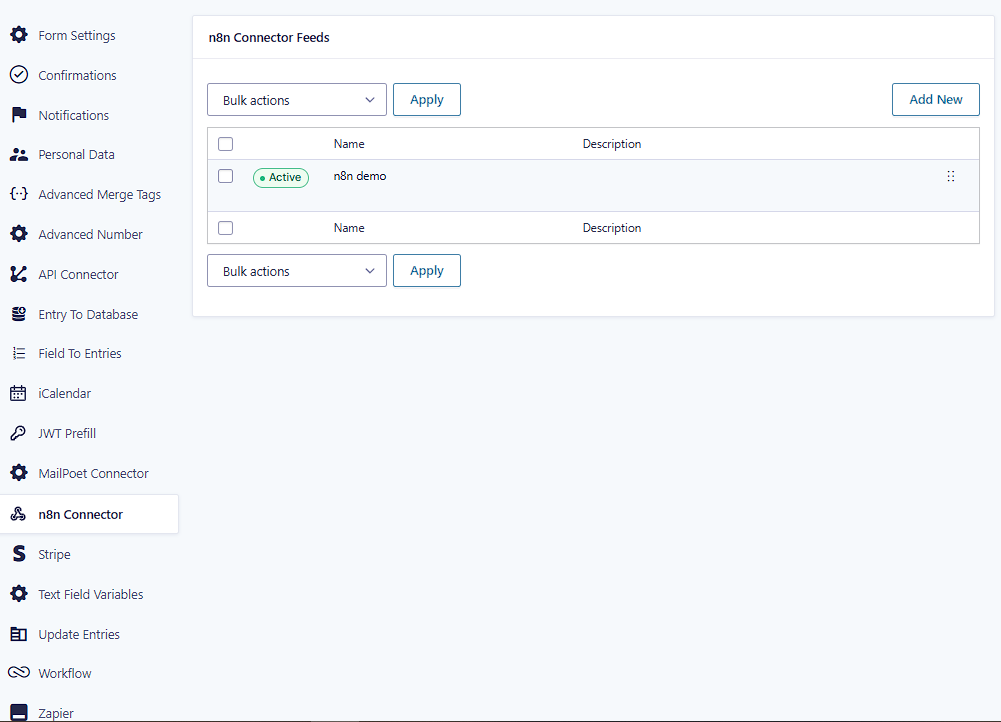
Product: n8n Connector for Gravity Forms.
Documentation: GravityWP n8n Connector docs.
Tested example: Build an AI-powered Gravity Forms workflow with n8n Connector.
Which option should you choose?
Use the table below as a final decision check. The goal is not to choose the most powerful option. It is to choose the least complex option that still supports the workflow you actually need.
| Need | Start with | Why |
|---|---|---|
| Send leads to a supported CRM | Official CRM add-on | Start with the first-party feed before adding another automation layer. |
| Add subscribers to an email list | Official email add-on | Use the native feed if it covers audience, tag, group, and conditional rules. |
| Create or look up Airtable records | Airtable add-on or API Connector | Choose feed mapping for simpler sync; API Connector for custom requests/returned data. |
| Send one outbound HTTP request | Webhooks Add-On | Good when the receiving endpoint already defines the payload and response is not central to the form. |
| Call a custom API and use the response | API Connector | Use when request/response control matters. |
| Connect many apps in a managed platform | Zapier | Use when app support and fast setup matter more than custom hosting. |
| Run a multi-step n8n workflow | n8n Connector | Use when the form is the trigger for a larger n8n process or response mapping is needed. |
Final thoughts
The best choice is the one that matches the workflow behind the form and adds the least unnecessary complexity.
For supported sales or email jobs, start with the official feed. The simple outbound request, start with Webhooks. For a custom API call, use API Connector. For a larger n8n process, use n8n Connector. Use Zapier when its managed app ecosystem is the simplest path for your team.
Before publishing or changing a production form, verify the current plugin or connector version. Check the external platform permissions, authentication method, and exact data direction too. This keeps the setup practical and avoids choosing a tool only because it has more features.
Best Gravity Forms integrations FAQ
Yes. Current first-party options include HubSpot, Salesforce, ActiveCampaign, Mailchimp, Zapier, Webhooks, and many others. License requirements vary, so check the current product page before setup.
Official products are built and maintained by Gravity Forms. Marketplace products are built and supported by third-party developers. Both can be listed on the Gravity Forms site, but support ownership is different.
Use Webhooks when you mainly need to send an HTTP request after submission. Use API Connector when you need more control over GET or POST requests, authentication, dynamic request data, or API responses mapped into Gravity Forms fields.
Yes. Gravity Forms documents its Zapier Add-On as supporting Gravity Forms as both a trigger and an action, so a Zap can start from a form submission or create new form entries from another app.
No. The Marketplace lists third-party Airtable plugins, and GravityWP also has a tested API Connector setup for creating Airtable records from form submissions.
Use n8n Connector when the form submission starts a larger n8n process. It is also useful when you need response modes, request mapping, or response values written back to the original entry.
Our Premium add-ons for Gravity Forms

Entry to Database
Integrates Gravity Forms with internal or external databases, offering flexible mapping of form fields to database columns and real-time synchronization between entries and database rows.

API Connector
Connect Gravity Forms to External API's: Query the API using form field values and automatically fill other form fields with the API response.

List Number Format
With this Gravity Forms Add-on you can change List Field columns into a number field, do calculations within a row or column. Extra merge tags are available with total counts of columns.

List Text
Add features like textarea, placeholder and custom validation to a column or multiple columns in a Gravity Forms List Field.
Read tutorials about

How to Validate Repeatable Contact Rows in Gravity Forms
Learn how to validate repeatable Gravity Forms List field rows with GravityWP List Text. This tutorial shows how to add email and regex validation, test invalid values, and confirm that valid team roster data is stored correctly.

Gravity Forms Airtable Integration: Create Records From Form Submissions
Learn how to build a Gravity Forms Airtable integration with GravityWP API Connector. Send form submissions to Airtable, create new records automatically, and save the returned Airtable Record ID and response back to Gravity Forms.

Gravity Forms Asana Integration: Create Tasks From Form Submissions
Learn how to connect Gravity Forms to Asana with GravityWP API Connector. This tested workflow creates Asana tasks from form submissions and saves the returned task ID and URL back to Gravity Forms.

Gravity Forms Google Calendar Integration: Create Events From Form Submissions
Connect Gravity Forms to Google Calendar with GravityWP API Connector. Learn how to create calendar events from form submissions, map event details, configure OAuth 2.0, handle time zones, and save the returned Event ID and URL.