With GravityWP Field to Entries, you can make Gravity Forms create entries from comma-separated text. Submit one source form, and the add-on creates a separate entry for each item in a target form.
Suppose your web agency receives a list of tasks for a website launch. You want each task in its own record, with the project name attached. We will build that setup here, using the same forms, settings, and task values we tested.
What You Will Build in This Tutorial
One submission to Project Task Request will create three entries in Project Tasks. Each new entry will hold one task and the same project name.
The source form collects the full list. The target form stores the separate task records. This gives you an entry you can open and review for each task, without entering the project name again.
Our example uses Demo website launch as the project name. The tasks are Review homepage, Check contact form, and Test mobile menu. This setup creates the records; staff assignments and task status would need further setup.
Requirements Before You Start
You need Gravity Forms and GravityWP Field to Entries installed and active. You also need access to create forms and change their settings.
Field to Entries added text splitting and custom separators in version 1.2.5. We tested this tutorial on October 22, 2026, with Gravity Forms 3.2.0 and Field to Entries 1.2.8.
Use two separate forms for this example. Gravity Flow is optional and was not needed for our feed setup.
Step 1: Create the Source and Target Forms
The source form receives the list, and the target form receives one task per entry. Create the target form first so you can select it in the feed later.
Create the Project Tasks target form
Create a form called Project Tasks. Add two Single Line Text fields:
- Project Name
- Task
Save the form. These fields will hold the shared project name and one task.
Create the Project Task Request source form
Create a second form called Project Task Request. Add two Single Line Text fields:
- Project Name
- Task (Comma Separated)
Save this form too. The task field holds the whole list before the feed splits it. Your field IDs may differ from those in our screenshots.
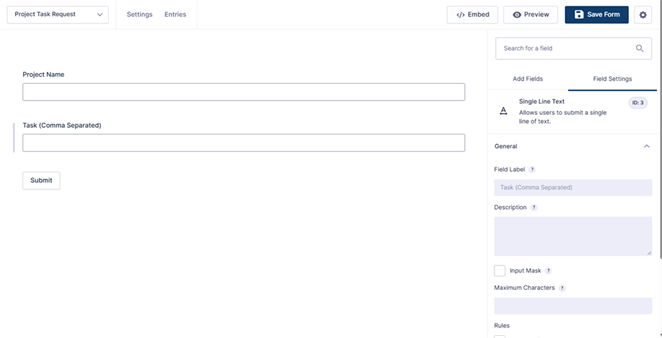
The source form collects a project name and a task list in a Single Line Text field.
Step 2: Add the Field to Entries Feed
Add the feed to Project Task Request, the form you will submit. The feed tells Field to Entries which text to split and where to save the new records.
- Open the source form and go to Settings → Field to Entries.
- Click Add New.
- Set the feed name to Create Project Tasks.
- Choose Task (Comma Separated) as the source field.
- Set Text Field Separator to a comma: ,
- Choose Project Tasks as the target form.
Leave Enable Condition unchecked to match our example. Continue with the field mapping before you save the feed.
Step 3: Map the Project Name and Each Task
Map Project Name to the shared source value. For Task, choose the special Field → Entry value so each new entry gets one item from the list.
| Target field | Source value | What it saves |
| Project Name | Project Name | The same project name in every new entry |
| Task | Field → Entry option for Task (Comma Separated) | One task from the source list |
In the Task mapping, look for the option that starts with Field → Entry. Choose the per-item option for your task field. Then click Save Settings.
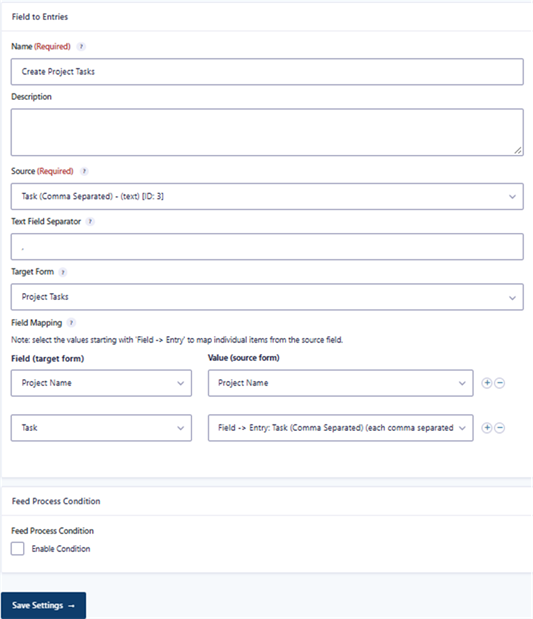
The feed copies Project Name to every entry and maps each separate text item to Task.
Step 4: Submit the Comma-Separated Task List
Open the source form preview and submit a new entry. Use the exact test values below so you can compare your result with ours.
For Project Name, enter:
Demo website launch
For Task (Comma Separated), paste:
Review homepage,Check contact form,Test mobile menu
Use one comma between tasks. Keep spaces that belong inside each task, such as the space between “Review” and “homepage.” For this first test, leave out spaces after the commas.
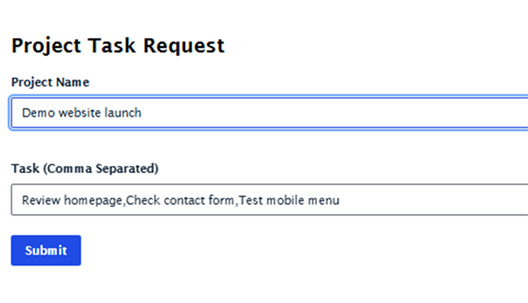
Submit the three tasks together in one Project Task Request entry.
Click Submit once. Next, check both the source entry and the new target records.
Step 5: Check the Source Note and New Entries
Check the feed note for the creation count, then inspect the target entries to confirm their values. A successful count alone does not tell you whether the input was clean.
Check the source entry
Open Project Task Request → Entries and select your new entry. Find the Field to Entries message in its Notes section.
Our source entry, number 151, recorded this result:
Feed Create Project Tasks processed: created 3 entries, 0 failures.
Your entry number may differ. The original source entry still contains the full task list.
Check the target entries
Open Project Tasks → Entries. You should find these three records:
| Project Name | Task |
| Demo website launch | Review homepage |
| Demo website launch | Check contact form |
| Demo website launch | Test mobile menu |

The test created three task entries, each with the same project name.
The entries may appear in a different order on your screen. Check that each task appears once and that every row has the right project name.
Optional: Use a Semicolon When a Task Contains a Comma
Use a different separator when a comma belongs inside a task. We tested a semicolon so “Review homepage, including banners” could stay together as one value.
Open the feed, change Text Field Separator to ;, and click Save Settings before submitting another entry.
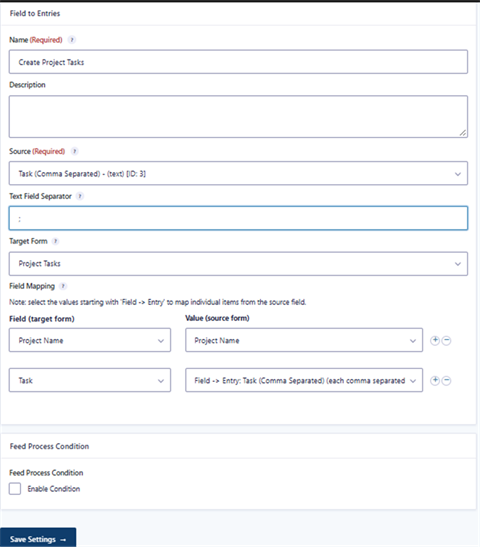
Save a semicolon as the separator before testing task text that contains a comma.
Our second test used Test semicolon corrected as the project name and this task list:
Review homepage, including banners;Check contact form;Test mobile menu
The corrected test created three entries with zero failures. The first task kept its internal comma.

The semicolon test kept the first task’s comma and created three separate records.
Choose a separator that does not appear inside your items. If you return to comma-separated input, change the feed back to a comma and save it again.
Troubleshooting Comma-Separated Entries
Check your input, the saved separator, and the per-item mapping first. These checks address the text-related problems we found during testing.
| What you see | What to check |
| Blank Task entries | Remove consecutive or trailing separators. Our input Review homepage,,Test mobile menu, created four entries, including two blank Task values. |
| Repeated task names | Remove unwanted repeats before submitting. Our repeated-task test kept both copies of Review homepage. |
| The whole list in a target field | Check that Task uses the special Field → Entry mapping for each item. |
| An unexpected entry count | Confirm the separator was saved. Check whether that character appears inside an item. |
| No target entries | Read the source entry note. Check that the feed is active and the mapping is set. If you added a condition, check that the submission meets it. |
The Field to Entries feed documentation also states that spaces around the separator are kept. Use consistent input formatting; do not assume that the feed trims spaces.
In our tests, repeated and empty items were retained. Prepare the list before you submit it, then check the actual target values.
Final Thoughts
You now have a tested way to turn one task list into separate Gravity Forms records. Each task keeps the project name, so the records retain their context.
If your team needs this setup, use Field to Entries to create an entry for each text item. For structured rows or selected choices, follow our tutorial on creating entries from List fields, checkboxes, and Multi Select fields.
Frequently Asked Questions
No. We built and tested this example using Gravity Forms and the Field to Entries feed settings. You need the add-on, two forms, and the field mappings shown above.
The normal feed runs on a new source submission. According to the documentation, editing or importing an existing entry does not run the feed. A Gravity Flow workflow step is a separate option.
No. The documented default is that target notifications and feeds do not run when Field to Entries saves the new records. Check the documented trigger and notification behavior before adding follow-up actions. Our practical tests covered entry creation, separators, and stored values.
Our Premium add-ons for Gravity Forms

Personal Edit Link
Let people correct their own Gravity Forms entries. Send a secure personal link that reopens the form with their saved answers and updates the original entry, with locked fields, audit history and optional Gravity Flow steps.
List Datepicker
Add a Datepicker with calendar select to a column or multiple columns in a Gravity Forms List Field.

DateTime Field
The GravityWP - DateTime Field add-on adds a dedicated Date/Time field to Gravity Forms so users can enter both a date and a time in a single input.

Field to Entries
Create entries based on Checkboxes & Multi Select choices & List Field rows.
Read tutorials about
How to Create Gravity Forms Entriesfrom Comma-Separated Text
Turn a comma-separated task list into separate Gravity Forms entries. Follow our tested Field to Entries setup, mapping, and custom separator example.
How to Validate Repeatable Contact Rows in Gravity Forms
Learn how to validate repeatable Gravity Forms List field rows with GravityWP List Text. This tutorial shows how to add email and regex validation, test invalid values, and confirm that valid team roster data is stored correctly.

Gravity Forms Airtable Integration: Create Records From Form Submissions
Learn how to build a Gravity Forms Airtable integration with GravityWP API Connector. Send form submissions to Airtable, create new records automatically, and save the returned Airtable Record ID and response back to Gravity Forms.

Gravity Forms Asana Integration: Create Tasks From Form Submissions
Learn how to connect Gravity Forms to Asana with GravityWP API Connector. This tested workflow creates Asana tasks from form submissions and saves the returned task ID and URL back to Gravity Forms.