There is no single best way to connect Gravity Forms to another service. Use a service-specific Gravity Forms add-on when it already supports the workflow you need. Go with Webhooks when a form submission mainly needs to send an HTTP request to an external endpoint. Use API Connector when the workflow needs custom API requests, reusable authentication, or response data mapped back into Gravity Forms.
Do not start with “Which tool is most advanced?” Start with the job the WordPress form must do. Ask what it needs to send, receive, or automate. Then check the data direction and authentication needs.
If you already know the platform you want to connect, see our Best Gravity Forms Integrations guide. This article focuses on the connection method. Best Gravity Forms Integrations
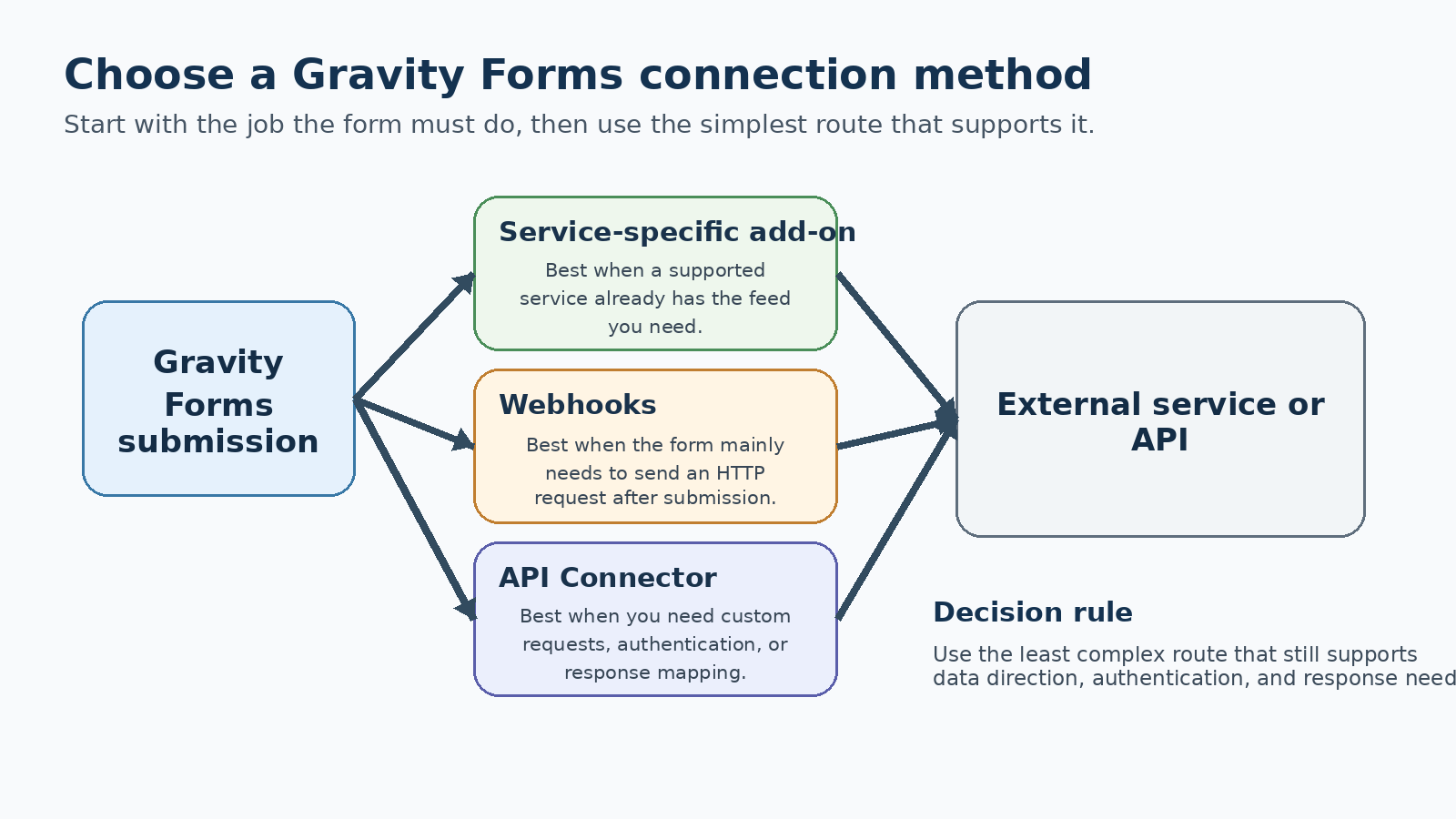
Quick Comparison: Which Gravity Forms Integration Method Fits Your Workflow?
Use this table as the first decision check. A service-specific add-on has features built for one service. Webhooks and API Connector give you more general connection controls.
| Method | Best fit | Data direction | Authentication | Response handling |
|---|---|---|---|---|
| Service-specific add-on | A supported service and standard workflow | Depends on the add-on | Handled by that add-on | Depends on the add-on |
| Webhooks | Send form data to an HTTP endpoint after submission | Primarily outbound request | Headers; advanced auth can require custom configuration or code | Response is available to the Webhooks process, but the standard feed is not a general response-to-field mapper |
| API Connector | Custom API requests, lookups, and response-aware workflows | Request + response | Reusable API Key, Bearer Token, Basic Auth, OAuth 2.0, and other supported connections | Maps supported API response values back into Gravity Forms fields |
How Do Gravity Forms Add-On Feeds Work?
A feed is the configuration that tells Gravity Forms how submission data should be processed by an add-on or external service. Gravity Forms documents feeds as the layer that maps form data, controls feed behavior, and can apply conditions before data is sent. Gravity Forms feed documentation
A service-specific Gravity Forms add-on already targets a known service. You usually connect the account, create a feed, map form fields, and choose the options that add-on supports.
Use this route first when the official Gravity Forms product already supports the service and the feed covers the job. A custom API workflow adds work that may not be necessary for a standard connection.
- The target service already has a Gravity Forms add-on.
- The form mainly needs a standard create, update, subscribe, or send action supported by that add-on.
- You want the least custom setup and maintenance possible.
- The add-on already handles the account connection and field mapping you need.
When Should You Connect Gravity Forms With Webhooks?
The Gravity Forms Webhooks Add-On is designed to make remote HTTP requests when a form is submitted. Its feed settings support GET, POST, PUT, PATCH, and DELETE requests, FORM or JSON request formats, custom headers, selected fields, merge tags, and a Webhook Condition. Webhooks documentation
That makes Webhooks a good fit when the main job is outbound delivery. For example, a form submission can send selected form data to an internal endpoint, an automation platform, or another service that accepts an HTTP request.
Webhooks are not the same as a reusable API client. Advanced authentication can require custom request arguments or headers. The standard Webhooks feed is also not a general tool for mapping response data back into form fields.
- The form mainly needs to send data after submission.
- The destination provides an endpoint URL and accepts the request method and format you can send.
- You need control over request headers, body fields, JSON or FORM format, or conditional execution.
- You do not need a reusable API connection or broad response mapping inside the form.
When Should You Integrate Gravity Forms With API Connector?
GravityWP API Connector v1.5.1 is built for API-driven workflows. It can send GET or POST requests, pass Gravity Forms values into requests, and map supported API response values back into form fields. Recent versions also added JSON body support, nested JSON mappings, a Results Picker, and more target-field behavior controls. API Connector
This route is useful when the form needs more than one-way delivery. It can look up external data or use a reusable authenticated connection. It can also send a structured request and save returned values into the original entry.
- The request needs mapped headers, query parameters, endpoint values, or JSON data.
- The API requires reusable authentication such as API Key, Bearer Token, Basic Auth, or OAuth 2.0.
- The workflow needs external lookups or response-aware form behavior.
- Returned API values need to populate supported Gravity Forms fields.
When Do Gravity Forms Integration Feeds Run?
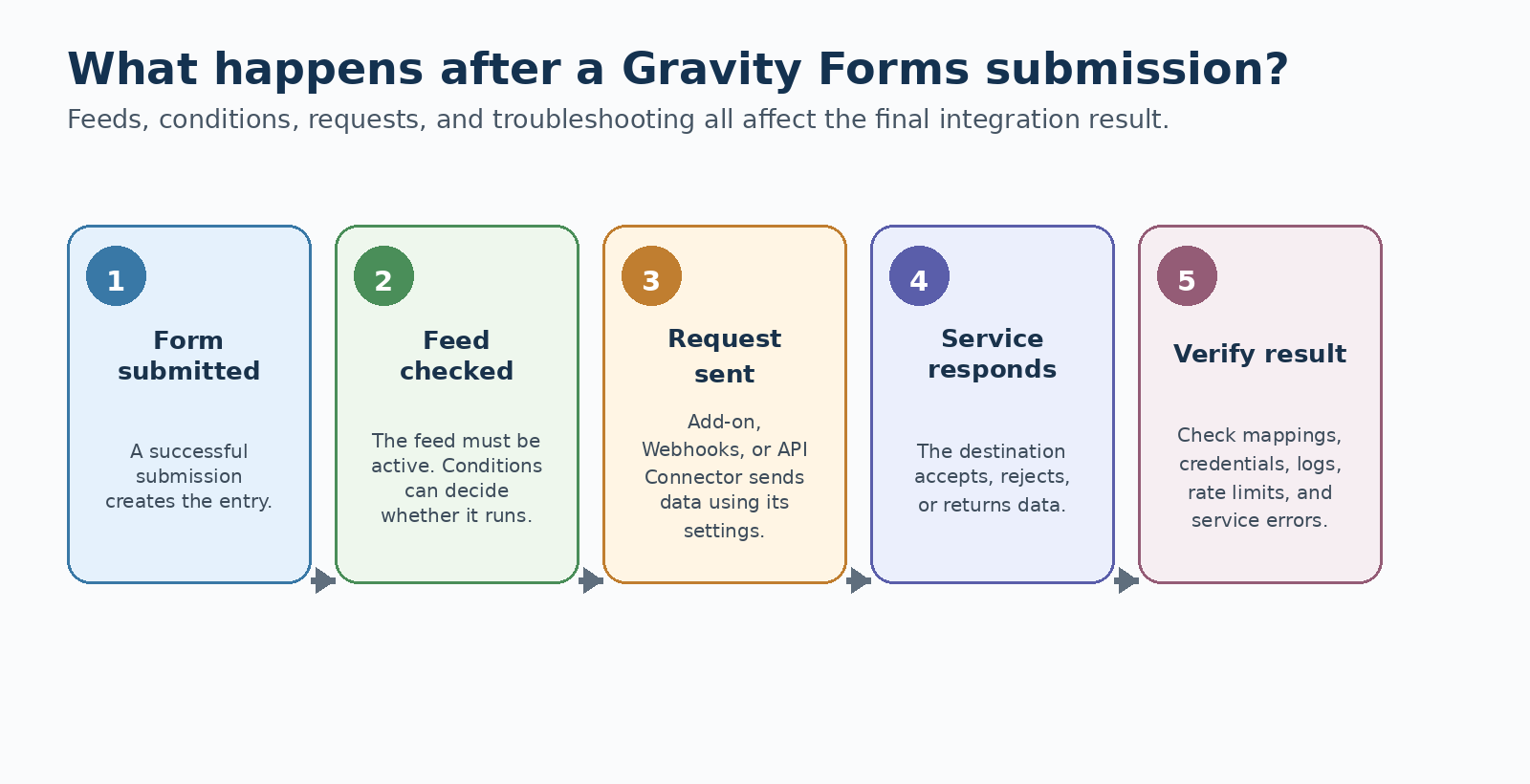
Gravity Forms says standard feeds process asynchronously after a successful submission and after the entry is created. In simple terms, the feed runs in the background. It does not normally delay the confirmation shown to the user.
The feed must be active when the form is submitted. Gravity Forms also states that feeds do not process for entries marked as spam. Creating a new feed later does not automatically send older entries through it.
This timing matters when you troubleshoot an integration. A saved Gravity Forms entry does not by itself prove that the external feed completed successfully.
Can Conditional Logic Control a Gravity Forms Integration?
Yes. Gravity Forms feed conditional logic can decide whether a feed runs based on submitted form data. For example, one CRM feed could run only when “Request Type = Sales,” while a different workflow handles support requests. Conditional logic for feeds
The Webhooks Add-On also includes a Webhook Condition in the feed settings. If the condition is not met, the webhook does not run for that submission.
Conditional logic is useful when one WordPress form serves several business paths. It can prevent unnecessary requests and keep form data from being sent to a service that does not need it.
How Does Authentication Differ Between Add-Ons, Webhooks, and APIs?
Authentication is one of the biggest differences between connection methods.
A service-specific add-on usually handles the account connection inside its own settings. The exact login, token, or authorization method depends on that add-on.
Webhooks can send request headers. Some APIs need more than a simple static header. Gravity Forms documents filters that can change Webhooks request arguments and headers. Advanced cases can require custom code and provider-specific setup.
API Connector stores reusable connections. Its documented methods include API Key, Bearer Token, Basic Auth, OAuth 2.0 Client Credentials, and OAuth 2.0 Authorization Code. The provider still defines the URL, credentials, scopes, and permissions you need.
| Need | Service-specific add-on | Webhooks | API Connector |
|---|---|---|---|
| Service-specific account connection | Often built in | Not the main model | Possible when the provider exposes an API |
| Custom request headers | Depends on add-on | Yes | Yes |
| Reusable API authentication | Depends on add-on | Less natural; advanced cases may need filters/code | Yes |
| API Key / Bearer / Basic Auth | Depends on add-on | Possible when you configure the required request | Documented connection methods |
| OAuth 2.0 workflows | Depends on add-on | Usually requires custom handling | Client Credentials and Authorization Code are documented |
Where Do No-Code Automation Platforms Fit?
Automation platforms can sit between Gravity Forms and other apps. Gravity Forms has an official Zapier Add-On. Zapier can use Gravity Forms as both a trigger and an action. Other platforms may connect through Webhooks, the Gravity Forms REST API, or their own connector.
Use an automation platform when you want to route form data through a managed visual workflow across several apps. If you are choosing a specific platform or service, use the Best Gravity Forms Integrations guide instead.
What Happens When a Gravity Forms Integration Fails?
Start with the feed before changing the whole workflow. Check that the feed is active. Make sure the entry is not spam. Then check the conditions and required field mappings.
If the feed runs but the request fails, check the credentials and the service status. Also check rate limits, field types, and data formats. You can enable Gravity Forms logging while you troubleshoot. Submit fresh test data and inspect the relevant add-on log.
Gravity Forms warns that log files can contain personal or sensitive information. Disable logging and remove the log files after troubleshooting is complete.
For Webhooks, the request can also be inspected through Gravity Forms Webhooks hooks after the request executes. For API Connector, review the request, authentication, endpoint, mappings, and returned response paths used by the feed.
Three Practical Gravity Forms Integration Examples
These examples show how the methods differ. The first two are based on current documentation; they are not new GravityWP staging tests. The API Connector example links to a GravityWP tutorial that documents a tested setup.
Example 1: Service-Specific Add-On Feed
A visitor submits a WordPress form. A supported Gravity Forms add-on processes its feed and maps selected fields to the external service. Conditional logic can decide whether the feed runs. Use this pattern when the add-on already covers the action you need.
Example 2: Webhooks Outbound Request
A form is submitted. The Webhooks feed sends selected data as a POST request to a defined URL. It can use JSON or FORM format, include headers, and select fields. It can also run only when its Webhook Condition is met. Use this pattern when an endpoint mainly needs the form data delivered to it.
Example 3: API Connector Request and Response
GravityWP has published tested API Connector workflows where a form submission creates or retrieves external data and saves returned values back into Gravity Forms. For example, the tested Airtable workflow creates a new Airtable record and saves returned record data into the original entry. This is the response-aware pattern that separates API Connector from a simple outbound webhook. Tested Airtable workflow
Which Gravity Forms Integration Method Should You Choose?
Choose the least complex method that still supports the workflow you actually need.
| If your form needs to… | Start with |
|---|---|
| Connect to a service already supported by a dedicated Gravity Forms product | Service-specific add-on |
| Send form submission data to an HTTP endpoint | Webhooks |
| Control request method, JSON or FORM format, headers, body, and conditions for an outbound request | Webhooks |
| Use reusable API credentials and call custom endpoints | API Connector |
| Run an external lookup and map returned data into form fields | API Connector |
| Route data through a managed no-code workflow across several apps | An automation platform such as Zapier |
| Compare specific CRMs, email tools, databases, or automation services | Best Gravity Forms Integrations guide |
Common Gravity Forms Integration Mistakes to Avoid
- Using a custom API route when a service-specific add-on already handles the workflow.
- Choosing Webhooks when the real requirement is to use returned API data inside Gravity Forms.
- Treating every successful WordPress form submission as proof that the external feed also succeeded.
- Ignoring conditional logic, required field mappings, or spam status when a feed does not run.
- Choosing an authentication method before checking the API provider’s current documentation.
- Leaving Gravity Forms logging enabled after troubleshooting, even though logs can contain sensitive data.
Final Thoughts
The best way to integrate Gravity Forms depends on the job behind the form.
- Use a service-specific add-on when the supported feed already covers the workflow
- Go with Webhooks when the form mainly needs to send an HTTP request after submission
- Use API Connector when the workflow needs custom API control, reusable authentication, external lookups, or response mapping back into Gravity Forms
.
Then verify the real data direction, credentials, conditions, and failure path before you change a production form. That gives you a more reliable integration than choosing a tool only because it has more features.
Gravity Forms Integrations FAQ
Gravity Forms integrations are ways a form can work with another system. A form may send data, receive data, or start automation. Common routes include service-specific add-ons, Webhooks, automation platforms, and custom API connections.
A feed defines how submission data should be processed by an add-on or external service. Active feeds run after successful submissions according to their settings and conditions.
Use a service-specific add-on when Gravity Forms already supports the service and the feed covers the workflow you need. It is usually the simplest route because the integration is already designed for that destination.
Use Webhooks when the form mainly needs to send an HTTP request after submission. The Webhooks Add-On supports several request methods. It also supports JSON or FORM formats, headers, selected fields, merge tags, and conditional execution.
Use API Connector when the workflow needs reusable authentication or custom requests. It also fits external lookups and cases where supported response values must be mapped back into form fields.
Yes. Gravity Forms feed conditional logic can determine whether a feed processes based on submitted field values. The Webhooks feed also includes its own Webhook Condition. Conditional logic for feeds
Yes. Gravity Forms has an official Zapier Add-On. Gravity Forms can act as a Zapier trigger and as an action. A submission can start a Zap, and a Zap can create a Gravity Forms entry.
Check that the feed is active and the entry is not spam. Then check conditional logic, field mappings, and credentials. If needed, enable Gravity Forms logging for a short time and inspect the add-on log with fresh test data.
Our Premium add-ons for Gravity Forms

Advanced Merge Tags
This Gravity Forms Add-On adds extra Merge Tag modifiers (and a lot of power). From the most common used functions like capitalize and length to changing date formats.

n8n Connector
Connect Gravity Forms to n8n and automate your workflows with secure, flexible, and powerful webhooks. Go beyond simple notifications and build advanced, two-way automations.

Advanced Number Field
Functionality for Number Fields, like rounding or only absolute numbers, fixed point notation, range calculation, custom units like % or m2 & show as slider.

DateTime Field
The GravityWP - DateTime Field add-on adds a dedicated Date/Time field to Gravity Forms so users can enter both a date and a time in a single input.
Read tutorials about

How to Validate Repeatable Contact Rows in Gravity Forms
Learn how to validate repeatable Gravity Forms List field rows with GravityWP List Text. This tutorial shows how to add email and regex validation, test invalid values, and confirm that valid team roster data is stored correctly.
Gravity Forms Airtable Integration: Create Records From Form Submissions
Learn how to build a Gravity Forms Airtable integration with GravityWP API Connector. Send form submissions to Airtable, create new records automatically, and save the returned Airtable Record ID and response back to Gravity Forms.

Gravity Forms Asana Integration: Create Tasks From Form Submissions
Learn how to connect Gravity Forms to Asana with GravityWP API Connector. This tested workflow creates Asana tasks from form submissions and saves the returned task ID and URL back to Gravity Forms.

Gravity Forms Google Calendar Integration: Create Events From Form Submissions
Connect Gravity Forms to Google Calendar with GravityWP API Connector. Learn how to create calendar events from form submissions, map event details, configure OAuth 2.0, handle time zones, and save the returned Event ID and URL.