Do you want to add a discount code field to a Gravity Forms order form?
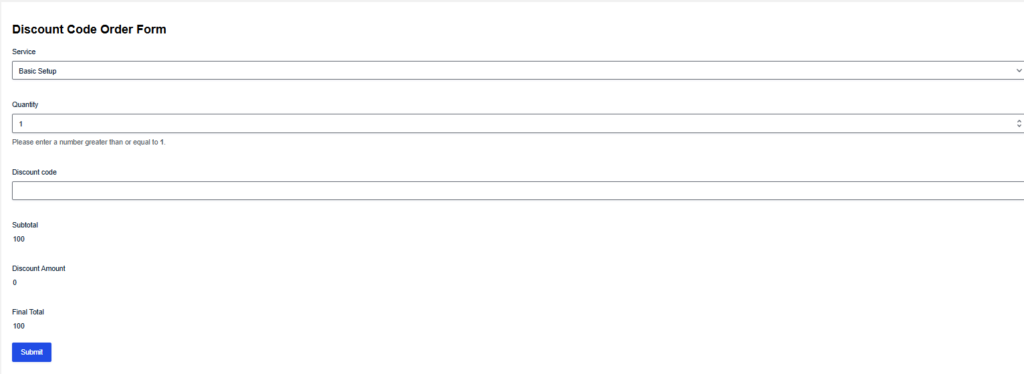
In this tutorial, you will build a simple Gravity Forms discount code setup for fixed and percentage discounts. The form will calculate a subtotal, check the discount code, apply the matching discount, and show the final total.
We tested this with a simple order form. The final setup worked with a fixed discount code, two percentage discount codes, a blank discount code, and an invalid discount code.
The workflow looks like this:
Service price × Quantity = Subtotal
Discount code = Fixed or percentage discount
Subtotal - Discount Amount = Final Total
This tutorial uses Gravity Forms calculation fields and GravityWP Advanced Number Field for calculation-friendly number fields. Gravity Forms supports calculations in Number fields and calculated Product fields, while Advanced Number Field adds options like rounding, fixed decimal places, custom units, and other display controls.
This is not a full ecommerce coupon system. It is a practical form-building setup for quote forms, order forms, booking forms, service request forms, and other simple pricing forms.
What will this Gravity Forms discount code field do?
This setup lets a user enter a coupon code or discount code inside a Gravity Forms form.
The form then checks the entered code and applies the matching discount.
In our test, we used these codes:
| Discount code | Discount type | Discount value |
|---|---|---|
WELCOME25 | Fixed discount | 25 |
SAVE10 | Percentage discount | 10% |
VIP20 | Percentage discount | 20% |
For example:
Service: Advanced Setup
Service value: 250
Quantity: 2
Discount code: SAVE10
Subtotal: 500
Discount Amount: 50
Final Total: 450
This gives you a lightweight Gravity Forms coupon code field without needing a full coupons add-on for every simple pricing use case.
When should you use this instead of the Gravity Forms Coupons Add-On?
Gravity Forms has an official Coupons Add-On and Coupon field for payment-style coupon workflows. The Coupon field uses coupons created with the Coupons Add-On, and Gravity Forms notes that the Coupons Add-On needs at least one Product field and one Total field on the form.
Use this tutorial when you want simple calculation logic inside your form.
| Use this tutorial when… | Use a coupons add-on when… |
|---|---|
| You need a simple quote or order form discount | You need checkout-style coupons |
| You want fixed or percentage discounts in calculations | You need coupon feeds |
| You want to control the calculation fields yourself | You need usage limits or expiration dates |
| You are building a pricing estimate form | You need a full coupon management system |
This tutorial is best when you want to offer discounts inside a WordPress form without building a full coupon system.
What you need before you start
You need:
A WordPress site
Gravity Forms installed
GravityWP Advanced Number Field installed
A form where you want to calculate prices
Access to edit Gravity Forms fields
GravityWP Advanced Number Field extends the default Gravity Forms Number field with options such as rounding, fixed point notation, absolute values, custom units like %, and slider display options.
For this tutorial, the main goal is the calculation workflow. Advanced Number Field helps make the subtotal, discount amount, and final total easier to format and display.
Step 1: Create the Discount Code Order Form
In WordPress, go to:
Forms → New FormName the form:
Discount Code Order FormAdd these fields:
| Field label | Field type |
|---|---|
| Service | Drop Down |
| Quantity | Number |
| Discount code | Single Line Text |
| Subtotal | Number Field |
| SAVE10 Discount | Number Field |
| WELCOME25 Discount | Number Field |
| VIP20 Discount | Number Field |
| Discount Amount | Number Field |
| Final Total | Number Field |
During testing, keep the helper discount fields visible. This makes it easier to see which coupon code is working.
Later, you can hide the helper fields and only show:
- Subtotal
- Discount Amount
- Final Total
Step 2: Add the Service field with calculation values
Open the Service dropdown field.
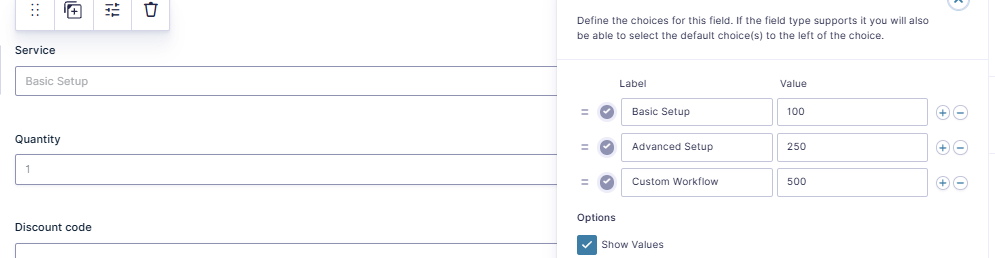
Add these choices:
| Label | Value |
|---|---|
| Basic Setup | 100 |
| Advanced Setup | 250 |
| Custom Workflow | 500 |
Enable:
Show ValuesThis part is important.
The Label is what the user sees in the form. The Value is what Gravity Forms uses in the calculation.
So the user sees:
Advanced SetupBut the calculation uses:
250In our first test, the subtotal showed 0 because the Service field was not using numeric values correctly. After enabling Show Values and adding numeric values, the subtotal calculated correctly.
One note: because the dropdown uses numeric values, the saved entry may show 250 or 500 instead of “Advanced Setup” or “Custom Workflow.” That is expected when using dropdown values for calculation logic.
Step 3: Add the Quantity and Discount code fields
For Quantity, use a Number field.
Recommended settings:
Default value: 1
Minimum value: 1
For Discount code, use a Single Line Text field.
Use this label:
Discount codeThe user can enter codes like:
SAVE10WELCOME25VIP20
Use the same uppercase code in your conditional logic. If the entered code does not match, the discount will not apply.
Step 4: Calculate the Subtotal
Open the Subtotal field.
Enable calculation.
Use this formula:
{Service} * {Quantity}Use the Gravity Forms merge tag picker to insert your real field merge tags.
Your formula may look like this:
{Service:13} * {Quantity:12}The exact field IDs will depend on your form.
Example:
Advanced Setup = 250
Quantity = 2
Subtotal = 500
Gravity Forms recommends following its calculation rules when building formulas, especially around number formatting and calculation field setup.
Step 5: Create the fixed and percentage discount fields
Now create three helper discount fields:
- SAVE10 Discount
- WELCOME25 Discount
- VIP20 Discount
These fields calculate the discount amount for each code.
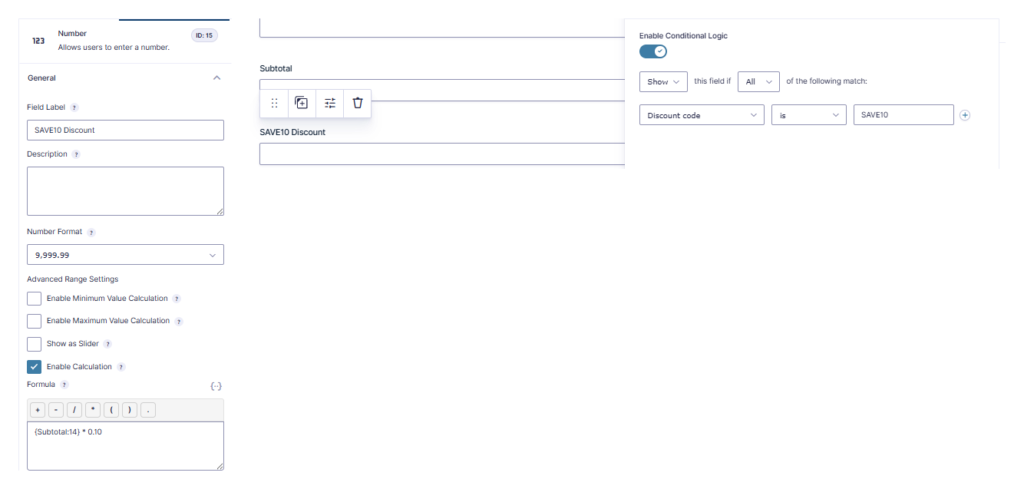
SAVE10 percentage discount
Open the SAVE10 Discount field.
Enable calculation.
Formula:
{Subtotal} * 0.10Then enable conditional logic:
Show this field if Discount code is SAVE10This creates a 10% discount.
WELCOME25 fixed discount
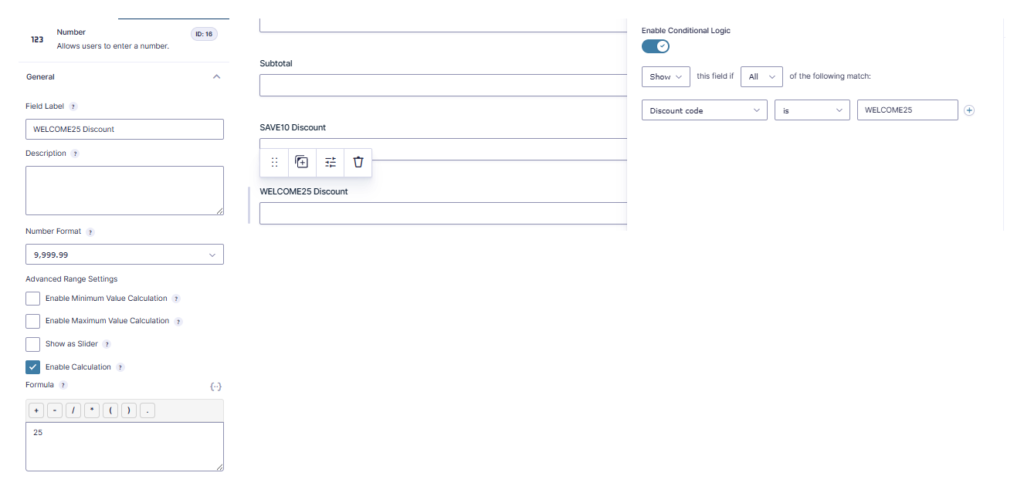
Open the WELCOME25 Discount field.
Enable calculation.
Formula:
25Then enable conditional logic:
Show this field if Discount code is WELCOME25This creates a fixed 25 discount.
VIP20 percentage discount
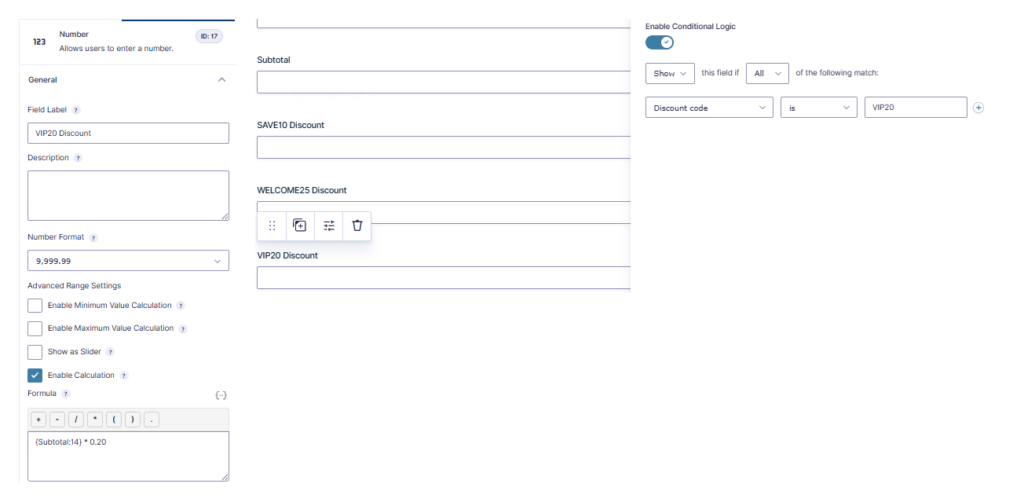
Open the VIP20 Discount field.
Enable calculation.
Formula:
{Subtotal} * 0.20Then enable conditional logic:
Show this field if Discount code is VIP20This creates a 20% discount.
Step 6: Calculate the Discount Amount
Open the Discount Amount field.
Enable calculation.
Use this formula:
{SAVE10 Discount} + {WELCOME25 Discount} + {VIP20 Discount}Use the merge tag picker to insert the exact field merge tags.
Your formula may look like this:
{SAVE10 Discount:15} + {WELCOME25 Discount:16} + {VIP20 Discount:17}Only one helper discount field should appear at a time. So the Discount Amount field collects the active discount.
If the discount code is blank or invalid, none of the helper discount fields apply. The Discount Amount stays 0.

Step 7: Calculate the Final Total
Open the Final Total field.
Enable calculation.
Use this formula:
{Subtotal} - {Discount Amount}Your formula may look like this:
{Subtotal:14} - {Discount Amount:18}Example:
Subtotal: 500
Discount Amount: 50
Final Total: 450
This gives you the final price after the Gravity Forms discount code is applied.

Step 8: Test the discount code field
Now test the form before using it on a live page.
We tested these cases:
| Test | Expected result | Actual result |
|---|---|---|
| Basic Setup × 1, no code | Subtotal 100, Discount 0, Final Total 100 | Passed |
Advanced Setup × 1, TEST123 | Subtotal 250, Discount 0, Final Total 250 | Passed |
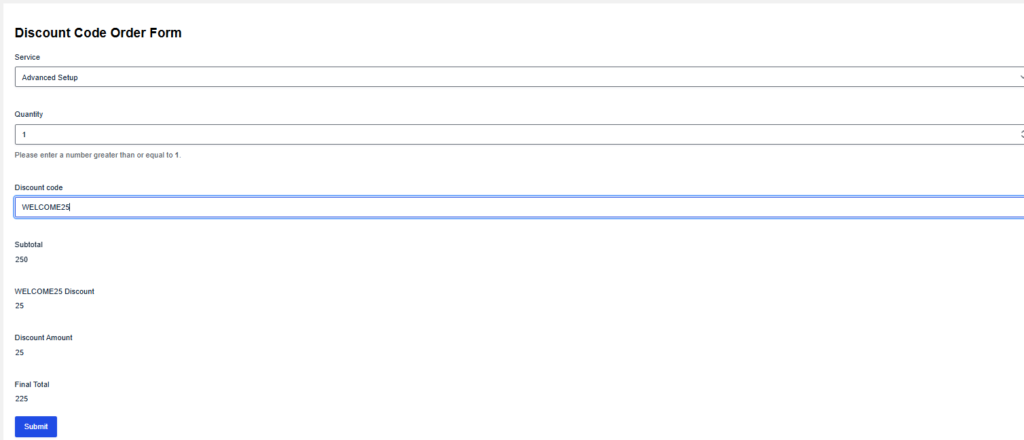
Advanced Setup × 1, WELCOME25 | Subtotal 250, Discount 25, Final Total 225 | Passed |
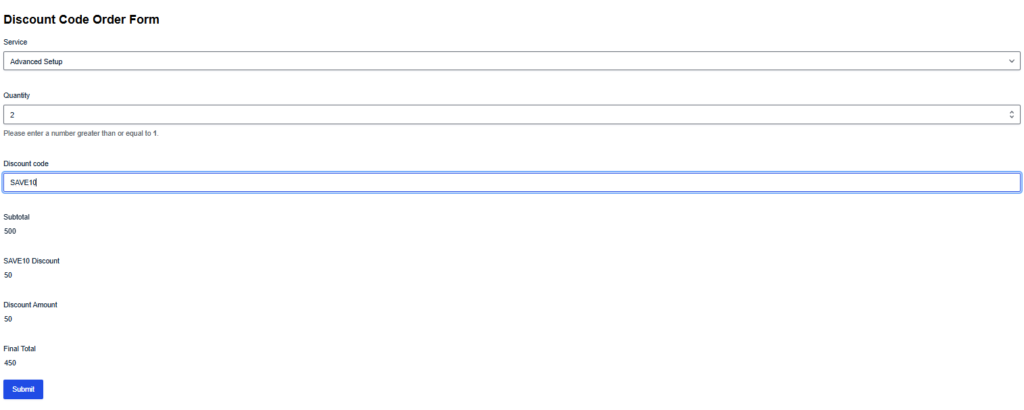
Advanced Setup × 2, SAVE10 | Subtotal 500, Discount 50, Final Total 450 | Passed |
Custom Workflow × 1, VIP20 | Subtotal 500, Discount 100, Final Total 400 | Passed |
This confirms the tested workflow:
- Valid discount code = matching discount
- Blank or invalid discount code = no discount
- Subtotal – Discount Amount = Final Total
Step 9: Clean up the form before publishing
During testing, it is helpful to show every helper discount field.
For a live form, that may look too technical.
You can show only these fields to the user:
- Service
- Quantity
- Discount code
- Subtotal
- Discount Amount
- Final Total
Then hide or set these helper fields to Administrative visibility:
- SAVE10 Discount
- WELCOME25 Discount
- VIP20 Discount
Gravity Forms explains that Administrative visibility hides a field from the public form while keeping it available in entries.
You can also rename the user-facing fields:
| Technical label | User-friendly label |
|---|---|
| Subtotal | Subtotal |
| Discount Amount | Discount Applied |
| Final Total | Total Due |
Common issues when building a Gravity Forms discount code
The subtotal shows 0
This usually means the Service field is using text labels instead of numeric values.
Fix it by enabling Show Values in the Service dropdown field. Then add numeric values like 100, 250, and 500.
The discount code does not apply
Check the conditional logic.
The code must match exactly.
For example:
SAVE10is not the same as:
Save10Use uppercase codes in the tutorial and in the form.
The final total is negative
This can happen when the discount field works, but the subtotal is 0.
For example:
Subtotal: 0
Discount Amount: 25
Final Total: -25
Fix the Subtotal calculation first.
The entry shows 250 instead of Advanced Setup
This happens because the Service dropdown uses numeric values for calculations.
The form stores the value used in the calculation. So the entry may show:
250instead of:
Advanced SetupThat is expected.
The Discount Amount stays 0
Check that the helper discount fields are included in the Discount Amount formula.
Also check that the helper fields are not hidden by the wrong conditional logic.
Can this replace a full coupon add-on?
This setup is useful for simple discount code logic in a form.
It is not a full coupon management system.
A full coupon system may be better if you need:
- Usage limits
- Expiration dates
- Multiple coupons
- One-time coupon codes
- Payment checkout coupon fields
- Large coupon libraries
- Seasonal promotions
Gravity Forms has official coupon tools for coupon fields and coupon add-on workflows. Those are better suited for full coupon management, while this tutorial is better for simple calculation-based discounts.
Conclusion
You now have a tested Gravity Forms discount code field that can apply fixed and percentage discounts in a form.
The form calculates a subtotal, checks the discount code, calculates the discount amount, and shows the final total.
This works well for quote forms, order forms, booking forms, service request forms, and simple pricing forms where you want discount logic without a full ecommerce coupon system.
FAQ
Yes. This tutorial shows one way to create a Gravity Forms discount code field using conditional logic and calculation fields.
Yes. In our test, SAVE10 applied a 10% discount and VIP20 applied a 20% discount.
Yes. In our test, WELCOME25 applied a fixed 25 discount.
Yes, for simple calculation-based coupon logic. For full coupon management, the Gravity Forms Coupons Add-On may be more suitable.
In our tested setup, an invalid code applies no discount. The subtotal remains the final total.
Yes. After testing, you can hide the helper discount fields or set them to Administrative visibility.
You can use the same idea for pricing logic, but payment forms may need extra testing. If you need checkout-style coupons, usage limits, expiration dates, or payment-specific coupon behavior, use a proper coupon add-on workflow.
Our Premium add-ons for Gravity Forms

JWT Prefill
Fill forms with data you can trust. Prefill Gravity Forms fields with a secure token instead of links with editable url parameters, so your data is accurate, tamper-proof, and ready to use.

Dynamic Labels
One form, different questions: field labels and texts come from another form's entry, such as a grant, vacancy or course.

List Dropdown
Add a Dropdown Select with choices to a column or multiple columns in a Gravity Forms List Field.

Update Multiple Entries
Trigger the update of multiple entries in a target form by submitting an entry in a trigger form.
Read tutorials about
How to Create an Event Registration Form for Workshops
Create an event registration form for workshops in WordPress. Learn which attendee details to collect, how to configure confirmation emails and how to update workshop dates for confirmed registrations using GravityWP Update Multiple Entries.
How to Create Gravity Forms Entries from Comma-Separated Text
Turn a comma-separated task list into separate Gravity Forms entries. Follow our tested Field to Entries setup, mapping, and custom separator example.

How to Validate Repeatable Contact Rows in Gravity Forms
Learn how to validate repeatable Gravity Forms List field rows with GravityWP List Text. This tutorial shows how to add email and regex validation, test invalid values, and confirm that valid team roster data is stored correctly.

Gravity Forms Airtable Integration: Create Records From Form Submissions
Learn how to build a Gravity Forms Airtable integration with GravityWP API Connector. Send form submissions to Airtable, create new records automatically, and save the returned Airtable Record ID and response back to Gravity Forms.