If you spend a lot of time on the Gravity Forms entries page of your forms, Admin Columns Pro helps you to speed things up. You can quickly create and save complex filters for your entries based on one or multiple field values and edit entries inline or in bulk.
Complex admin filters for Gravity Forms entries
Gravity Forms without Admin Columns Pro only provides an option to filter on one field in your form. In most cases that is sufficient, but when you’re working with a lot of entries and want to quickly filter them, it can be handy to filter on a combination of fields in your Form. That’s where Admin Columns Pro comes in.
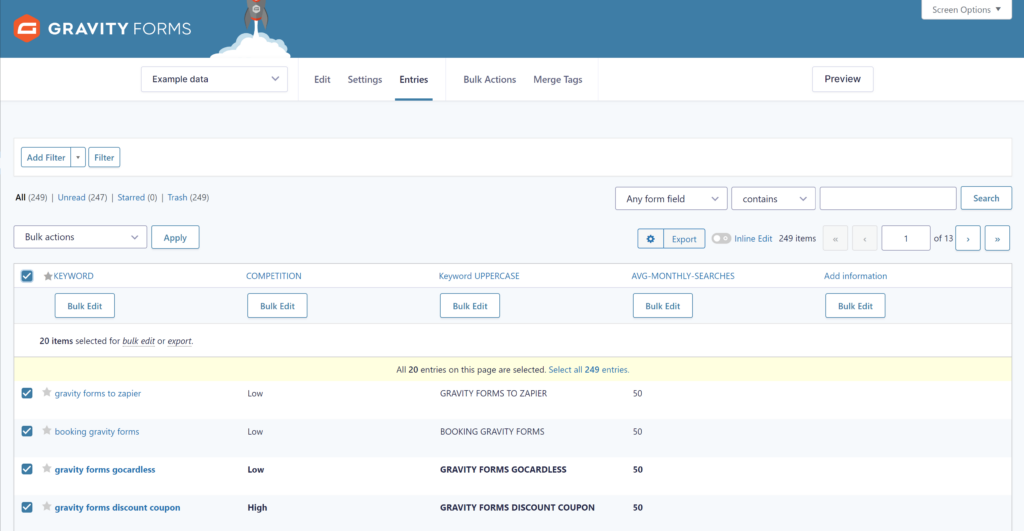
After activating Admin Columns Pro, you’ll see some extra functionalities on your Gravity Forms Entries page. On the top you can add one or more filters settings to quickly filter your Gravity Forms entries based on multiple fields.
After configuring your complex filter, you can save it (and even make the filter available for all other users with permission to see the Gravity Forms entries page). You can create and save multiple complex filters to quickly get the overview of entries you need.
Inline Edit Gravity Forms Entries
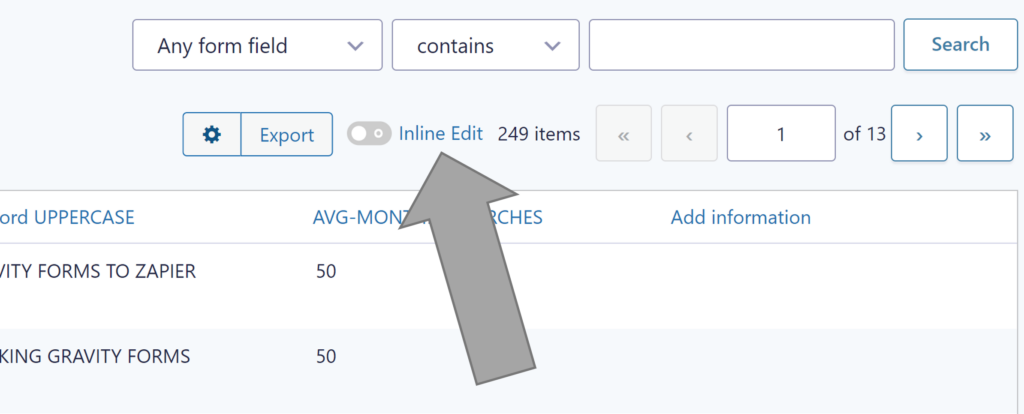
Another extra functionality is Inline Edit. You can switch that on or off with the toggle above your entries:
When Inline Edit is enabled, the edit options will appear when hovering an entry with your mouse pointer. You can quickly edit and change a single field value or delete the value from the field in that specific entry:
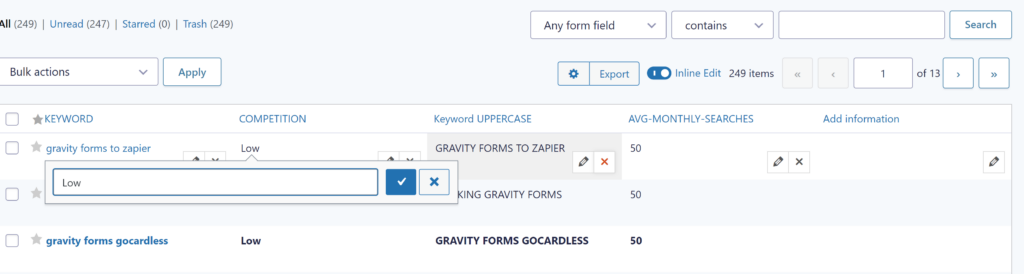
In case you accidentally removed a value, you can easily undo your delete action by clicking the arrow back. This also works when editing the value. The undo (revert) action only works when you stay on the page. After reloading the page you can’t go back anymore.

Bulk Edit Gravity Forms entries
The most powerful functionality Admin Columns Pro adds to your Gravity Forms entries page is Bulk Edit. Especially in combination with the complex filter (filtering entries on values in multiple fields), you can quickly target all the entries you want to edit in bulk. Admin Columns Pro shows the Bulk Edit option after you select one, multiple or all entries on your screen with buttons under the table header. You can see an example here in action:
Extra settings per column on the Gravity Forms entries page
Admin Columns Pro also adds options to finetune the columns on your Gravity Forms entries page:
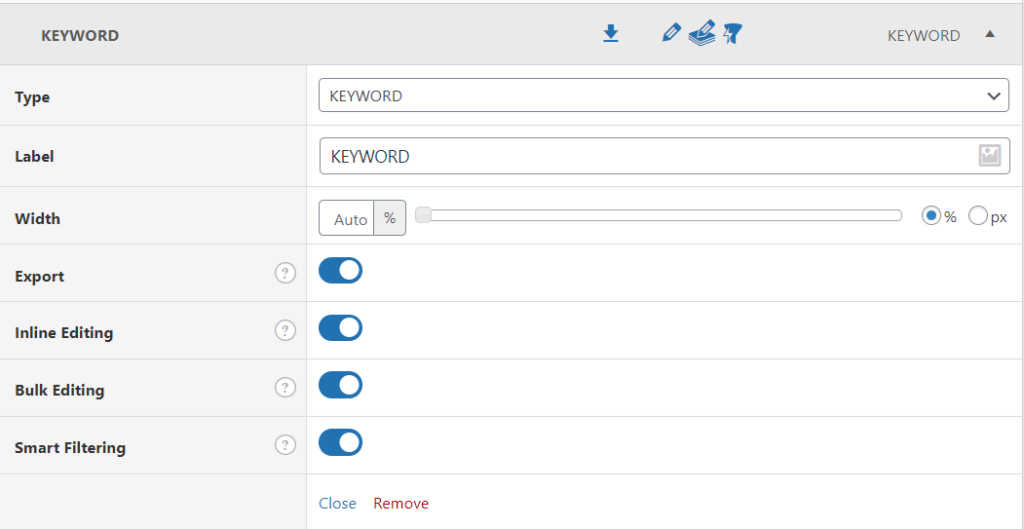
You can quickly change the text of the columns (or summarize if it’s too long for the table header column), set a width of the column in percentage or pixels and turn functionalities on or off for that specific column (Gravity Forms Field). Per column you can define if Export, Inline Editing, Bulk Editing and Smart Filtering is enabled for that specific Gravity Forms field.
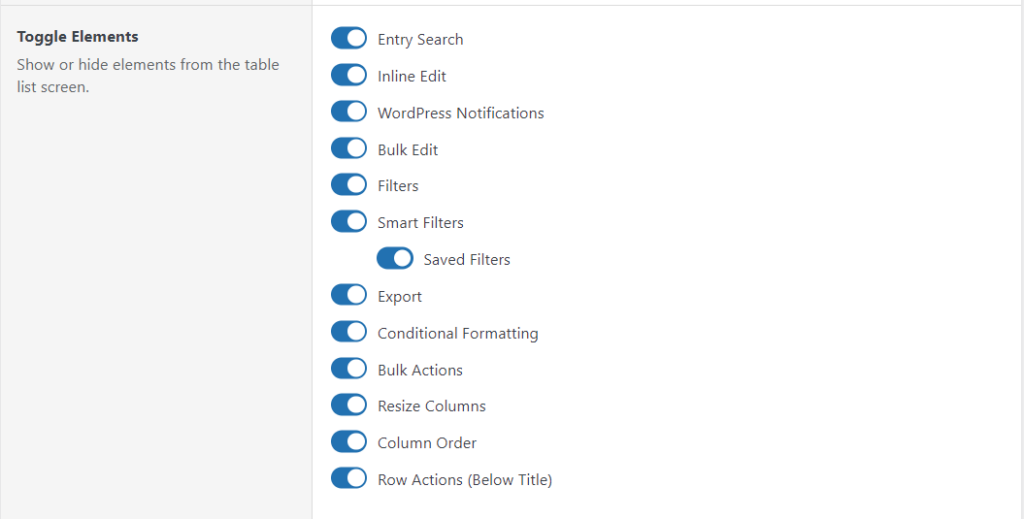
Besides that you can also toggle functionalities on or off for the specific Form you want to adjust. This applies to the whole Gravity Forms entries page, so not on specific columns.
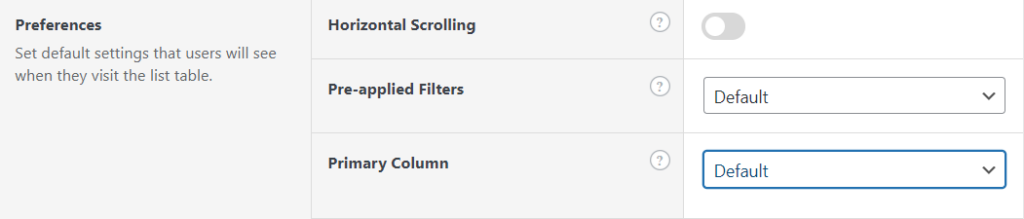
And you can enable Horizontal Scrolling, pick a saved, complex filter to start with when loading the Gravity Forms entries page (pre-applied filters) and define a Primary Column:
CSV export filtered Gravity Forms Entries
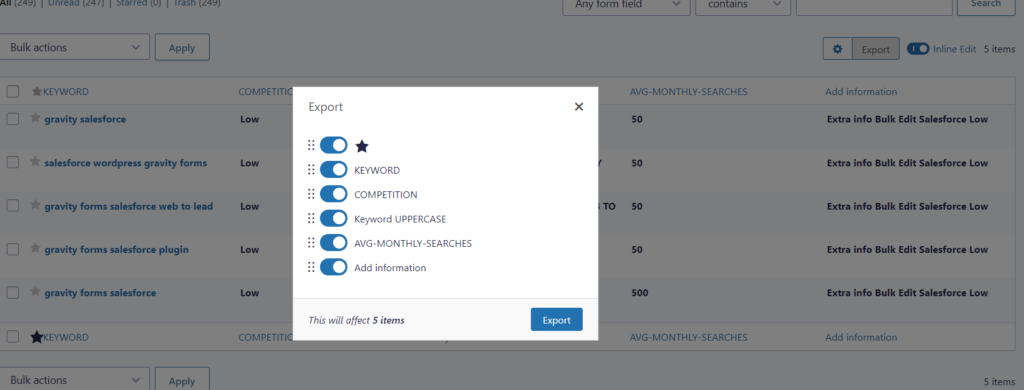
Another extra is downloading your selected (and filtered) Gravity Forms entries to a CSV file. After clicking the Export button (next to the Inline Edit toggle), you can export the filtered entries to CSV, reorder the columns in the CSV file and turn certain fields on or off:
Our Premium add-ons for Gravity Forms

Advanced Merge Tags
This Gravity Forms Add-On adds extra Merge Tag modifiers (and a lot of power). From the most common used functions like capitalize and length to changing date formats.

DateTime Field
The GravityWP - DateTime Field add-on adds a dedicated Date/Time field to Gravity Forms so users can enter both a date and a time in a single input.

List Dropdown
Add a Dropdown Select with choices to a column or multiple columns in a Gravity Forms List Field.
List Datepicker
Add a Datepicker with calendar select to a column or multiple columns in a Gravity Forms List Field.
Read tutorials about

Gravity Forms Airtable Integration: Create Records From Form Submissions
Learn how to build a Gravity Forms Airtable integration with GravityWP API Connector. Send form submissions to Airtable, create new records automatically, and save the returned Airtable Record ID and response back to Gravity Forms.

Gravity Forms Asana Integration: Create Tasks From Form Submissions
Learn how to connect Gravity Forms to Asana with GravityWP API Connector. This tested workflow creates Asana tasks from form submissions and saves the returned task ID and URL back to Gravity Forms.

Gravity Forms Google Calendar Integration: Create Events From Form Submissions
Connect Gravity Forms to Google Calendar with GravityWP API Connector. Learn how to create calendar events from form submissions, map event details, configure OAuth 2.0, handle time zones, and save the returned Event ID and URL.

Gravity Forms Notion Integration: Create Database Pages Without Zapier
Connect Gravity Forms to Notion without Zapier. This tested tutorial shows how to create Notion database pages from form submissions and save the returned page ID, URL, creation time, and API response.