Gravity Forms doesn’t offer a colorpicker as one of their standard fields. JetSloth released a Gravity Forms Add-On to include a color-picker in your form. It hooks into several Standard Fields like ‘Single Line Text’, ‘Radio Buttons’ and ‘Checkboxes’.
Gravity Forms Color Picker
JetSloth built their Gravity Forms Color Picker add-on off the back of their own popular Image Choices add-on for Gravity Forms. The GF Color Picker add-on works straight out of the box. Simply tick on the ‘use colors’ option when you add any checkbox or radio based field. Gravity Forms Color Picker supports radio fields, checkbox fields and single text line fields.
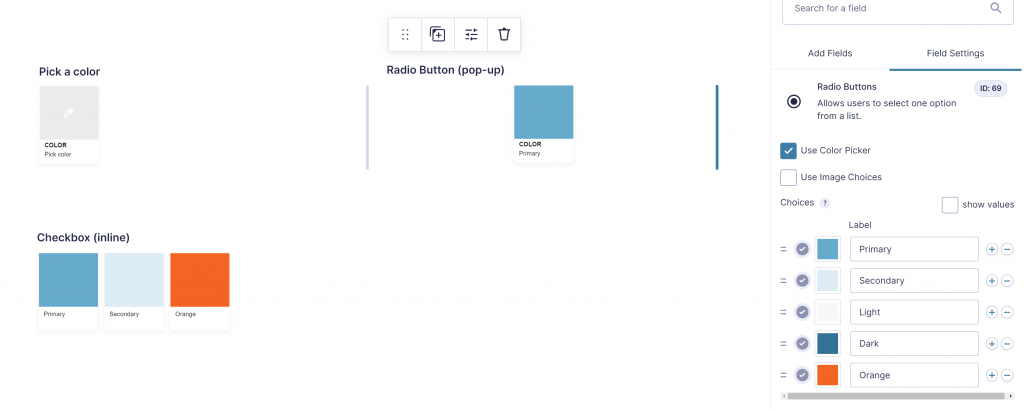
Using color picker in Single Line Text
This JetSloth plugin adds a checkbox to the ‘General’ tab of the Single Line Text to choose Use Color Picker.
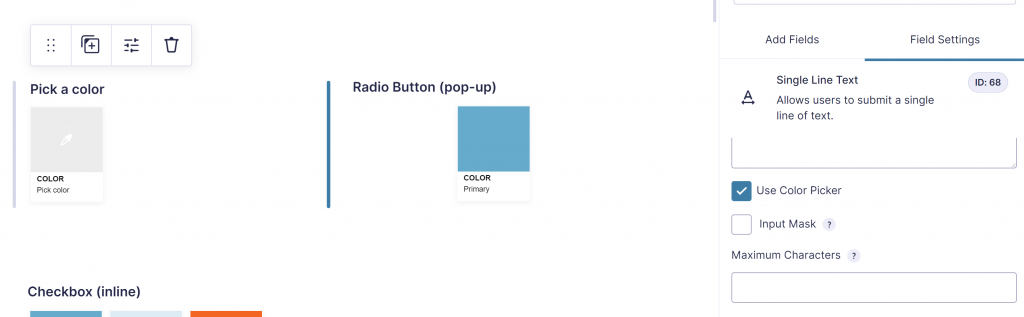
Using color picker in Radio Buttons
The Radio Buttons field allows users to select one option from a list. Only one option from the available choices can be selected. It is available under the Standard Fields section within the form editor. JetSloth hooks in on the default Radio Buttons to add a color option.
Our Premium add-ons for Gravity Forms

All Entries
All your new Gravity Forms entries in one central place. Stop navigating between multiple forms to find new entries. Get immediate oversight and full control with a powerful, unified dashboard.
List Datepicker
Add a Datepicker with calendar select to a column or multiple columns in a Gravity Forms List Field.

List Number Format
With this Gravity Forms Add-on you can change List Field columns into a number field, do calculations within a row or column. Extra merge tags are available with total counts of columns.

Advanced Number Field
Functionality for Number Fields, like rounding or only absolute numbers, fixed point notation, range calculation, custom units like % or m2 & show as slider.
Read tutorials about

How to Validate Repeatable Contact Rows in Gravity Forms
Learn how to validate repeatable Gravity Forms List field rows with GravityWP List Text. This tutorial shows how to add email and regex validation, test invalid values, and confirm that valid team roster data is stored correctly.

Gravity Forms Airtable Integration: Create Records From Form Submissions
Learn how to build a Gravity Forms Airtable integration with GravityWP API Connector. Send form submissions to Airtable, create new records automatically, and save the returned Airtable Record ID and response back to Gravity Forms.

Gravity Forms Asana Integration: Create Tasks From Form Submissions
Learn how to connect Gravity Forms to Asana with GravityWP API Connector. This tested workflow creates Asana tasks from form submissions and saves the returned task ID and URL back to Gravity Forms.

Gravity Forms Google Calendar Integration: Create Events From Form Submissions
Connect Gravity Forms to Google Calendar with GravityWP API Connector. Learn how to create calendar events from form submissions, map event details, configure OAuth 2.0, handle time zones, and save the returned Event ID and URL.

