In some cases you want to show some fields as ‘Read only’ in Gravity Forms. Especially when you use Dynamic Population, you may want to only show the information without visitors of the site being able to change this information.
How to make a Gravity form field Read Only?
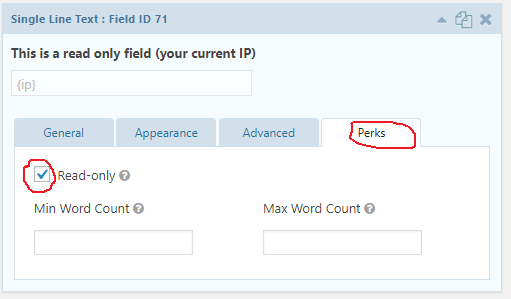
There is a very easy solution to this, the great plugin Gravity Perks, which give you lots of easy enhancements to Gravity Forms. When you have installed it, go to the Gravity Forms formbuilder and select the form field you want to mak read only. Click the Perks Tab and select read-only. That’s it!
How to CSS style your Read Only Gravity Forms fields?
You can style your Read Only field in Gravity Forms quite easily. For example putting a blue border around the Read Only field, try this in your .css file (or custom css functionality in your Theme):
input[readonly],
select[readonly],
textarea[readonly],
.gform_wrapper [disabled='disabled'],
.gform_wrapper input[disabled='disabled']  {
     border: 1px solid #007BC7;
}
Our Premium add-ons for Gravity Forms

Field to Entries
Create entries based on Checkboxes & Multi Select choices & List Field rows.

DateTime Field
The GravityWP - DateTime Field add-on adds a dedicated Date/Time field to Gravity Forms so users can enter both a date and a time in a single input.

Advanced Number Field
Functionality for Number Fields, like rounding or only absolute numbers, fixed point notation, range calculation, custom units like % or m2 & show as slider.

List Number Format
With this Gravity Forms Add-on you can change List Field columns into a number field, do calculations within a row or column. Extra merge tags are available with total counts of columns.
Read tutorials about

Gravity Forms Zoho CRM Integration: How to Auto-Populate Form Fields by Email
Learn how to auto-populate Gravity Forms from Zoho CRM using GravityWP API Connector. This tutorial shows how to search Zoho Contacts by email and fill form fields with the returned data.

How to Create a Public Submission Business Directory in WordPress (Gravity Forms + GravityView)
Build a moderated business directory where users submit listings through a form, admins approve entries, and approved businesses appear in a searchable GravityView directory.

How to Create an Event Workshop Registration + Waitlist System in WordPress
This guide shows how to set up a workshop registration + waitlist system in WordPress: register attendees until capacity is reached, waitlist the rest, approve entries, and auto-promote people when a seat opens using Gravity Forms, Gravity Flow, and GravityView.

Gravity Flow Form Submission Step Tutorial
The Gravity Flow Form Submission step pauses a workflow until another form is submitted, then continues once the handoff is complete. This guide shows how to connect two forms, prefill fields with mapping, send the correct secure link, and troubleshoot the most common “workflow didn’t move” issues.