What are Gravity Flow workflow steps? They control what happens to a Gravity Forms entry after submission. Use Approval for decisions, User Input for changes to fields, Notification for emails, and Outgoing Webhook for external requests. Choice Routing directs entries by a selected form value. Form Connector adds steps that work with other form entries.
This guide compares each step type, shows when to use it, and explains which features need an extension. For longer setup walkthroughs, see our Gravity Flow tutorials below.
Gravity Flow Step Types at a Glance
The step-type list depends on your active plugins. Our practice site showed 14 options in Gravity Flow 3.1.2 with Form Connector 2.8.1 and other add-ons enabled.
| Step type | What it does | Source | Example |
|---|---|---|---|
| Approval | Ask an assignee to approve or reject an entry. | Core | Manager review |
| User Input | Let an assignee edit chosen entry fields. | Core | Request corrections |
| Notification | Send workflow emails at a set stage. | Core | Send a status email |
| Choice Routing | Send an entry to a next step based on a form choice. | Core (3.1+) | Route requests by team |
| Outgoing Webhook | Send data to an external service. | Core | Notify an external API |
| Update User | Update a WordPress user profile or meta. | Core | Update account data |
| New Entry | Create an entry in a target form. | Form Connector | Create an internal task |
| Update an Entry | Update a known entry using its entry ID. | Form Connector | Sync a task status |
| Update Fields | Change fields in the current entry. | Form Connector | Look up and fill values |
| Delete an Entry | Trash or permanently delete an entry. | Form Connector | Run a retention step |
| Form Submission | Wait for another assigned form submission. | Form Connector | Collect a follow-up form |
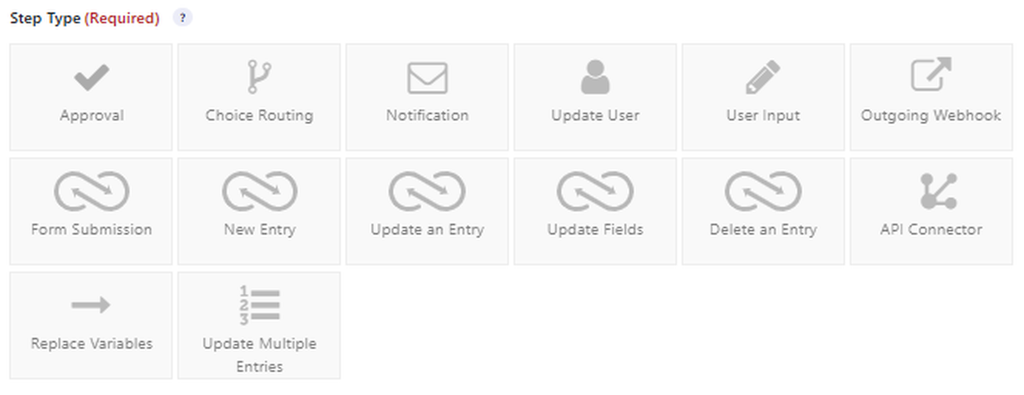
The five original core step types appear in the Gravity Flow step-type documentation. Choice Routing was added in Gravity Flow 3.1.0. The five cross-form steps come from Form Connector.
How to Choose the Right Workflow Step
Start with the task, not the setting. If someone must decide, choose Approval. If someone must change data, choose User Input. Use a Notification for an email, or an Outgoing Webhook when another system needs a request. Use Choice Routing to send different form choices to different steps.
For cross-form work, use Form Connector. New Entry creates a record; Update an Entry changes a known record; Form Submission waits for a linked form to be sent. These have different jobs, even when one business process uses several of them.
Six Core Gravity Flow Step Types
User Input: Let an Assignee Edit Entry Fields
A User Input step assigns work to a user, role, or supported assignee. You choose the editable fields and what the assignee can view. For example, HR can add an onboarding date after a new employee submits a form. Assignees may also be able to save progress before they complete the step, depending on its settings.
Choose User Input when a person needs to provide or correct data. Choose Approval when that person needs to make a decision.
Approval: Approve, Reject, or Request Changes
An Approval step asks one or more assignees to decide whether an entry should continue. The approval policy can require one approver or all selected assignees. Settings can also route approved and rejected entries to different next steps, and support returning work for changes.
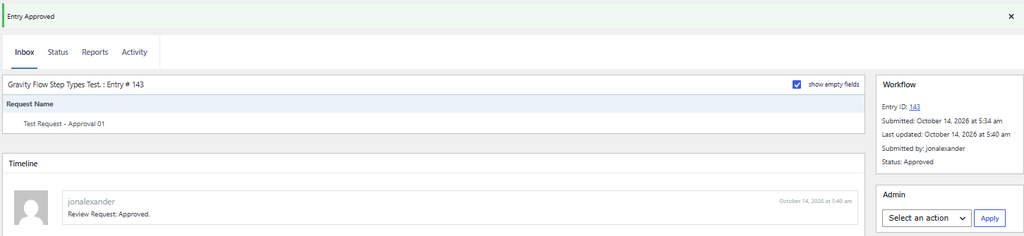
Example: A manager approves or rejects a vacation request. In our GravityWP test, Entry #143 was approved and Entry #144 was rejected. Each decision appeared in the timeline, and the workflow status changed as expected.
Choice Routing: Route by a Dropdown or Radio Choice
Choice Routing is a non-interactive core step introduced in Gravity Flow 3.1.0. It reads a dropdown or radio field and sends the entry to a chosen next step. Several choices can share one route, and a default route handles values with no match.
Example: Requests marked “IT” go to IT review. Requests marked “Finance” go to a finance step. Unlike a general step condition, Choice Routing provides one place to map several field choices to next steps.
Notification: Send Emails at a Workflow Stage
A Notification step can trigger an existing Gravity Forms notification or send a message defined inside the workflow step. Use it when an email should go out at a milestone, not only at form submission. You can include entry values through merge tags and choose supported recipients.
Example: Notify the requester after review. This is different from the Approval step’s own assignee email, which can alert a reviewer that a task is waiting.
Outgoing Webhook: Send Data to an External System
An Outgoing Webhook step sends an HTTP request to a URL you configure. It can include entry data and, for supported responses, map values back into the entry.
Example: Send an approved request to an external service. Check the destination API requirements, authentication, and response format before you configure the step.
Note: The earlier version of this article suggested sending data to a GravityWP API Connector “endpoint.” We removed that method because it has not been established or tested as a supported inbound endpoint.
Update User: Change WordPress User Data
An Update User step can update profile fields, roles, or user meta. Because changes may affect access, restrict who can configure the step and add approval where needed. Creating or changing this step requires the WordPress edit_users capability.
Example: After a review, update approved account details for a WordPress user.
Five Form Connector Steps for Multi-Form Workflows
The Gravity Flow Form Connector extension adds five step types. Use them when a workflow must create, read, update, or remove information tied to another form entry. Our guide to connecting multiple Gravity Forms explains the wider use case.
New Entry: Create a Record in Another Form
New Entry creates a target-form entry from mapped values. For example, an approved request can create a task in a staff form. Follow the GravityWP New Entry tutorial for setup and field mapping.
Update an Entry: Change an Existing Record
Update an Entry writes to an entry identified by its ID. Use it when an internal task must update the original request. The GravityWP Update an Entry tutorial covers ID fields and field mapping.
Update Fields: Change the Current Entry
Update Fields can fill fields in the current entry using values from another entry or custom values. Use it when the workflow needs extra details before its next step. See our Update Fields lookup tutorial.
Delete an Entry: Remove an Entry
Delete an Entry can move an entry to Trash or delete it permanently, based on its setup. This deserves a review of your retention rules before use. The GravityWP Delete an Entry tutorial covers the choices and setup.
Form Submission: Wait for a Linked Form
Form Submission pauses the process until the assigned person submits another form. For example, a client can provide more details through a follow-up form. Our Form Submission step tutorial covers links, mapping, and common issues.
Other Workflow Steps from Installed Add-ons
Additional plugins can add step types. On our practice site, the step selector also showed API Connector, Replace Variables, and Update Multiple Entries. Those are not among the six Gravity Flow core types or five Form Connector types described above. Their provider, settings, and behavior should be checked in the relevant add-on before use.
For example, the GravityWP documentation covers the separate Update Multiple Entries add-on. That does not, by itself, establish how its workflow-step option works on every installation.
Common Step Settings That Affect the Result
A step type defines the action. Step settings control when it runs and who can act. The exact settings vary by type, but common controls include conditions, scheduling, and next-step routing. Human steps can also offer assignee rules, instructions, editable fields, due dates, and step expiration.
Use the official workflow-step screen guide when you configure a new step. Test the workflow on a practice form before using it for live requests.
Where Can Assignees Find Their Tasks?
Assigned Approval and User Input tasks can appear in the Gravity Flow Inbox. An assignee opens an entry to take action. The workflow detail page can show the entry status and a timeline of actions. If no task appears, check the current step and its assignee rules first.
On our practice form, the test request appeared in the assigned user’s Inbox before the approve or reject action. That part was tested; we did not retest front-end task pages or email delivery for this update.
Choose the Step That Matches Your Task
Use Approval for decisions, User Input for updates, Choice Routing for branching, and Notification or Outgoing Webhook for automatic actions. If your process spans more than one form, check the Form Connector steps. For more examples, explore our Gravity Flow resources and tutorials.
Want to build a workflow in WordPress? Learn more about Gravity Flow.
Frequently Asked Questions
Use Approval. It asks an assignee to approve or reject an entry, with options for the next step after each result.
Approval records a decision. User Input lets an assignee add or edit chosen entry fields. One workflow can use both.
No. Choice Routing maps dropdown or radio choices to destination steps. Conditions can control whether a given step runs.
New Entry, Update an Entry, Update Fields, Delete an Entry, and Form Submission require the Form Connector extension.
Our Premium add-ons for Gravity Forms

Entry to Database
Integrates Gravity Forms with internal or external databases, offering flexible mapping of form fields to database columns and real-time synchronization between entries and database rows.

API Connector
Connect Gravity Forms to External API's: Query the API using form field values and automatically fill other form fields with the API response.

Update Multiple Entries
Trigger the update of multiple entries in a target form by submitting an entry in a trigger form.

List Number Format
With this Gravity Forms Add-on you can change List Field columns into a number field, do calculations within a row or column. Extra merge tags are available with total counts of columns.
Read tutorials about

How to Validate Repeatable Contact Rows in Gravity Forms
Learn how to validate repeatable Gravity Forms List field rows with GravityWP List Text. This tutorial shows how to add email and regex validation, test invalid values, and confirm that valid team roster data is stored correctly.

Gravity Forms Airtable Integration: Create Records From Form Submissions
Learn how to build a Gravity Forms Airtable integration with GravityWP API Connector. Send form submissions to Airtable, create new records automatically, and save the returned Airtable Record ID and response back to Gravity Forms.

Gravity Forms Asana Integration: Create Tasks From Form Submissions
Learn how to connect Gravity Forms to Asana with GravityWP API Connector. This tested workflow creates Asana tasks from form submissions and saves the returned task ID and URL back to Gravity Forms.

Gravity Forms Google Calendar Integration: Create Events From Form Submissions
Connect Gravity Forms to Google Calendar with GravityWP API Connector. Learn how to create calendar events from form submissions, map event details, configure OAuth 2.0, handle time zones, and save the returned Event ID and URL.