What does the Gravity Flow Form Submission step do? It pauses a workflow started by one Gravity Form until an assignee submits a different form through a secure link. The step is provided by the Gravity Flow Form Connector extension. It can prefill supported fields in the second form using values from the first entry.
You can use this to collect project requests first, then ask for a deposit, an extra questionnaire, or an internal follow-up form. This tutorial uses a Project Request form and a separate Deposit Payment form. For a broader overview, see Gravity Flow workflow step types.
What You Will Build With the Form Submission Step
Expected result: Form A starts the workflow. Form B opens from a secure link with supported mapped values. The waiting step finishes after the required submission, or after supported payment processing when a payment feed applies.
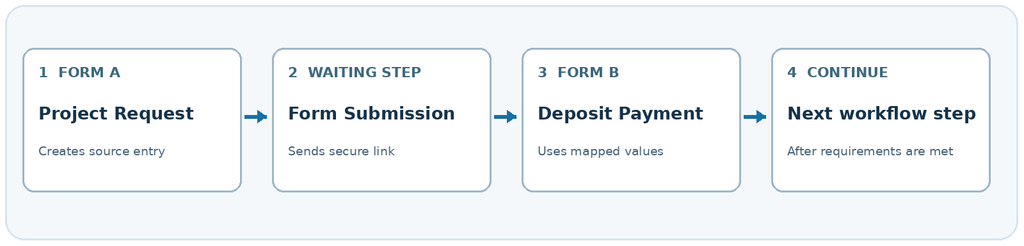
Example: A customer submits Form A to describe a new project. After an optional review, Gravity Flow asks the assigned person to complete Form B. The process can then move to a notification or another workflow step.
Requirements Before You Start
| Requirement | Why you need it |
|---|---|
| Gravity Forms | Build Form A and Form B and store their entries. |
| Gravity Flow | Create and run workflow steps on Form A. |
| Form Connector extension | Adds the Form Submission step type. |
| A published submission page | Hosts Form B and supplies a page for secure links. |
| Staging site or safe test setup | Check the handoff without sending real requests or taking live payments. |
Security warning: Open Form B only through the link supplied in the workflow entry detail screen or through the assignee email. A normal link to Form B lacks the security token, so that submission does not complete the waiting step. If a secure link becomes invalid, check whether the submission page is being cached. Official Form Submission documentation.
Before testing payments: Back up the site or use staging. Start with a non-payment test or the payment provider’s supported sandbox mode. Do not run real transactions merely to verify field mapping.
Last tested: October 20, 2026 — Gravity Flow 3.1.2 and Form Connector 2.8.1 (GravityWP staging site). We verified one assigned WordPress user, mapped fields, the secure Open Form action, a successful non-payment Form B submission, and the original workflow reaching Complete status. We did not test real payments, email delivery, multiple assignees, or Original Entry ID mapping.
Step 1: Create Form A and Form B
Create Form A: Project Request
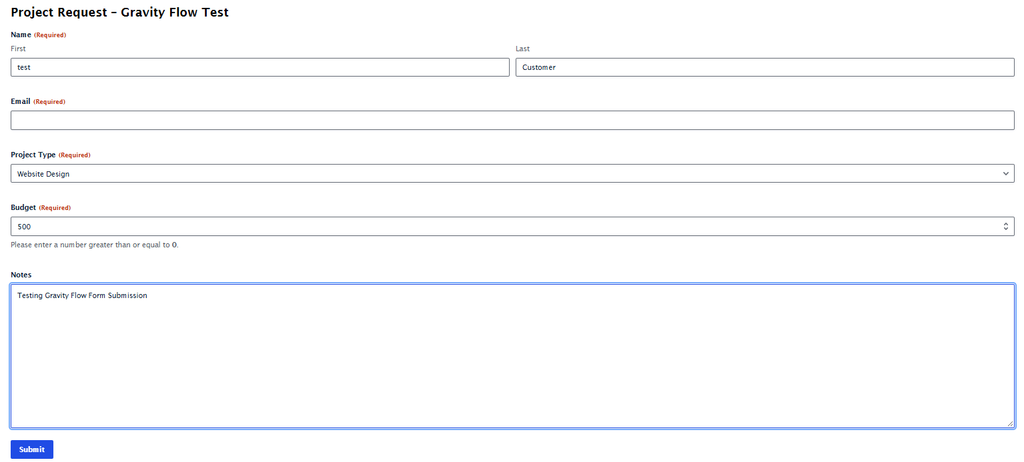
In Gravity Forms, create a source form called Project Request. Add Name, Email, Project Type (Dropdown), Budget (Number), and Notes (Paragraph Text). A successful initial form submission creates the source entry. Gravity Flow uses its values as the source for the later field mappings.
Create Form B: Deposit Payment
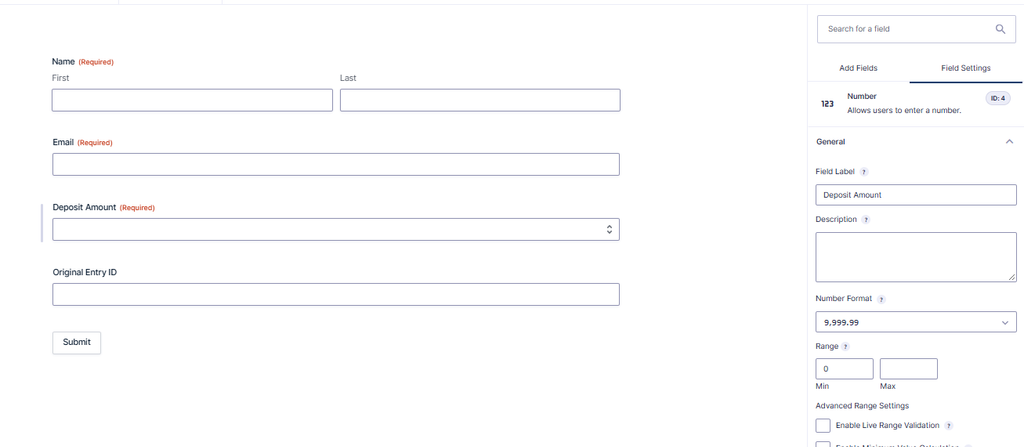
Create a separate target form called Deposit Payment. Add Name, Email, Deposit Amount, and the payment fields required by the payment add-on you choose. For the first test, use a safe, non-payment version of Form B or a payment sandbox.
For a later workflow that updates the original request, you can add an Original Entry ID field to Form B and map a supported source entry ID value. In our non-payment staging test, we left this field unmapped and did not test updating the original entry. See the official Form Connector documentation before implementing that advanced pattern.
Step 2: Publish the Form B Submission Page
Form Connector needs a page where Form B is embedded so it can generate its submission link. In WordPress, create a page such as Deposit Payment, add the Gravity Forms block or form shortcode, select Form B, and publish the page.
You can instead use a Gravity Flow Submit Page or Submit Block. If you use one of those choices, select the target form under Workflow > Settings > Published Workflow Forms. This is a specific requirement of those Submit Page options, not of every normal WordPress page.
For details about the WordPress block method, see the Gravity Flow form creation guide.
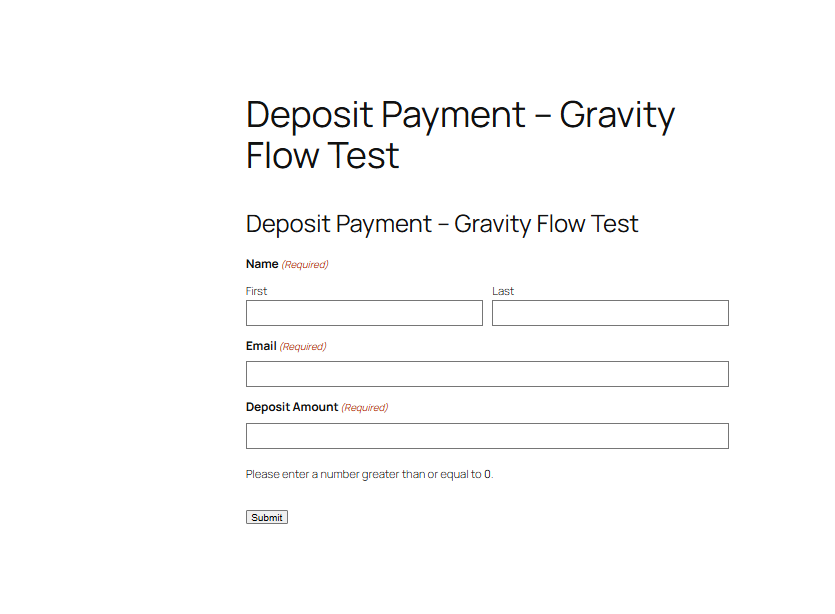
Original GravityWP staging setup: Form B is embedded on the page selected for secure submission links.
Step 3: Add the Workflow to Form A
Open Forms > Project Request > Settings > Workflow. Add the steps in the order required by your process. A simple setup can start with an optional Approval or User Input step, continue to Form Submission, and finish with a Notification.
Choose Add New Step, name the step, and select Form Submission from the Step Type choices. This option appears when the Form Connector extension is active. Multiple Form Submission steps can be used if a process needs more than one follow-up form.
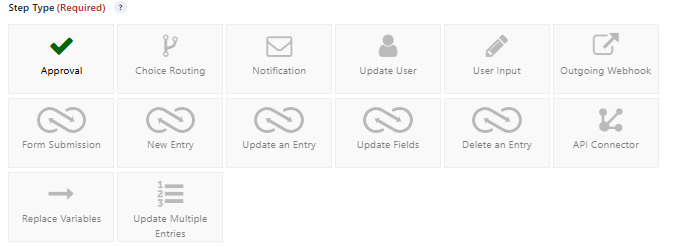
Step 4: Configure Form Submission Step Settings
Set the assignee and standard settings
The standard settings determine who completes the step and what they see while it is pending. In Assign To, select the WordPress user, user role, email field, or available conditional routing option that fits your process. The assignee may be the customer who needs to pay or a staff member who completes a follow-up form.
| Step setting | What to configure |
|---|---|
| Assign To | One or more assignees, or conditional routing. |
| Instructions | Short directions for the assigned person. |
| Display Fields | Which source-entry fields should appear on the step. |
| Emails | The assignee notification with the secure Form B link. |
| Condition / Schedule / Expiration | Optional controls for when the step runs or expires. |
For a customer deposit, you might show Project Type and Budget to provide context. Avoid placing private data in an email or on a public-facing page unless the recipient should see it.
Select Form B and its Submission Page
In the Form Submission-specific settings, choose Deposit Payment in Form and select the page where it is embedded in Submission Page. These two settings identify which form the step waits for and where the secure link should open.
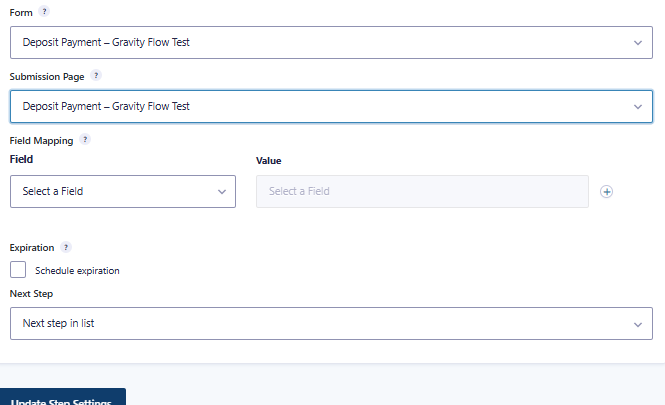
Map values from Form A to Form B
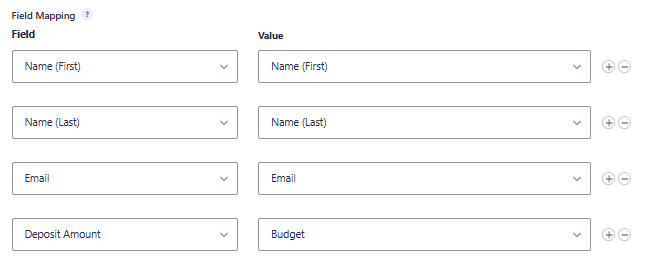
Field Mappings set default values in Form B from the source entry. Gravity Flow supports simple fields, such as text and email, and complex fields, such as Name and Address. A custom value can also use Gravity Forms merge tags.
| Source value in Form A | Target field in Form B |
|---|---|
| Name | Name |
| Budget, or a chosen fixed value | Deposit Amount |
| Source entry ID | Original Entry ID (Hidden) |
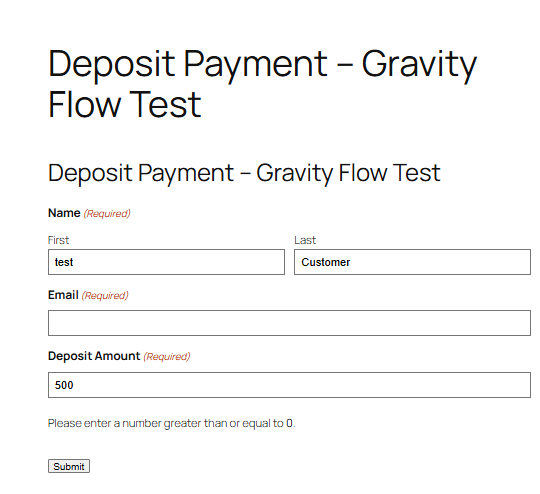
Our test mapped Form A Budget (500) to Form B Deposit Amount (500). This was a numeric field in a non-payment test; it did not create a charge. In a real deposit flow, use your payment policy or a tested calculation rather than assuming the full budget equals the deposit.
Step 5: Send the Secure Submission Link
This step depends on its secure link. The assignee can open Form B from the workflow detail page or from an assignee notification email. Do not send only the ordinary public URL of the Deposit Payment page: a submission without the security token will be ignored by the waiting step.
In the Form Submission step email, insert the merge tag below to send the assignee a secure link:
{workflow_form_submission_link}You can also use the URL merge tag when a raw URL is needed:
{workflow_form_submission_url}Example assignee notification:
Subject: Please complete your deposit payment
Hi,
Please complete the deposit payment form using this secure link:
{workflow_form_submission_link}
Thank you.
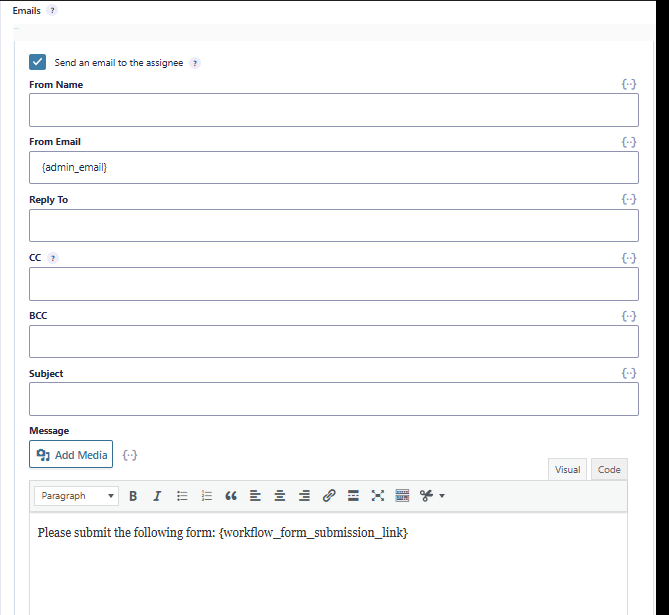
The secure token helps protect the source entry ID and mapped default values from URL tampering. The generated link is valid for the relevant Form Submission step; it should not be treated as a permanent link after the workflow has moved on.
For the available merge tag parameters and limitations, see the Form Connector documentation.
Step 6: Test the Two-Form Workflow
Use a test email or assigned WordPress user. Run a non-payment submission first to verify the handoff. Do not label screenshots as proof of successful payment unless a payment sandbox transaction was actually verified.
- Submit Form A: confirm that it creates a new entry and reaches the Form Submission step.
- Open the target form using the workflow detail link or the emailed secure merge-tag link.
- Check that Name, Email and Deposit Amount are prefilled from Form A. If you configured an Original Entry ID mapping for a separate advanced workflow, verify it independently; it was not included in our test.
- Submit Form B from that secure page. Confirm that the waiting step completes under your current assignee policy.
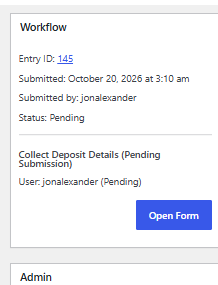
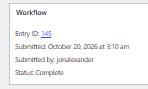
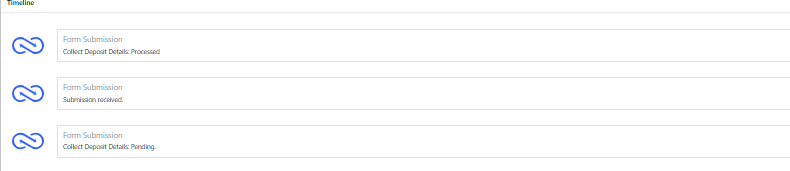
- Inspect the original workflow status and timeline. In our October 20 non-payment test, Entry #145 reached Complete and the timeline recorded “Submission received” and “Collect Deposit Details: Processed.” Payment-feed behavior was not tested.
Verified result (October 20, 2026): On GravityWP staging, the Project Request submission created Entry #145. The assigned WordPress user opened Form B through Open Form, and the name, email and amount 500 appeared from field mappings. After Form B was submitted, Gravity Flow marked the step Processed and the original workflow Complete. This was a non-payment test.
Optional Settings: Routing, Multiple Assignees, and Payments
Conditions and scheduling
Conditions can make the step run only when the source entry meets your rule. For example, you could request a deposit only when the budget passes an agreed threshold. The Schedule setting can delay when the step starts. If you use scheduling, allow for WP-Cron and hosting-related delays rather than promising an exact run time.
Multiple assignees
You can assign a Form Submission step to several people. The assignee policy controls whether one completed submission is enough or whether every assignee must submit Form B. Confirm the chosen policy before you test.
Payment feed behavior
Without a payment feed, the step can continue when its required target form submission is received, as our non-payment test confirmed. Gravity Flow documents different behavior when a supported payment feed is configured: the step waits for payment processing and can remain pending after an unsuccessful payment. We did not test a payment feed or complete a real transaction.
See the official payment behavior notes instead of relying on legacy payment add-on names.
Update the original Project Request entry
To update Form A from Form B, you can configure an Update an Entry step on the target form and use a properly mapped source entry ID to identify the original entry. This is an optional advanced workflow, not part of our completed staging test.
Follow our Update an Entry step tutorial for the separate configuration.
Troubleshooting the Form Submission Step
| Problem | What to check first |
|---|---|
| Form B submitted; step still pending | Was Form B opened with the workflow detail or secure email link? |
| Mapped values are missing | Check the field mappings and use the generated URL without editing the source entry ID. |
| “Link to this form is no longer valid” | Exclude the submission page from caching; confirm the link is still on the active step. |
| File Upload will not map | Collect the uploaded file directly in Form B. |
| Form B is on another site | Form Submission listening is same-site only. |
| More than one assignee remains pending | Check whether all-assignee completion was selected. |
| Payment step will not finish | Check supported payment feed status and sandbox results. |
The same-site limit is specific to the Form Submission step. Other Form Connector steps may support remote forms, so do not treat this as a limit on the entire extension.
Final Thoughts
The Gravity Flow Form Submission step connects two separate forms without losing the context of the original entry. Form Connector maps supported values, a secure link connects Form B to the waiting step, and your chosen completion rules determine when the workflow can continue. For more examples, see our guide to connecting multiple Gravity Forms and Gravity Flow workflow resources.
You can learn more about Gravity Flow on the official product website. Affiliate disclosure: this Gravity Flow link is a referral link, and GravityWP may earn a commission if you purchase through it.
Frequently Asked Questions
Yes. Form Submission is a step type supplied by the Gravity Flow Form Connector extension, not one of the Gravity Flow core steps.
The most important check is the URL. Form B must be opened with the workflow detail link or the secure link generated for the current step. A normal submission to the same form does not complete this step. A supported payment feed or an all-assignee policy may also keep it pending.
Yes. Gravity Flow documents invalid-link problems for email assignees when the submission page is cached. Exclude that page from caching and ask the host for help if needed.
No. The Form Submission step cannot map File Upload fields, and it listens for submissions on the same WordPress site. Put a File Upload field directly in Form B if you need to collect a new upload. This does not rule out remote-site features of other Form Connector steps.
Yes. The step supports multiple assignees. Choose whether one completed submission is enough or whether all assigned people must submit Form B before the step ends.
Our Premium add-ons for Gravity Forms
List Number Format
With this Gravity Forms Add-on you can change List Field columns into a number field, do calculations within a row or column. Extra merge tags are available with total counts of columns.

List Dropdown
Add a Dropdown Select with choices to a column or multiple columns in a Gravity Forms List Field.

Entry to Database
Integrates Gravity Forms with internal or external databases, offering flexible mapping of form fields to database columns and real-time synchronization between entries and database rows.
List Text
Add features like textarea, placeholder and custom validation to a column or multiple columns in a Gravity Forms List Field.
Read tutorials about

How to Validate Repeatable Contact Rows in Gravity Forms
Learn how to validate repeatable Gravity Forms List field rows with GravityWP List Text. This tutorial shows how to add email and regex validation, test invalid values, and confirm that valid team roster data is stored correctly.

Gravity Forms Airtable Integration: Create Records From Form Submissions
Learn how to build a Gravity Forms Airtable integration with GravityWP API Connector. Send form submissions to Airtable, create new records automatically, and save the returned Airtable Record ID and response back to Gravity Forms.

Gravity Forms Asana Integration: Create Tasks From Form Submissions
Learn how to connect Gravity Forms to Asana with GravityWP API Connector. This tested workflow creates Asana tasks from form submissions and saves the returned task ID and URL back to Gravity Forms.

Gravity Forms Google Calendar Integration: Create Events From Form Submissions
Connect Gravity Forms to Google Calendar with GravityWP API Connector. Learn how to create calendar events from form submissions, map event details, configure OAuth 2.0, handle time zones, and save the returned Event ID and URL.