A very powerful feature in Gravity Forms is Conditional Logic. With Conditional Logic you can show or hide fields based on selected values or input in the Form. When you’re working with a lot of Conditional Logic rules in your form it can be a challenge to keep an overview. Our Merge Tags Add-on for Gravity Forms has a Conditional Logic Tab which creates a quick overview of all the rules in your form.
Conditional Logic overview
Just install and activate the Add-on and go to one of your Gravity Forms and click on ‘Merge Tags’ in the navbar above the Form editor. Click on the ‘Conditional Logic’ Tab and you’ll see this handy summary of all your Gravity Forms Conditional Logic rules.
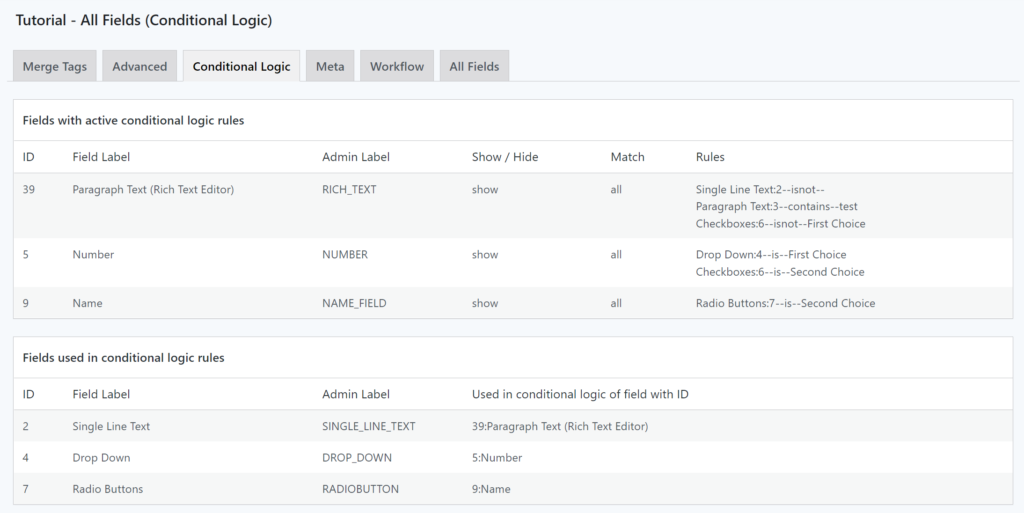
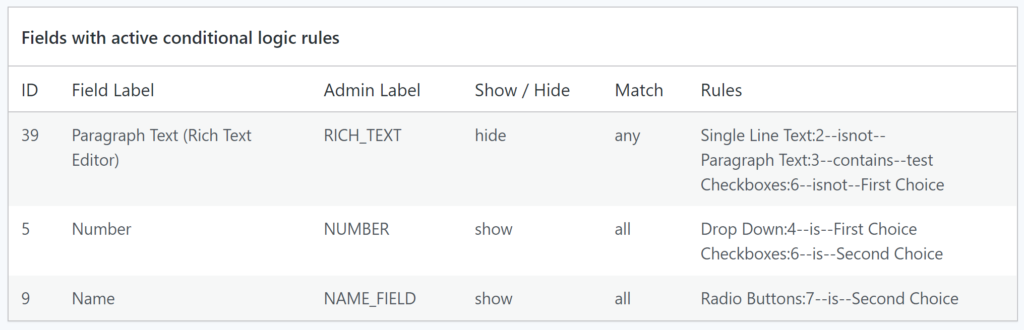
Fields with active conditional logic rules
The first overview shows you all the Fields that have Conditional Logic enabled on the field itself. It shows:
- Field ID
- Field Label
- Admin Label
- Show / Hide: if this conditional logic rule makes the field show or hide.
- Match: if the conditional logic should trigger on any or all rules.
- Rules: List of the configured conditional logic rules that apply for that Field.
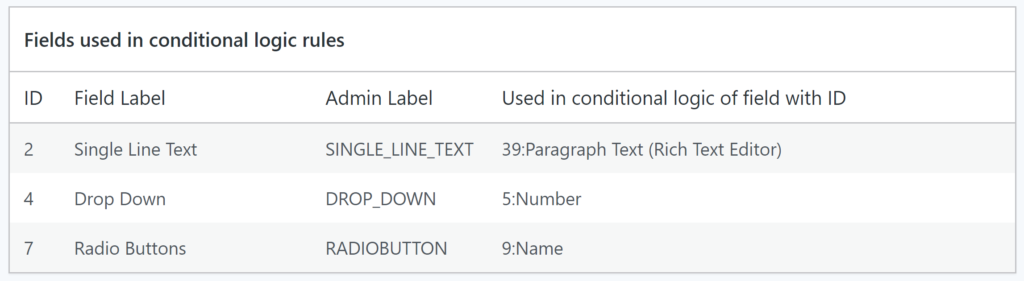
Fields used in conditional logic rules
The second overview show the fields that are being used inside conditional logic rules. It shows:
- Field ID
- Field Label
- Admin Label
- Used in conditional logic of field with ID: Shows which fields make use of this field inside their Conditional Logic rules.
Our Premium add-ons for Gravity Forms

Field to Entries
Create entries based on Checkboxes & Multi Select choices & List Field rows.

Advanced Merge Tags
This Gravity Forms Add-On adds extra Merge Tag modifiers (and a lot of power). From the most common used functions like capitalize and length to changing date formats.

All Entries
All your new Gravity Forms entries in one central place. Stop navigating between multiple forms to find new entries. Get immediate oversight and full control with a powerful, unified dashboard.
List Text
Add features like textarea, placeholder and custom validation to a column or multiple columns in a Gravity Forms List Field.
Read tutorials about

Gravity Forms Airtable Integration: Create Records From Form Submissions
Learn how to build a Gravity Forms Airtable integration with GravityWP API Connector. Send form submissions to Airtable, create new records automatically, and save the returned Airtable Record ID and response back to Gravity Forms.

Gravity Forms Asana Integration: Create Tasks From Form Submissions
Learn how to connect Gravity Forms to Asana with GravityWP API Connector. This tested workflow creates Asana tasks from form submissions and saves the returned task ID and URL back to Gravity Forms.

Gravity Forms Google Calendar Integration: Create Events From Form Submissions
Connect Gravity Forms to Google Calendar with GravityWP API Connector. Learn how to create calendar events from form submissions, map event details, configure OAuth 2.0, handle time zones, and save the returned Event ID and URL.

Gravity Forms Notion Integration: Create Database Pages Without Zapier
Connect Gravity Forms to Notion without Zapier. This tested tutorial shows how to create Notion database pages from form submissions and save the returned page ID, URL, creation time, and API response.

