Do you need a Date field in your Gravity Forms list column? No need to look further, the GravityWP – List Field Date Format add-on does just that: it allows you to turn a list field column into a Date Field.
Making Gravity Forms List Field Column a Datepicker
With GravityWP – List Datepicker it’s easy to show a calendar datepicker in a Gravity Forms List Field column. Just enable Datepicker for one or more List Field columns, set the Date Format, choose if you want to show the Calendar Icon or not and set a Default Date if needed.
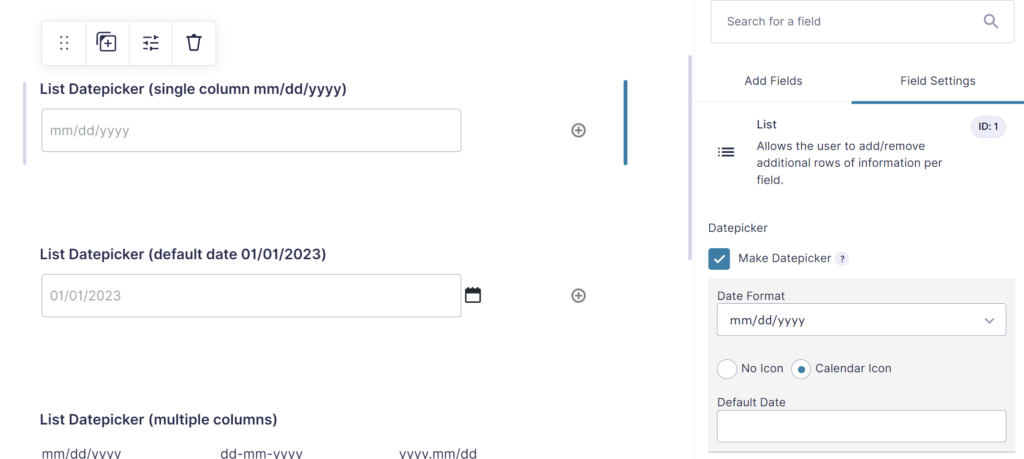
Choose Date Format
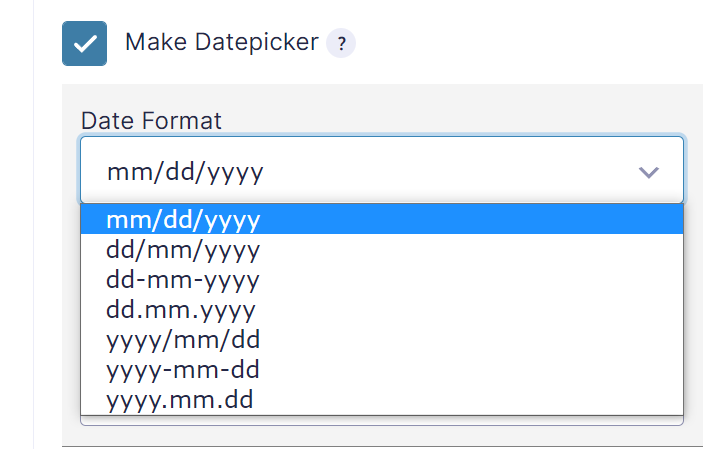
You can choose the Date Format you want to use inside the selected List Field Column.
Available formats are:
- mm/dd/yyyy
- dd/mm/yyyy
- dd-mm-yyyy
- dd.mm.yyyy
- yyyy/mm/dd
- yyyy-mm-dd
- yyyy.mm.dd
Setting a Default Date
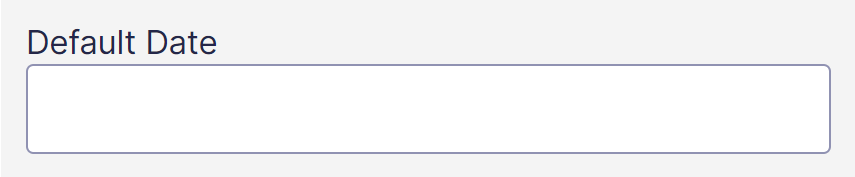
It’s possible to set a Default Date.
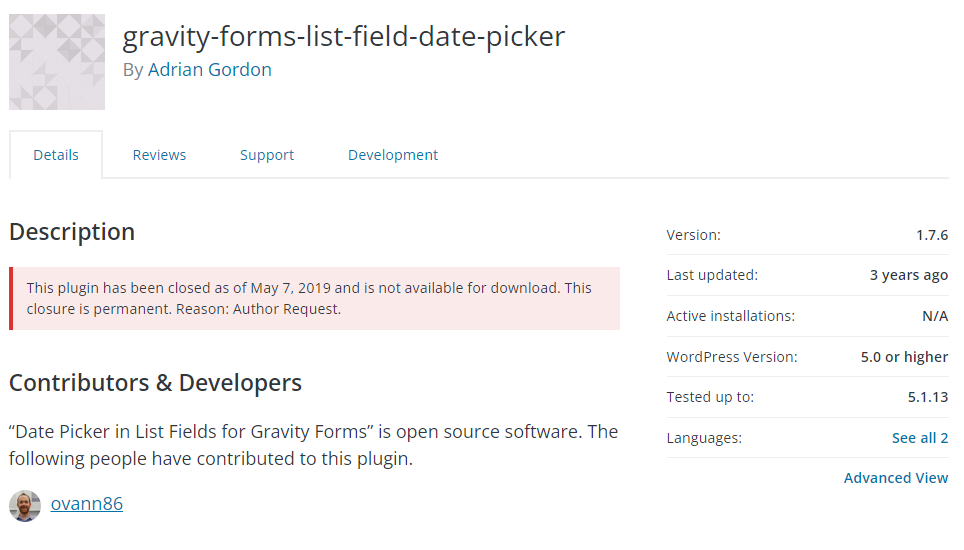
Original plugin has been closed
This original plugin has been closed as of May 7, 2019 and is not available for download. This closure is permanent. Reason: Author Request. See here the page on WordPress.org.
Our Premium add-ons for Gravity Forms

DateTime Field
The GravityWP - DateTime Field add-on adds a dedicated Date/Time field to Gravity Forms so users can enter both a date and a time in a single input.
List Text
Add features like textarea, placeholder and custom validation to a column or multiple columns in a Gravity Forms List Field.

n8n Connector
Connect Gravity Forms to n8n and automate your workflows with secure, flexible, and powerful webhooks. Go beyond simple notifications and build advanced, two-way automations.

List Datepicker
Add a Datepicker with calendar select to a column or multiple columns in a Gravity Forms List Field.
Read tutorials about

Gravity Forms Zoho CRM Integration: How to Auto-Populate Form Fields by Email
Learn how to auto-populate Gravity Forms from Zoho CRM using GravityWP API Connector. This tutorial shows how to search Zoho Contacts by email and fill form fields with the returned data.

How to Create a Public Submission Business Directory in WordPress (Gravity Forms + GravityView)
Build a moderated business directory where users submit listings through a form, admins approve entries, and approved businesses appear in a searchable GravityView directory.

How to Create an Event Workshop Registration + Waitlist System in WordPress
This guide shows how to set up a workshop registration + waitlist system in WordPress: register attendees until capacity is reached, waitlist the rest, approve entries, and auto-promote people when a seat opens using Gravity Forms, Gravity Flow, and GravityView.

Gravity Flow Form Submission Step Tutorial
The Gravity Flow Form Submission step pauses a workflow until another form is submitted, then continues once the handoff is complete. This guide shows how to connect two forms, prefill fields with mapping, send the correct secure link, and troubleshoot the most common “workflow didn’t move” issues.
