The Gravity Forms shortcode gives you a text-based way to display a form in WordPress. You can use a basic shortcode for a simple embed, or add parameters to control the title, description, AJAX submission, dynamic field values, form theme, and style settings.
This guide brings the Gravity Forms shortcode reference, practical examples, dynamic population, the WordPress Shortcode block, and PHP embedding into one current resource. It follows the current Gravity Forms documentation for supported shortcode parameters, form themes, and the gravity_form() function used in theme files and WordPress hooks.
What Does This Gravity Forms Shortcode Guide Cover?
- How to find or copy a Gravity Forms embed shortcode.
- How to add the shortcode to a WordPress page or post.
- All current form shortcode parameters: id, title, description, ajax, tabindex, field_values, theme, and styles.
- Copy-paste examples for common form display options.
- How to use field_values for dynamic population.
- How Orbital and the Gravity Forms 2.5 theme differ.
- How to embed a form in PHP with gravity_form().
- When to use the shortcode, the Gravity Forms block, or the PHP function.
- How to troubleshoot a Gravity Forms shortcode that is not working.
| Quick answer The basic form shortcode is . The id is required. Every other supported parameter is optional and changes how the form is displayed, populated, styled, or submitted. |
How Does the Gravity Forms Shortcode Work?
A WordPress shortcode is text inside square brackets that WordPress processes when the page loads. Gravity Forms uses the form shortcode to display a specific form anywhere shortcodes are supported. The required part is the numeric form ID.
That shortcode tells Gravity Forms to display form ID 1. If you only need the form to appear, you can stop there.
How Do You Find and Copy a Gravity Forms Shortcode?
Gravity Forms 2.6 and newer includes an Embed Form flyout in the Form Editor. From there, you can add the form to an existing page or post, create new content, or copy the form shortcode for use in a page builder or another shortcode-friendly area.
- Open the form in the Gravity Forms Form Editor.
- Click Embed in the top bar.
- Under Not Using the Block Editor, click Copy Shortcode.
- Paste the shortcode into the WordPress Shortcode block, a shortcode-friendly page builder, or another supported area.
How Do You Add a Gravity Forms Shortcode in WordPress?
If you are using the WordPress block editor and want to use the shortcode instead of the Gravity Forms block, add a Shortcode block. Paste the form shortcode into that block, then preview the page before publishing.
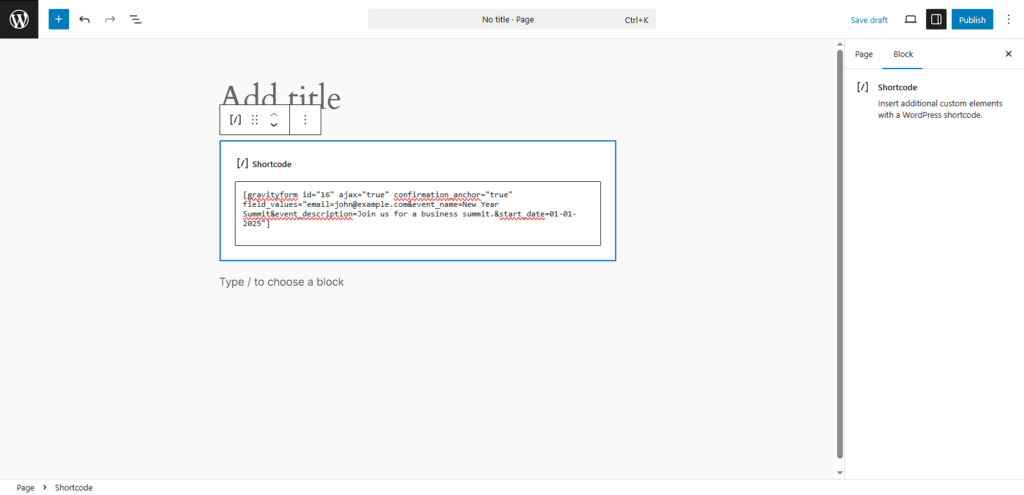
This example displays form ID 5, hides the form title and description, and enables AJAX submission.
What Gravity Forms Shortcode Parameters Are Supported?
The current official Gravity Forms shortcode documentation lists eight parameters. Only id is required.
| Parameter | What it does | Example |
| id | Required. Selects the numeric form ID. | id=”5″ |
| title | Shows or hides the form title. Default: true. | title=”false” |
| description | Shows or hides the form description. Default: true. | description=”false” |
| ajax | Uses AJAX for form submission when set to true. | ajax=”true” |
| tabindex | Sets the starting tab index. Default 0 omits tabindex attributes so the browser determines tab order. | tabindex=”0″ |
| field_values | Passes default values to fields configured for dynamic population. | field_values=”event_name=Workshop” |
| theme | Applies a form theme by slug. Current documented values include orbital and gravity. | theme=”orbital” |
| styles | Passes optional JSON-encoded style settings. | styles=’…JSON…’ |
How Do the Gravity Forms Shortcode Parameters Work?
id: choose the form to display
The id parameter is required. Use the numeric ID of the form you want to display.
If the ID does not match an existing form, Gravity Forms documents the error message: “Oops! We could not locate your form.”
title and description: control the heading above the form
Both options default to true. Set either one to false when the surrounding page already provides the same heading or explanation.
ajax: submit without a full page reload
Set ajax=”true” when you want Gravity Forms to use AJAX for the form submission. Gravity Forms also exposes AJAX as a setting in its block.
If AJAX does not work, the official shortcode documentation recommends checking that JavaScript is enabled and looking for JavaScript errors in the browser console. Theme or plugin conflicts can also affect front-end behavior, so test on staging before publishing a change.
tabindex: leave browser tab order alone unless you have a reason to change it
The default tabindex value is 0. Gravity Forms says this prevents it from adding tabindex attributes to the field markup, so the browser determines the tab order automatically. That is a better default than assigning an arbitrary starting number.
field_values: prefill fields with dynamic population
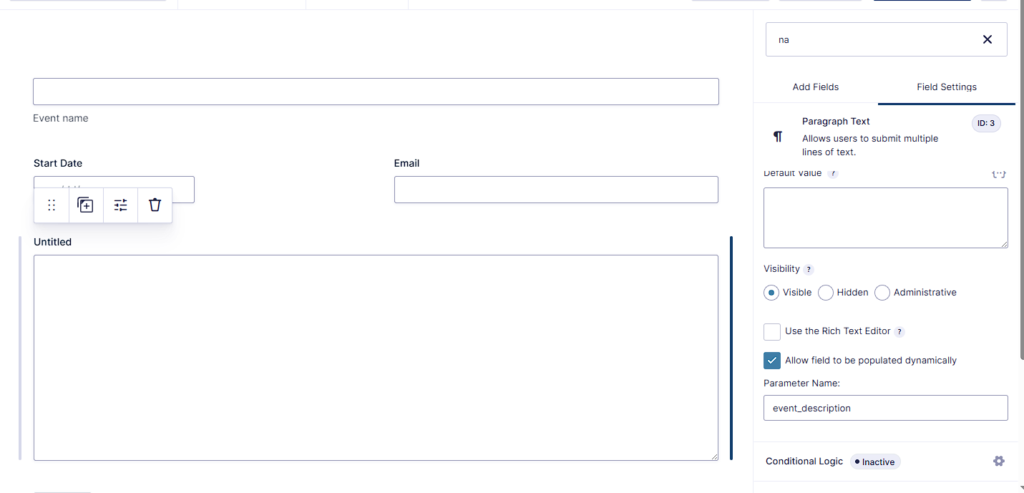
Use field_values to pass defaults into fields that have dynamic population enabled. The parameter names in the shortcode must match the Parameter Name values configured on the target fields.
Multiple values are separated with an ampersand (&). The official dynamic population documentation also notes that dynamic population uses PHP and does not work normally on cached pages because the PHP population step does not run from the cached copy.
To configure a field, open the field’s Advanced settings, enable Allow field to be populated dynamically, and enter a Parameter Name. Avoid reserved WordPress terms for parameter names. Gravity Forms specifically warns that using name can cause a 404 because it is a reserved WordPress term.

theme: choose Orbital or the Gravity Forms 2.5 theme
The current shortcode documentation supports theme slugs including orbital and gravity. Gravity Forms theme documentation explains that Orbital was introduced with the newer theme framework in Gravity Forms 2.7. The gravity slug refers to the Gravity Forms 2.5 theme. On new installations from Gravity Forms 2.7.15 onward, Orbital is applied globally by default.
styles: pass JSON-encoded style settings
The styles parameter accepts optional JSON-encoded style settings. This is a current supported shortcode parameter, but many users will find the block editor easier for visual styling. Use the official shortcode documentation as the source of truth for supported style keys and valid JSON syntax.
Which Gravity Forms Shortcode Examples Are Most Useful?
| Use case | Shortcode | When to use it |
| Basic form | Use when you only need to display the form. | |
| Hide title and description | Useful when the page already has its own heading and intro. | |
| Enable AJAX | Use when you want AJAX submission. | |
| Prefill one value | Requires dynamic population on the target field. | |
| Prefill multiple values | Separate parameter/value pairs with &. | |
| Use Orbital theme | Applies the Orbital theme to that embed. |
How Do You Embed a Gravity Form in PHP with gravity_form()?
If you are embedding a form from a WordPress theme file or a third-party hook, use the official gravity_form() function rather than wrapping the shortcode in do_shortcode().
| gravity_form( 5, false, false, false, ”, true, 0 ); |
In this example, form ID 5 is displayed without its title or description, AJAX is enabled, and the starting tabindex is 0.
The current function signature is:
| gravity_form( $id_or_title, $display_title = true, $display_description = true, $display_inactive = false, $field_values = null, $ajax = false, $tabindex = 0, $echo = true, $form_theme = null, $style_settings = null ); |
| PHP parameter | Purpose |
| $id_or_title | Required form ID or title. |
| $display_title | Whether to display the form title. |
| $display_description | Whether to display the description. |
| $display_inactive | Whether an inactive form may be displayed. |
| $field_values | Array of dynamic population parameter/value pairs. |
| $ajax | Whether to use AJAX submission. |
| $tabindex | Starting tab index. Use 0 to omit tabindex attributes. |
| $echo | Echo the form HTML or return it. |
| $form_theme | Form theme slug. |
| $style_settings | JSON-encoded style settings. |
Gravity Forms also warns that when you embed a form through a function call, you may need to enqueue the required Gravity Forms scripts and styles. This matters for forms that use features such as conditional logic or the date picker.
Should You Use the Shortcode, Gravity Forms Block, or gravity_form()?
| Method | What it is | Best fit |
| Shortcode | Text-based embed you can copy into shortcode-friendly content. | You want a portable embed or need direct parameter control in text. |
| Gravity Forms block | Editor-based form embed with form, title, description, theme, AJAX, field values, and other block settings. | You are working in the WordPress block editor and want the easiest visual setup. |
| gravity_form() | PHP function for theme files or hooks. | You are embedding the form in code. |
Gravity Forms documentation currently recommends its Embed Form button as the easiest starting point for adding a form to a site. The Gravity Forms block settings provide the editor-based alternative. The shortcode remains useful when you need a text-based embed, while the PHP function is the documented choice for theme files and hooks.
What Other Gravity Forms Shortcodes Should You Know About?
The form embed shortcode is not the only shortcode-related feature in Gravity Forms. The official conditional shortcode documentation covers conditional content inside notification emails and confirmation messages. Gravity Forms also documents chaining forms with shortcodes, where a second form shortcode is placed in the first form’s confirmation. These are separate use cases from the standard form embed shortcode, so keep them separate when troubleshooting.
Why Is My Gravity Forms Shortcode Not Working?
The form ID does not exist
If the shortcode references an ID that does not exist, Gravity Forms displays “Oops! We could not locate your form.” Check the form ID in WordPress and update the shortcode.
The shortcode appears as plain text
Use an area that actually processes WordPress shortcodes. In the block editor, the official Gravity Forms shortcode guide instructs you to use the WordPress Shortcode block. If a page builder or custom field prints the shortcode as text, confirm that the specific area supports shortcode processing before changing the Gravity Forms code.
AJAX submission does not work
Confirm that JavaScript is enabled and check the browser developer console for JavaScript errors. Test with unnecessary optimization or conflicting code disabled on staging. Do not assume AJAX itself is the cause until you can reproduce the issue.
Dynamic field values do not appear
- Confirm Allow field to be populated dynamically is enabled on the target field.
- Check that the shortcode parameter name exactly matches the field Parameter Name.
- Remember that parameter names and choice values can be case-sensitive depending on the field and configuration.
- Check the field_values syntax and separate multiple values with an ampersand (&).
- Check caching. Gravity Forms says dynamic population relies on PHP and does not work normally from a cached page.
The same form is embedded more than once on one page
Gravity Forms does not support embedding the same form multiple times on one page. Its documentation lists symptoms such as a hanging submission spinner, the wrong form submitting, tabbing problems, CAPTCHA issues, and payment-related problems. If the same form must appear in more than one place, Gravity Forms recommends duplicating the form and embedding each unique copy once.
When Is the Default Gravity Forms Shortcode Not Enough?
For simple embedding and basic default values, the built-in shortcode is usually enough. If the workflow needs signed or tamper-resistant prefilling, GravityWP JWT Prefill is designed to populate fields from signed JSON Web Tokens and validate token data before the form loads.
If values must come from an external API, GravityWP API Connector can send requests and map API responses back into Gravity Forms fields. These are different jobs from the standard form shortcode, so use them only when the workflow actually needs them.
Final Thoughts
The Gravity Forms shortcode is still useful when you need a portable, text-based way to display a form in WordPress. Start with the form ID, then add only the parameters you need.
For most sites, the key parameters are title, description, ajax, field_values, and theme. Keep tabindex at its default of 0 unless you have a specific reason to change it. Use the styles parameter only when you need JSON-based style settings and understand the required syntax.
For code-based embeds, use gravity_form(). For editor-based setup, the Gravity Forms block or Embed Form flyout may be simpler. If you need secure prefilling or external API data, use a tool built for that workflow rather than forcing the embed shortcode to handle it.
Gravity Forms Shortcode FAQ
The basic shortcode is
. Replace 1 with the numeric ID of the form you want to display.The current form shortcode documentation lists id, title, description, ajax, tabindex, field_values, theme, and styles. Only id is required.
Add title=”false” to the shortcode. You can also hide the description with description=”false”.
Add ajax=”true” to the shortcode.
Enable dynamic population on the target fields, give each field a Parameter Name, then pass those names and values through field_values.
Orbital is part of the newer theme framework introduced with Gravity Forms 2.7. The gravity slug refers to the Gravity Forms 2.5 theme.
For embedding a Gravity Form from a theme file or hook, the official Gravity Forms documentation provides the gravity_form() function.
Gravity Forms says this is not supported. Duplicate HTML IDs can cause JavaScript, styling, accessibility, CAPTCHA, payment, and submission problems.
Our Premium add-ons for Gravity Forms

List Number Format
With this Gravity Forms Add-on you can change List Field columns into a number field, do calculations within a row or column. Extra merge tags are available with total counts of columns.

Dynamic Labels
One form, different questions: field labels and texts come from another form's entry, such as a grant, vacancy or course.

List Datepicker
Add a Datepicker with calendar select to a column or multiple columns in a Gravity Forms List Field.

Field to Entries
Create entries based on Checkboxes & Multi Select choices & List Field rows.
Read tutorials about
How to Create an Event Registration Form for Workshops
Create an event registration form for workshops in WordPress. Learn which attendee details to collect, how to configure confirmation emails and how to update workshop dates for confirmed registrations using GravityWP Update Multiple Entries.
How to Create Gravity Forms Entries from Comma-Separated Text
Turn a comma-separated task list into separate Gravity Forms entries. Follow our tested Field to Entries setup, mapping, and custom separator example.

How to Validate Repeatable Contact Rows in Gravity Forms
Learn how to validate repeatable Gravity Forms List field rows with GravityWP List Text. This tutorial shows how to add email and regex validation, test invalid values, and confirm that valid team roster data is stored correctly.

Gravity Forms Airtable Integration: Create Records From Form Submissions
Learn how to build a Gravity Forms Airtable integration with GravityWP API Connector. Send form submissions to Airtable, create new records automatically, and save the returned Airtable Record ID and response back to Gravity Forms.