Do you want to change the type of an existing field in an existing Gravity Forms? There are multiple ways to achieve this.
- Change the field type by adding a new field and swapping the field id’s. This is the safest option. See our tutorial for Modify the Field Type in Gravity Forms by swapping Field ID’s.
- Change the field type, while retaining all the settings by using the snippet below. This can lead to unexpected behaviour, because the original field type might have setting properties that are not compatible with the new field type.
To change the field type using our snippet follow this steps:
- Open the form editor with the form which contains the field you want to change the type of.
- Open the browser console by pressing ‘Ctrl + Shift + i’ or right mouse button + ‘inspect’. This works both in FireFox an Chrome.
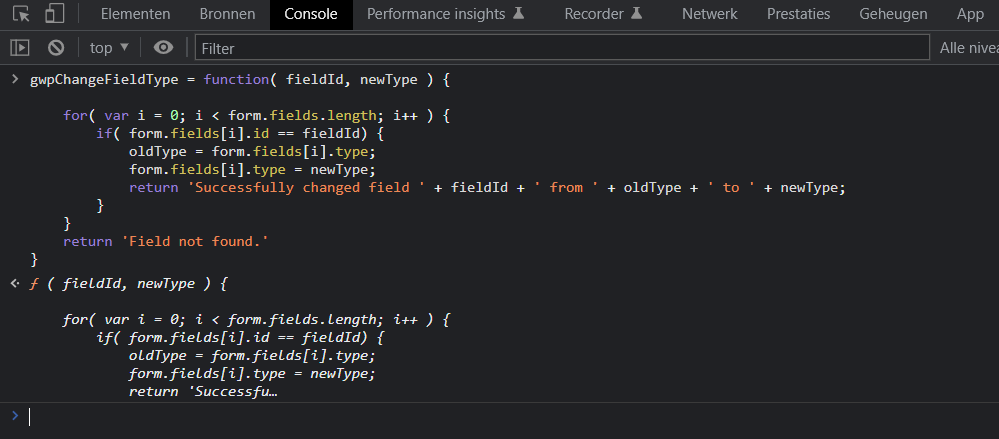
- Paste the snippet below in your console and hit the enter key.
gwpChangeFieldType = function( fieldId, newType ) {
	for( var i = 0; i < form.fields.length; i++ ) {
		if( form.fields[i].id == fieldId) {
			oldType = form.fields[i].type;
			form.fields[i].type = newType;
			return 'Successfully changed field ' + fieldId + ' from ' + oldType + ' to ' + newType;
		}
	}
	return 'Field not found.'
}
It should look like this:
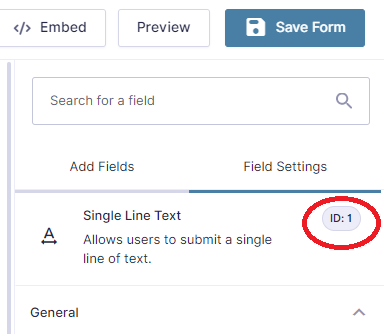
- Identify the id of the field you want to change the type of. This is a numeric value which you can see when you select the field in the form editor:
- Determine what the target field type should be. Common types are: html, hidden, section, text, website, phone, number, date, time, textarea, select, checkbox, radio, name, address, fileupload, email, post_title, post_content, post_excerpt, post_tags, post_category, post_image, post_custom_field, captcha. These are documented in the Gravity Forms documentation under Basic Properties -> type property.
- Type gwpChangeFieldType( fieldID, newType) in your console, where fieldID should be replaced with the numeric field ID and the second parameter should be the new field type string. For example:
gwpChangeFieldType( 1, 'number')Make sure you got it right, then hit enter. On success you will see the following response:

IMPORTANT NOTE:
You should use this snippet with care and only if you know what you are doing. It might impact existing entries and in the worst case result in data loss if the new field type stores values differently.
If you have conditional logic dependencies on this field the conditional logic might not work as expected. This has been reported when trying to convert checkboxes (multiple possible values) to radiobutton (single value).
When in doubt, always try it in test form first.
Our Premium add-ons for Gravity Forms

Update Multiple Entries
Trigger the update of multiple entries in a target form by submitting an entry in a trigger form.

All Entries
All your new Gravity Forms entries in one central place. Stop navigating between multiple forms to find new entries. Get immediate oversight and full control with a powerful, unified dashboard.

API Connector
Connect Gravity Forms to External API's: Query the API using form field values and automatically fill other form fields with the API response.

Entry to Database
Integrates Gravity Forms with internal or external databases, offering flexible mapping of form fields to database columns and real-time synchronization between entries and database rows.
Read tutorials about

How to Validate Repeatable Contact Rows in Gravity Forms
Learn how to validate repeatable Gravity Forms List field rows with GravityWP List Text. This tutorial shows how to add email and regex validation, test invalid values, and confirm that valid team roster data is stored correctly.

Gravity Forms Airtable Integration: Create Records From Form Submissions
Learn how to build a Gravity Forms Airtable integration with GravityWP API Connector. Send form submissions to Airtable, create new records automatically, and save the returned Airtable Record ID and response back to Gravity Forms.

Gravity Forms Asana Integration: Create Tasks From Form Submissions
Learn how to connect Gravity Forms to Asana with GravityWP API Connector. This tested workflow creates Asana tasks from form submissions and saves the returned task ID and URL back to Gravity Forms.

Gravity Forms Google Calendar Integration: Create Events From Form Submissions
Connect Gravity Forms to Google Calendar with GravityWP API Connector. Learn how to create calendar events from form submissions, map event details, configure OAuth 2.0, handle time zones, and save the returned Event ID and URL.