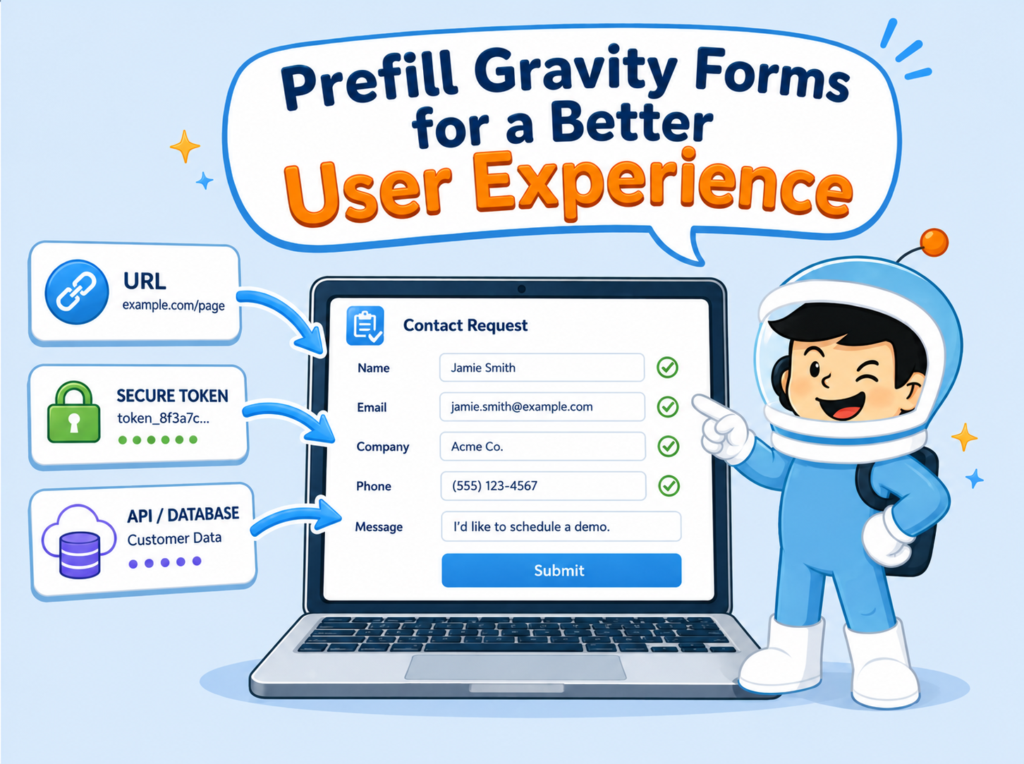
When a form already knows something about the person filling it out, asking that person to type the same details again adds friction. It slows the process, creates more chances for error, and makes the form feel less refined than it should. That is where Gravity Forms dynamic population can make the form experience smoother.
Dynamic population lets you prefill or pre-select form fields before the user submits the form. In the right setup, that can make forms faster to complete, easier to understand, and more helpful in real business workflows.
The feature sounds simple, but the topic gets more nuanced once you move beyond basic prefilling. There are times a URL parameter is enough. Sometimes a shortcode or block setting works better. Sometimes you need PHP logic. And in more advanced cases, the form may need trusted signed data or current values from an external system.
The key is knowing which method fits the data source: a URL parameter, an embed setting, custom code, a signed token, or an external API lookup.
This article explains what Gravity Forms dynamic population really is, the best native ways to use it, when those native methods are enough, and when a more advanced solution such as JWT Prefill or API Connector makes more sense.
What Gravity Forms Dynamic Population Actually Means
In Gravity Forms, dynamic population means a field can receive a value dynamically when the form loads.
To make that work, you enable Allow Field to Be Populated Dynamically on the field and assign a Parameter Name. That parameter is what tells the form which incoming value belongs to which field.
This is an important distinction: dynamic population is not the same as a default value.
A default value is static unless something else changes it. Dynamic population is meant for values passed in at runtime, whether that value comes from a URL, a shortcode, a block setting, or custom logic.
That difference matters because many articles blur those concepts together. When that happens, the setup starts to feel more confusing than it really is.
Why Gravity Forms Dynamic Population Improves User Experience
Prefilling a form field does more than save time.
It can make the form feel more relevant, more accurate, and easier to finish.
For example, prefilling can help you:
- carry page or campaign context into a form
- pass known details from one step to the next
- reduce repeated typing
- lower the chance of user mistakes
- make a form feel like part of a connected workflow instead of a blank starting point
A visitor who sees a form that already understands some context usually has a smoother experience than someone who has to start from zero.
That is the real value of Gravity Forms dynamic population. It is not just about convenience. It is about reducing friction and improving the way people move through your forms.
The Main Ways to Use Gravity Forms Dynamic Population
There is no single best method for every use case. The right option depends on where the data comes from, how much control you need, and whether the value needs to be trusted.
Here is a simple comparison.
| Method | Best for | Main advantage | Main limitation |
|---|---|---|---|
| Query string | Passing known values through a URL | Fast and simple | Not ideal for trusted or sensitive data |
| Shortcode or block field values | Reusing forms in different page contexts | Easy to manage in many WordPress setups | Better for known values than external lookups |
| PHP hook | Pulling values from WordPress logic | Most flexible native option | Requires development work |
| JWT Prefill | Prefilling trusted values from a signed token | Better for secure prefilling | Requires add-on setup |
| API Connector | Looking up current values from an external API | Supports external lookups and response mapping | Requires API configuration |
A quick example makes the difference clearer.
Imagine a training company uses the same registration form across several course pages. If the form only needs to prefill the course name based on the page, shortcode or block field values may be enough. However, if the visitor opens the form from a secure invitation link, JWT Prefill is a better fit because the data needs to be trusted. If the form needs to check the visitor’s current account details from a CRM, API Connector makes more sense because the form needs an external lookup.
The method changes because the data source changes.
1. Gravity Forms Dynamic Population with Query Strings
For many sites, query strings are the first and simplest way to use Gravity Forms dynamic population.
The idea is straightforward. You enable dynamic population on the field, assign a parameter name, and then pass the value through the URL using that same parameter.
This method works well when the value is already known before the user reaches the form.
Typical examples include:
- campaign source
- page context
- event name
- referral label
- hidden tracking values
- a known email address that can safely appear in the URL
This is one of the easiest methods to understand and test. It is also a strong option when speed and simplicity matter more than advanced logic.
Still, query strings are not right for every situation.
If the value should be trusted, protected, or hidden from casual editing, a visible URL is usually not the right place to put it. Query strings are useful for passing context, but not for proving that the value came from a trusted source.
2. Shortcode and block field values
Another strong native option is using Gravity Forms shortcode field values or block-level field values.
This method is useful when the prefilled value depends on where the form is embedded rather than what is in the URL.
That makes it helpful in cases like these:
- the same form appears on multiple landing pages
- each page needs slightly different prefilled context
- the value should be managed in the embed setup instead of the browser address bar
- you want a cleaner page-level setup without relying on custom code
For many WordPress users, this sits in a good middle ground. It gives you more control than basic URL parameters while still staying inside a familiar site-building workflow.
3. Hooks and PHP logic
When the value should come from site logic instead of a URL or page embed setting, the most flexible native method is a PHP hook such as gform_field_value.
This approach is usually best when the site already knows the answer and can generate it before the form is shown.
Examples include:
- pulling data from WordPress user information
- using values from custom site logic
- checking database content inside WordPress
- tailoring field values based on logged-in state or site conditions
This method is powerful, but it is also more technical. It gives developers a lot of control, yet it is not the most beginner-friendly option for teams that want a no-code or low-code workflow.
That does not make it worse. It simply means it fits a different type of project.
When Native Dynamic Population Is Enough
Native Gravity Forms dynamic population is often enough when the value is already known before the form loads.
That usually includes cases like:
- carrying campaign or source data
- passing page context into hidden fields
- pre-selecting a form choice based on where the user clicked
- reusing one form across several pages with different values
- pulling values from existing WordPress logic
A simple rule helps here:
If the form only needs to receive a known value at load time, native dynamic population is often the best first option.
It is built into Gravity Forms, well documented, and usually easier to maintain than a more advanced setup.
When Native Dynamic Population Is Not Enough
The picture changes when the form needs either trusted data or current external data.
That is where many teams hit the limits of basic prefilling.
A query string can pass a value, but it does not prove that the value should be trusted.
A shortcode can inject known values, but it does not fetch current data from a CRM or another external system.
A PHP hook can do almost anything, but not every team wants to depend on custom code for workflows that need to be repeatable and easy to manage.
At that point, it helps to split the problem into two different categories:
| Need | What it means | Better-fit solution |
|---|---|---|
| Secure prefill | The value is already known, but it must be trusted and validated | JWT Prefill |
| External lookup | The value is not known yet and must be fetched from another system | API Connector |
It is not about replacing native Gravity Forms features. It is about extending the prefilling strategy into cases where native runtime methods are no longer enough on their own.
JWT Prefill: When the Data Needs to Be Trusted
JWT Prefill is the better fit when the form should load with values from a signed token instead of a visible query string.
That changes the trust level of the workflow.
Instead of simply passing a value in the URL, you are working with claims from a token that can be validated before the form loads.
That is useful in workflows where the form should not rely on openly editable parameters.
Examples might include:
- invitation-based access
- approval flows
- controlled handoffs
- secure prefilled user details
- workflows where the form should only work when the token is valid
This is the core difference: a query string is great for passing context, while JWT Prefill is much better when the form must trust the value it receives.
That makes it a natural fit for more controlled workflows.
API Connector: When the Form Needs an External Lookup
API Connector solves a different problem.
It is not mainly about trusting a value you already have. It is about retrieving a value you do not have yet.
This becomes useful when a form needs to:
- look up information from a CRM
- pull matching data from Airtable
- search an external database
- fetch account details based on an email or ID
- map API response data back into form fields
That is a very different kind of prefilling.
Here, the form is not just receiving context. It is participating in an external lookup workflow.
API Connector fits this kind of workflow because it can send a request to an external system and use the returned data inside the form workflow. For example, a form could look up customer details from a CRM, retrieve matching records from Airtable, or map response data back into form fields.
This is different from passing a value into the form. Instead, the form asks another system for the value it needs.
Choosing the Right Method for the Job
The easiest mistake with dynamic population is assuming there must be one “best” method.
There is not.
The better question is this:
Where does the data come from, and how much should the form trust it?
The answer usually points you to the right method.
| Use case | Best method |
|---|---|
| Pass campaign or page context into a form | Query string |
| Reuse one form across multiple pages with different values | Shortcode or block field values |
| Pull data from WordPress logic | PHP hook such as gform_field_value |
| Prefill trusted signed values | JWT Prefill |
| Fetch current values from another system | API Connector |
The goal is not to use the most advanced option just because it sounds more powerful. The goal is to use the lightest method that still handles the data correctly.
Common Mistakes That Make Dynamic Population Harder Than It Needs to Be
A lot of confusion around Gravity Forms dynamic population comes from a small group of repeated mistakes.
Here are the main ones to watch for.
| Mistake | Why it causes problems | Better approach |
|---|---|---|
| Forgetting to enable Allow Field to Be Populated Dynamically | The field has no target for incoming values | Enable it and assign the correct parameter name |
| Confusing dynamic population with default values | These are different features | Use default values for static content and dynamic population for runtime values |
| Using the wrong value for a choice field | The choice may not pre-select correctly | Match the field label or stored value, depending on how the field is configured |
| Passing sensitive data in a visible URL | URL values are easy to edit | Use JWT Prefill when trust matters |
| Expecting core dynamic population to behave like an external API lookup | Native methods do not replace API-driven workflows | Use API Connector when the form must fetch current external data |
| Ignoring caching behavior | Cached pages can interfere with dynamic values | Test carefully when query strings are involved |
Choice-based fields need extra care.
For Drop Down, Radio Button, and Checkbox fields, the incoming value needs to match what the field expects. If the field uses labels only, match the label exactly. If the field uses separate stored values, match the stored value instead.
This small detail can prevent confusion when a field does not pre-select the expected choice.
These issues do not mean dynamic population is unreliable. They usually mean the wrong method was chosen for the kind of data involved.
Why This Matters in Real Business Workflows
Dynamic population becomes much more valuable once forms are part of a larger process.
A simple form can collect data.
A smarter form can also carry context, reduce repeated input, improve data quality, and help the user move through a process with less friction.
That is what makes this topic important for businesses.
For example:
- a marketing team may want forms to carry campaign context automatically
- a support team may want forms to start with known account information
- a sales workflow may need a secure prefilled handoff
- a more advanced operation may need customer lookups from another system
These are not edge cases. They are practical workflow needs.
When a form feels connected to the rest of the business, it becomes more useful to the user and more valuable to the team managing it.
Final Thoughts
Gravity Forms dynamic population is one of those features that looks small until you use it well.
At a basic level, it helps you prefill fields and reduce friction. However, its real value appears when forms become part of a larger workflow.
For simple cases, native dynamic population is often enough. Query strings, shortcode values, block settings, and PHP hooks can handle many situations where the value is already known before the form loads.
However, not every workflow stops there.
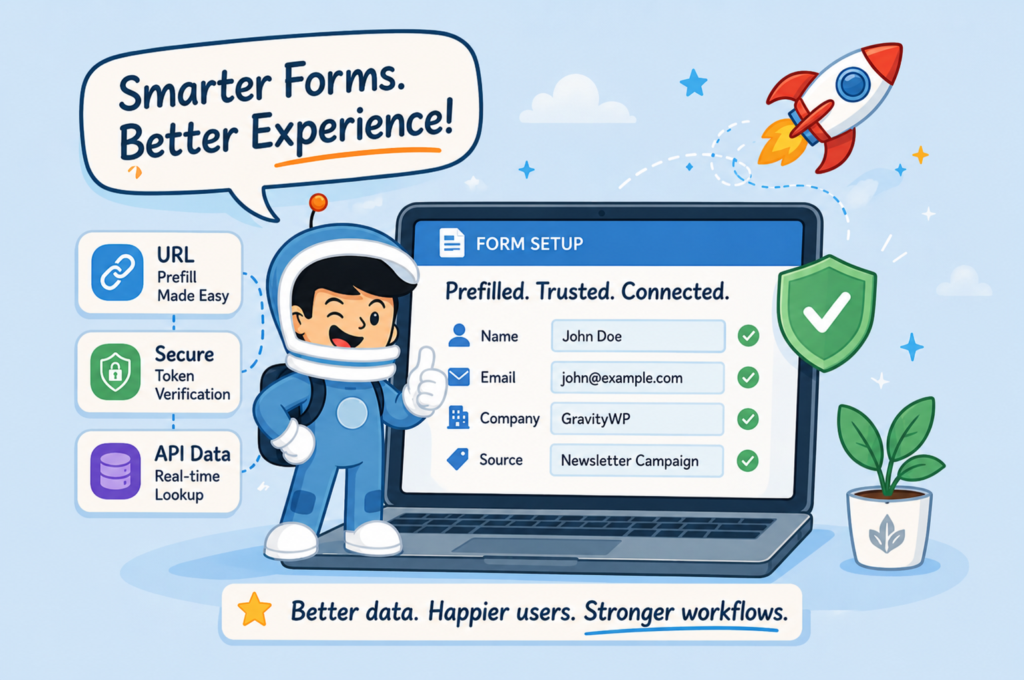
When the form needs trusted prefilled data, JWT Prefill becomes a better fit than a visible URL parameter. When the form needs to retrieve current information from another system, API Connector makes more sense than basic runtime prefilling.
The main takeaway is simple: choose the method based on the data source and the level of trust the form needs.
The best setup is not always the most advanced one. It is the one that helps the user complete the form with less friction while keeping the workflow accurate and reliable.
Gravity Forms Dynamic Population – FAQ
Gravity Forms dynamic population is a feature that lets you prefill or pre-select form fields when the form loads. It works by enabling Allow Field to Be Populated Dynamically on a field and assigning a parameter name that receives the value.
A default value is static and is set directly on the field. Dynamic population fills the field at runtime using a URL parameter, shortcode, block setting, or PHP logic. In simple terms, default values are fixed starting values, while dynamic population is meant for context-aware prefilling.
Query strings are best when the value is already known before the user reaches the form and does not need a high level of trust. They work well for campaign data, page context, referral labels, and other simple prefilling scenarios.
JWT Prefill is a better choice when the prefilled data needs to be trusted and validated before the form loads. Instead of relying on a visible URL value, it uses a signed token, which makes it more suitable for secure handoffs, invitations, and controlled workflows.
API Connector makes more sense when the form needs to fetch current data from an external system. Native dynamic population is useful for passing known values, while API Connector is better for external lookups such as pulling customer details, database records, or CRM data into the form.
Yes. Dynamic population can reduce repeated typing, lower the chance of user errors, and make forms feel faster and more relevant. When used well, it helps forms feel more connected to the workflow around them instead of making every user start from zero.
Our Premium add-ons for Gravity Forms

n8n Connector
Connect Gravity Forms to n8n and automate your workflows with secure, flexible, and powerful webhooks. Go beyond simple notifications and build advanced, two-way automations.

JWT Prefill
Fill forms with data you can trust. Prefill Gravity Forms fields with a secure token instead of links with editable url parameters, so your data is accurate, tamper-proof, and ready to use.

API Connector
Connect Gravity Forms to External API's: Query the API using form field values and automatically fill other form fields with the API response.

List Dropdown
Add a Dropdown Select with choices to a column or multiple columns in a Gravity Forms List Field.
Read tutorials about

Gravity Forms Zoho CRM Integration: How to Auto-Populate Form Fields by Email
Learn how to auto-populate Gravity Forms from Zoho CRM using GravityWP API Connector. This tutorial shows how to search Zoho Contacts by email and fill form fields with the returned data.

How to Create a Public Submission Business Directory in WordPress (Gravity Forms + GravityView)
Build a moderated business directory where users submit listings through a form, admins approve entries, and approved businesses appear in a searchable GravityView directory.

How to Create an Event Workshop Registration + Waitlist System in WordPress
This guide shows how to set up a workshop registration + waitlist system in WordPress: register attendees until capacity is reached, waitlist the rest, approve entries, and auto-promote people when a seat opens using Gravity Forms, Gravity Flow, and GravityView.

Gravity Flow Form Submission Step Tutorial
The Gravity Flow Form Submission step pauses a workflow until another form is submitted, then continues once the handoff is complete. This guide shows how to connect two forms, prefill fields with mapping, send the correct secure link, and troubleshoot the most common “workflow didn’t move” issues.
