A Gravity Forms entry to database workflow becomes useful when a team starts asking a different question about form data.
At first, the question is simple: can Gravity Forms store submissions? The answer is yes. Gravity Forms stores entries in its own database structure and gives admins a standard workflow for reviewing submissions inside WordPress.
But once reporting, syncing, table structure, or direct database access start to matter, the question changes.
Instead of asking whether the form can store data, the real question becomes this:
Is the default entry structure still the best place for that data?
The goal is to choose the storage model that fits the workflow, not to make every form use a custom table.
This is not about saying the default Gravity Forms entry system is wrong. In many cases, it is exactly what a site needs. The real issue is fit. Some workflows only need the standard entry list, entry detail view, notes, and exports. Others need a dedicated table, a defined schema, direct database access, or the ability to store form data in an internal or external SQL table on purpose.
For those workflows, a direct-to-table setup can make more sense.

What Default Gravity Forms Entries Already Handle Well
Before talking about custom tables, it is important to be fair about what Gravity Forms already does well.
Gravity Forms collects submissions inside the WordPress admin dashboard, where admins can review entries, filter them, and work with them as records. The default entry system also stores more than raw field values. It can include metadata such as dates, status, source information, payment-related data where relevant, and notes.
That matters because many businesses never need more than that.
If the main workflow is to collect submissions, review them in WordPress, open individual entry details, add notes, and export data occasionally, the default entry system is already a strong foundation.
What Core Gravity Forms Entries Already Support
| Need | Default Gravity Forms entries |
|---|---|
| Review submissions in WordPress | Yes |
| Filter entries in the admin area | Yes |
| Open individual entry detail | Yes |
| Store field values and related metadata | Yes |
| Add notes to entries | Yes |
| Export entries for reporting or analysis | Yes |
| Import entries in core | No built-in entry-import feature |
| Store data directly in a chosen custom SQL table | Not the native entry workflow |
That baseline matters because the default entry system is not the problem. It is often the right fit. The question is whether the workflow now needs a more structured place for the data.
How a Custom Table Changes the Storage Model
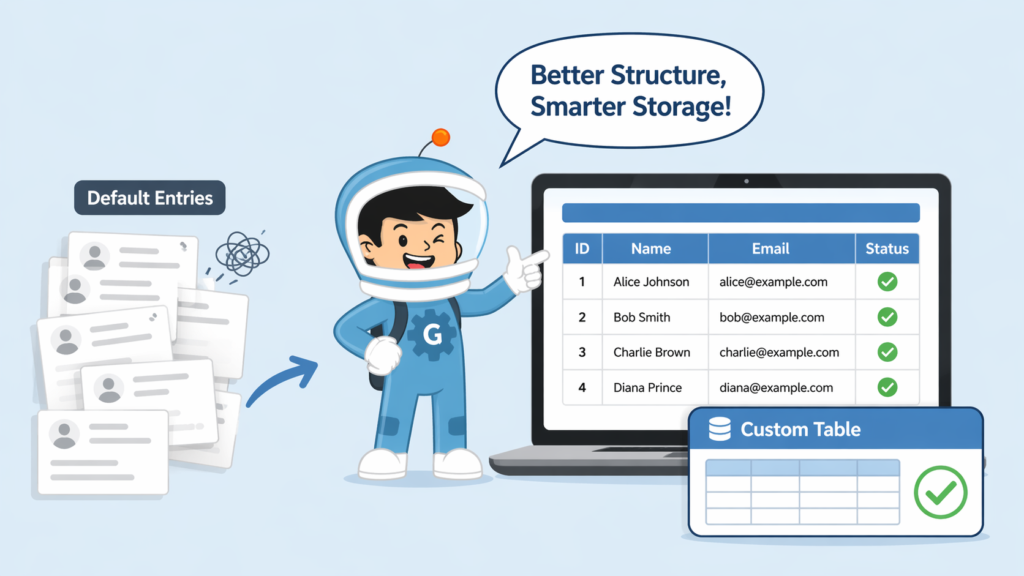
A custom table changes the storage model.
Instead of relying only on the default Gravity Forms entry tables, a workflow can send selected form data into a table you choose. That could be an existing internal WordPress table, an external database table, or a connection defined in wp-config.php.
That difference is more important than it sounds.
A standard entry is designed for the normal Gravity Forms admin workflow. A custom table is designed around the structure you want for the data itself.
That can be useful when a business wants:
- a clearer schema
- easier SQL-based reporting
- direct storage in an internal or external system
- more controlled row updates
- a storage layer that matches how another system expects the data to look
This is not just about where data is stored. It is about how the data is organized, shaped, and used after the form is submitted.
Imagine a company uses Gravity Forms to collect staff profile updates. The default entry list is useful for reviewing each submission, but the company also has an internal staff directory table with columns for employee ID, name, department, email, and status. Instead of exporting entries and reshaping the data manually, the form can send selected values directly into that table. If the employee ID already exists, the workflow can update the existing row instead of creating a duplicate.
When Default Entries Are Still Enough
Default entries are often enough when the main job of the form is collection and review.
If your team mainly checks submissions in WordPress, filters entries when needed, opens individual records, adds notes, and exports data occasionally, the native Gravity Forms setup is still a good fit.
There is no need to overcomplicate a workflow that already works well inside the built-in entry system.
That is especially true when the data does not need a custom schema and does not need to live somewhere else.
If nobody is asking for direct SQL access, row-based synchronization, or a purpose-built table structure, then Gravity Forms entry to database may be solving a problem you do not actually have yet.
In that case, the default entry workflow is probably the better choice.
When a Custom Table Starts to Make More Sense
The shift usually happens when the business starts caring less about “entries in the dashboard” and more about “records in a data structure.”
That can happen for several reasons.
A team may want SQL-friendly reporting. A developer may want the form data to land in a table that matches an internal tool. A workflow may need to update an existing row instead of always creating a new one. Or a business may want to store data directly in an external database rather than rely on repeated export and import steps.
This is where a direct-to-table workflow becomes more relevant.
If a team keeps exporting entries just to reshape them somewhere else, the issue is not that exports are bad. The issue is that the storage model is no longer convenient for the job.
Once that happens, the team may need a storage workflow that sends the data to the right table from the start.
Signs a Custom Table May Be the Better Fit
| Situation | Better fit |
|---|---|
| You mainly review entries in WordPress | Default entries |
| You occasionally export data for reporting | Default entries + export |
| You need field values mapped to chosen database columns | Custom table |
| You want to update an existing row by a unique identifier | Custom table |
| You need to store data in an internal or external SQL table directly | Custom table |
| You want delete or trash behavior reflected in the target database | Custom table |
What Gravity Forms Entry to Database Actually Does
Entry to Database is a GravityWP add-on for sending selected Gravity Forms data into a chosen database table.
Instead of relying on manual export and import, the add-on is built to send entries directly into the destination you choose. That can be an internal database table, an external database, or a connection defined through wp-config.php.
That is useful on its own, but the real value comes from the control it gives the team.
Inside the feed settings, users can:
- choose a database configuration
- map Gravity Forms fields to database columns
- choose Insert New Row
- choose Update Existing Row
- select a unique identifier for update and delete actions
- define what should happen when an entry is trashed or deleted
- use conditional logic to decide when the feed runs
That gives the team more control over how form data behaves in the target table.
Gravity Forms already saves entries in a database. The real value here is not “saving to a database” in the abstract. The real value is being able to choose the destination table, choose the connection, choose the row action, and map values to the structure the business actually wants.
This makes the add-on useful when the storage structure itself matters.
Developers can also send Gravity Forms data to a custom table with code. For example, a custom workflow could use a submission hook to process entry data after the form is submitted.
That route gives developers full control, but it also means the team owns the code, testing, maintenance, and future changes. Entry to Database fits teams that want field mapping, insert or update actions, database connections, and trash/delete behavior handled through a managed feed setup instead of a custom-coded workflow.
Where a Custom Table Becomes the Better Fit
If the only requirement is to store submissions and review them in WordPress, the default entry system may still be enough.
However, the decision changes when the data needs a specific table structure. A business may need records stored in the right columns, updated by a unique identifier, or available for SQL-based reporting.
In that case, the value is not just “saving form data.” The value is sending the right data into the right structure, then controlling how that row behaves after submission.
This is where Entry to Database fits naturally. It gives teams a feed-based way to choose a destination table, map fields to columns, and decide whether the workflow should insert a new row or update an existing one.
Common Use Cases That Fit a Custom-Table Approach
A custom-table approach makes sense when the business cares about more than form administration.
Good examples include:
- staff directories
- internal tools
- SQL-friendly reporting workflows
- records that need to live in a more predictable table structure
- workflows where an existing row should be updated instead of duplicated
- cases where the destination schema should match another business system
These are the kinds of situations where Gravity Forms entry to database stops sounding like a technical phrase and starts becoming a practical solution.
Another strong use case is when the row lifecycle matters.
If the workflow needs deleted or trashed Gravity Forms entries to be reflected in the target database, then the storage model is no longer just about insertion. It is also about how the database record should behave after the original entry changes.
That is a much stronger argument for a direct table workflow than a simple export-based process.
Important Realities Before Choosing a Custom Table
A custom table is not automatically better just because it sounds more advanced.
It adds responsibility. Someone still needs to think about the schema, column types, and the format each mapped value should use. If the target column expects a specific format, the form value should match that format.
That is why this is a data-structure decision, not just a plugin decision.
A custom table gives more control, but it also works best when the team is clear about how the stored data should be organized and used.
Default Entries vs Custom Tables
The choice becomes clearer when both options are compared side by side.
Both approaches are valid.
The better one depends on the job.
| Question | Default entries | Entry to Database / custom table |
|---|---|---|
| Where is the data managed? | Gravity Forms entry system in WordPress | Chosen internal or external database table |
| Good for normal form review and admin follow-up? | Yes | Not the main reason to use it |
| Good for direct field-to-column mapping? | Not the native model | Yes |
| Good for SQL-friendly reporting structures? | Limited by entry storage model | Better fit |
| Can update an existing row by unique identifier? | Not the native entry workflow | Yes |
| Can connect to an external database? | Not as the standard entry storage model | Yes |
| Best when the business wants a purpose-built table structure? | Not usually | Yes |
That table captures the core decision clearly.
Default entries are built for the Gravity Forms admin experience.
Entry to Database is built for workflows where the structure and destination of the data matter more.
Final Thoughts
The key point is simple.
Gravity Forms already stores submissions and already gives site owners a solid entry-management workflow. For many projects, that is exactly the right setup.
But when the data needs to live in a chosen SQL table, follow a clearer schema, support row-based updates, or move directly into an internal or external database connection, the built-in entry model is no longer the cleanest fit.
That is where a Gravity Forms entry-to-database workflow becomes a practical answer to a more mature data question.
If the workflow still revolves around viewing entries in WordPress, keep the default system.
If the workflow now revolves around table design, row updates, SQL access, and direct storage in a chosen destination, Entry to Database becomes a natural fit.
That is not because the default entry system is weak.
It is because the workflow has changed, and the storage model needs to change with it.
Gravity Forms Entry to Database – FAQ
It refers to storing Gravity Forms submission data in a chosen database table instead of relying only on the default entry structure inside Gravity Forms. GravityWP’s Entry to Database add-on supports internal tables, external databases, and connections defined through wp-config.php.
Yes. Gravity Forms stores entries in its own database structure and gives admins tools to review submissions, open Entry Detail, add notes, and export entries from WordPress.
Default entries are usually enough when your team mainly needs to review submissions in WordPress, filter entries, open individual records, add notes, and export data occasionally. That is the standard workflow Gravity Forms already supports.
A custom table makes more sense when you need field-to-column mapping, SQL-friendly reporting, direct storage in an internal or external table, or update logic based on a unique identifier. Entry to Database is useful here because it lets you map fields to columns, choose insert or update actions, and use a unique identifier to update the correct row.
Entry to Database lets you send Gravity Forms data directly to a chosen table, map form fields to database columns, choose actions such as Insert New Row or Update Existing Row, and control how delete or trash behavior should affect the target database row.
Yes. Column types matter because the mapped form value should match the format expected by the target database column. For example, DATE and DATETIME fields need values in the correct date or date-time format.
Our Premium add-ons for Gravity Forms

Field to Entries
Create entries based on Checkboxes & Multi Select choices & List Field rows.

List Text
Add features like textarea, placeholder and custom validation to a column or multiple columns in a Gravity Forms List Field.

List Dropdown
Add a Dropdown Select with choices to a column or multiple columns in a Gravity Forms List Field.

List Number Format
With this Gravity Forms Add-on you can change List Field columns into a number field, do calculations within a row or column. Extra merge tags are available with total counts of columns.
Read tutorials about

How to Validate Repeatable Contact Rows in Gravity Forms
Learn how to validate repeatable Gravity Forms List field rows with GravityWP List Text. This tutorial shows how to add email and regex validation, test invalid values, and confirm that valid team roster data is stored correctly.

Gravity Forms Airtable Integration: Create Records From Form Submissions
Learn how to build a Gravity Forms Airtable integration with GravityWP API Connector. Send form submissions to Airtable, create new records automatically, and save the returned Airtable Record ID and response back to Gravity Forms.

Gravity Forms Asana Integration: Create Tasks From Form Submissions
Learn how to connect Gravity Forms to Asana with GravityWP API Connector. This tested workflow creates Asana tasks from form submissions and saves the returned task ID and URL back to Gravity Forms.

Gravity Forms Google Calendar Integration: Create Events From Form Submissions
Connect Gravity Forms to Google Calendar with GravityWP API Connector. Learn how to create calendar events from form submissions, map event details, configure OAuth 2.0, handle time zones, and save the returned Event ID and URL.
