Do you need a Drop Down field in your Gravity Forms list column? No need to look further, the List Drop Down plugin does just that, it gives you the ability to add Drop Down (select) Fields inside of a List Field column.
Set a List column to Dropdown
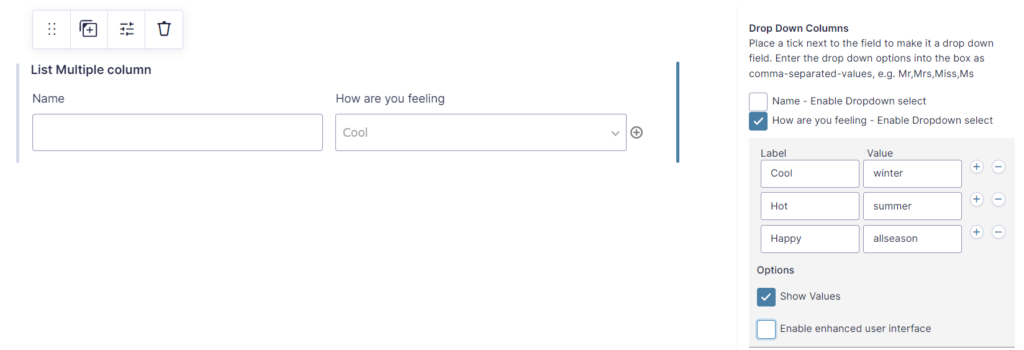
In the form editor select your single or multi column list field. Tick the ‘enable Dropdown select’ checkbox and add your predefined set of values where the user may choose from.
Make a difference between labels and values
Labels are visible to the form users. Values are saved in the form entry. When you tick the ‘Show Values’ option you can specify a value for each label.
Enhanced user interface
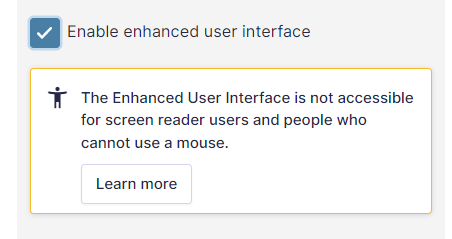
Enabling the enhanced user interface enhances the Dropdown select user interface, enabling search for example. This options comes with a downside: it is not accessible for screen readers and people without a mouse. We included it mainly for backwards compatibility reasons.
Works with List Number Format
The List Dropdown add-on for Gravity Forms works perfectly together with the GravityWP – List Number Format Add-on.
Original plugin has been closed
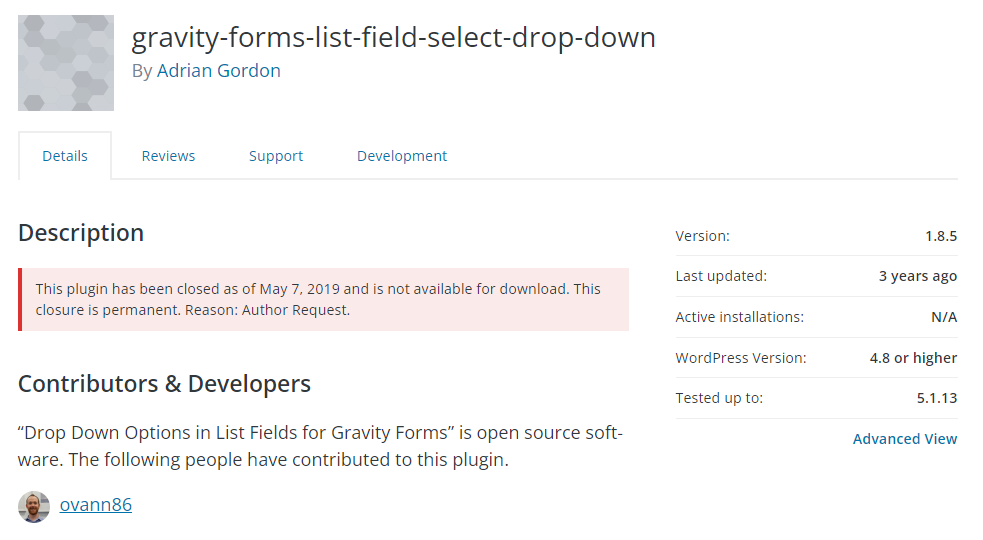
This original plugin has been closed as of May 7, 2019 and is not available for download. This closure is permanent. Reason: Author Request. See here the page on WordPress.org.
Enable Drop Down in List Fields for Gravity Forms
Just install the plugin and make a Gravity Form with a List Field. You will see this extra options:
Our Premium add-ons for Gravity Forms

API Connector
Connect Gravity Forms to External API's: Query the API using form field values and automatically fill other form fields with the API response.

List Number Format
With this Gravity Forms Add-on you can change List Field columns into a number field, do calculations within a row or column. Extra merge tags are available with total counts of columns.

All Entries
All your new Gravity Forms entries in one central place. Stop navigating between multiple forms to find new entries. Get immediate oversight and full control with a powerful, unified dashboard.
DateTime Field
The GravityWP - DateTime Field add-on adds a dedicated Date/Time field to Gravity Forms so users can enter both a date and a time in a single input.
Read tutorials about

Show Previous Gravity Forms Submissions Using Advanced Merge Tags
This step-by-step tutorial shows how to use GravityWP Advanced Merge Tags to count previous Gravity Forms submissions and calculate total submitted value based on a matching email address.

Gravity Forms LeadConnector Integration with OAuth 2.0
This documentation-based tutorial explains how to connect Gravity Forms to LeadConnector/HighLevel with OAuth 2.0, search contacts by email, and map returned CRM values back into form fields using GravityWP API Connector.

Gravity Forms Zoho CRM Integration: How to Auto-Populate Form Fields by Email
Learn how to auto-populate Gravity Forms from Zoho CRM using GravityWP API Connector. This tutorial shows how to search Zoho Contacts by email and fill form fields with the returned data.

How to Create a Public Submission Business Directory in WordPress (Gravity Forms + GravityView)
Build a moderated business directory where users submit listings through a form, admins approve entries, and approved businesses appear in a searchable GravityView directory.
