Do you want to quickly edit a single Gravity Form Field Value, without having to open the complete Entry Edit screen? Both in the backend and frontend of your site? With the Inline Edit Add-on from GravityView you can easily do that.
How inline editing works for form admins
Inline Edit adds a settings option to your Gravity Form:

By enabling it, a new button appears on your Entries page: ‘Enable Inline Edit’

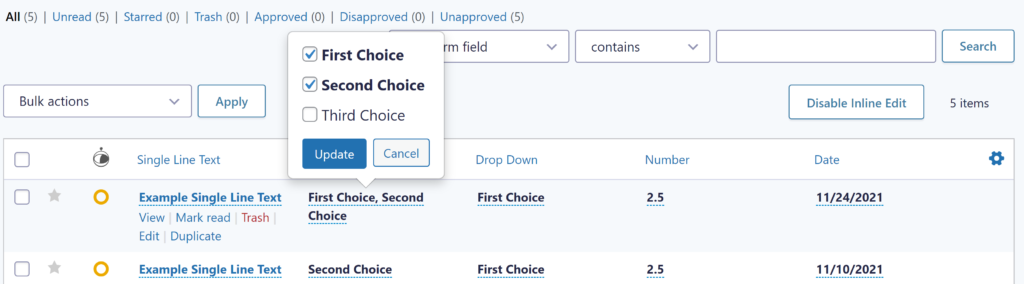
After enabling Inline Edit, all the fields you can edit get a dotted blue line. When clicking on the field, you can super fast select other values for that field. See for example this example about quickly change the checkbox values of selected entry:
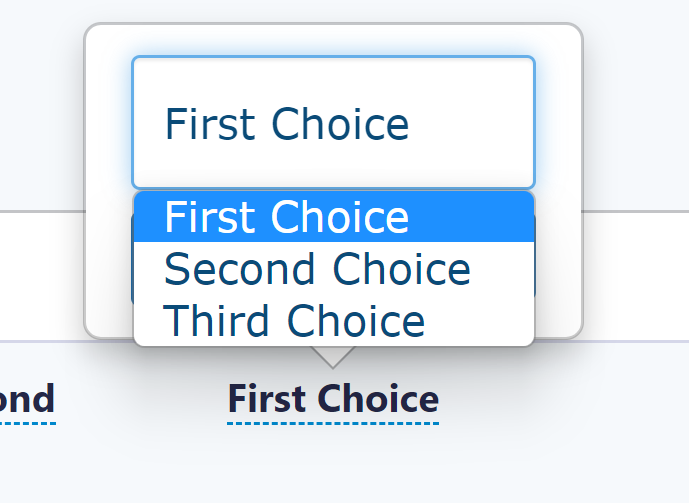
Or a dropdown:
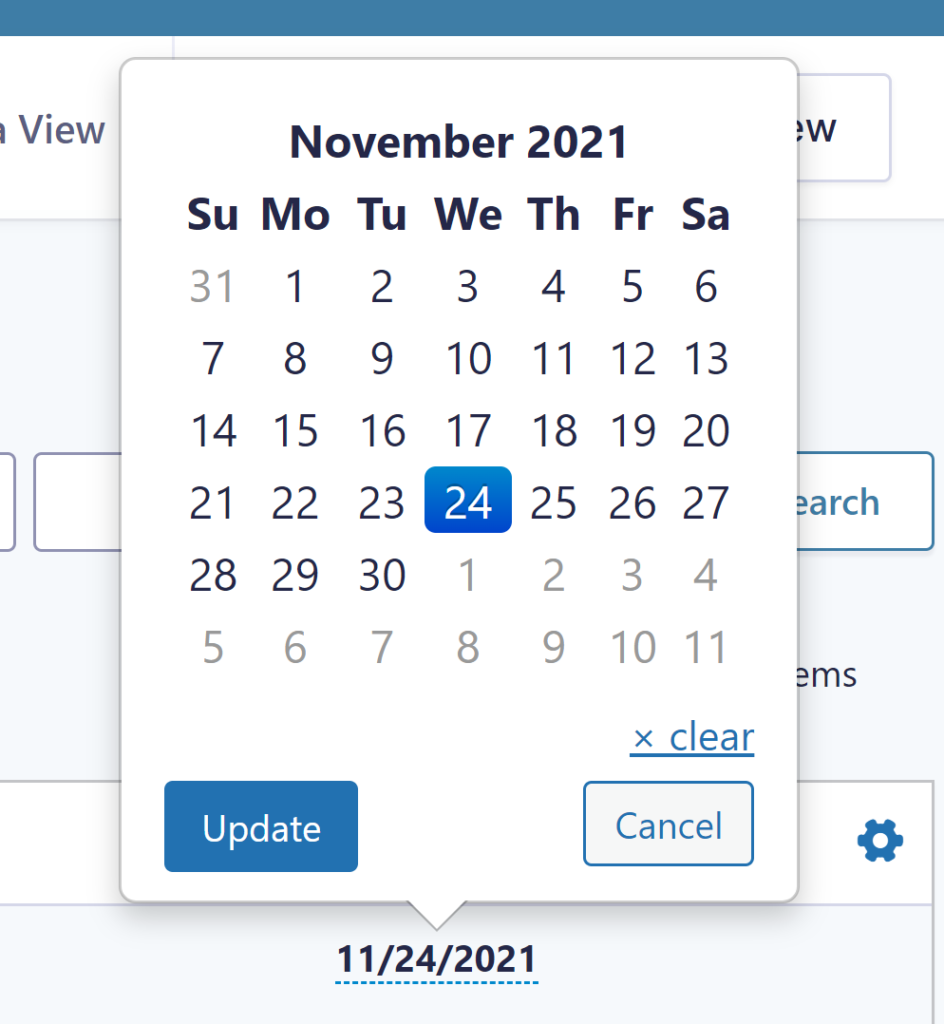
Or a Date Field:
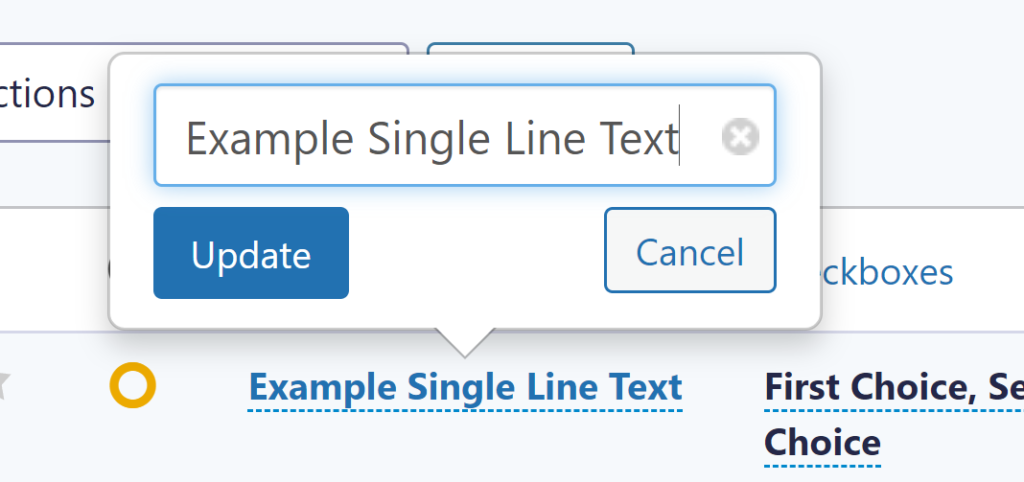
Or a Single Line Text:
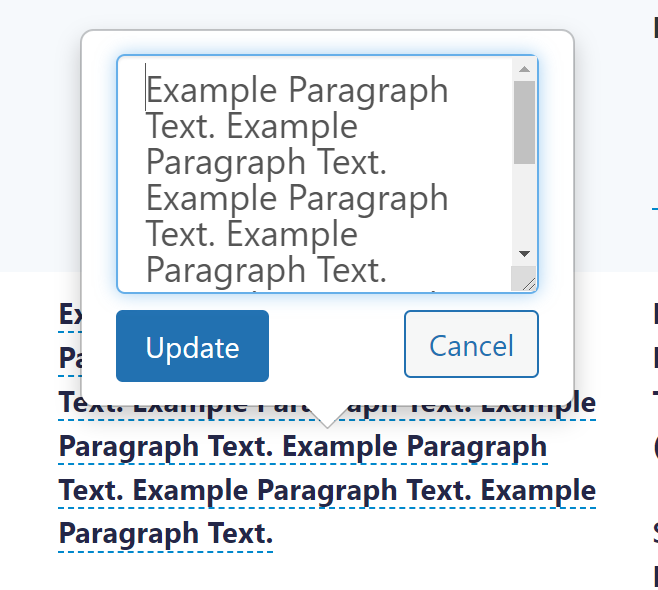
Or a Paragraph Text Field:
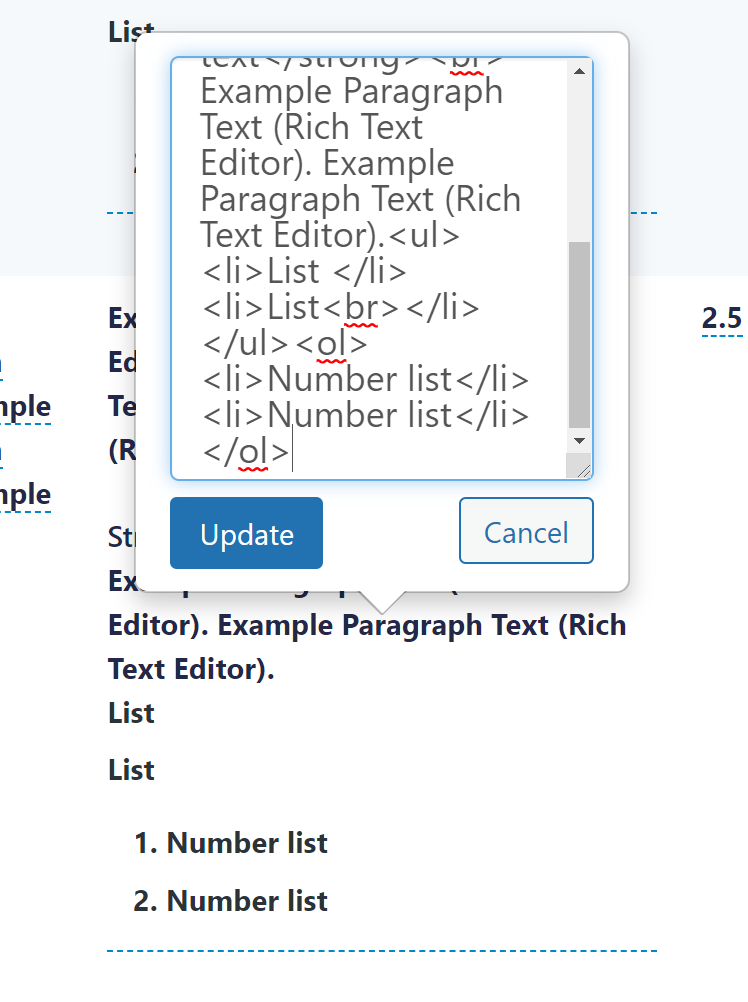
Rich Text Editor also works, but with the HTML visible:
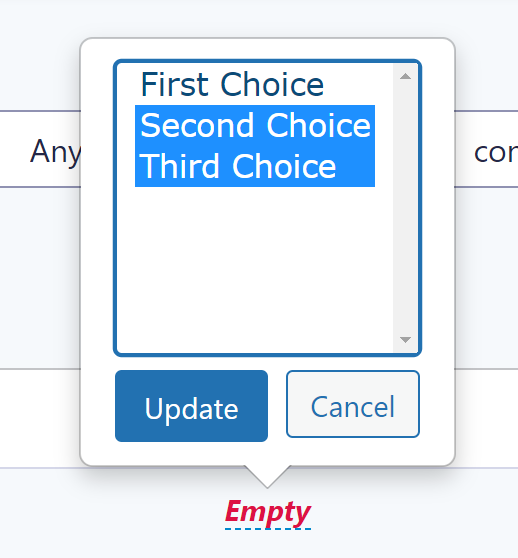
And a Multi Select Field (by pressing CTRL you can select multiple values):
Configuring inline editing for users
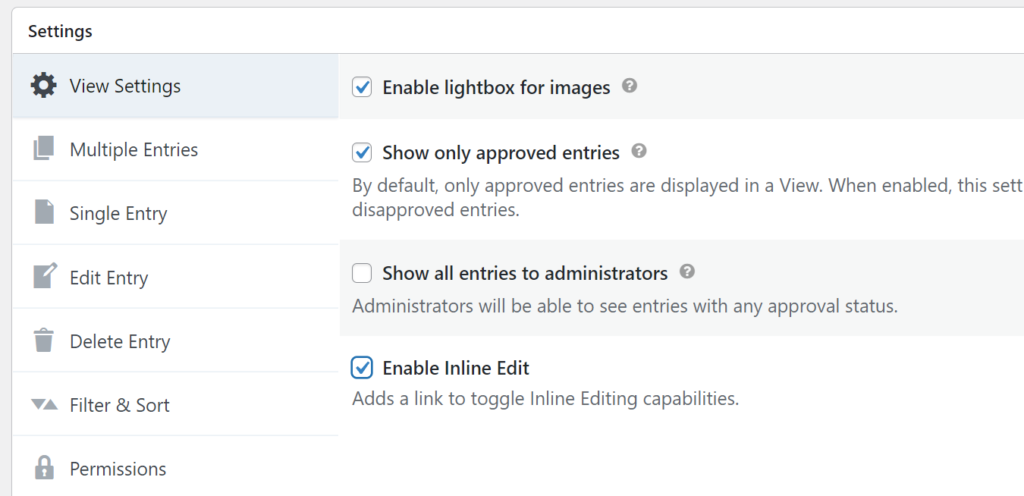
You can also create a View and enable inline editing for front-end users. First configure your view with fields on the Multiple Entries Layout that you want to make available for inline editing:
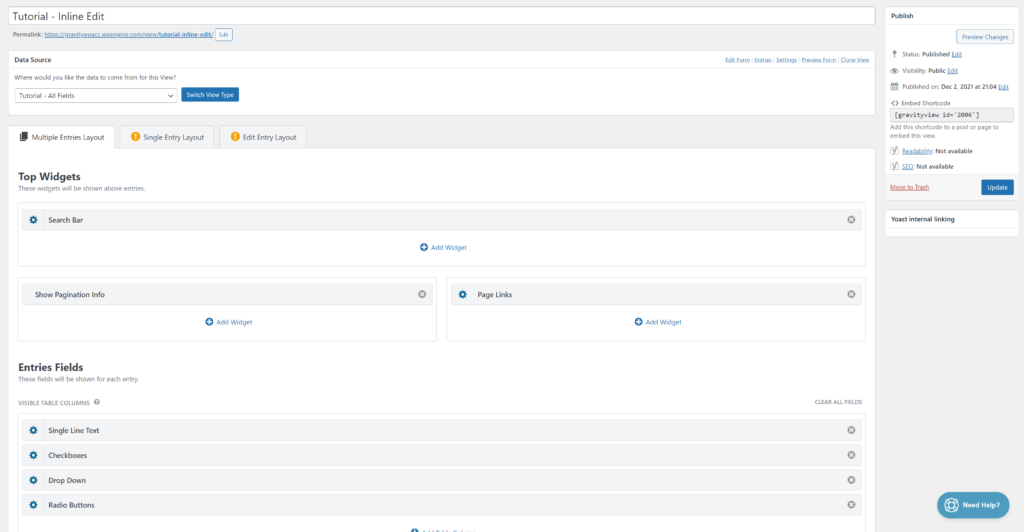
And than Enable Inline Edit in your View settings:
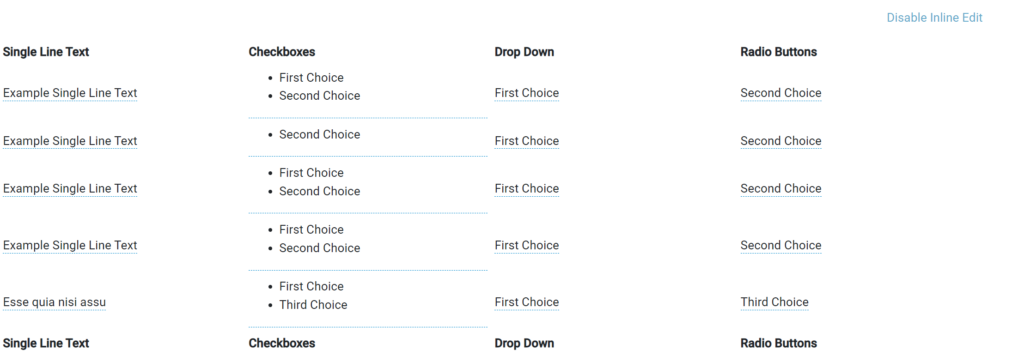
We added some fields to our Table View and in the top corner of the view the text Enable Inline Edit appears. When clicking it, it turns into Disable Inline Edit. It works basically the same as the above examples.
How we use it in our projects
We use the Inline Edit functionality in the backend when we quickly want to update certain values without having to open every single complete entry in editing mode. For our clients we sometimes configure Inline Edit so they can easily change a status (sometimes multiple) of entries, to move them for example to another bucket or to mark that something is finished.
You have countless possibilities to integrate it and as GravityView says on their website, it saves an enormous amount of time not having to create edit pages or for clients to have to open the complete entry to change a single value.
Our Premium add-ons for Gravity Forms
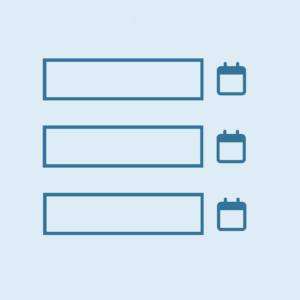
List Datepicker
Add a Datepicker with calendar select to a column or multiple columns in a Gravity Forms List Field.

Advanced Merge Tags
This Gravity Forms Add-On adds extra Merge Tag modifiers (and a lot of power). From the most common used functions like capitalize and length to changing date formats.

DateTime Field
The GravityWP - DateTime Field add-on adds a dedicated Date/Time field to Gravity Forms so users can enter both a date and a time in a single input.
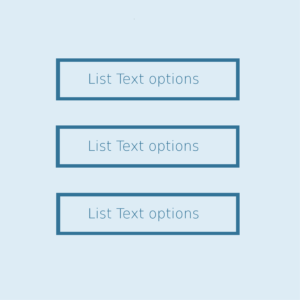
List Text
Add features like textarea, placeholder and custom validation to a column or multiple columns in a Gravity Forms List Field.
Read tutorials about

Gravity Forms Airtable Integration: Create Records From Form Submissions
Learn how to build a Gravity Forms Airtable integration with GravityWP API Connector. Send form submissions to Airtable, create new records automatically, and save the returned Airtable Record ID and response back to Gravity Forms.

Gravity Forms Asana Integration: Create Tasks From Form Submissions
Learn how to connect Gravity Forms to Asana with GravityWP API Connector. This tested workflow creates Asana tasks from form submissions and saves the returned task ID and URL back to Gravity Forms.

Gravity Forms Google Calendar Integration: Create Events From Form Submissions
Connect Gravity Forms to Google Calendar with GravityWP API Connector. Learn how to create calendar events from form submissions, map event details, configure OAuth 2.0, handle time zones, and save the returned Event ID and URL.

Gravity Forms Notion Integration: Create Database Pages Without Zapier
Connect Gravity Forms to Notion without Zapier. This tested tutorial shows how to create Notion database pages from form submissions and save the returned page ID, URL, creation time, and API response.

