With the plugin Import Entries you can easily import entries using an Excel file. This makes it also possible to import big list of data to your WordPress site and use it to fill in information automatically using the Polulate Field possibility in Gravity Forms.
Prepare an Excel file to Import (to CSV)
To use your Excel file in Import Entries, you have to save it as a Comma Seperated Values file. For this Tutorial we use an Excel file from Google’s Keyword Planner.
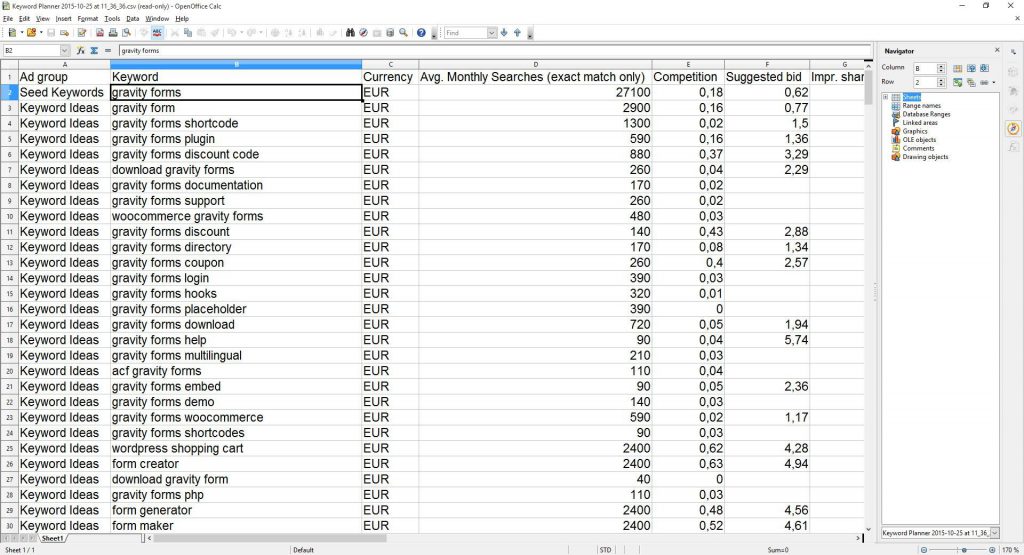
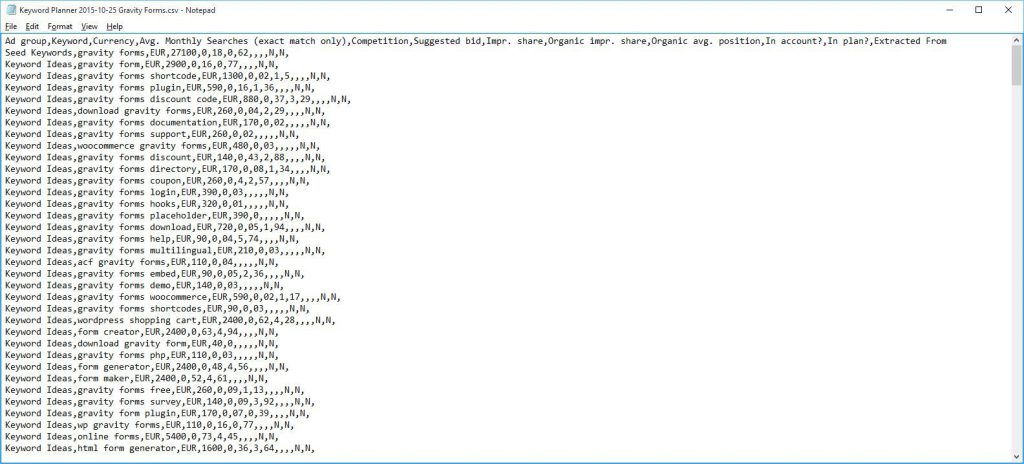
Make sure to save your excel file as a Comma Separated File for it to work with Import Entries plugin. You can check this by opening the CSV file in your Notepad and checking if there are only Comma’s used to separate the columns. This should look like this in notepad:
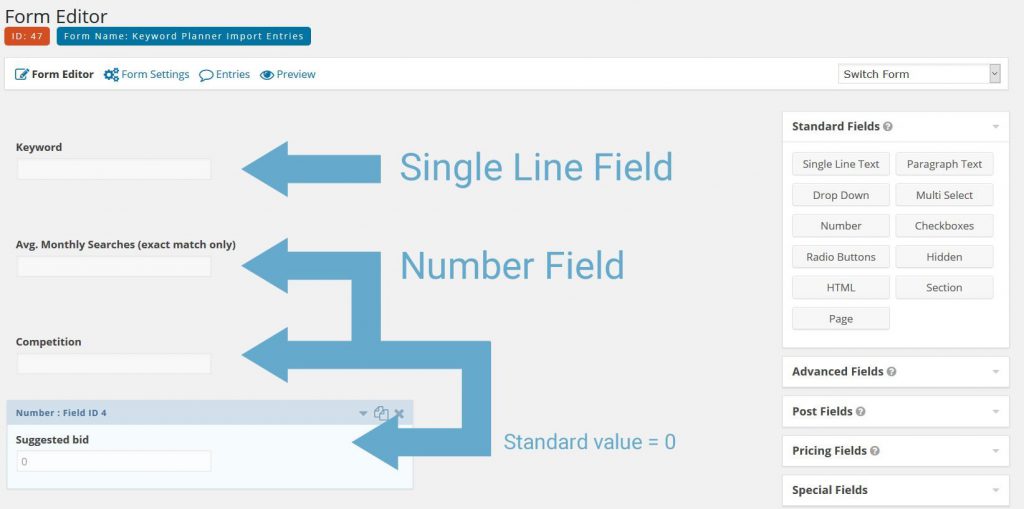
Make a form with the exact same Column Names
As you saw in the Excel file, there are 12 columns:
- Ad group
- Keyword
- Currency
- Avg. Monthly Searches (exact match only)
- Competition
- Suggested bid
- Impr. share
- Organic impr. share
- Organic avg. position
- In account?
- In plan?
- Extracted From
In this tutorial, we will only use the bold columns:
Mapping the Form Fields
With your Form ready, you can start importing Entries with the CSV file. Go to Forms > Import/Export > Import Entries and Upload your CSV file. See below what it looks like:
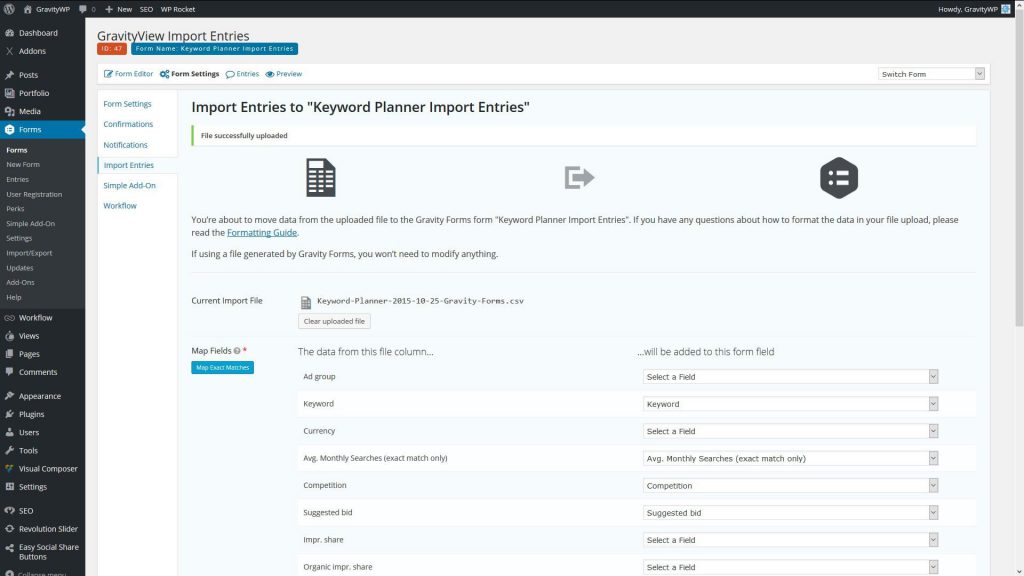
Because we use the exact same column names as field names in the Gravity Form, it is possible to click on Map Exact Matches. With doing that, it will look for matches between the field names and the CVS column names. This saves a lot of time, especially when you have to repeat Excel imports to your forms.

Configuration and importing entries to Gravity Forms
There are some configuration options for your import.
- Be sure to check the ‘Use Default Field Values’ in this example. Why? Because the Suggested bid field is sometimes empty. The default value (standard value) is 0, so if empty this will be asymptomatically zero.
- You can also choose to upload the files to the new website you are maybe working on, or choose to just link to the files that are in the csv file. Be aware: if you choose for uploading the files, it will take quite a long time for the import, because every file will be downloaded to a new folder.
- You can also set conditions for the import (like you are used to with Gravity Forms). It will set conditions based on the values in your csv file.
Click on ‘Save Configuration’ to update all your choices.
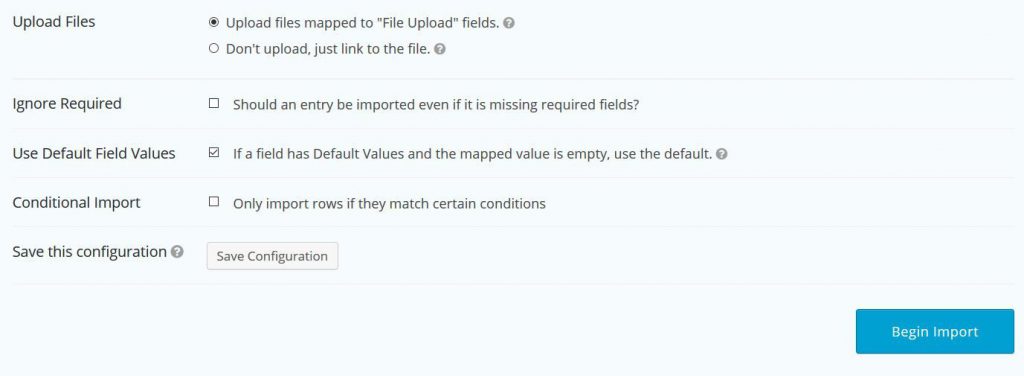
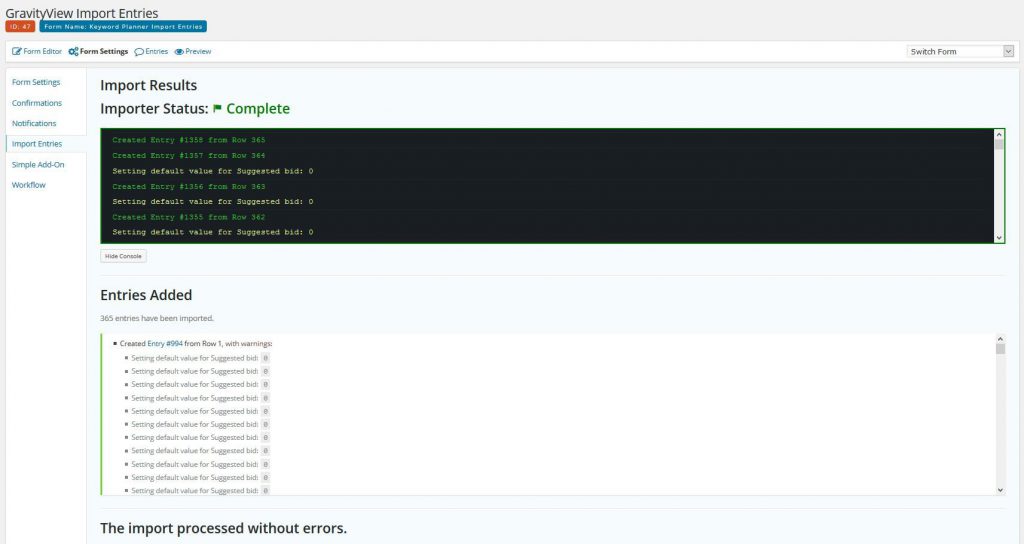
After this: hit ‘Begin Import’ to import your Entries from Excel. You will see this message if the import is completed:
Our Premium add-ons for Gravity Forms

API Connector
Connect Gravity Forms to External API's: Query the API using form field values and automatically fill other form fields with the API response.

Advanced Merge Tags
This Gravity Forms Add-On adds extra Merge Tag modifiers (and a lot of power). From the most common used functions like capitalize and length to changing date formats.

JWT Prefill
Fill forms with data you can trust. Prefill Gravity Forms fields with a secure token instead of links with editable url parameters, so your data is accurate, tamper-proof, and ready to use.

DateTime Field
The GravityWP - DateTime Field add-on adds a dedicated Date/Time field to Gravity Forms so users can enter both a date and a time in a single input.
Read tutorials about

How to Validate Repeatable Contact Rows in Gravity Forms
Learn how to validate repeatable Gravity Forms List field rows with GravityWP List Text. This tutorial shows how to add email and regex validation, test invalid values, and confirm that valid team roster data is stored correctly.

Gravity Forms Airtable Integration: Create Records From Form Submissions
Learn how to build a Gravity Forms Airtable integration with GravityWP API Connector. Send form submissions to Airtable, create new records automatically, and save the returned Airtable Record ID and response back to Gravity Forms.

Gravity Forms Asana Integration: Create Tasks From Form Submissions
Learn how to connect Gravity Forms to Asana with GravityWP API Connector. This tested workflow creates Asana tasks from form submissions and saves the returned task ID and URL back to Gravity Forms.

Gravity Forms Google Calendar Integration: Create Events From Form Submissions
Connect Gravity Forms to Google Calendar with GravityWP API Connector. Learn how to create calendar events from form submissions, map event details, configure OAuth 2.0, handle time zones, and save the returned Event ID and URL.
