Gravity Forms collects the data. n8n automates what happens next.
That sounds simple, but the setup can get confusing fast. Should you use the Gravity Forms Webhooks Add-On? Should n8n pull entries through the Gravity Forms REST API? Do you need a custom webhook? Or should you use a dedicated connector?
The right answer depends on what you want the workflow to do.
Some Gravity Forms to n8n workflows only need to send a submission into n8n. Others need n8n to read existing Gravity Forms entries, update an entry later, or send a response back to the original submission.
This guide compares the main ways to connect Gravity Forms to n8n, including:
- Gravity Forms Webhooks Add-On
- n8n Webhook node
- custom
gform_after_submissionwebhook - Gravity Forms REST API
- GravityWP n8n Connector
- GravityWP API Connector when the form needs external API data
This is not another n8n vs Zapier article. The goal here is to answer one practical question:
How do you connect Gravity Forms to n8n, and which method should you choose?
Last updated: May 2026. n8n, Gravity Forms, and GravityWP features can change, so check the Gravity Forms Webhooks documentation, the n8n Webhook node documentation, and the GravityWP add-ons page before setting up a production workflow.
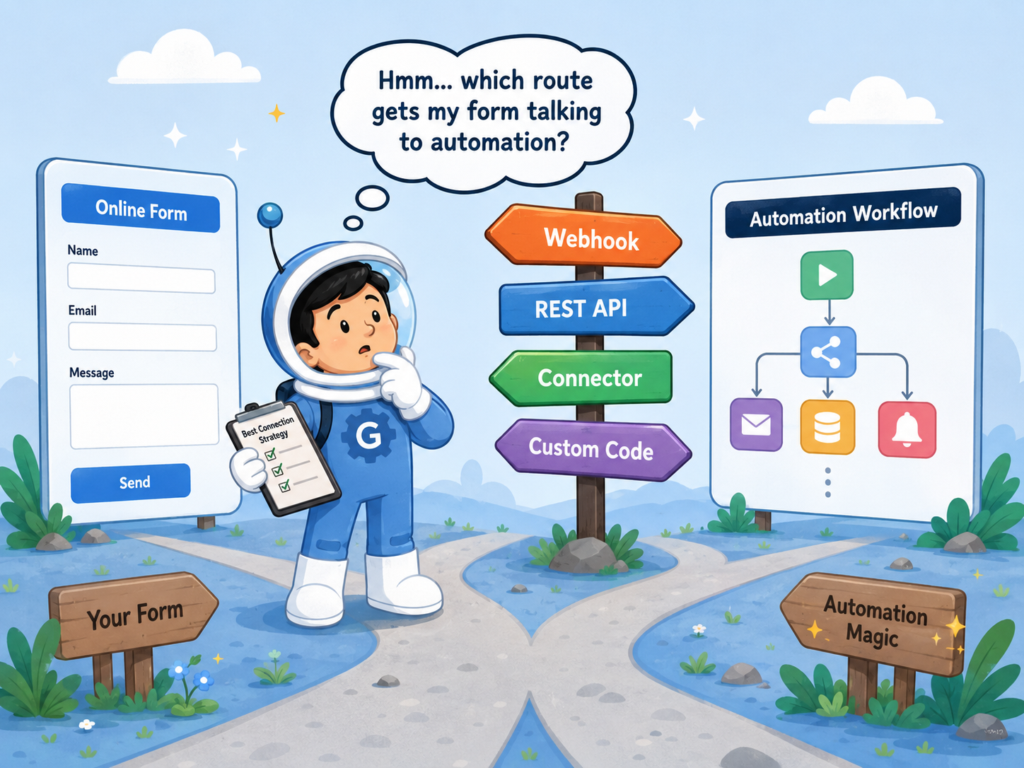
What Does It Mean to Connect Gravity Forms to n8n?
Connecting Gravity Forms to n8n can mean different things depending on the direction of the data.
For some sites, it means a Gravity Forms submission should trigger an n8n workflow. For others, it means n8n should search existing Gravity Forms entries on a schedule. In more advanced setups, n8n may need to send a result back to the original Gravity Forms entry.
Here is the simple version:
| Connection type | What it means |
|---|---|
| Send submission data to n8n | A Gravity Forms submission triggers an n8n workflow |
| Let n8n read Gravity Forms data | n8n calls the Gravity Forms REST API to retrieve entries |
| Send data back to Gravity Forms | n8n updates an entry or returns a response to the original workflow |
This distinction matters because a one-way webhook, a REST API workflow, and a two-way connector are not the same thing.
If your goal is simple automation, a webhook may be enough. If n8n needs to search entries, the REST API may fit better. If you need response handling back into the original entry, a dedicated connector may be cleaner.
What Are the Main Ways to Connect Gravity Forms to n8n?
There are several ways to connect Gravity Forms to n8n. The best method depends on whether Gravity Forms is pushing data out, n8n is pulling data in, or the workflow needs data to come back.
| Method | Best for | Direction | Code required? | Main limitation |
|---|---|---|---|---|
| Gravity Forms Webhooks Add-On + n8n Webhook node | Sending submissions to n8n | Gravity Forms → n8n | No | Mainly one-way unless another process updates the entry |
Custom gform_after_submission webhook | Developer-controlled webhook sends | Gravity Forms → n8n | Yes | Requires custom code and maintenance |
| n8n HTTP Request node + Gravity Forms REST API | Pulling, searching, creating, or updating entries | n8n → Gravity Forms | No custom PHP, but API setup is required | Needs REST API authentication and permissions |
| GravityWP n8n Connector | Secure Gravity Forms to n8n workflows with response handling | Gravity Forms → n8n → Gravity Forms entry | No custom code | Requires the GravityWP add-on |
| GravityWP API Connector | External API lookups before or during form workflows | Gravity Forms → external API → Gravity Forms | No custom code | Not primarily an n8n connector |
This table answers the main question quickly. But the details matter, especially if your workflow involves authentication, response data, or production reliability.
How Does the Gravity Forms Webhooks Add-On Connect to n8n?
The most direct method is to send a Gravity Forms submission to the n8n Webhook node using the Gravity Forms Webhooks Add-On.
The Webhooks Add-On can send form data to external APIs and services. Gravity Forms says it supports request methods such as GET, POST, PUT, PATCH, and DELETE, can send data in JSON or FORM format, and can use conditional logic to control when a webhook runs.
In a typical setup, the flow looks like this:
- Create a Webhook node in n8n.
- Copy the n8n Test URL while building the workflow.
- Configure a Gravity Forms Webhooks feed.
- Set the request method, usually POST.
- Choose JSON or FORM format.
- Map the fields you want to send.
- Submit a test entry.
- Switch to the Production URL once the n8n workflow is ready and published.
n8n provides separate Test and Production webhook URLs. The Test URL is useful while building because n8n can listen for a test event. The Production URL is the one used for an active workflow.
This method works well for simple Gravity Forms automation.
Use it when you want to:
- send leads to n8n
- create or update a CRM contact
- add a row to a spreadsheet
- send a notification to a team channel
- start a follow-up workflow
- route submissions based on field values
The main limitation is that this method is usually best for sending data out. If n8n needs to update the original Gravity Forms entry with a result, status, ID, or enriched value, you may need a more advanced setup.
Can You Connect Gravity Forms to n8n with a Custom Webhook?
Yes. Developers can connect Gravity Forms to n8n using a custom webhook.
The usual approach is to use the Gravity Forms gform_after_submission hook. Gravity Forms describes this hook as running at the end of the submission process, after validation, notification, and entry creation. Its documentation also includes an example for sending entry data to a third-party application.
A custom webhook can make sense when you need full control over the request.
For example, developers may want to control:
- the exact payload structure
- custom headers
- custom logging
- special conditions
- error handling
- retry logic
- data formatting before sending to n8n
This method is flexible, but it has a tradeoff. You are responsible for the code, security, maintenance, and future updates.
If you are not comfortable maintaining PHP, the Webhooks Add-On or a dedicated connector is usually safer.
Can n8n Pull Gravity Forms Entries Through the REST API?
Yes. n8n can use an HTTP Request node to call the Gravity Forms REST API v2.
This is different from a webhook trigger.
With a webhook, Gravity Forms pushes submission data to n8n. With the REST API, n8n calls Gravity Forms to search, retrieve, create, or update entries.
Gravity Forms REST API v2 supports retrieving entries through endpoints such as /entries, /forms/[FORM_ID]/entries, and /entries/[ENTRY_ID]. The same documentation explains that GET requests for entries require the gravityforms_view_entries capability.
Here is the difference:
| Webhook method | REST API method |
|---|---|
| Gravity Forms pushes data to n8n after submission | n8n calls Gravity Forms to retrieve or update data |
| Best for real-time submission triggers | Best for scheduled checks, backfills, reporting, or updates |
| Starts from Gravity Forms | Starts from n8n |
| Simpler for new submissions | More flexible for existing entries |
The REST API method is useful when n8n needs to:
- search old entries
- sync submissions on a schedule
- backfill records
- retrieve a specific entry
- create an entry
- update entry data later
Gravity Forms REST API v2 also supports creating entries through /entries and /forms/[FORM_ID]/entries, and updating a specific entry through /entries/[ENTRY_ID]. Creating entries requires the gravityforms_edit_entries capability, and updating entries uses a PUT request.
This method is powerful, but it requires proper API authentication, permissions, and careful testing. It is usually a better fit for technical users or teams already comfortable with API workflows inside n8n.
What Does GravityWP n8n Connector Add to the Workflow?
GravityWP n8n Connector gives you a more purpose-built way to connect Gravity Forms to n8n.
It is useful when you want Gravity Forms to trigger an n8n workflow, but you also want cleaner connection management, server-side requests, authentication, and response handling back into the original entry.
The n8n Connector product page says it sends Gravity Forms data to n8n through secure webhooks, supports JWT authentication, and can map the n8n response back to update the original entry. It also lists response modes such as Trigger Only, Immediate Update, and Delayed Update.
Here is a simple way to understand the response modes:
| Mode | Use when |
|---|---|
| Trigger Only | You only need Gravity Forms to start an n8n workflow |
| Immediate Update | n8n can return a response quickly and update the entry right away |
| Delayed Update | The n8n workflow takes longer, but you still want to update the entry later |
This is the key difference between a basic webhook and a more dedicated connector.
A basic webhook is often enough when the workflow only needs to send data out. GravityWP n8n Connector becomes more useful when the workflow needs to capture an n8n response, write data back to the original entry, or handle a more structured Gravity Forms to n8n automation.
Example use cases include:
- sending a submission into n8n
- creating a task or record in another system
- returning a generated ID to the original entry
- writing a workflow status back to Gravity Forms
- running a longer automation and updating the entry later
- keeping authentication server-side
This section is important because many users searching for a Gravity Forms n8n integration do not only want to “send data somewhere.” They want a workflow that can return useful information.
When Is API Connector Better Than n8n Connector?
GravityWP n8n Connector and API Connector solve different problems.
Use n8n Connector when the main goal is to send a Gravity Forms submission into n8n.
Use API Connector when Gravity Forms needs to call an external API and use the response inside the form or entry.
GravityWP’s API Connector product page describes it as a way to connect Gravity Forms to external APIs and use the response to populate fields. The API Connector documentation also describes reusable API connections, authentication methods, custom headers, feed settings, and response mapping.
Here is the practical difference:
| Need | Better fit |
|---|---|
| Trigger an n8n workflow from a Gravity Forms submission | n8n Connector |
| Send submission data to n8n and update the original entry | n8n Connector |
| Look up CRM or customer data while filling the form | API Connector |
| Validate a membership ID against an external API | API Connector |
| Fetch data from Airtable or another API and populate fields | API Connector |
| Run a multi-step automation after submission | n8n Connector |
For example, if a form submission should start a workflow that creates tasks, sends notifications, and updates an entry later, n8n Connector is the better fit.
But if the form needs to fetch customer data from an API before submission, API Connector is more relevant.
Which Gravity Forms to n8n Method Should You Choose?
The best method depends on what your workflow needs to do.
Use this table as a quick guide:
| If you need… | Choose… |
|---|---|
| A simple one-way send from Gravity Forms to n8n | Gravity Forms Webhooks Add-On + n8n Webhook node |
| Full developer control over the payload | Custom gform_after_submission webhook |
| n8n to read, search, create, or update Gravity Forms entries | n8n HTTP Request node + Gravity Forms REST API |
| Secure Gravity Forms to n8n automation with response handling | GravityWP n8n Connector |
| Gravity Forms to fetch data from another API before or during submission | GravityWP API Connector |
A simple rule helps:
Start with the direction of the data.
If Gravity Forms needs to push a new submission into n8n, start with a webhook-based method.
If n8n needs to search or update existing Gravity Forms data, look at the REST API.
If the workflow needs to send a response back to the original entry, consider a dedicated connector.
If the form needs external API data before or during submission, API Connector is usually the better path.
What Should You Check Before Using a Gravity Forms n8n Workflow in Production?
A workflow can work during testing and still fail in production if a few details are missed.
Before relying on a Gravity Forms n8n workflow, check these items.
Are You Using the Production Webhook URL?
n8n provides separate Test and Production webhook URLs. The Test URL is useful during workflow development. The Production URL is the one to use after the workflow is active.
If your form still points to a test URL, the workflow may stop working once n8n is no longer listening for test events.
Is the HTTP Method Correct?
If Gravity Forms sends a POST request, the n8n Webhook node should be configured to receive POST.
A mismatch between GET and POST is a common reason a webhook setup fails.
Is the Payload Format Correct?
Gravity Forms Webhooks can send data in JSON or FORM format. n8n can receive the request, but you still need to check where the data appears in the workflow.
If you expected JSON but sent form-encoded data, your n8n workflow may need different field references.
Is Authentication Needed?
Not every webhook should be open to the public without protection.
For REST API workflows, authentication and permissions matter even more. The Gravity Forms REST API uses the authenticated user’s capabilities, so the user or credentials used by n8n must have the right permissions for the entry action being performed.
Do You Need the n8n Response Back in Gravity Forms?
If yes, do not treat the workflow as a basic one-way webhook.
You may need GravityWP n8n Connector, a REST API update step, or a custom workflow that writes the result back into the original entry.
What Happens If n8n Is Down or Slow?
For important workflows, test what happens when n8n returns an error, times out, or takes longer than expected.
Avoid assuming the workflow will always complete instantly. This is especially important for workflows that create invoices, route leads, update records, or trigger customer-facing actions.
What Gravity Forms and n8n Workflows Can You Build?
A Gravity Forms n8n integration can be simple or advanced. Here are common examples.
Lead Routing Workflow
Gravity Forms captures the lead. n8n checks the lead type, location, or service interest. Then n8n sends the lead to the right CRM, email list, sales channel, or team notification.
This is a good fit for a webhook-based workflow.
Support Ticket Workflow
Gravity Forms collects a support request. n8n categorizes the request, creates a task or ticket, and sends a notification to the right team.
This is useful when the form is the intake point, but the work happens in other tools.
Quote or Order Follow-Up Workflow
Gravity Forms collects a quote request or order inquiry. n8n creates follow-up tasks, sends a confirmation, updates a spreadsheet, or notifies a sales team.
This works well when a submission needs several follow-up steps.
Entry Enrichment Workflow
Gravity Forms sends a submission to n8n. n8n enriches the data, generates a status, or receives an ID from another system. Then the result is written back to the original Gravity Forms entry.
This is where response handling becomes important.
Scheduled Entry Sync
n8n checks Gravity Forms entries on a schedule through the REST API and syncs selected records to another system.
This is useful when you need to process existing entries, not only new submissions.
What Are the Common Mistakes When Connecting Gravity Forms to n8n?
Most Gravity Forms to n8n issues come from choosing the wrong method or missing a setup detail.
Are You Using the n8n Test URL in Production?
This is one of the easiest mistakes to make.
Use the n8n Test URL while building and testing. Use the Production URL when the workflow is active and ready to receive live submissions.
Did You Forget to Activate the n8n Workflow?
A Production URL depends on the workflow being ready for production use. If the workflow is not active, your live webhook may not behave the way you expect.
Are You Sending the Wrong Payload Format?
If the Gravity Forms Webhooks feed sends JSON, build the n8n workflow around JSON data.
If it sends FORM data, check how n8n receives those values before building later steps.
Are You Treating a Webhook Like a Two-Way Integration?
A webhook is often a send-only pattern. That is fine for many automations.
But if n8n needs to send data back into Gravity Forms, you need a response-handling plan.
That might mean GravityWP n8n Connector, a REST API update, or custom code.
Are You Exposing Secrets in the Browser?
Keep sensitive authentication server-side when possible.
Avoid exposing API tokens, webhook secrets, or credentials in front-end scripts or visible form fields.
Are You Using REST API Polling When a Webhook Trigger Would Be Simpler?
The REST API is powerful, but it is not always the easiest option.
If all you need is to send each new submission into n8n, a webhook trigger is often simpler than polling entries on a schedule.
Final Recommendation: Start with the Direction of Data
The best way to connect Gravity Forms to n8n is to start with one question:
Where does the data need to go next?
If Gravity Forms needs to send new submissions to n8n, start with the Gravity Forms Webhooks Add-On and the n8n Webhook node.
If n8n needs to search, retrieve, create, or update Gravity Forms entries, use the Gravity Forms REST API through n8n’s HTTP Request node.
If a developer needs full control over the request, a custom gform_after_submission webhook can work, but it requires code maintenance.
If your workflow needs secure Gravity Forms to n8n automation with response handling back into the original entry, explore the GravityWP n8n Connector.
If your form needs to fetch or map data from another external API, review API Connector instead.
The right method is not always the most advanced one. It is the one that matches your data direction, response needs, and maintenance comfort level.
Next Step: Compare the GravityWP n8n Connector and API Connector
Building a more advanced Gravity Forms automation workflow?
Start by asking whether your form needs to trigger n8n or fetch data from another API.
If the goal is to send submissions into n8n and handle responses, review the GravityWP n8n Connector.
If the goal is to call an external API and populate Gravity Forms fields with the response, review API Connector.
You can also browse the full set of GravityWP add-ons for Gravity Forms if your workflow involves entry updates, advanced merge tags, database mapping, or List Field improvements.
Frequently Asked Questions
Yes. Gravity Forms can connect to n8n through webhook-based methods, the Gravity Forms REST API, custom code, or a dedicated connector such as GravityWP n8n Connector.
For a simple one-way workflow, the Gravity Forms Webhooks Add-On can send submission data to the n8n Webhook node.
Yes. n8n can use an HTTP Request node to call the Gravity Forms REST API, as long as authentication and permissions are configured correctly.
Yes, but the method matters. You can use a connector that maps the n8n response back to the original entry, or use the Gravity Forms REST API to update entry data.
n8n Connector is for sending Gravity Forms submissions into n8n workflows and handling responses from n8n. API Connector is for connecting Gravity Forms to external APIs and using the response to populate fields or entries.
Use webhooks when Gravity Forms should trigger n8n after a submission. Use the REST API when n8n needs to search, retrieve, create, or update Gravity Forms data.
Not always. You can use the Gravity Forms Webhooks Add-On, the Gravity Forms REST API through n8n’s HTTP Request node, or GravityWP n8n Connector. Custom code is mainly useful when developers need full control over the payload and delivery logic.
Our Premium add-ons for Gravity Forms
Advanced Number Field
Functionality for Number Fields, like rounding or only absolute numbers, fixed point notation, range calculation, custom units like % or m2 & show as slider.
List Datepicker
Add a Datepicker with calendar select to a column or multiple columns in a Gravity Forms List Field.

List Number Format
With this Gravity Forms Add-on you can change List Field columns into a number field, do calculations within a row or column. Extra merge tags are available with total counts of columns.
Advanced Merge Tags
This Gravity Forms Add-On adds extra Merge Tag modifiers (and a lot of power). From the most common used functions like capitalize and length to changing date formats.
Read tutorials about
Gravity Forms Zoho CRM Integration: How to Auto-Populate Form Fields by Email
Learn how to auto-populate Gravity Forms from Zoho CRM using GravityWP API Connector. This tutorial shows how to search Zoho Contacts by email and fill form fields with the returned data.

How to Create a Public Submission Business Directory in WordPress (Gravity Forms + GravityView)
Build a moderated business directory where users submit listings through a form, admins approve entries, and approved businesses appear in a searchable GravityView directory.

How to Create an Event Workshop Registration + Waitlist System in WordPress
This guide shows how to set up a workshop registration + waitlist system in WordPress: register attendees until capacity is reached, waitlist the rest, approve entries, and auto-promote people when a seat opens using Gravity Forms, Gravity Flow, and GravityView.

Gravity Flow Form Submission Step Tutorial
The Gravity Flow Form Submission step pauses a workflow until another form is submitted, then continues once the handoff is complete. This guide shows how to connect two forms, prefill fields with mapping, send the correct secure link, and troubleshoot the most common “workflow didn’t move” issues.
