Gravity Flow by Steve Henty S.L. provides you with a huge amount of options to organize workflow steps after somebody submits a Gravity Form entry. A short description of workflow is: all activities necessary to complete a task. When you use Gravity Forms and GravityView, you are already thinking in workflows. What do I want to achieve and how can I use forms and views (and editing entries) to do that. Gravity Flow gives you a lot of extra power if you want to manage workflows.
About Steve Henty S.L.
| Developer | Steven Henty S.L. |
| Started | 2015 |
| Documentation | docs.gravityflow.io |
| Listed | gravityforms.com/developers/gravity-flow |
| Languages | 25 languages (2021) |
| Main plugin | Gravity Flow |
| Extensions | Flowchart, Checklists, Folders, Parent-Child Forms, Form Connector, Incoming Webhook, more… |
Interesting links Steve Henty
- The Plugin Economy – Gravity Flow by Steven Henty
Interesting article about the start of GravityFlow. - Founder Steve Henty: Twitter, Personal Blog, WordPress profile, GitHub
Why we use Gravity Flow in our projects
Gravity Flow takes some time to understand. After somebody submits data through a Gravity Form, mostly you want to organize some steps after it, like giving approval or not, adding information to the entry, triggering webhooks, etc. Gravity Flow will help you with that. Steve Henty and his team are highly competent programmers and they know what’s going on in the GF community. Their add-on for Gravity Forms will amaze you because of the power it provides you. Because Steve Henty is a very competent programmer, his work tends to lean more to functionality than to design.
Features
Gravity Flow is packed with handy features.
- Business Workflow Process: Vacation requests, Purchase Orders, Admissions Forms, RFPs, Project Initiation Plans, Case Management… any form that requires a process.
- Unlimited workflow steps: Because you can make unlimited workflow steps for every Gravity Form you have, and rearrange those steps anytime (or add new ones), Gravity Flow provides you with a very powerful set of tools to organise whatever process you want.
- Permissions: Gravity Flow gives you full control over who can do what in every step. You can select assignees based on user, user role or even (if it’s not a user) on e-mail address.
- Conditional logic: Gravity Flow allows you to use conditional logic to determine per step which conditions should be met before the step is triggered. That way you can create complete unique workflows based on values people entered inside their form entry.
- Reports: Gravity Flow provides different ways to show charts and overviews about the workflow: how much time do certain steps take and statistics of users doing stuff inside Gravity Flow.
- Step Notes: Every action taken is being automatically logged and added to the Gravity Forms notes (timeline). That makes it very easy to see who did what (who gave what approval, who added which information).
- Delayed workflow steps: You can set a specific time interval or select a datefield in your form to delay certain steps. This is very powerful, for example when you want to start a drip marketing (mailing) campaign.
- Security: Gravity Flow has regular updates. With a valid license you can update the plugin quickly via the Plugins page in your wp-admin. When ‘Background updates’ are enabled, important fixes for bugs or security risks are installed automatically.
- Open Source: Gravity Flow runs on WordPress (Single site and Multi-Site) and requires only a license for Gravity Forms. Any license will do.
Examples
Add Workflow Steps to your Gravity Form: Gravity Flow provides you with an extra option in ‘Settings’ for every Gravity Form you have. You can create a countless number of steps for every form. It’s quite amazing what kind of power this gives to you.
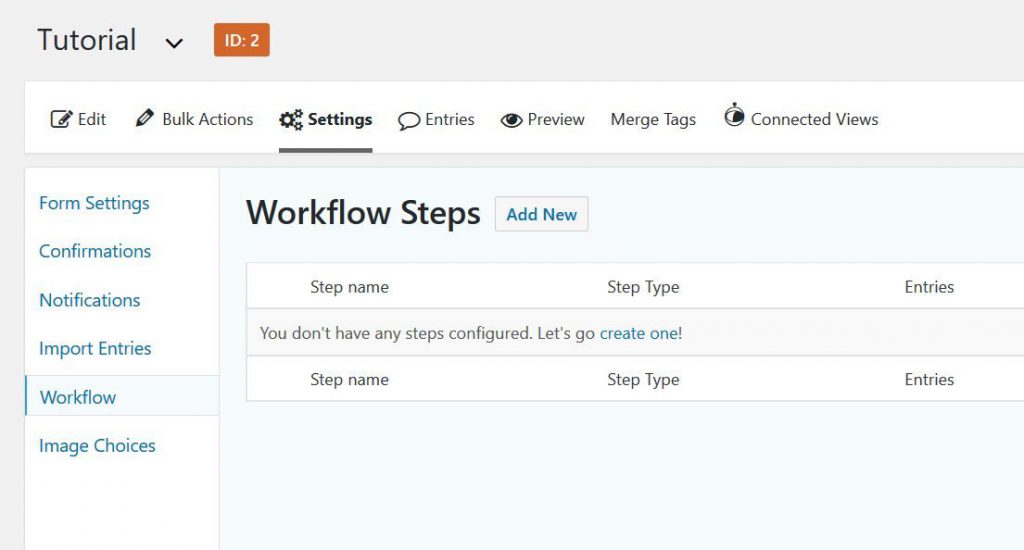
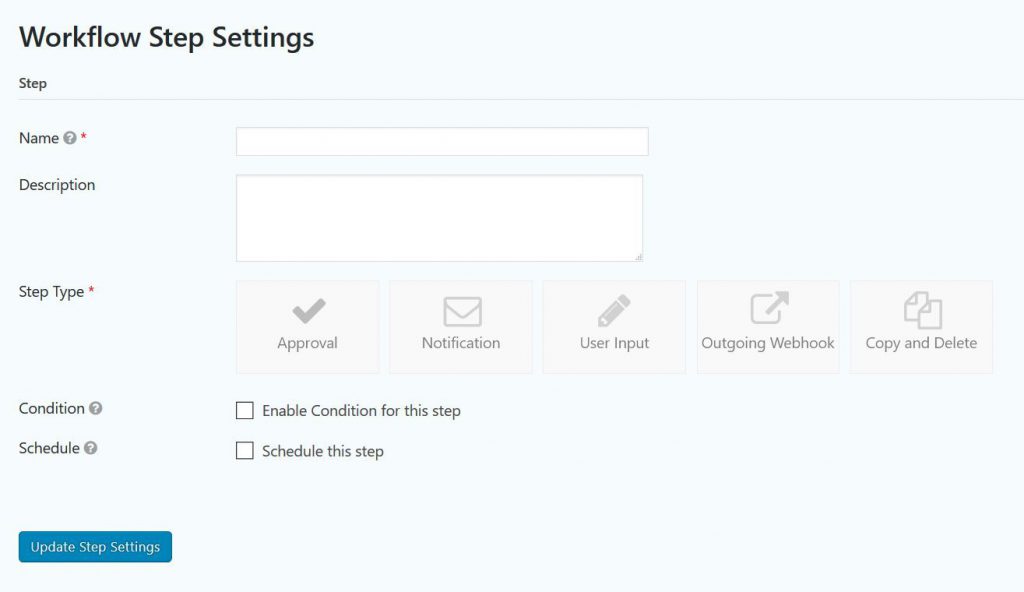
Add a new Workflow Step: You can add different Workflow Steps to your form. There are many available and the number of possible steps is growing quickly (it’s a whole market / development environment on its own). This gives you the opportunity to configure tailor-made workflow steps in your process.
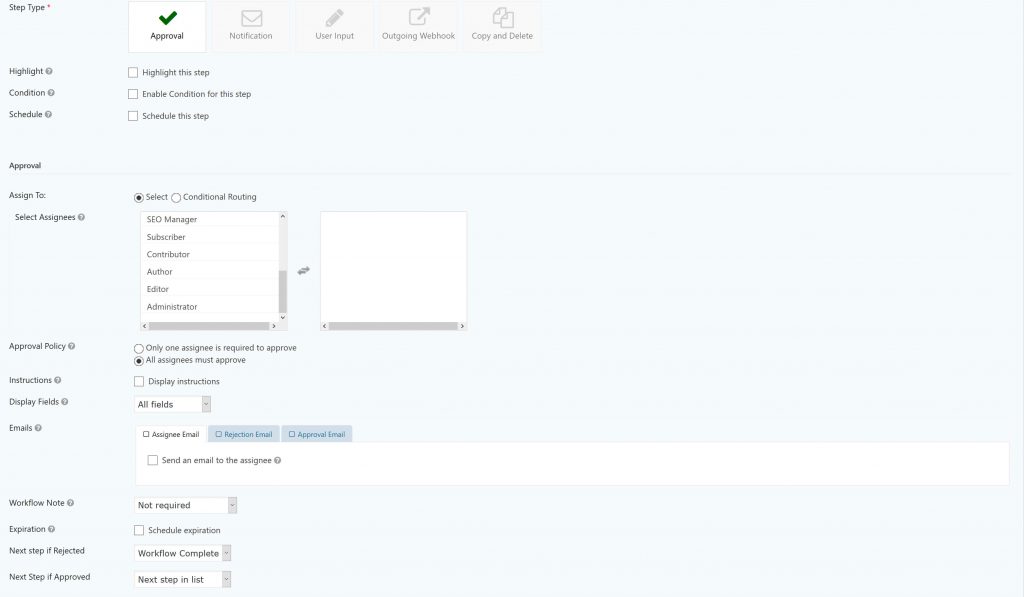
Approval Step Gravity Flow: When somebody (or a specific group, role or even based on routing) has to approve a Gravity Forms submission (entry), the Approval Step is what you need. For example you have somebody requesting vacation, with this step you can easily configure who has to approve this vacation request and send him or her an e-mail alert. The approval request will be automatically available in their Workflow Inbox.
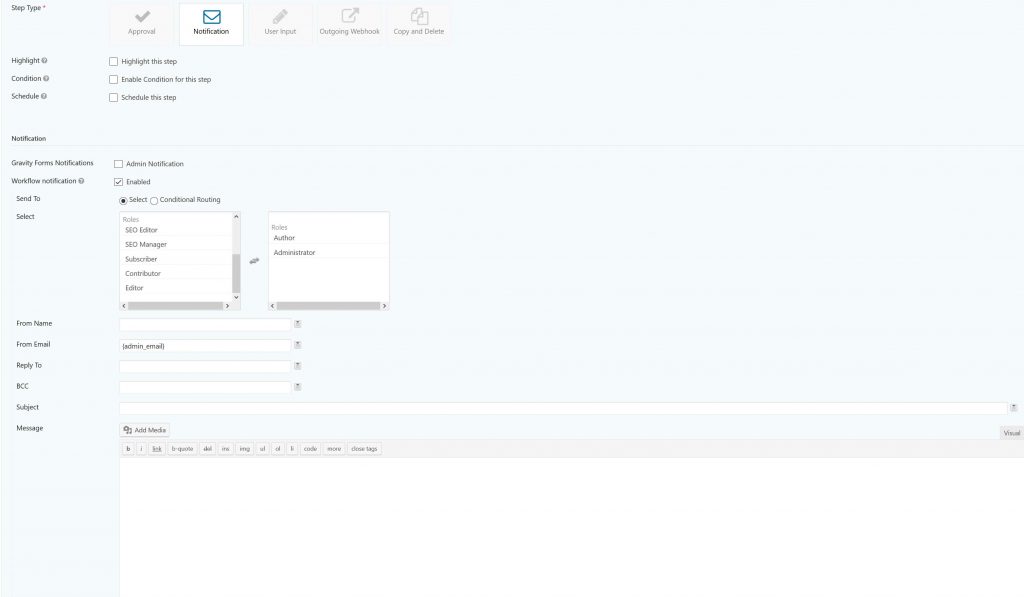
Notification Step (send mails as a step): The Notification Step is ideal when you want to compose specific e-mails as a step in the workflow. You can trigger the available Gravity Forms notifications, or you can make a new notification within the step itself.
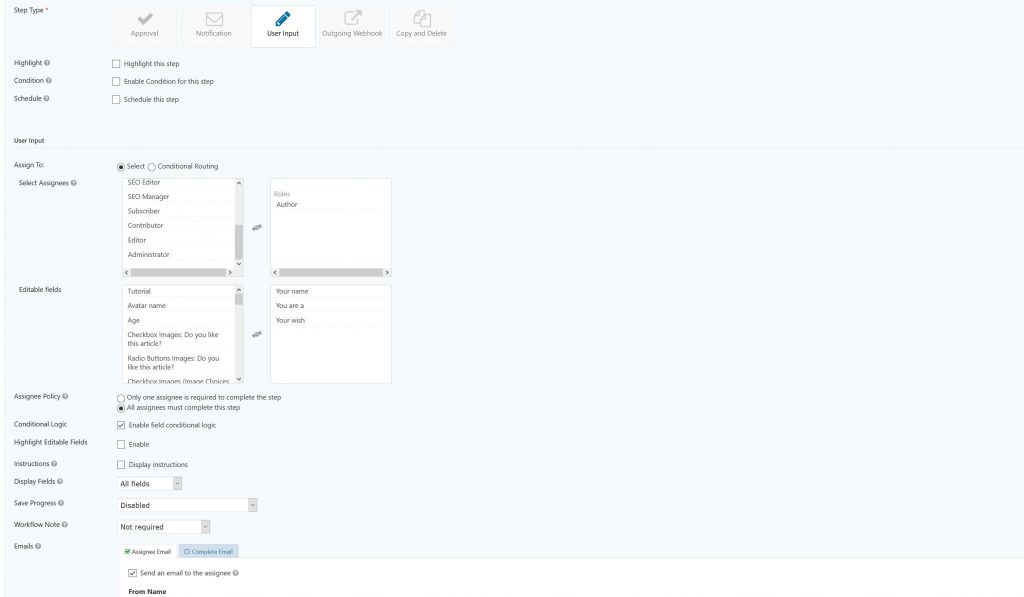
Ask User Input as a Step: An awesome function in Gravity Flow is that you can ask users of your site (or even based on an e-mail address that’s available inside the entry) to change or add information within the entry afterwards. This is great for example when you need somebody to ‘redact’ texts or add quality information to the entry based on role. No need to create new entries, just add it inside the available entry.
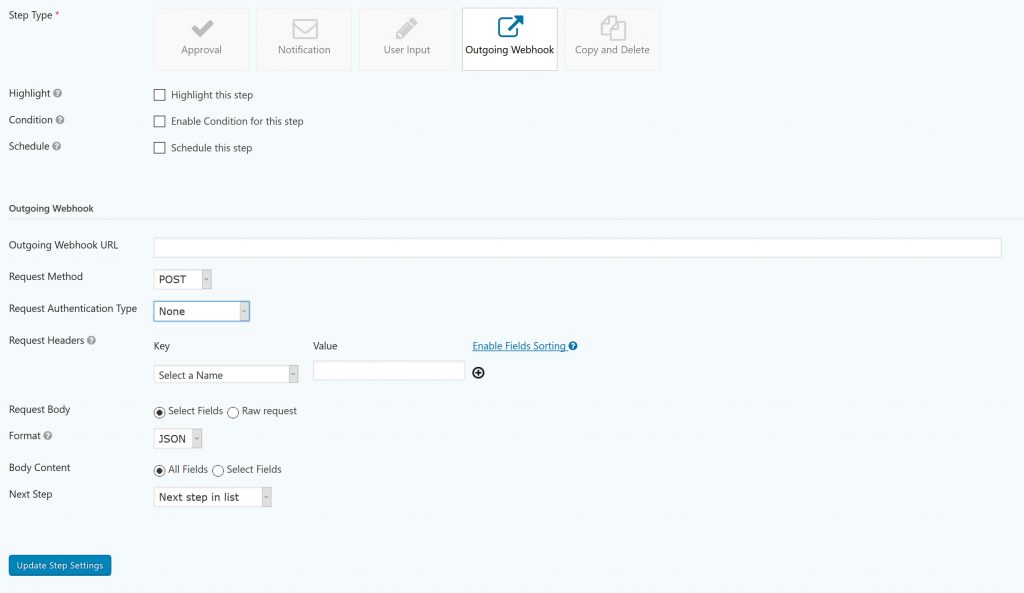
Outgoing Webhook Step: With the Outgoing Webhook Step you can communicate with external apps or customs scripts with POST, PUT, GET, DELETE and PATCH request methods. You can use information availabe in the current entry to custom build your request and choose for JSON or FORM as format.
Tutorials Gravity Flow
[gravitywp_custom_post_cards post_type=’tutorial’ numberposts=100 terms=42 col=6 ]
Our Premium add-ons for Gravity Forms

API Connector
Connect Gravity Forms to External API's: Query the API using form field values and automatically fill other form fields with the API response.

List Number Format
With this Gravity Forms Add-on you can change List Field columns into a number field, do calculations within a row or column. Extra merge tags are available with total counts of columns.

List Dropdown
Add a Dropdown Select with choices to a column or multiple columns in a Gravity Forms List Field.

List Text
Add features like textarea, placeholder and custom validation to a column or multiple columns in a Gravity Forms List Field.
Read tutorials about

Gravity Forms Zoho CRM Integration: How to Auto-Populate Form Fields by Email
Learn how to auto-populate Gravity Forms from Zoho CRM using GravityWP API Connector. This tutorial shows how to search Zoho Contacts by email and fill form fields with the returned data.

How to Create a Public Submission Business Directory in WordPress (Gravity Forms + GravityView)
Build a moderated business directory where users submit listings through a form, admins approve entries, and approved businesses appear in a searchable GravityView directory.

How to Create an Event Workshop Registration + Waitlist System in WordPress
This guide shows how to set up a workshop registration + waitlist system in WordPress: register attendees until capacity is reached, waitlist the rest, approve entries, and auto-promote people when a seat opens using Gravity Forms, Gravity Flow, and GravityView.

Gravity Flow Form Submission Step Tutorial
The Gravity Flow Form Submission step pauses a workflow until another form is submitted, then continues once the handoff is complete. This guide shows how to connect two forms, prefill fields with mapping, send the correct secure link, and troubleshoot the most common “workflow didn’t move” issues.


Author: Erik van Beek
Published: 03-11-2017
Last update: 06-03-2026