Do you want to schedule Gravity Forms E-mail notifications, for example for drip campaigns, recurring offers or reminders? With the Notification Scheduler from GravityWiz you can easily do that.
Scheduling options Gravity Forms Notifications
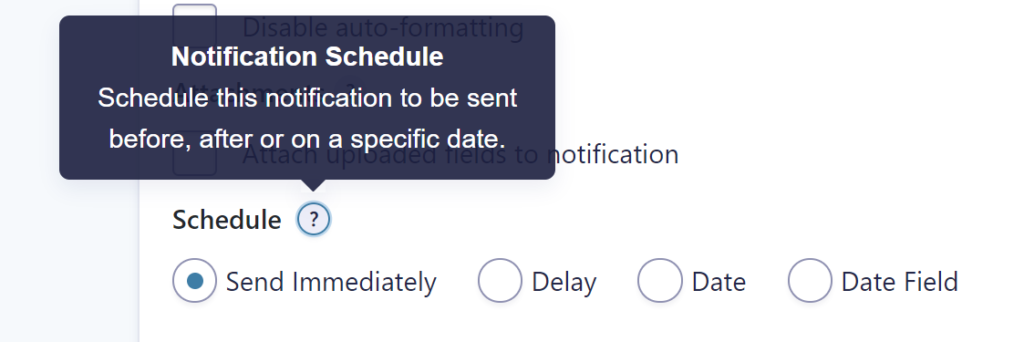
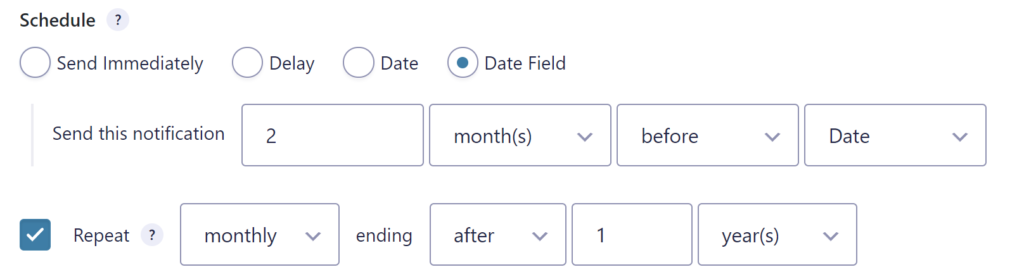
After activating the Notification Scheduler Add-on for Gravity Forms, you’ll see an extra Schedule option in the Notification settings in your Gravity Form. The option to Send Immediately is selected as default and works like you’re used to. You can now also choose for:
- Delay: set a certain delay since the moment the entry was created.
- Date: pick a specific date the notification should be send.
- Date Field: use the date value in a Date Field to schedule the moment the notification should be send.
Delaying Gravity Forms Notifications
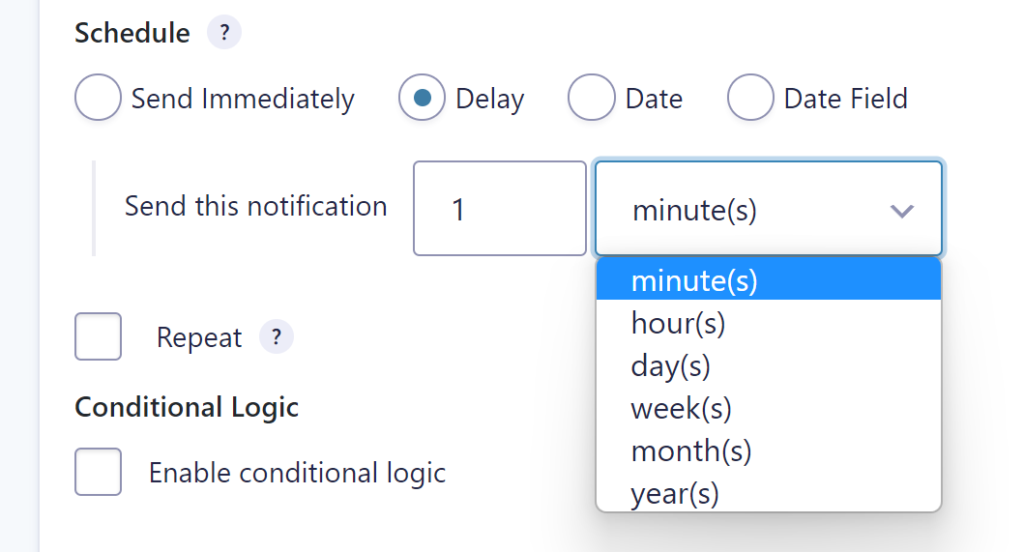
If you want to delay / postpone sending the notification, select ‘Delay’. You can delay in minutes, hours, days, weeks, months or years.
Setting a Date to send Gravity Form Notification
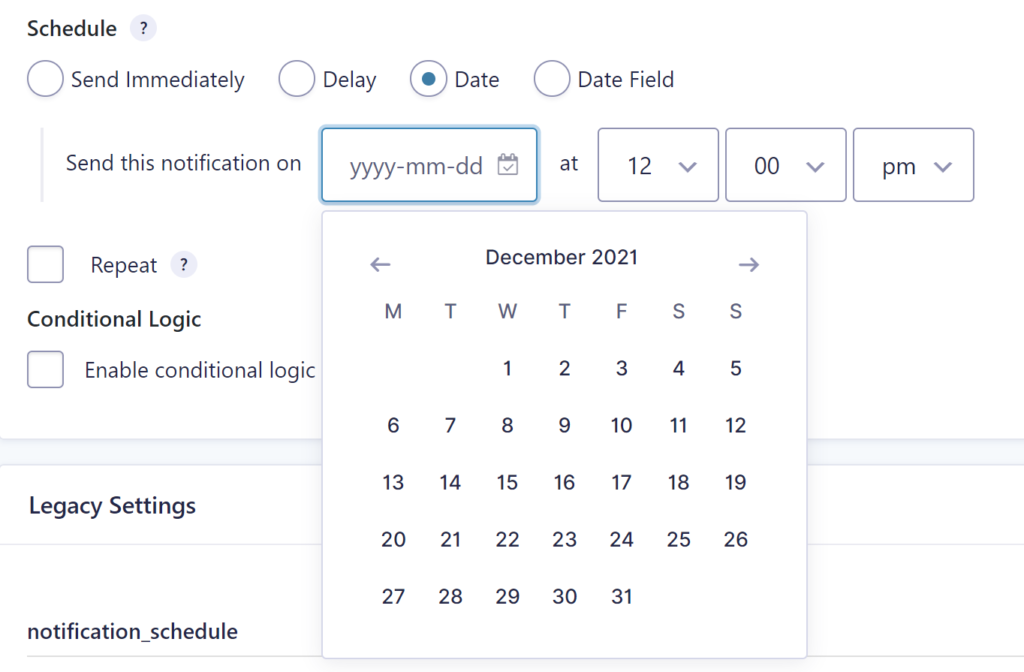
If you select Date, you can pick a hard date to send out the notification. This can be handy if you want all the subscribers / e-mail addresses in your entries (or maybe a filtered group of entries) to receive an e-mail at the same time, for example a few days before an event. You can configure a date and a time the e-mail should be send.
Using a Date Field to plan your Notification
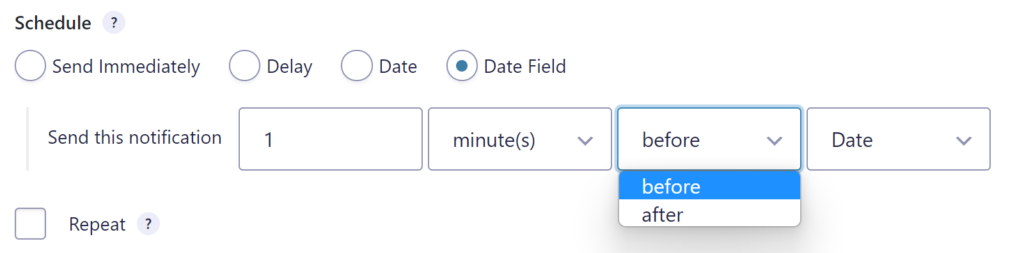
When selecting Date Field, you can plan the moment a notification is send out based on the date selected in a Date Field in your form. You can set how many minutes, hours, days, weeks, months or weeks after or before the Date Field date the e-mail should go out.
Repeating a Gravity Forms notification
Notification Scheduler also adds an option to repeat sending out the notification. You can select which interval the e-mail should be repeated (daily, weekly, monthly, yearly) and when the repetition should end (never or after a certain period: minutes, hours, days, weeks, months years).
This examples waits till two months before the value in the Date Field and after that repeats sending the e-mail monthly and stops after 1 year.
Our Premium add-ons for Gravity Forms
Advanced Merge Tags
This Gravity Forms Add-On adds extra Merge Tag modifiers (and a lot of power). From the most common used functions like capitalize and length to changing date formats.

n8n Connector
Connect Gravity Forms to n8n and automate your workflows with secure, flexible, and powerful webhooks. Go beyond simple notifications and build advanced, two-way automations.
Entry to Database
Integrates Gravity Forms with internal or external databases, offering flexible mapping of form fields to database columns and real-time synchronization between entries and database rows.

DateTime Field
The GravityWP - DateTime Field add-on adds a dedicated Date/Time field to Gravity Forms so users can enter both a date and a time in a single input.
Read tutorials about

Gravity Forms Airtable Integration: Create Records From Form Submissions
Learn how to build a Gravity Forms Airtable integration with GravityWP API Connector. Send form submissions to Airtable, create new records automatically, and save the returned Airtable Record ID and response back to Gravity Forms.

Gravity Forms Asana Integration: Create Tasks From Form Submissions
Learn how to connect Gravity Forms to Asana with GravityWP API Connector. This tested workflow creates Asana tasks from form submissions and saves the returned task ID and URL back to Gravity Forms.

Gravity Forms Google Calendar Integration: Create Events From Form Submissions
Connect Gravity Forms to Google Calendar with GravityWP API Connector. Learn how to create calendar events from form submissions, map event details, configure OAuth 2.0, handle time zones, and save the returned Event ID and URL.

Gravity Forms Notion Integration: Create Database Pages Without Zapier
Connect Gravity Forms to Notion without Zapier. This tested tutorial shows how to create Notion database pages from form submissions and save the returned page ID, URL, creation time, and API response.

