Did you know you can use images in your radio buttons in Gravity Forms? This is a nice way to provide your visitors with a visual, appropriate image to select when they provide information. You see it already as a design pattern, so use it also in your Gravity Form!
Configuration of Radio Button Images in Gravity Forms
You just add an <img> tag in the label, containing the image you want to show.
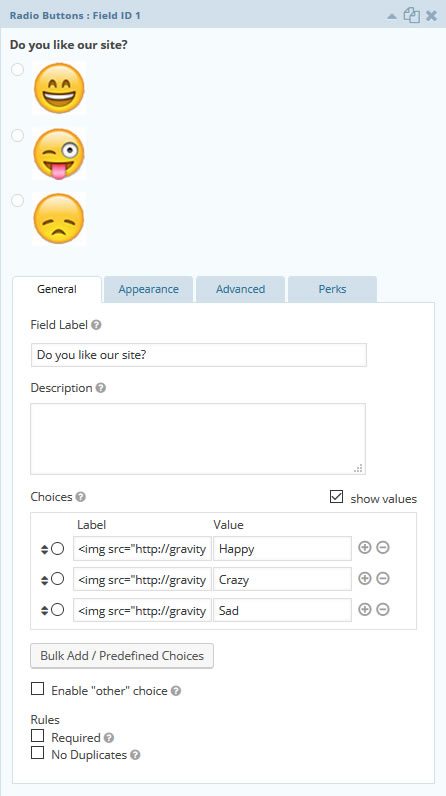
HTML code used in this example
In this example we used the following code to show images in our Gravity Forms Radio button field:
<img src="http://gravitywp.com/gravity/uploads/2015/10/smiley-1.jpg" alt="Happy"></img>
<img src="http://gravitywp.com/gravity/uploads/2015/10/smiley-2.jpg" alt="Crazy"></img>
<img src="http://gravitywp.com/gravity/uploads/2015/10/smiley-3.jpg" alt="Not happy"></img>
Image Choices Plugin (JetSloth)
JetSloth made a Gravity Forms add-on to make adding images to radio-buttons (and checkboxes) even more simple. Read more about the Image Choices plugin for Gravity Forms.
Our Premium add-ons for Gravity Forms

Update Multiple Entries
Trigger the update of multiple entries in a target form by submitting an entry in a trigger form.

Field to Entries
Create entries based on Checkboxes & Multi Select choices & List Field rows.

Entry to Database
Integrates Gravity Forms with internal or external databases, offering flexible mapping of form fields to database columns and real-time synchronization between entries and database rows.

Advanced Merge Tags
This Gravity Forms Add-On adds extra Merge Tag modifiers (and a lot of power). From the most common used functions like capitalize and length to changing date formats.
Read tutorials about

How to Validate Repeatable Contact Rows in Gravity Forms
Learn how to validate repeatable Gravity Forms List field rows with GravityWP List Text. This tutorial shows how to add email and regex validation, test invalid values, and confirm that valid team roster data is stored correctly.

Gravity Forms Airtable Integration: Create Records From Form Submissions
Learn how to build a Gravity Forms Airtable integration with GravityWP API Connector. Send form submissions to Airtable, create new records automatically, and save the returned Airtable Record ID and response back to Gravity Forms.

Gravity Forms Asana Integration: Create Tasks From Form Submissions
Learn how to connect Gravity Forms to Asana with GravityWP API Connector. This tested workflow creates Asana tasks from form submissions and saves the returned task ID and URL back to Gravity Forms.

Gravity Forms Google Calendar Integration: Create Events From Form Submissions
Connect Gravity Forms to Google Calendar with GravityWP API Connector. Learn how to create calendar events from form submissions, map event details, configure OAuth 2.0, handle time zones, and save the returned Event ID and URL.