Evolving requirements for your form might require you to change the field type from a text input to a dropdown menu for predefined options, or using a date picker instead of a text field for dates. If you need to modify a field type in Gravity Forms, often you want to retain the field id because of conditional logic or you want to retain the values of existing entries. Changing the field type is definitely possible, but there are some things to consider first.
Are the field type properties compatible?
A reliable and safe method to modify the field type of a Gravity Forms field is to add a new field to your form with the desired field type, configure it correctly, and then swap the field IDs using the script below. This ensures that the new field doesn’t carry over any residual properties from the previous field type when you change it.
If you want to retain all the original properties you can follow this tutorial: Change field type in an existing Gravity Form, but this might lead to unexpected behaviour because the stored field properties might not go well together with the new field type. The method described in this tutorial requires a bit more work, but is less risky.
Are the existing values compatible with the new field type?
When changing a field type for a form with existing entries, it’s vital to ensure that the new type can interpret the stored values. If you are in doubt about how to change the field type, test it first in a copy of your original form.
To modify the field type by changing field ID’s, follow these steps:
1. Open your browser’s developer console while editing your Gravity Form. You can do this by pressing ‘Ctrl + Shift + i’ or right mouse button + ‘inspect’. This works in both FireFox an Chrome.
2. Paste the script below into the console and press enter.
function swapFieldIds(fieldId1, fieldId2) {
	// Ensure the form object is available
	if (typeof window.form !== 'undefined') {
		let field1, field2;
		// Locate the fields by their IDs
		window.form.fields.forEach(function (field) {
			if (field.id === fieldId1) {
				field1 = field;
			}
			if (field.id === fieldId2) {
				field2 = field;
			}
		});
		// Swap the field IDs if both fields are found
		if (field1 && field2) {
			const tempId = field1.id;
			field1.id = field2.id;
			field2.id = tempId;
			console.log(
				`Successfully swapped Field IDs: ${fieldId1} and ${fieldId2}`
			);
			console.log(
				'Save your form, and reload the page to see the changes'
			);
		} else {
			console.error('One or both field IDs not found.');
		}
	} else {
		console.error('Form object not found.');
	}
}
3. Now input the following command in the console window, replace X and Y with the actual IDs of the fields you want to swap.
swapFieldIds(X, Y);4. Save your form.
5. Reload the page to make the changes visible after you change Gravity Forms field type. Note: the field will also swap position.
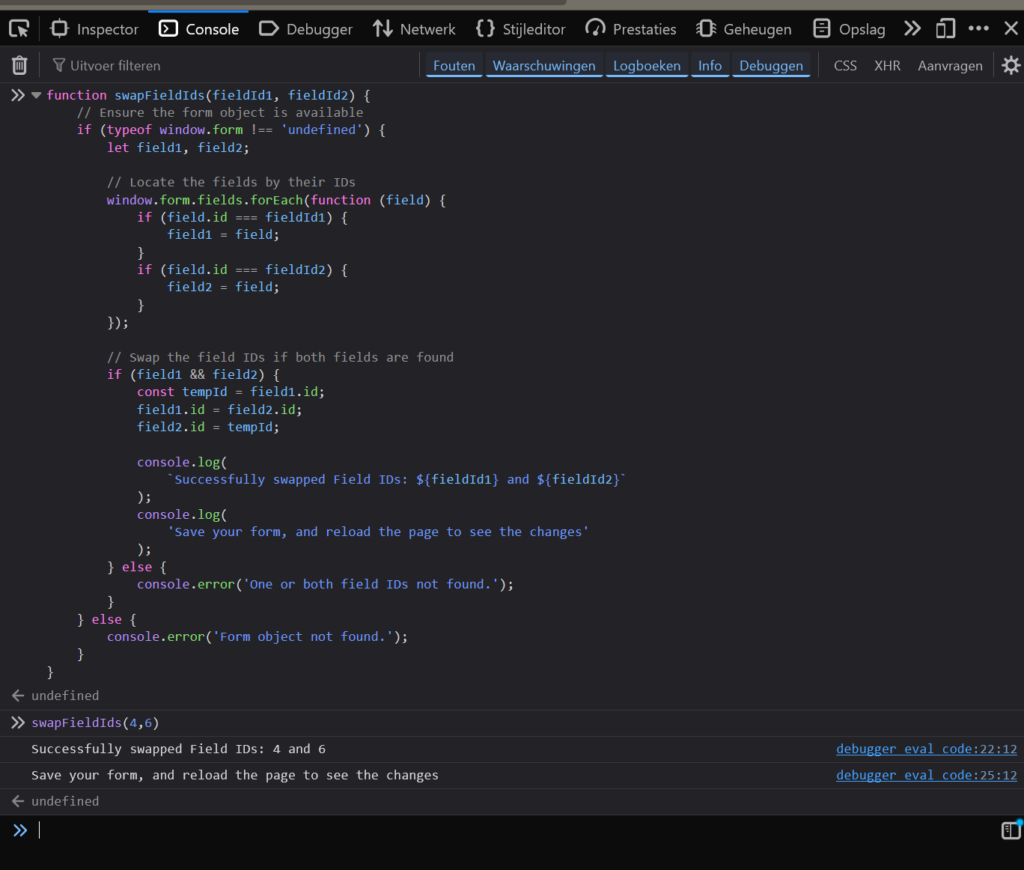
This is how it looks in your console window:
Our Premium add-ons for Gravity Forms

DateTime Field
The GravityWP - DateTime Field add-on adds a dedicated Date/Time field to Gravity Forms so users can enter both a date and a time in a single input.

JWT Prefill
Fill forms with data you can trust. Prefill Gravity Forms fields with a secure token instead of links with editable url parameters, so your data is accurate, tamper-proof, and ready to use.

Advanced Number Field
Functionality for Number Fields, like rounding or only absolute numbers, fixed point notation, range calculation, custom units like % or m2 & show as slider.

API Connector
Connect Gravity Forms to External API's: Query the API using form field values and automatically fill other form fields with the API response.
Read tutorials about

Gravity Forms Zoho CRM Integration: How to Auto-Populate Form Fields by Email
Learn how to auto-populate Gravity Forms from Zoho CRM using GravityWP API Connector. This tutorial shows how to search Zoho Contacts by email and fill form fields with the returned data.

How to Create a Public Submission Business Directory in WordPress (Gravity Forms + GravityView)
Build a moderated business directory where users submit listings through a form, admins approve entries, and approved businesses appear in a searchable GravityView directory.

How to Create an Event Workshop Registration + Waitlist System in WordPress
This guide shows how to set up a workshop registration + waitlist system in WordPress: register attendees until capacity is reached, waitlist the rest, approve entries, and auto-promote people when a seat opens using Gravity Forms, Gravity Flow, and GravityView.

Gravity Flow Form Submission Step Tutorial
The Gravity Flow Form Submission step pauses a workflow until another form is submitted, then continues once the handoff is complete. This guide shows how to connect two forms, prefill fields with mapping, send the correct secure link, and troubleshoot the most common “workflow didn’t move” issues.
