When you’re working daily with Gravity Forms, there are some things that make your life easier. Like a better lay-out for the Gravity Forms builder, creating Field Templates (Form Field Patters), better organizing your Forms and Entries in Folders, adding admin only Field Notes, checking Form integrity, Field hinting and handy Keyboard Shortcuts. We’ll walk you through some of the enhancements Gravity Hopper offers.
More compact and detailed Gravity Form Builder
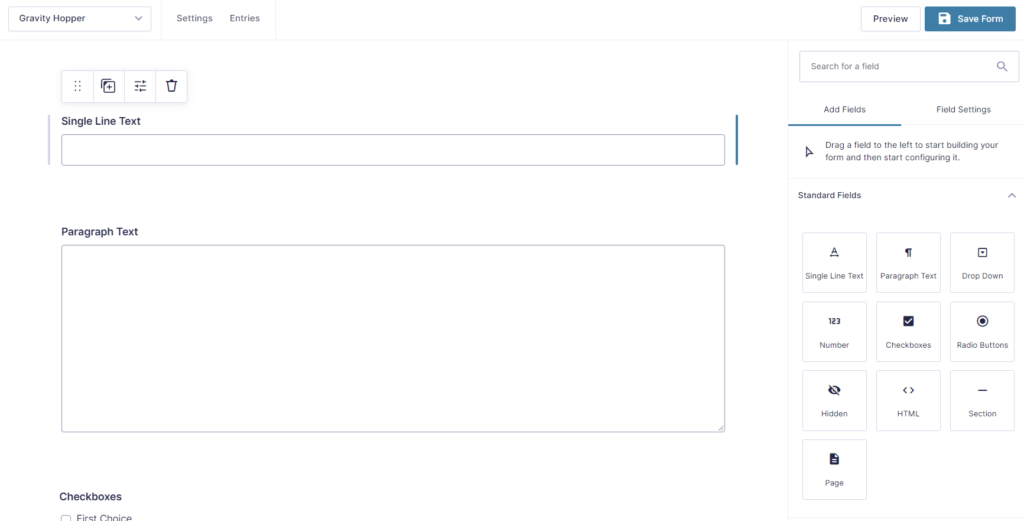
The default Gravity Forms builder takes up quite some space for examples of your Fields and doesn’t give you a lot of space in the Gutenberg style Settings sidebar.
Default Gravity Form Editor
Normally it looks like this:
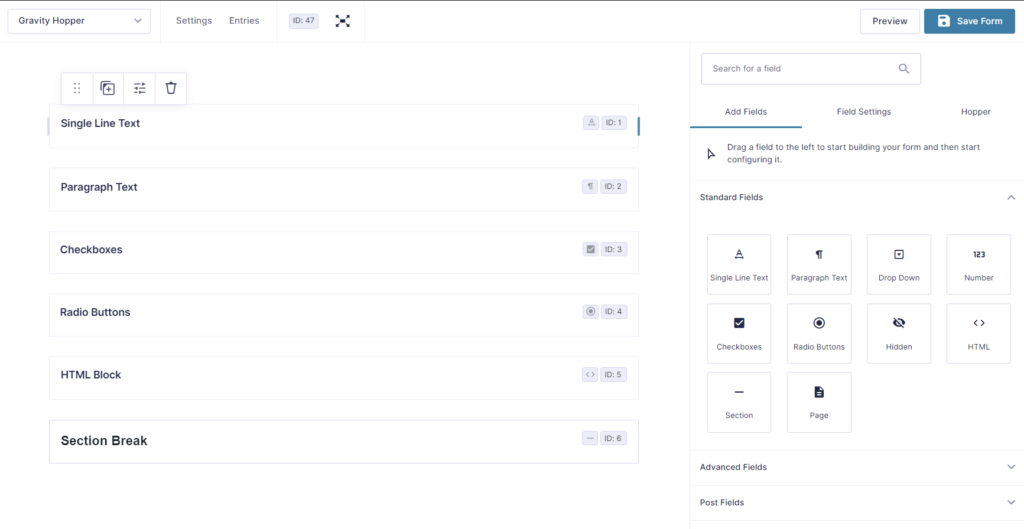
Wider Settings Sidebar and more compact Fields
With Gravity Hopper you can enable some handy styling improvements that makes your building process easier. See the screenshot where double the amount of Fields are directly visible and the Settings sidebar has some extra room. Less scrolling, faster working.
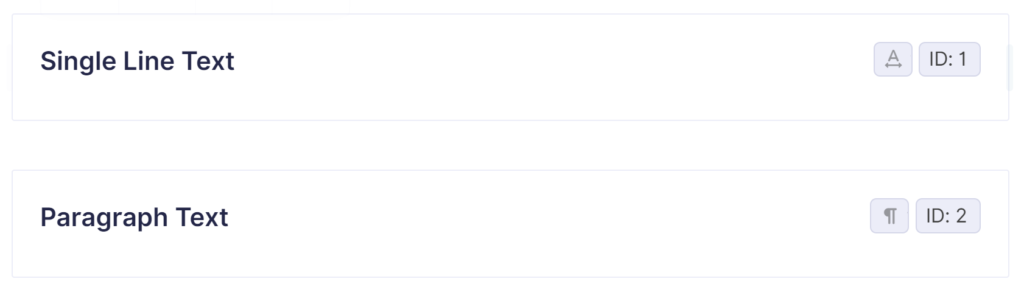
Show Field ID and Field Type Icon in Form Editor
Note that it also provides a more easy way to see the Field ID (without the need to click on it) and a handy icon to see what type of Form Field it is:
Show Form ID in Editor
You also see directly the Form ID itself at the top of the screen (ID: 47):

And by toggeling the expand button, you still easily can see the original Form Field layout.
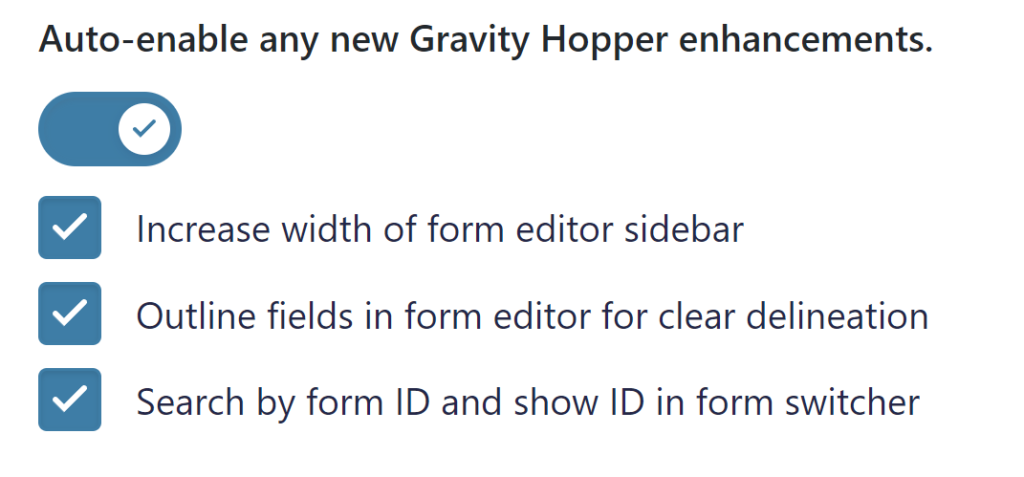
In the Gravity Forms main settings, you can easily enable all these handy perks:
Hiding administrative tooltips
In the Gravity Forms Form Builder there are a lot of tooltips visible in the settings. This can be handy if you are just starting, but when you are a Gravity Forms Guru, it can get in the way of fast clicking and editing settings.
With tooltips enabled, you get a lot of this:
Tooltips visible
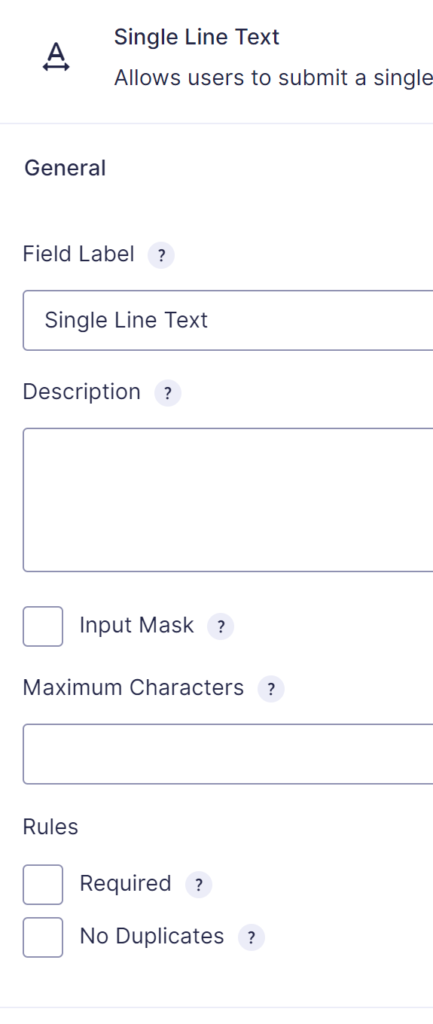
Tooltips visible
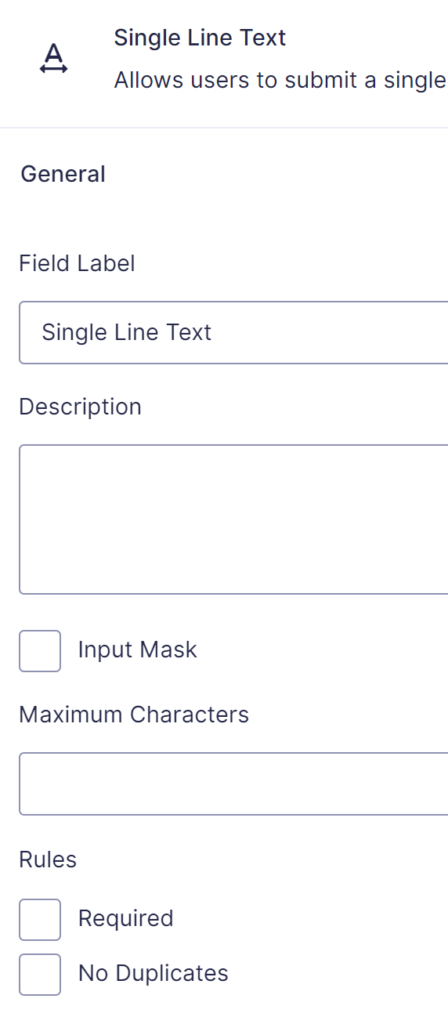
Enable CC field on notifications
Although Gravity Forms has a gform_notification_enable_cc filter available, there are situations that you rather not add code to your functions.php. Gravity Hopper let’s you select it under Configurations in the Gravity Forms Settings:
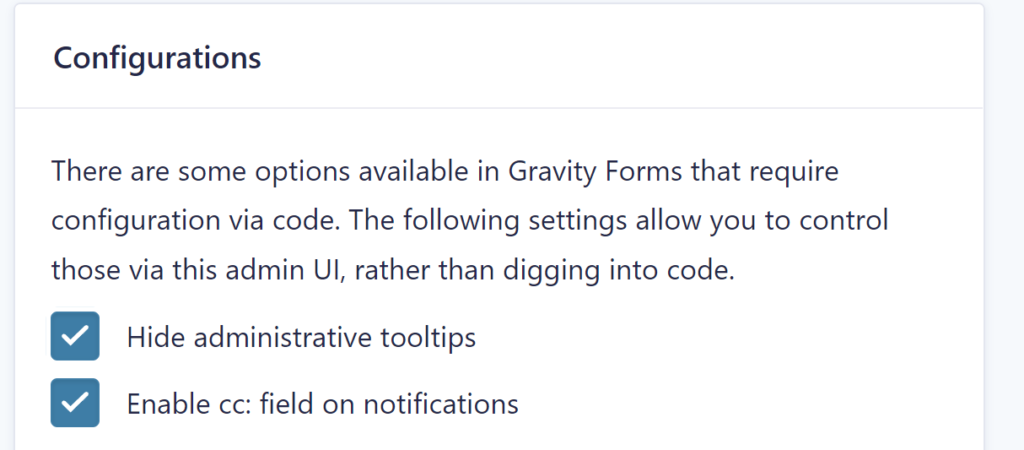
In your notification, an extra input field voor the mail CC is visible (including the possibility to use Merge Tags):
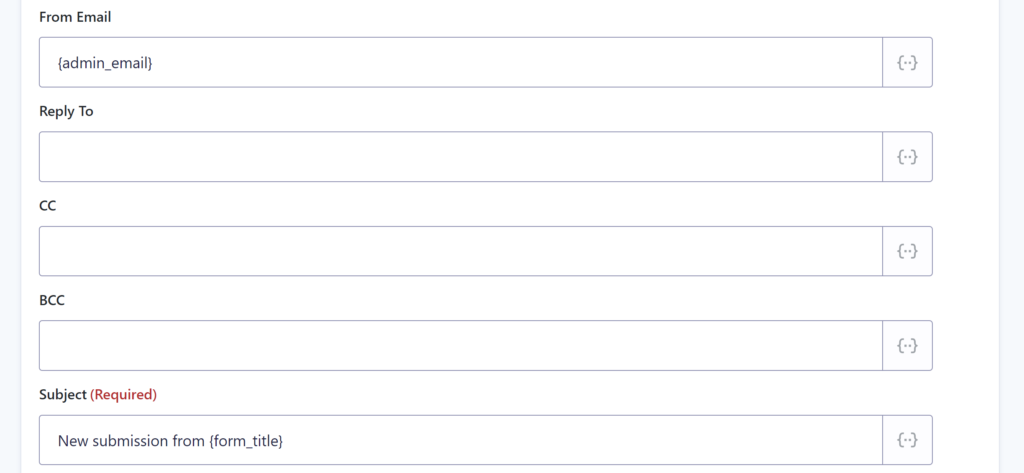
Organizing Gravity Forms and Entries in Folders
Gravity Hopper let’s you organize your differt Gravity Forms in Folders.
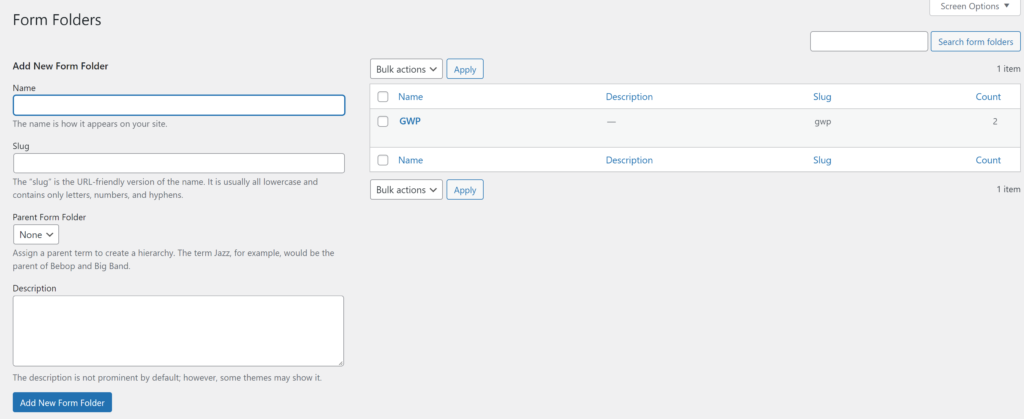
There is a page available (similar to making post categories) to add new Folders:
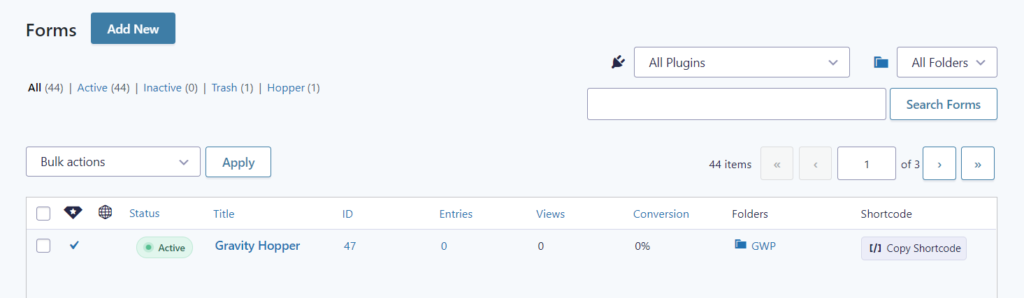
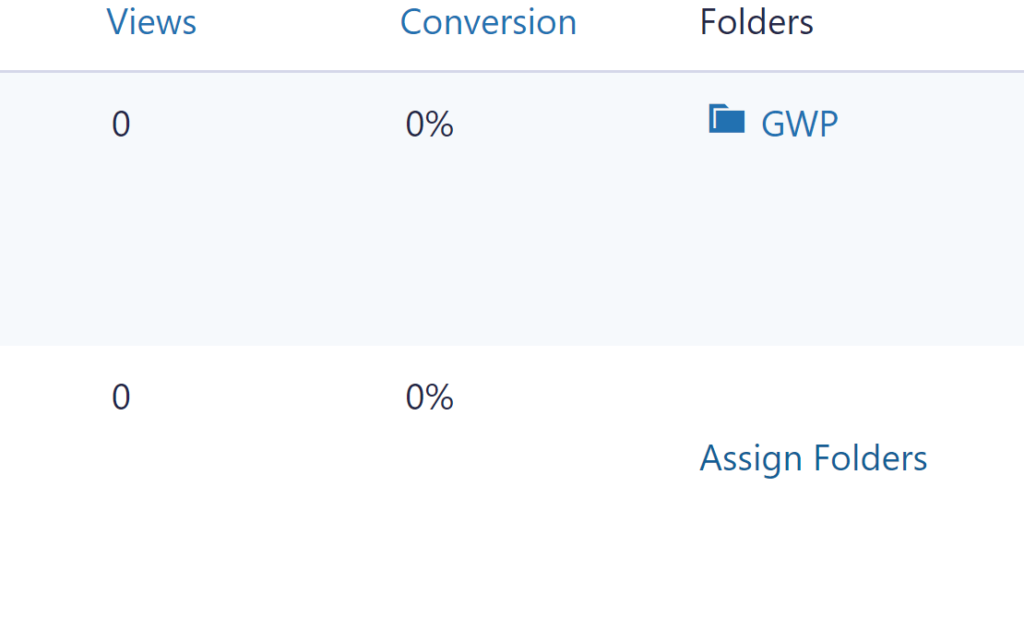
And you can easily assign Forms to Folders in the Forms List.
The same functionality is available for organizing Gravity Forms Entries in Folders.
Copy Gravity Forms Shortcode from Forms List
Another handy feature is that you can copy the Gravity Forms Shortcode directly from the Forms List:
Order Form List by most recent Forms
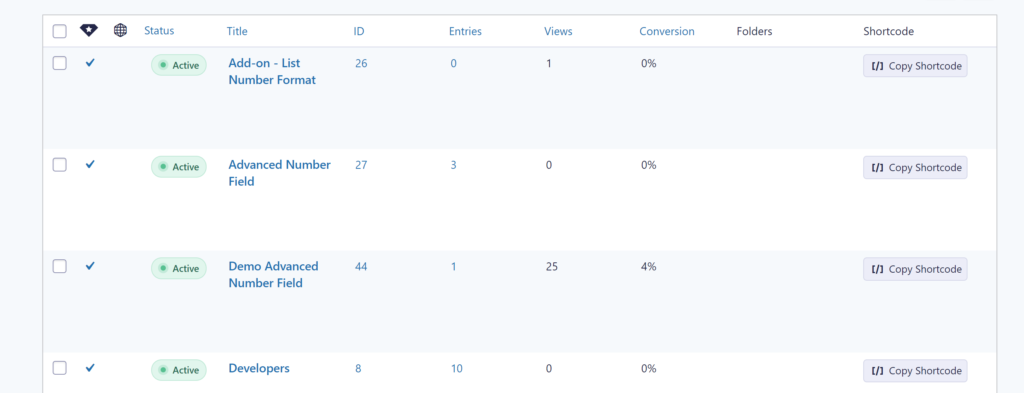
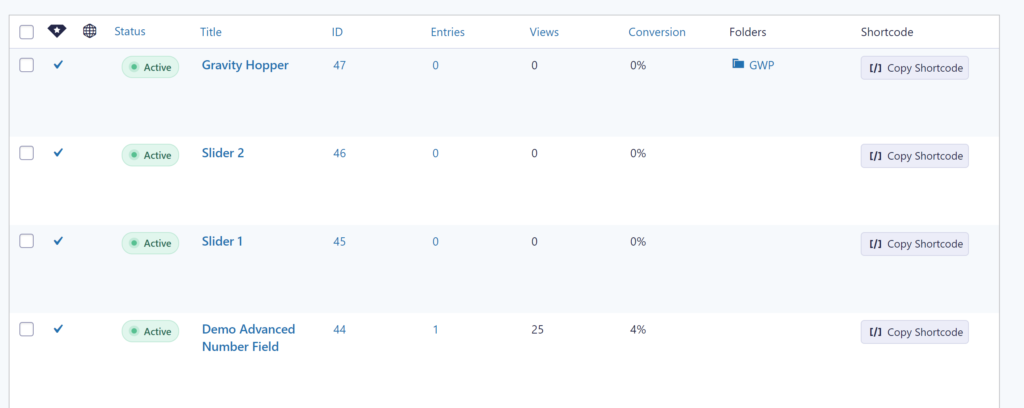
Another option in the settings is to change the default order of the Gravity Forms in the Forms List.

By default the Forms List order is alphabetically:
When activitating the order most recent, it looks like this (you see that the latest Form ID is at the top):
Our Premium add-ons for Gravity Forms
List Dropdown
Add a Dropdown Select with choices to a column or multiple columns in a Gravity Forms List Field.

Advanced Number Field
Functionality for Number Fields, like rounding or only absolute numbers, fixed point notation, range calculation, custom units like % or m2 & show as slider.
List Datepicker
Add a Datepicker with calendar select to a column or multiple columns in a Gravity Forms List Field.

n8n Connector
Connect Gravity Forms to n8n and automate your workflows with secure, flexible, and powerful webhooks. Go beyond simple notifications and build advanced, two-way automations.
Read tutorials about

Gravity Forms Airtable Integration: Create Records From Form Submissions
Learn how to build a Gravity Forms Airtable integration with GravityWP API Connector. Send form submissions to Airtable, create new records automatically, and save the returned Airtable Record ID and response back to Gravity Forms.

Gravity Forms Asana Integration: Create Tasks From Form Submissions
Learn how to connect Gravity Forms to Asana with GravityWP API Connector. This tested workflow creates Asana tasks from form submissions and saves the returned task ID and URL back to Gravity Forms.

Gravity Forms Google Calendar Integration: Create Events From Form Submissions
Connect Gravity Forms to Google Calendar with GravityWP API Connector. Learn how to create calendar events from form submissions, map event details, configure OAuth 2.0, handle time zones, and save the returned Event ID and URL.

Gravity Forms Notion Integration: Create Database Pages Without Zapier
Connect Gravity Forms to Notion without Zapier. This tested tutorial shows how to create Notion database pages from form submissions and save the returned page ID, URL, creation time, and API response.

