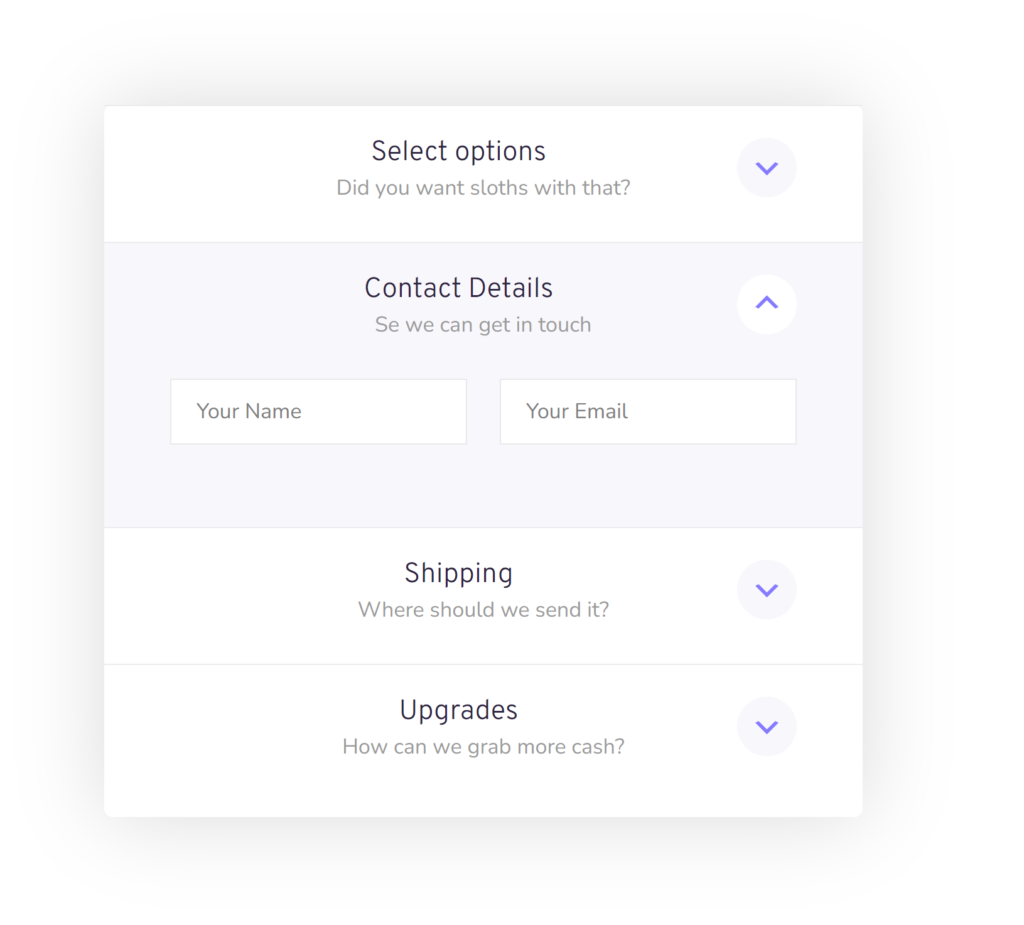
Do you want to use accordions inside your Gravity Form to make it more compact and easier for you form visitors to get an overview of the form content or the ability to reveal or collapse parts of the form? With the Gravity Forms Collapsible Sections Add-on from JetSloth you can turn Sections in your form into accordions.
Turn a Gravity Forms Section into an accordion
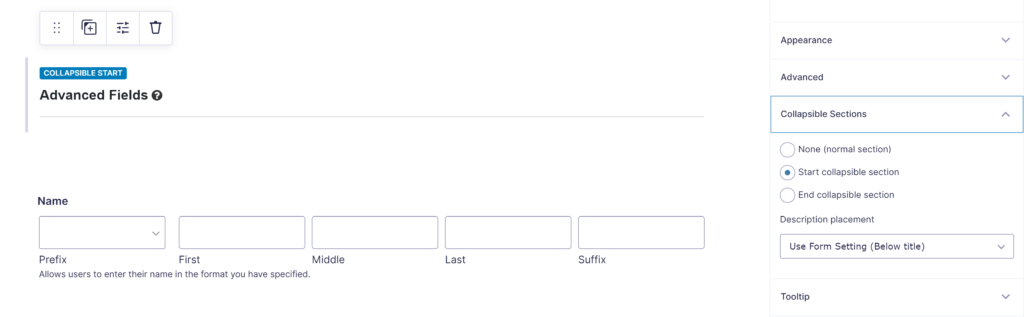
When the Gravity Forms Collapsible Sections Add-on from JetSloth is activated, you get an extra option tab in the Section Field settings: Collapsible Sections. You can choose there:
- None (normal selection): This will keep the section the way you’re used to.
- Start collaspible section: This will mark the top of the accordion, the accordion starts here.
- End collapsible section: This will mark the end of the accordion.
End of accordion
You can add sections inside the accordion. When you start a new collapsible section, the previous one will automatically end. You can also add a section purely to end the current accordion, but choosing for End collapsible section and choose for Hide (only used to end previous collapsible section).
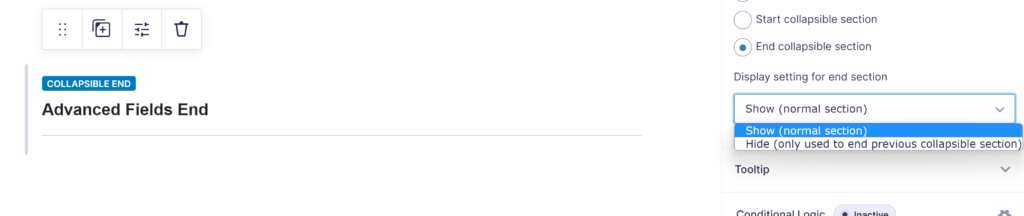
Available Settings for the accordions
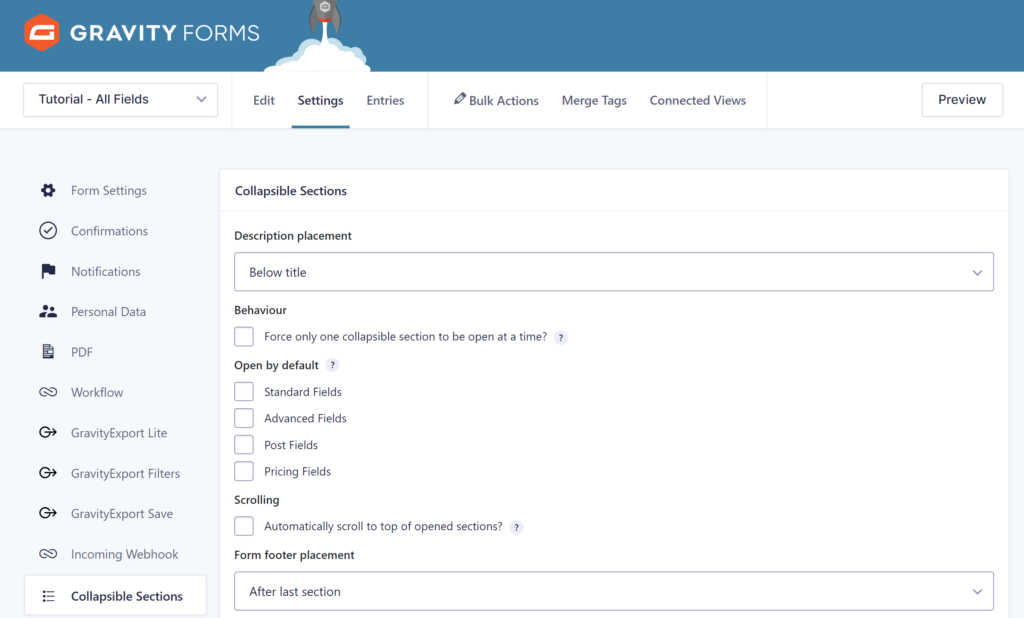
In your Gravity Form Settings, you have extra options available:
- Behaviour: you can force to only have one collapsible section open at the same time. The accordion will then always have only one section opened.
- Open by default: You can select one or more of the collapsible sections (accordions) that should be opened when you load the form.
- Scrolling: enable automatically scrolling to the top of the opened sections.
- Form footer placement: by default the Gravity Form Footer (with the next / previous / submit buttons) will be shown at the bottom of the form. With this setting you can place the footer inside the last section (it will only be visible when the last accordion is opened).
Styling Gravity Forms accordion sections
JetSloth produced some wonderful tutorials about styling the accordion sections. You can easily add custom CSS to your collapsible sections in the Gravity Form Settings:
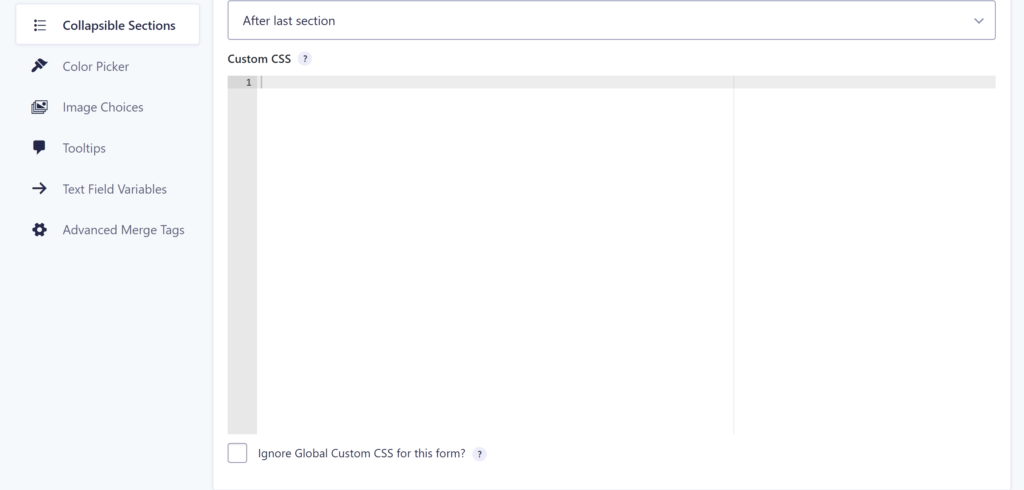
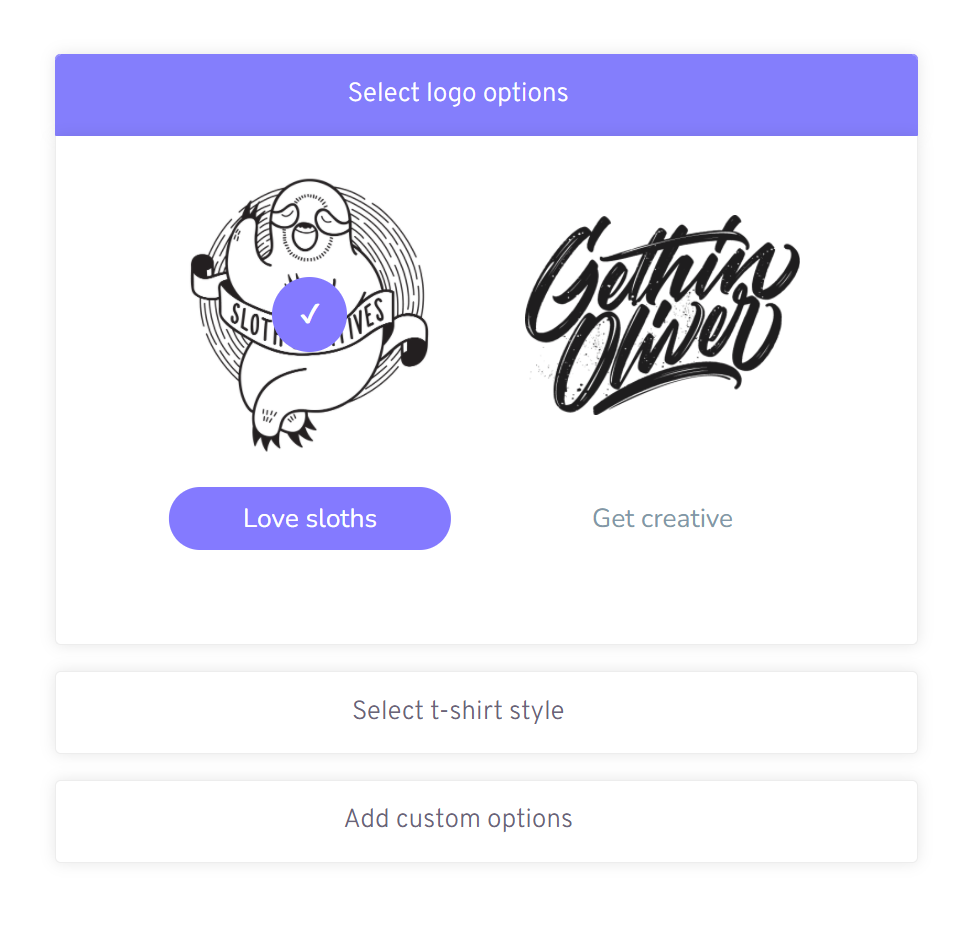
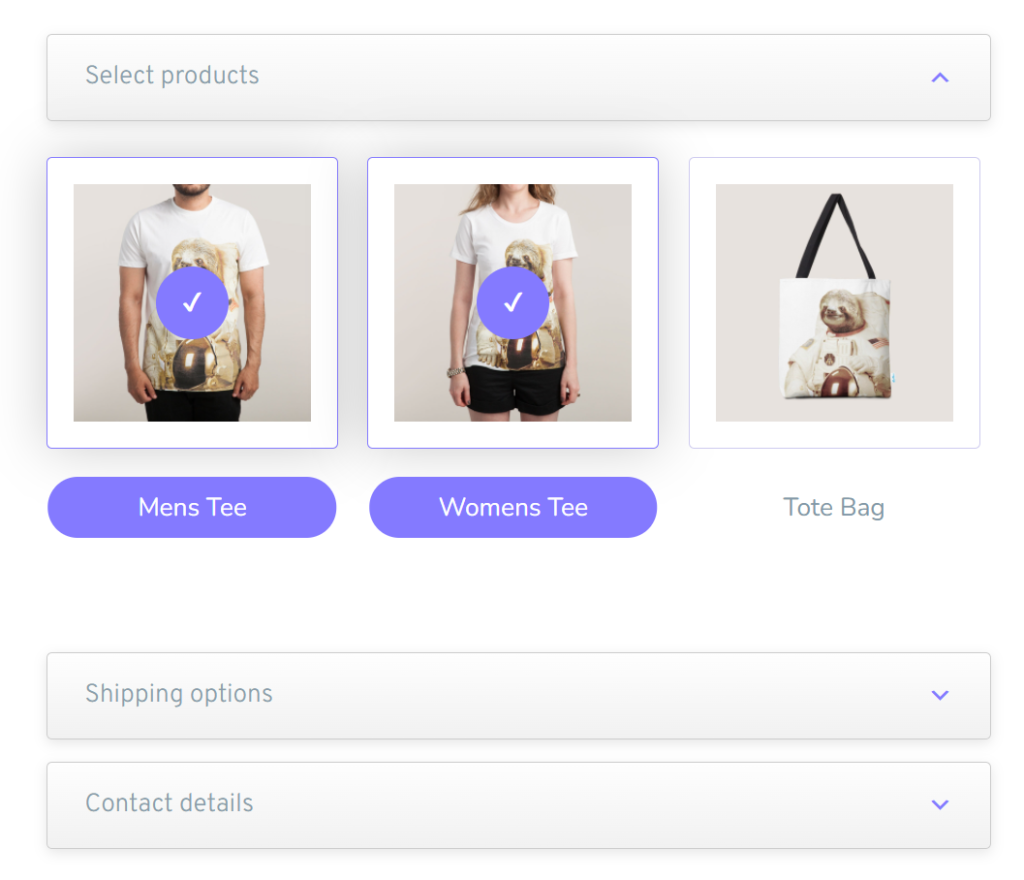
Examples custom styling
Our Premium add-ons for Gravity Forms

DateTime Field
The GravityWP - DateTime Field add-on adds a dedicated Date/Time field to Gravity Forms so users can enter both a date and a time in a single input.

Field to Entries
Create entries based on Checkboxes & Multi Select choices & List Field rows.
All Entries
All your new Gravity Forms entries in one central place. Stop navigating between multiple forms to find new entries. Get immediate oversight and full control with a powerful, unified dashboard.

n8n Connector
Connect Gravity Forms to n8n and automate your workflows with secure, flexible, and powerful webhooks. Go beyond simple notifications and build advanced, two-way automations.
Read tutorials about

Gravity Forms Airtable Integration: Create Records From Form Submissions
Learn how to build a Gravity Forms Airtable integration with GravityWP API Connector. Send form submissions to Airtable, create new records automatically, and save the returned Airtable Record ID and response back to Gravity Forms.

Gravity Forms Asana Integration: Create Tasks From Form Submissions
Learn how to connect Gravity Forms to Asana with GravityWP API Connector. This tested workflow creates Asana tasks from form submissions and saves the returned task ID and URL back to Gravity Forms.

Gravity Forms Google Calendar Integration: Create Events From Form Submissions
Connect Gravity Forms to Google Calendar with GravityWP API Connector. Learn how to create calendar events from form submissions, map event details, configure OAuth 2.0, handle time zones, and save the returned Event ID and URL.

Gravity Forms Notion Integration: Create Database Pages Without Zapier
Connect Gravity Forms to Notion without Zapier. This tested tutorial shows how to create Notion database pages from form submissions and save the returned page ID, URL, creation time, and API response.

