Do you want to show custom units like the percentage sign or square meter behind a Gravity Forms Number Field value? The Advanced Number Field Add-on can solve this. It let’s you define your own Custom Unit and place it before or after the input of the Number Field.
Percentage sign Gravity Forms Number Field
If you use the calculation function in Gravity Forms, sometimes you want to show people right away a percentage of the numbers they typed in. For example: The are a number of people that follow a study, and a number of people that passed the exam. You create a number field in Gravity Forms that calculates the percentage: people that passed the exam / total people * 100.
If you have 100 people following the exam. And 20 people that passed. You get: 20 / 100 * 100 = 20%
You probably want to show this as easy as possible: 20%
But that is not so easy in Gravity Forms. The Advanced Number Field Add-on for Gravity Forms provides a solution.
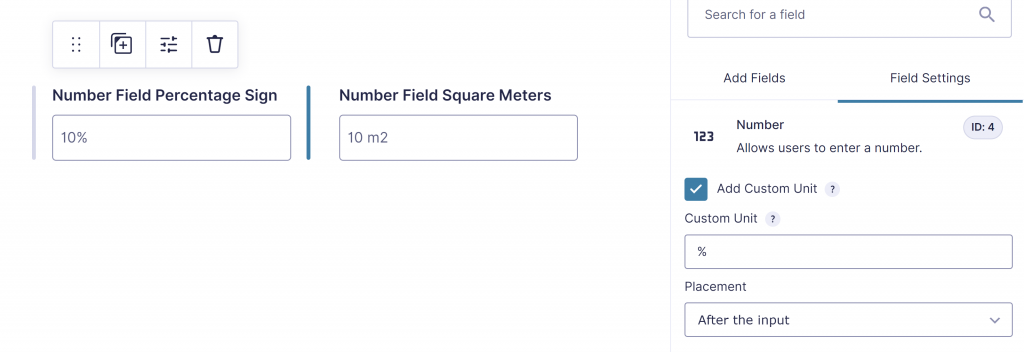
Square or cubic feet, inch, meter ft2 in2 m2 m3
You can define any square or cubic metric you want as a custom unit.

Other examples of custom units
Here you’ll find some other examples you can use. You can define your custom unit yourself, so many more are possible, but to give an idea we’ve tried to list the most commonly used custom units for you.
| Density | kg/m3 | lbm/ft3 |
| Surface area | km² (square kilometer) | hm² (square hectometer) | dam² (square decameter) | m² (square meter) | dm² (square decimeter) | cm² (square centimeter) | mm² (square millimeter) | ft² (square feet) | in² (square inch) | mi² (square mile) |
| Land area | ha (hectare) | a (are) | ca (centiare) |
| Units of volume | cm3 (milliliter (mL) | dm3 (liter) | barrel | ft3 (cubic foot) |
| Per | per night (for example 60/night or 60 per night) | per word (5 per word 5/word) etc. |
| Horsepower | PS | KM | cv (cavallo vapore, caballo de vapor, cavalo-vapor) | hk (hestekraft) | pk (paardenkracht) | ks (oňská síla, konská sila) | ch (cheval-vapeur) | л. с. (лошадиная сила) | hv (hevosvoima) | hj (hobujõud) | LE (lóerő) |
| Cooking | c (cup) | g (gram) | kg (kilogram) | t or tsp. (teaspoon) | T, tbl., tbs. or tbsp. (tablespoon) | fl oz (fluid ounce | p, pt, of fl pt (pint) | q, qt, fl qt (quart) | g or gal (gallon) | ml, cc (milliliter) | l (liter) | dl (deciliter) | lb or # (pound) | oz (ounce) | mg (milligram) |
| Temperatures | ° (degrees) | °C (degrees Celcius) | °F (degrees Fahrenheit) |
FAQ Custom Units Number Field Gravity Forms
Can I add a percentage sign (%) inside the input of a Gravity Forms Number Field?
Does the Custom Unit (like % or m²) inside a Number Field also work within GravityView edit?
Is the Custom Unit (like % or m²) also visible in the CSV export from Gravity Forms?
Can I use Custom Units (like #, %, ft²) in combination with rounding the value in the Gravity Forms Number Field?
Can I also use a sentence as Custom Unit, like ‘per day’, inside the Gravity Forms Number Field?
Can Custom Units be used in combination with Currency?
Our Premium add-ons for Gravity Forms

Field to Entries
Create entries based on Checkboxes & Multi Select choices & List Field rows.

List Number Format
With this Gravity Forms Add-on you can change List Field columns into a number field, do calculations within a row or column. Extra merge tags are available with total counts of columns.

Entry to Database
Integrates Gravity Forms with internal or external databases, offering flexible mapping of form fields to database columns and real-time synchronization between entries and database rows.
List Text
Add features like textarea, placeholder and custom validation to a column or multiple columns in a Gravity Forms List Field.
Read tutorials about

Gravity Forms Airtable Integration: Create Records From Form Submissions
Learn how to build a Gravity Forms Airtable integration with GravityWP API Connector. Send form submissions to Airtable, create new records automatically, and save the returned Airtable Record ID and response back to Gravity Forms.

Gravity Forms Asana Integration: Create Tasks From Form Submissions
Learn how to connect Gravity Forms to Asana with GravityWP API Connector. This tested workflow creates Asana tasks from form submissions and saves the returned task ID and URL back to Gravity Forms.

Gravity Forms Google Calendar Integration: Create Events From Form Submissions
Connect Gravity Forms to Google Calendar with GravityWP API Connector. Learn how to create calendar events from form submissions, map event details, configure OAuth 2.0, handle time zones, and save the returned Event ID and URL.

Gravity Forms Notion Integration: Create Database Pages Without Zapier
Connect Gravity Forms to Notion without Zapier. This tested tutorial shows how to create Notion database pages from form submissions and save the returned page ID, URL, creation time, and API response.
