Do you want to show a slider in your Gravity Form? This is the way to do it. Simply add a slider and decide how to show it: what is the maximum (in currency, or number) and minimum and which steps can they make.
Advanced Number Field
For this functionality you need to install the Advanced Number Field Add-on for Gravity Forms.
Enabling Slider
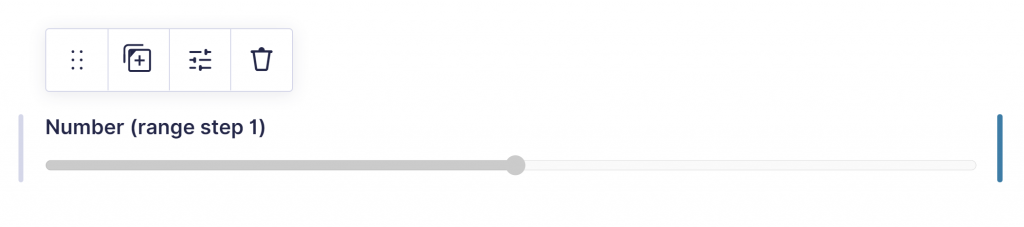
The Advanced Number Field add-on allows you to show a Gravity Forms Number Field as slider.
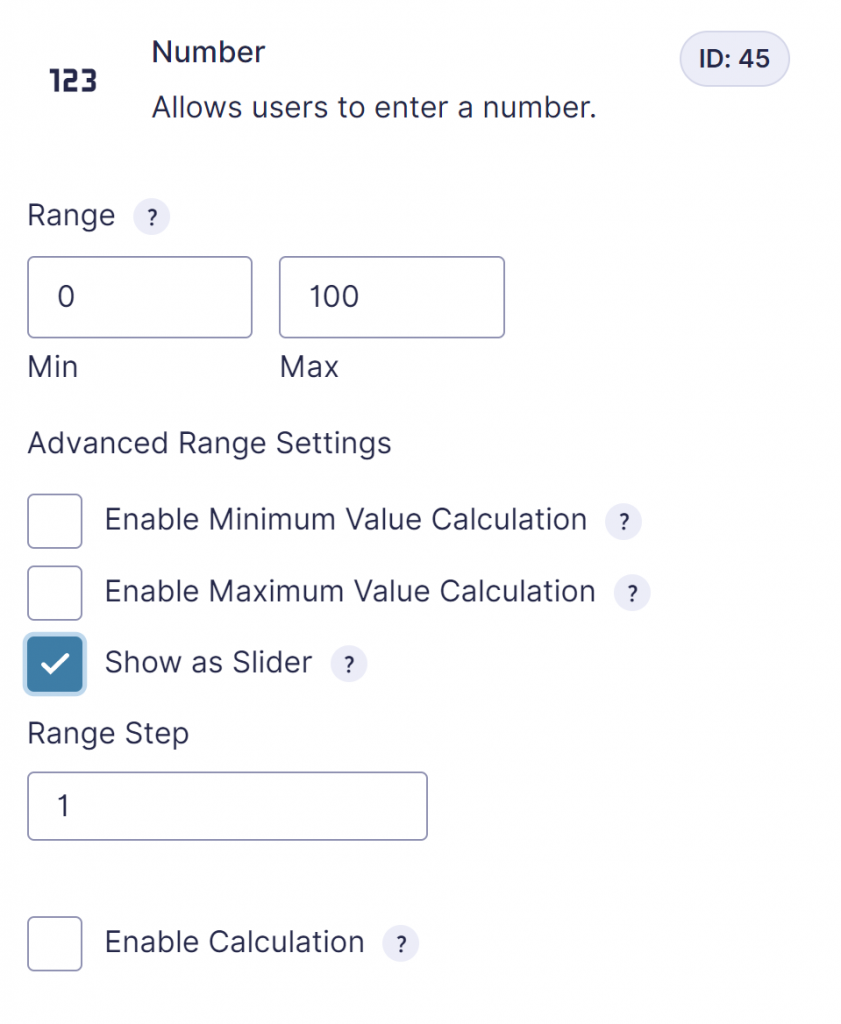
- You can define a Minimum and Maximum Range for the Slider
- You can define the Range Step (the intervals).
Showing slider value real-time
The slider has a real-time textual output, next to the slider, but it is also possible to show the output in another spot. You can paste this little snippet below in a HTML field to show a real-time number while scrolling through the range slider.
<span id="slidernumber"></span><script>
jQuery(document).ready(function($) {
$(document).on('input', '#input_15_1', function() {
$('#slidernumber').html( $(this).val() );
});
});
</script>Advanced Number Field
For this functionality, you need the Advanced Number Field plugin from GravityWP.
Styling the slider
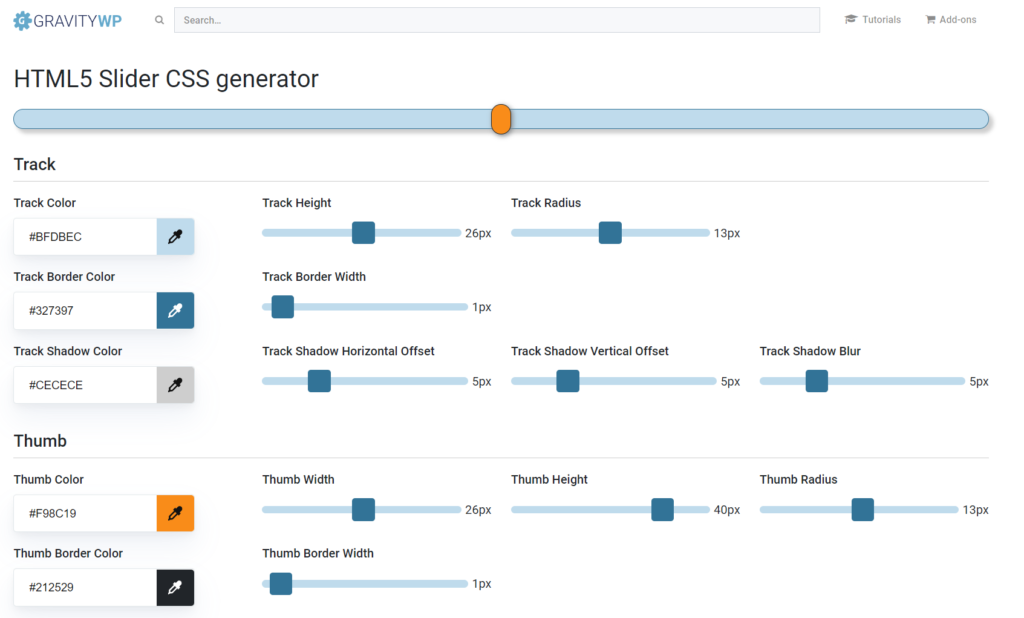
We’ve created a HTML5 slider styler tool to easily create custom CSS you can use to style your own Gravity Forms slider field when you’re using Advanced Number Field.
Examples of styled sliders
Here a few examples of styled HTML5 sliders for Gravity Forms. Click on the image to see the configuration and copy the custom CSS code. You can also change the styling settings and save your own design.



Budget slider
Read our tutorial about Styling your Gravity Forms Range Slider to make it fit with your theme and branding.

Our Premium add-ons for Gravity Forms

API Connector
Connect Gravity Forms to External API's: Query the API using form field values and automatically fill other form fields with the API response.

n8n Connector
Connect Gravity Forms to n8n and automate your workflows with secure, flexible, and powerful webhooks. Go beyond simple notifications and build advanced, two-way automations.

Advanced Number Field
Functionality for Number Fields, like rounding or only absolute numbers, fixed point notation, range calculation, custom units like % or m2 & show as slider.

List Dropdown
Add a Dropdown Select with choices to a column or multiple columns in a Gravity Forms List Field.
Read tutorials about

How to Create a Public Submission Business Directory in WordPress (Gravity Forms + GravityView)
Build a moderated business directory where users submit listings through a form, admins approve entries, and approved businesses appear in a searchable GravityView directory.

How to Create an Event Workshop Registration + Waitlist System in WordPress
This guide shows how to set up a workshop registration + waitlist system in WordPress: register attendees until capacity is reached, waitlist the rest, approve entries, and auto-promote people when a seat opens using Gravity Forms, Gravity Flow, and GravityView.

Gravity Flow Form Submission Step Tutorial
The Gravity Flow Form Submission step pauses a workflow until another form is submitted, then continues once the handoff is complete. This guide shows how to connect two forms, prefill fields with mapping, send the correct secure link, and troubleshoot the most common “workflow didn’t move” issues.

Gravity Flow Delete an Entry Step Tutorial
The Gravity Flow Delete Entry step lets you trash or permanently remove Gravity Forms entries as part of a workflow. This guide covers the key settings, scheduling options (delay or date-based), and safe testing tips so you can follow retention and privacy rules with confidence.
