Gravity PDF by Blue Liquid Designs is the most user friendly solution for generating PDF documents using data from Gravity Forms entries.
About Blue Liquid Designs
| Developer | Blue Liquid Designs |
| Started | 2012 |
| Documentation | gravitypdf.com/documentation |
| Listed | gravityforms.com/developers/blue-liquid-designs |
| Languages | 2 languages (2018) |
| Main plugin | Gravity PDF |
| Extensions | PDF Themes / templates, Previewer Add-on, Core Booster, Bulk Generator, Reports for GFChart, Watermark |
Features Gravity PDF
With Gravity PDF you can automatically generate, email and download PDF documents with tons of options to style your documents, for example with custom fonts, colors and even custom PDF templates. This is by far the best free add-on available for Gravity Forms at the moment.
Overview of features:
- Custom PDF templates:
Create your own custom PDF template files in PHP, with a lot of extra options for developers to make PDF’s pixel perfect. - Add images from GF in your PDF:
You can include images people uploaded to your site in a Gravity Form into the PDF file. - Use your own font:
Easy to add custom fonts and use them inside your PDF file, styled in a way that is appropriate for your organisation. - Conditional logic:
You can use the powerful conditional logic to create very specific PDF documents. - Security protocols:
PDF’s are created on your own server, so no data is send to other places (it’s all happening on your own site). The Gravity PDF team also has different protocols in place to make generating PDF’s with Gravity Forms data as secure as possible. - Attach PDF to e-mail notifications:
You can easily select which PDF or multiple PDF’s should be send as an attachment to notification e-mails in Gravity Forms. - Connect PDF with Gravity Flow:
For example if you want Users to give approval to a PDF or when you want to send specific PDF”s on different moments in the Workflow.
Screenshots
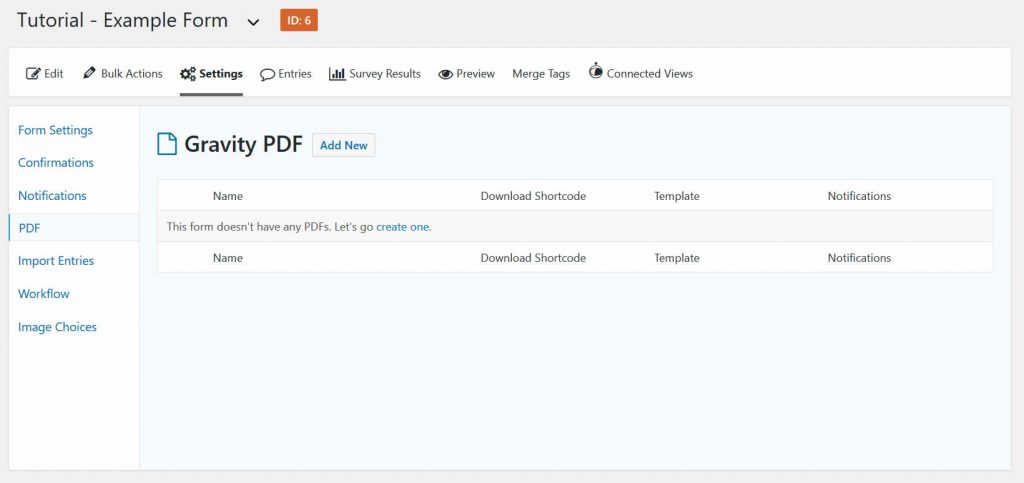
Add multiple PDF’s to one Gravity Form: With Gravity PDF you can generate multiple different PDF files based on entries in Gravity Forms. You can use all available information users entered in the form and show it the way you want.
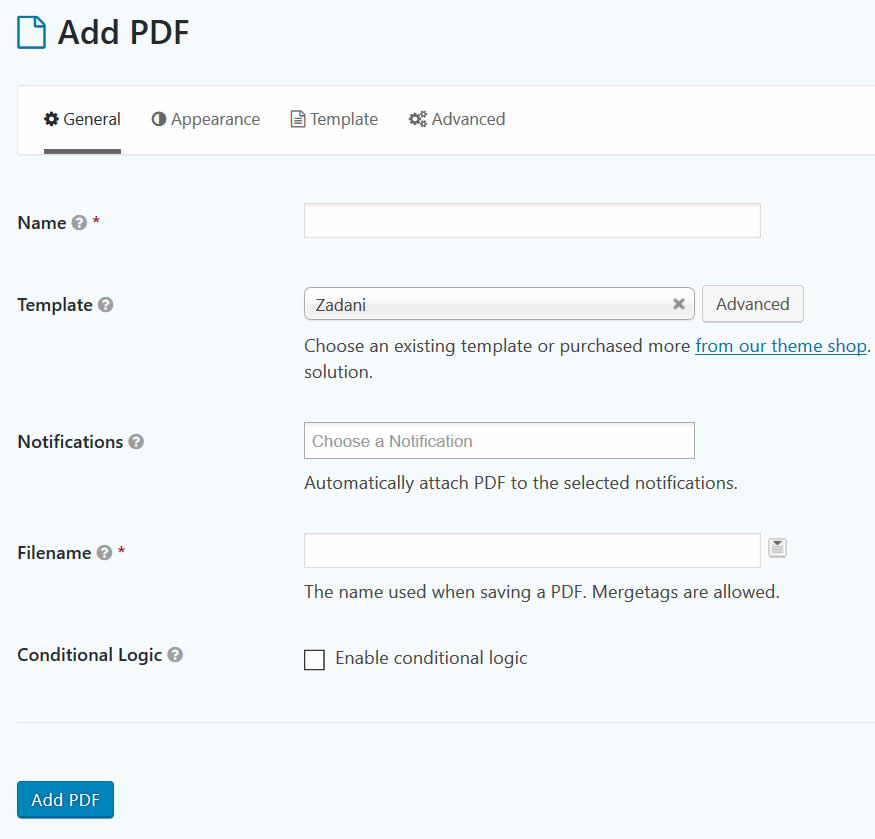
Basic Settings new PDF file: You can give your PDF generation process a name (this is only for the wp-admin area, it’s not the file name itself). You can choose a default, premium or custom made template for your PDF, you can choose to which notifications you add this specific PDF and you can create a custom filename for the PDF. This can be a default name, but you can also use mergetags to create unique PDF filenames.
Appearence settings PDF: You can choose paper-size, orientation, font (even add custom fonts to use to really style it in a way that is suitable for your company or organisation), font-size, font color and RTL.
Tutorials Gravity PDF
[gravitywp_custom_post_cards post_type=’tutorial’ numberposts=100 terms=5 col=6 ]
Our Premium add-ons for Gravity Forms

List Number Format
With this Gravity Forms Add-on you can change List Field columns into a number field, do calculations within a row or column. Extra merge tags are available with total counts of columns.

List Datepicker
Add a Datepicker with calendar select to a column or multiple columns in a Gravity Forms List Field.

n8n Connector
Connect Gravity Forms to n8n and automate your workflows with secure, flexible, and powerful webhooks. Go beyond simple notifications and build advanced, two-way automations.

API Connector
Connect Gravity Forms to External API's: Query the API using form field values and automatically fill other form fields with the API response.
Read tutorials about

Gravity Flow Form Submission Step Tutorial
The Gravity Flow Form Submission step pauses a workflow until another form is submitted, then continues once the handoff is complete. This guide shows how to connect two forms, prefill fields with mapping, send the correct secure link, and troubleshoot the most common “workflow didn’t move” issues.

Gravity Flow Delete an Entry Step Tutorial
The Gravity Flow Delete Entry step lets you trash or permanently remove Gravity Forms entries as part of a workflow. This guide covers the key settings, scheduling options (delay or date-based), and safe testing tips so you can follow retention and privacy rules with confidence.

Gravity Flow Update Fields Step Tutorial
The Gravity Flow Update Fields step pulls values from another entry and writes them into the current entry, so your workflow can route using “live” data. This tutorial covers source form selection, entry lookup with filters and sorting, field mapping, and quick testing.

Gravity Flow Update an Entry Step Tutorial
The Gravity Flow Update Entry step lets you update an existing Gravity Forms entry using a stored Entry ID and field mapping. This guide shows a simple parent-child setup where a Task Tracker workflow pushes status updates back into the original Request Form entry.


Author: Erik van Beek
Published: 16-03-2018
Last update: 15-02-2022
Reading time: 3 minutes