Do you want to show tooltips in your Gravity Forms (with extra information about a certain field)? With Gravity Forms Tooltips you can add HTML and shortcode inside your Tooltips. Even for every radio button and checkbox item.
Adding a Tooltip
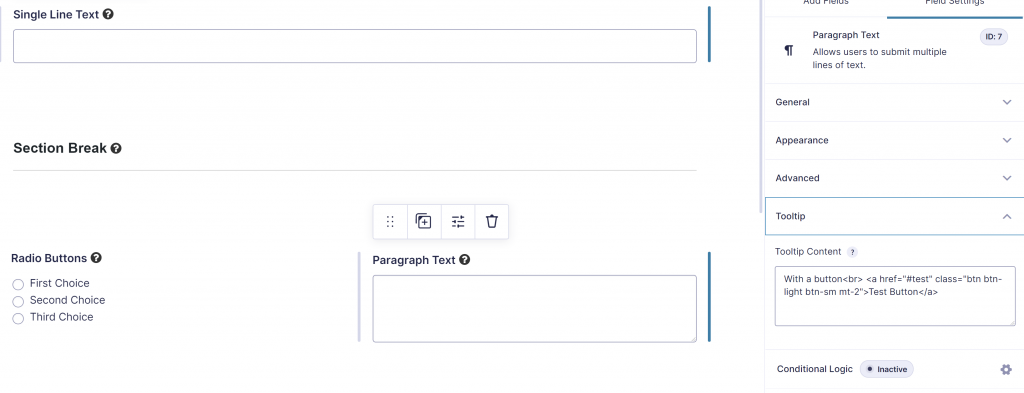
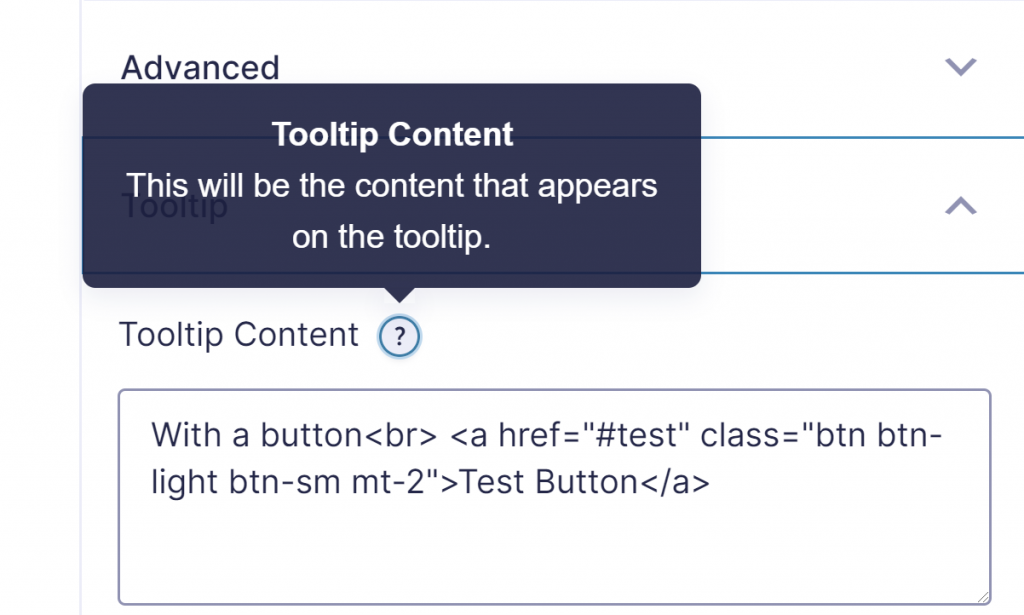
After activating the Gravity Forms Tooltips Add-on for Gravity Forms you’ll find an extra Field Settings tab called ‘Tooltip’. In it you can add the text and use HTML.
Shortcode and HTML inside Tooltip
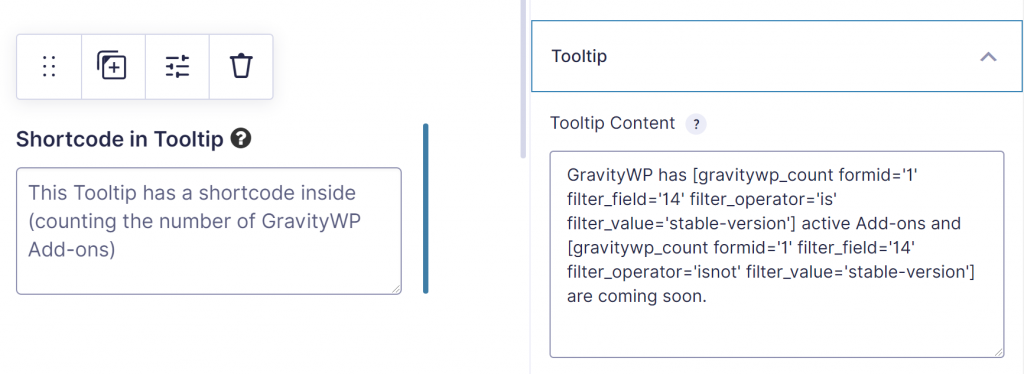
You can use HTML and WordPress shortcodes inside the HTML Tooltip. We tried it with the GravityWP – Count add-on, our shortcode to filter and count entries (or a sum of a Number Field for multiple entries) and used it inside the Tooltip. Works like a charm.
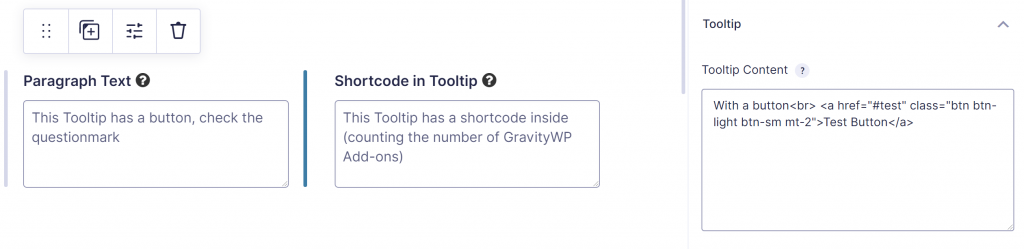
We also used HTML inside the Tooltip, adding a button (Bootstrap styled). This is also allowed:
Styling Gravity Forms Tooltips
You can style how the Tooltip looks like in the Gravity Forms Settings > Tooltips page. Options:
- Pick an icon for the Tooltip and define the Icon Size and the Icon color
- Tooltip content Font Size, Text Color and Background Color
- Placement of the Tooltip: Top Left, Top, Top Right, Right, Bottom Right, Bottom Left, Left
- Set a maximum width of the Tooltip
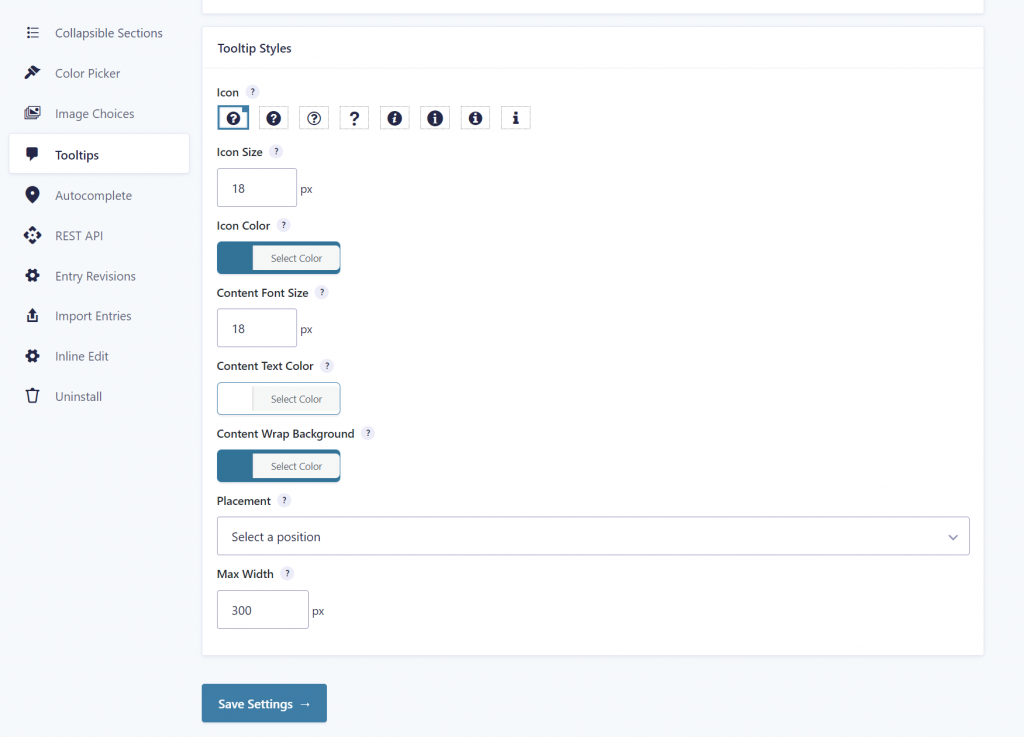
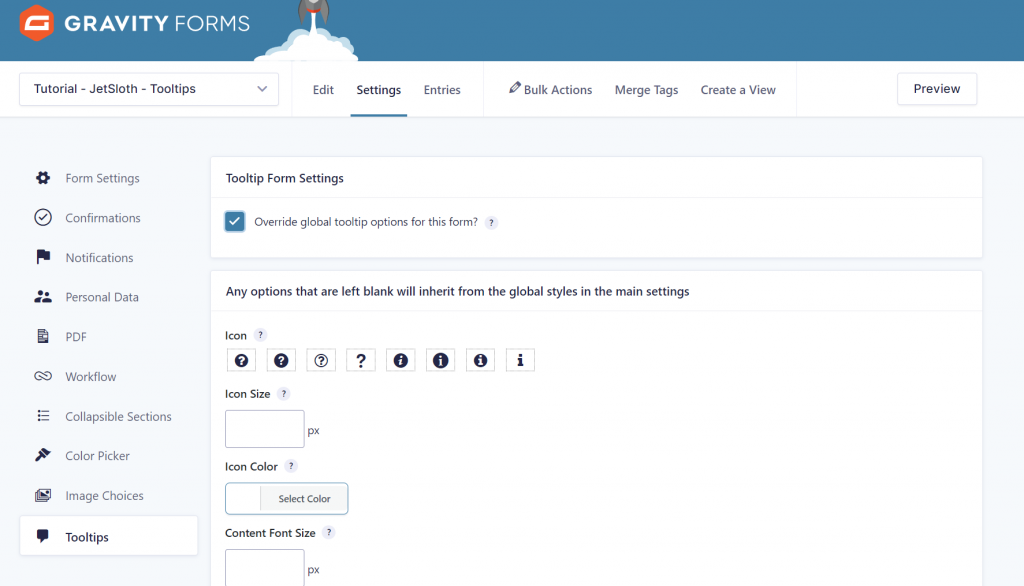
If you want to style the Tooltip for an individual Form, go to settings to Override the global tooltip options.
Read tutorials about

Gravity Flow Form Submission Step Tutorial
The Gravity Flow Form Submission step pauses a workflow until another form is submitted, then continues once the handoff is complete. This guide shows how to connect two forms, prefill fields with mapping, send the correct secure link, and troubleshoot the most common “workflow didn’t move” issues.

Gravity Flow Delete an Entry Step Tutorial
The Gravity Flow Delete Entry step lets you trash or permanently remove Gravity Forms entries as part of a workflow. This guide covers the key settings, scheduling options (delay or date-based), and safe testing tips so you can follow retention and privacy rules with confidence.

Gravity Flow Update Fields Step Tutorial
The Gravity Flow Update Fields step pulls values from another entry and writes them into the current entry, so your workflow can route using “live” data. This tutorial covers source form selection, entry lookup with filters and sorting, field mapping, and quick testing.

Gravity Flow Update an Entry Step Tutorial
The Gravity Flow Update Entry step lets you update an existing Gravity Forms entry using a stored Entry ID and field mapping. This guide shows a simple parent-child setup where a Task Tracker workflow pushes status updates back into the original Request Form entry.