Do you want to create a Calendar view filled with Gravity Forms entries, for example to show when events or deadlines are coming? With the Gravity Forms Calendar Add-on from GravityView that is easy to do.
Show entries per month
You can generate a Monthly calendar overview:
Show entries per week
You can also display the Gravity Forms entries in a weekly format:
Show entries per day
Or show them per day:
How to configure a calendar for Gravity Forms
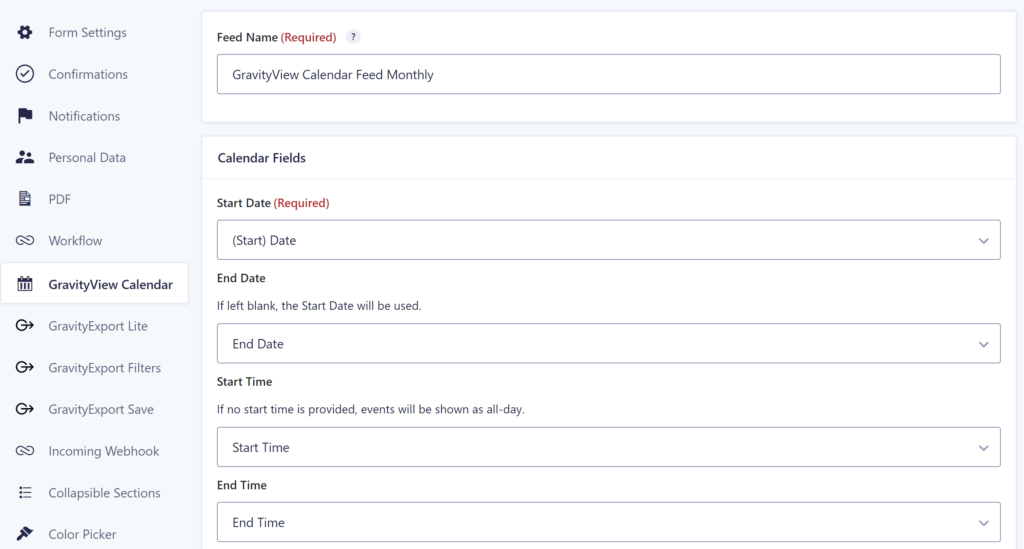
The Add-on adds an extra settings page in your Gravity Form. You can give it a Feed Name (this won’t be visible on the front-end of the site, but makes it easy to distinguish between created feeds).
Under Calendar Fields you can set:
- Start Date: Connect to a Date Field in your Gravity Form. This is the only required field. If only a Start Date is provided, it will make it an all day long event.
- End Date: Also a Gravity Form Date Field value, but this one is optional. If filled and it’s a date in the future compared to the Start Date, it will be a multi day event.
- Start Time: On which time does the event start. This is a Gravity Forms Time Field (and optional).
- End Date: On which time does the event end. This is also a Gravity Forms Time Field (and optional).
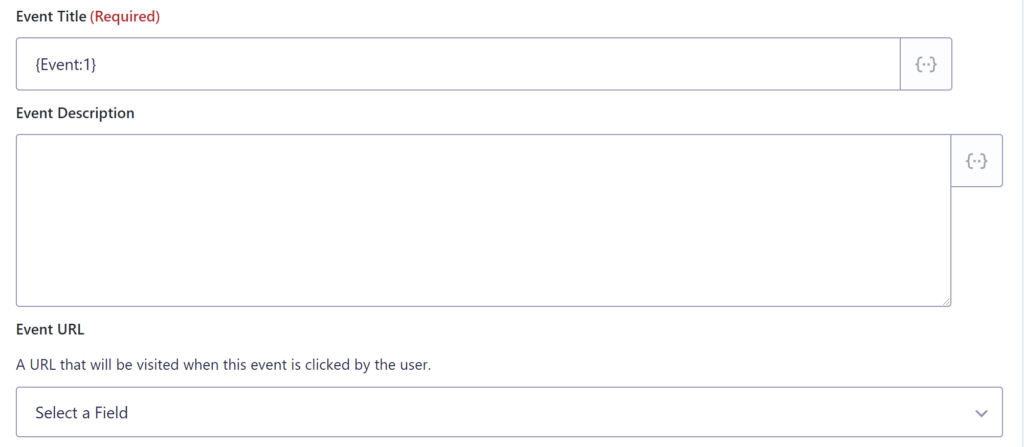
You are required to create an Event Title and you can use Merge Tags (and Merge Tag Modifiers) to build you custom Event Title the way you want it.
Optional is an Event Description (you can also use Merge Tags) and an Event URL (link to more information, or place to register, etc).
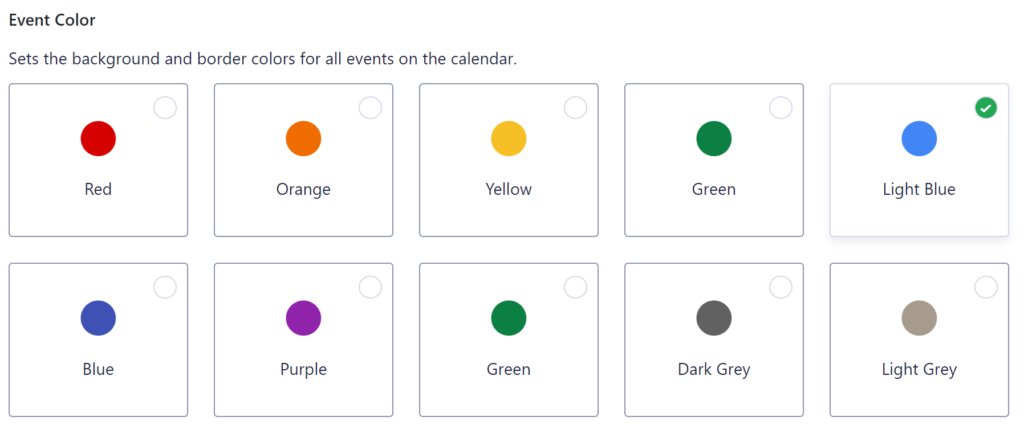
You can set a background color for the events on the calendar:
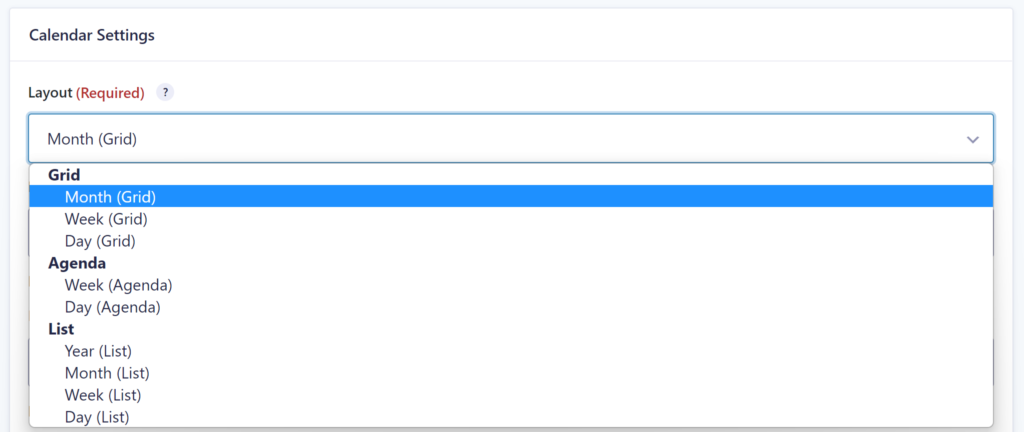
Layout options Gravity Forms Calendar
There are three layout categories:
- Grid:
- Monthly
- Weekly
- Dayly
- Agenda:
- Week
- Day
- List:
- Year
- Month
- Week
- Day
You can decide where the Calendar should start. This can be the currend day (Today), but if there is nothing to show for today, you can also automatically jump to the last event or the next event.

Calendar controls
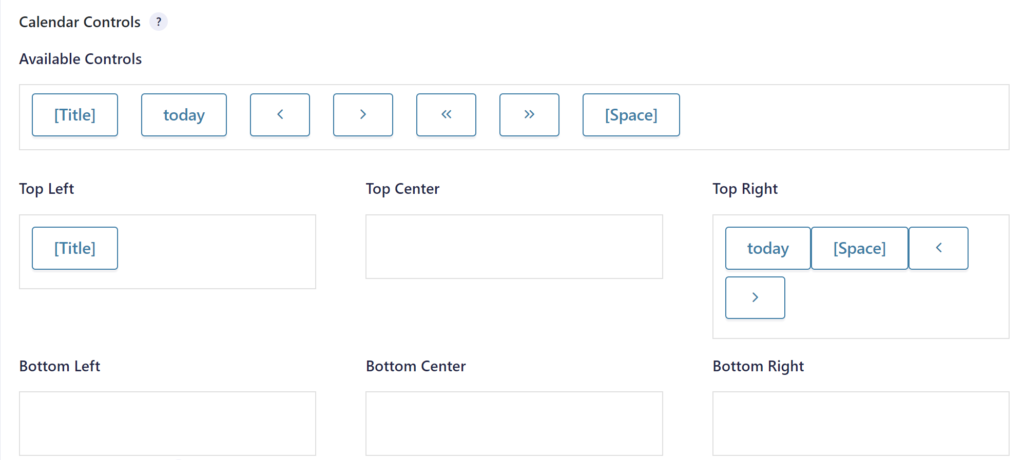
Automatically on the top left the title (current month / week / day) will be shown and in the top right above the calendar an option to jump to today or to click forward or backwards through the calendar. The Add-on provides a handy WYSIWYG editor to change the way the controls are positioned.
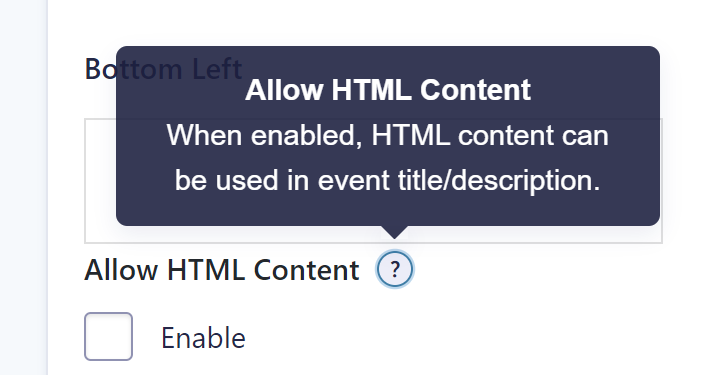
Allow HTML Content
You can enable HTML content to be allowed in the event title and / or description.
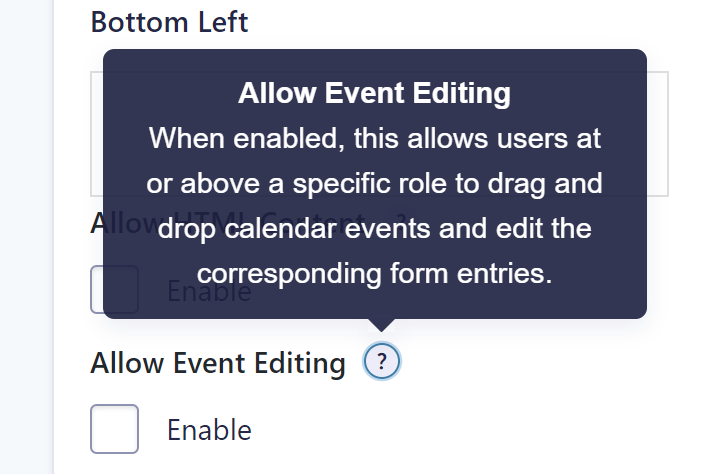
Editing calendar events
You can enable editing events in the calendar. Authorized users can then drag and drop calendar items and edit the Gravity Forms entry.
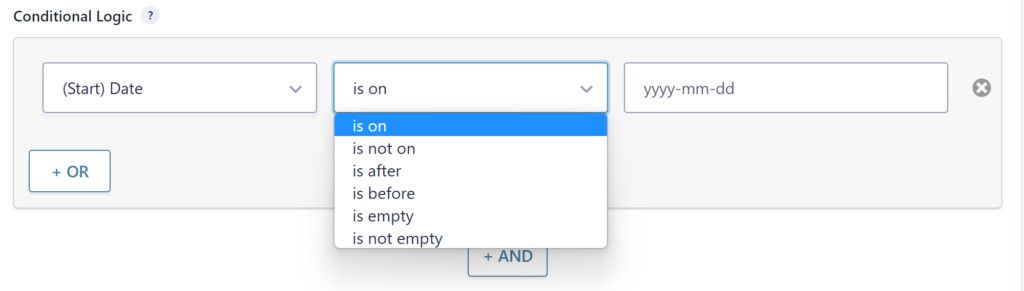
Conditional Logic on Entries shown on the Calendar
You can also filter the Gravity Forms entries that should be visible on the Calendar.
Read tutorials about

Gravity Flow Form Submission Step Tutorial
The Gravity Flow Form Submission step pauses a workflow until another form is submitted, then continues once the handoff is complete. This guide shows how to connect two forms, prefill fields with mapping, send the correct secure link, and troubleshoot the most common “workflow didn’t move” issues.

Gravity Flow Delete an Entry Step Tutorial
The Gravity Flow Delete Entry step lets you trash or permanently remove Gravity Forms entries as part of a workflow. This guide covers the key settings, scheduling options (delay or date-based), and safe testing tips so you can follow retention and privacy rules with confidence.

Gravity Flow Update Fields Step Tutorial
The Gravity Flow Update Fields step pulls values from another entry and writes them into the current entry, so your workflow can route using “live” data. This tutorial covers source form selection, entry lookup with filters and sorting, field mapping, and quick testing.

Gravity Flow Update an Entry Step Tutorial
The Gravity Flow Update Entry step lets you update an existing Gravity Forms entry using a stored Entry ID and field mapping. This guide shows a simple parent-child setup where a Task Tracker workflow pushes status updates back into the original Request Form entry.

