Do you want to dynamically generate choices (and values) for select fields like Drop Down, Checkboxes, Radio Buttons and Multi Select, based on(Custom) Post Titles or Taxonomies? With Populate Anything from GravityWiz that is as easy as it gets.
Dynamic Post Titles Choices in Drop Down
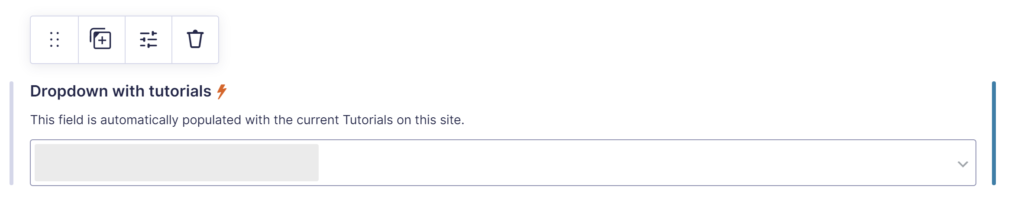
When you select a Drop Down Gravity Forms Field, you get extra options to Populate choices dynamically. After you’ve done that, you can see a litter thunderstorm icon next to the Label in the Gravity Forms editor:
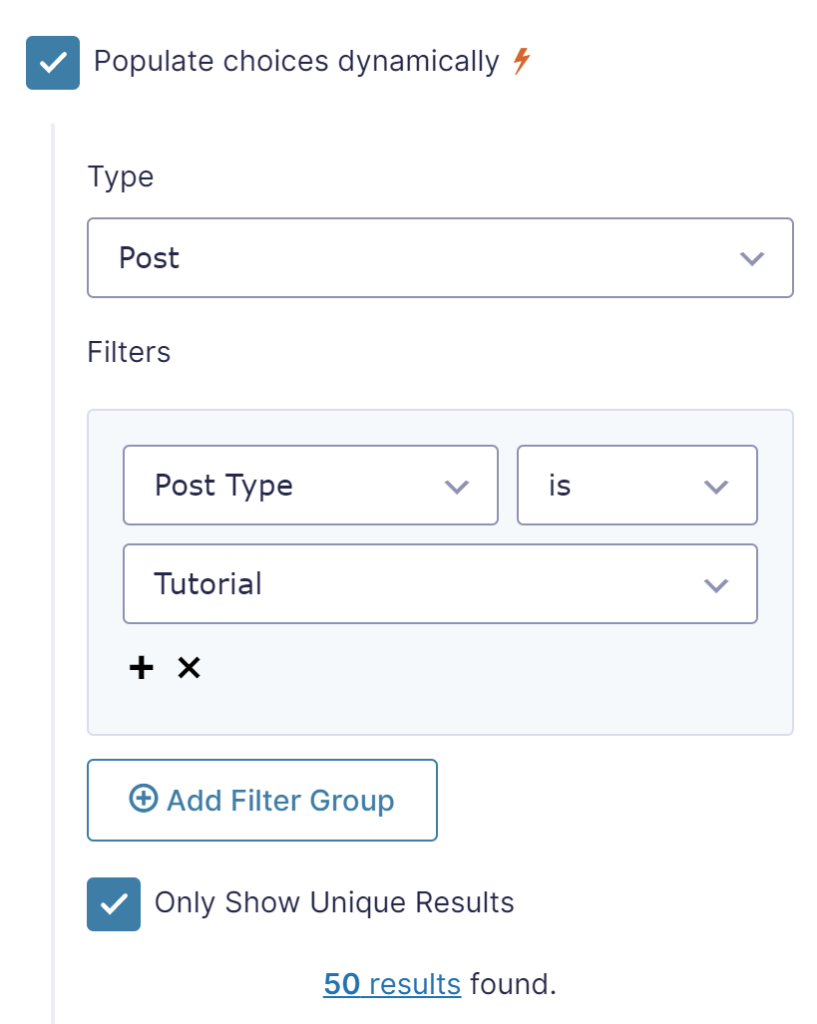
To activate populating choices, you click the checkbox. You get a choice to select which data you want to use to populate the choices. In this example we’ve selected Type = Post, because we want to populate our Drop Down field with WordPress Custom Post Titles.
We’ve also added a Filter Group, where we only want to include Posts that have as Post Type Tutorial.
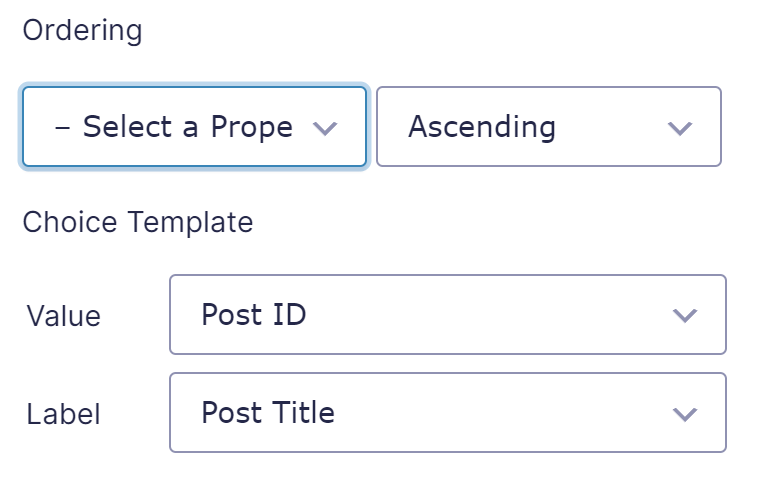
You have extra options to determine how the Drop Down choices should be ordered.
At the end, you can configure which data should be used for the Value and for the Label of the Drop Down Choice.
Checkbox or Radio Buttons with Choices based on WordPress (Custom) Taxonomy
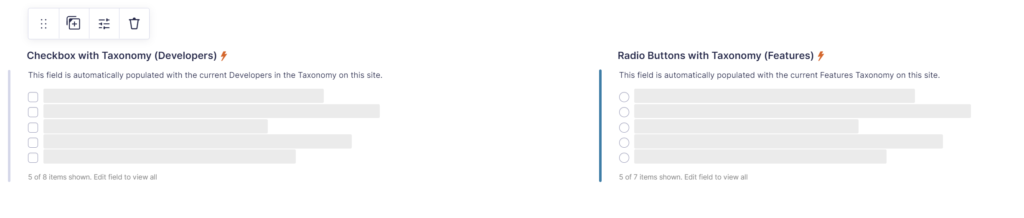
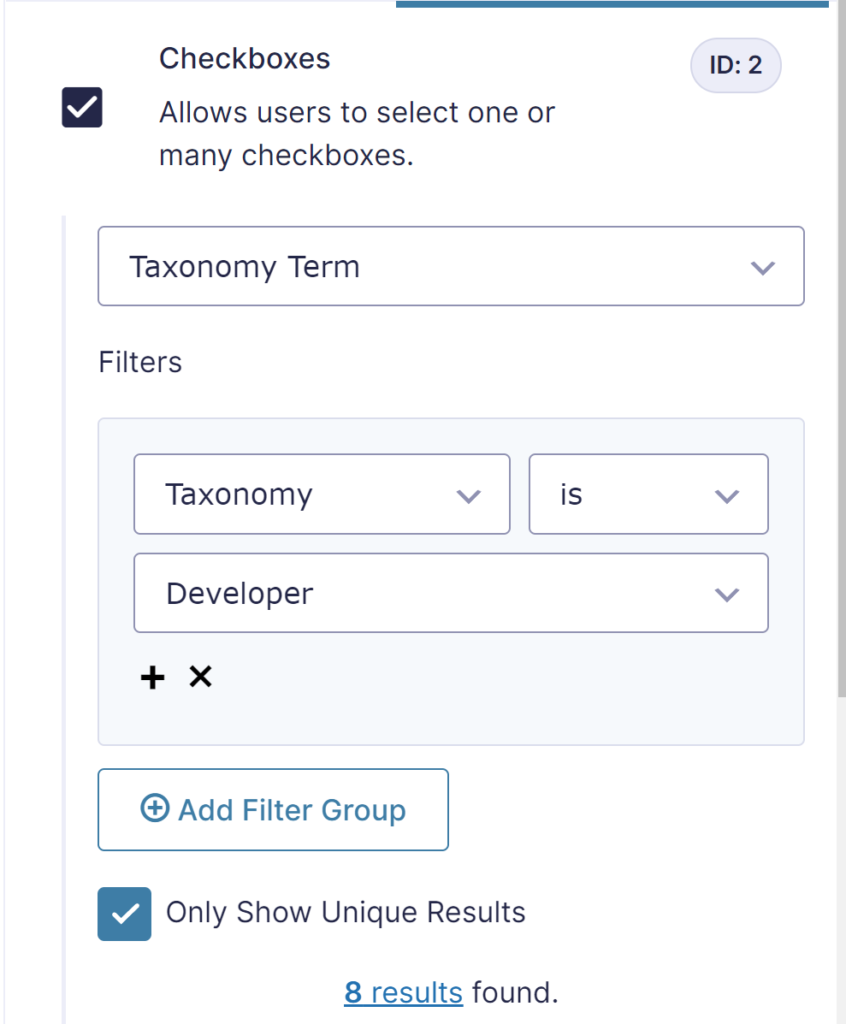
It works basically the same for other data sources. In the below example we use a custom WordPress Post Taxonomy (Developer) to generate the choices of the Gravity Forms Checkbox Field automatically.
Read tutorials about

Gravity Flow Form Submission Step Tutorial
The Gravity Flow Form Submission step pauses a workflow until another form is submitted, then continues once the handoff is complete. This guide shows how to connect two forms, prefill fields with mapping, send the correct secure link, and troubleshoot the most common “workflow didn’t move” issues.

Gravity Flow Delete an Entry Step Tutorial
The Gravity Flow Delete Entry step lets you trash or permanently remove Gravity Forms entries as part of a workflow. This guide covers the key settings, scheduling options (delay or date-based), and safe testing tips so you can follow retention and privacy rules with confidence.

Gravity Flow Update Fields Step Tutorial
The Gravity Flow Update Fields step pulls values from another entry and writes them into the current entry, so your workflow can route using “live” data. This tutorial covers source form selection, entry lookup with filters and sorting, field mapping, and quick testing.

Gravity Flow Update an Entry Step Tutorial
The Gravity Flow Update Entry step lets you update an existing Gravity Forms entry using a stored Entry ID and field mapping. This guide shows a simple parent-child setup where a Task Tracker workflow pushes status updates back into the original Request Form entry.

