With GravityView and the addon DataTables it gets really easy to export data from Gravity Forms directly to Excel. Ofcourse, Gravity Forms offers the possibility to export data in a .CSV format. But you probably also want the option to download directly to an Excel format from the front-end of your website.
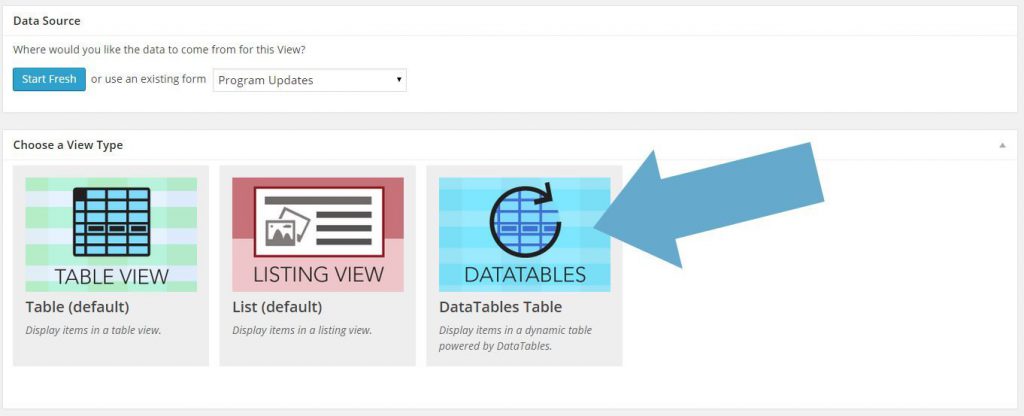
Create New View & Choose for DataTables
Choose the Fields you want in your View
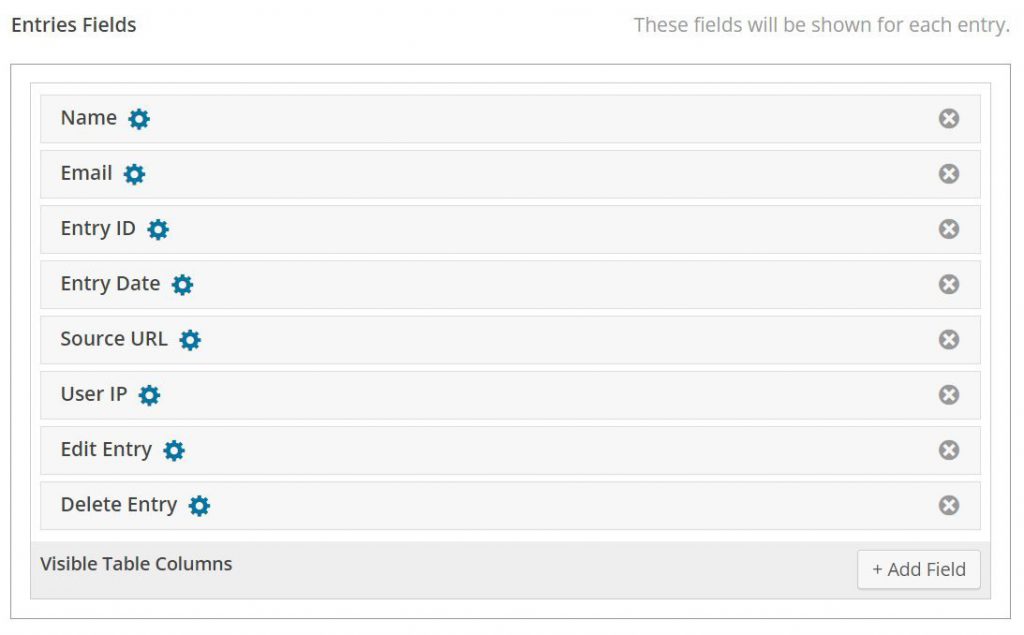
In de Entries Fields you can choose for visible fields. These fields will also be available for download in Excel after you save the View. After selecting the columns for Excel, you can change the Label names. These new Label Names will be used as Column Names in Excel.
Choose Excel as one of the Download Options
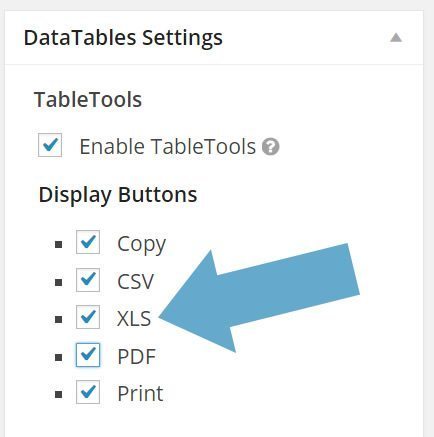
On the left side of the Create View page, you have tab with DataTables Settings. Choose here under ‘Display Buttons’ for XLS.
View online and download Entries to Excel
After these steps, you are ready to publish your View on your website. As you see, you have a few options to Download the data which is shown in DataTables. Click on XLS to download the visible data in Excel. If you filter the results, you can download the filtered results in Excel.
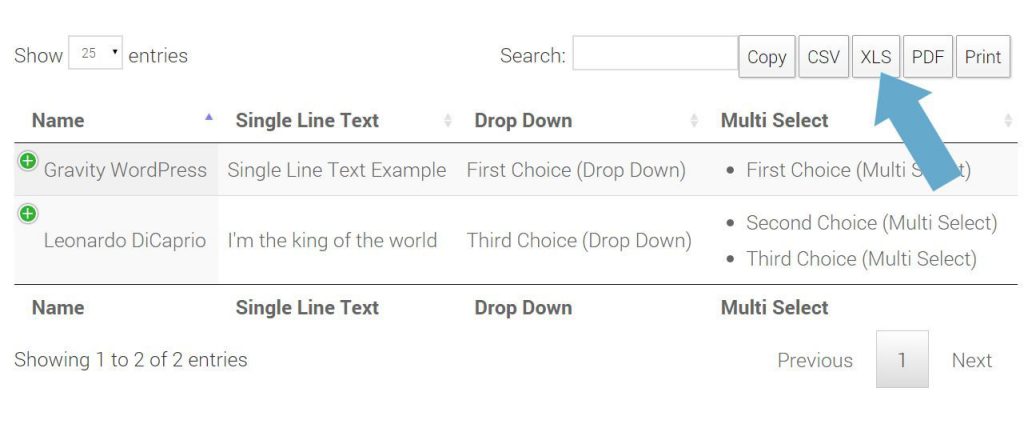
Demo DataTables
| Keyword | Avg. monthly searches | Competition | Top of page bid (low range) | Top of page bid (high range) |
|---|---|---|---|---|
| Keyword | Avg. monthly searches | Competition | Top of page bid (low range) | Top of page bid (high range) |
Read tutorials about

Gravity Flow Form Submission Step Tutorial
The Gravity Flow Form Submission step pauses a workflow until another form is submitted, then continues once the handoff is complete. This guide shows how to connect two forms, prefill fields with mapping, send the correct secure link, and troubleshoot the most common “workflow didn’t move” issues.

Gravity Flow Delete an Entry Step Tutorial
The Gravity Flow Delete Entry step lets you trash or permanently remove Gravity Forms entries as part of a workflow. This guide covers the key settings, scheduling options (delay or date-based), and safe testing tips so you can follow retention and privacy rules with confidence.

Gravity Flow Update Fields Step Tutorial
The Gravity Flow Update Fields step pulls values from another entry and writes them into the current entry, so your workflow can route using “live” data. This tutorial covers source form selection, entry lookup with filters and sorting, field mapping, and quick testing.

Gravity Flow Update an Entry Step Tutorial
The Gravity Flow Update Entry step lets you update an existing Gravity Forms entry using a stored Entry ID and field mapping. This guide shows a simple parent-child setup where a Task Tracker workflow pushes status updates back into the original Request Form entry.
