
List Dropdown
Add a Dropdown Select column in a List Field.
The dropdown column add-on for Gravity Forms lets you transform any column in a List Field into a dropdown menu, making it easier for users to select predefined options instead of typing them manually. Additionally, this is ideal when you want consistent, error-free input. For example, it’s perfect for collecting product names, categories, service types, or other repeatable selections.
With this tool, you can define custom choices for each column in your List Field, giving you full control over what options appear. Whether your List Field has a single column or multiple columns, you can enable dropdowns on one, some, or all columns. The dropdowns inherit your existing Gravity Forms styles, so they fit seamlessly into your form’s design.
This add-on works seamlessly alongside other GravityWP List Field extensions, such as the List Datepicker and List Number Format add-ons, allowing you to create fully structured, user-friendly forms.
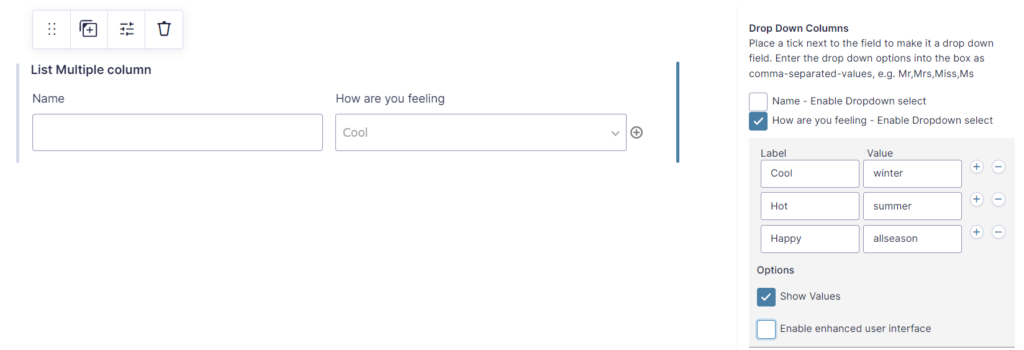
With the List Dropdown Add-on for Gravity Forms you can change List Field columns into a dropdown select field with predefined choices.
Features
- Make Dropdown Select List Columns
Turn your List Field columns into dropdown select fields with predefined choices. Supports both single and multicolumn Lists. - Enhanced User interface option
As in the default Gravity Forms dropdown select fields you can apply the enhanced user interface, which uses the chosen library to . - Backwards compatible
Compatible with the discontinued Drop Down Options in List Field for Gravity Forms plugin, except for the ‘Enable add options’ feature, which allowed users to add undefined options.
FAQ – List Dropdown for Gravity Forms
Yes. You can choose which columns in your List Field will use dropdowns and which will remain as text fields.
Yes. You can enable List Dropdown on any List Field in your form, even if you have multiple List Fields.
Yes. Each column can have its own unique set of dropdown choices.
Yes. Since the dropdowns are standard Gravity Forms dropdown fields under the hood, they work with conditional logic.
Ready to make List fields easier to use? Add dropdown selects to your columns and speed up accurate data entry.

Refund Policy
Within 30 days of your initial purchase, you are entitled to a complete refund with no hassle. In order for us to improve our Add-ons, we do ask that you provide a good justification and feedback for your request for a refund.
List Dropdown on GravityForms.com