
Text Field Variables for Gravity Forms
Define custom variables for Single Line Text and Paragraph Text fields.
Text Field Variables lets you use custom placeholders inside Gravity Forms text fields, so you can write a reusable template once and then output a replaced version when you need it.
This add-on is built for Single Line Text and Paragraph Text fields, and uses a simple variable format like:
- **customer_name**
- **company_name**
You define the variables in your form settings, then you can render a replaced output using a shortcode.
What this add-on does
GravityWP – Text Field Variables allows the use of custom variables in:
- Single Line Text
- Paragraph Text
Variables are written using double asterisks (**) and can be defined per form in the Text Field Variables settings screen.
If your variable name does not include **, the add-on will wrap it with double star signs automatically.
How it works
1) Enable variables on the field
In your form editor, open the supported text field and enable:
- Text Field Variables
- Allow Variables
- Allow Variables
This controls which fields can accept variable placeholders.
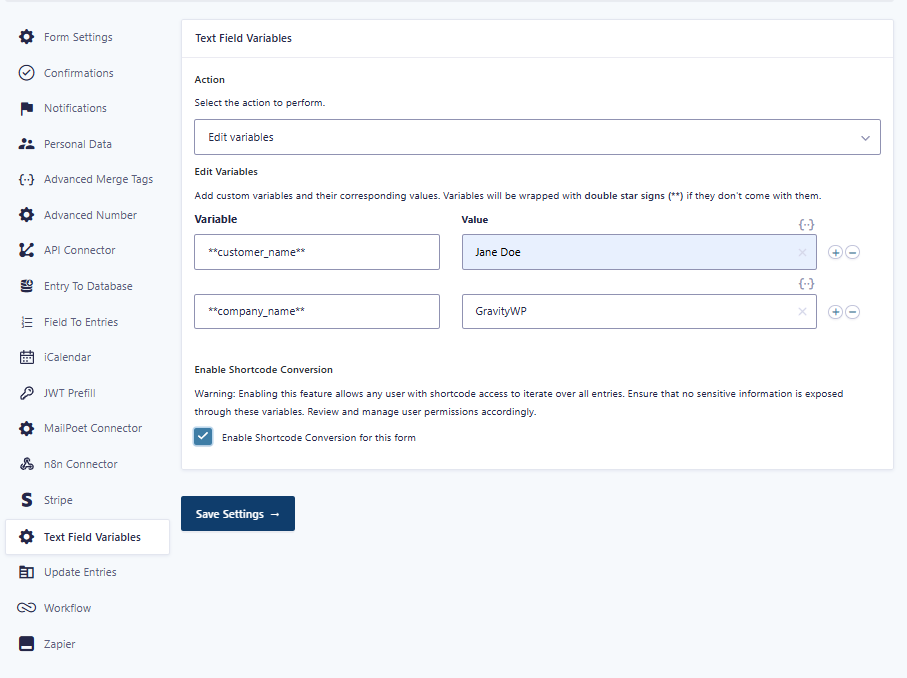
2) Define your variables in Form Settings
Go to:
Form Settings → Text Field Variables
Use Edit variables to add your variable list and their values.
Example setup:
- **customer_name** → Jane Doe
- **company_name** → GravityWP
3) Render the replaced output with the shortcode
This add-on provides a shortcode that can output the replaced version of your text.
Example:
[replace_gwp_text_field_variables form_id="97" entry_id="999"]
Dear **customer_name**,
Welcome to **company_name**.
[/replace_gwp_text_field_variables]
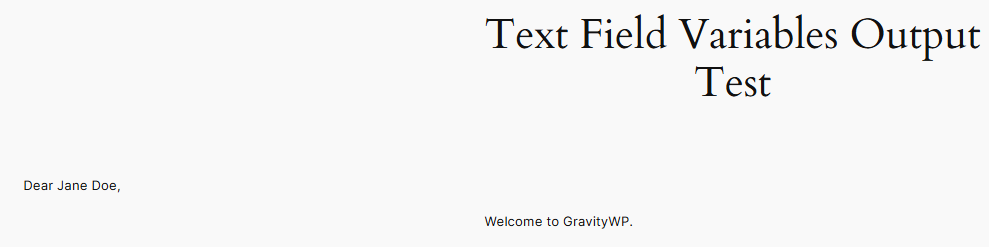
In your test, this rendered as:
- “Dear Jane Doe,”
- “Welcome to GravityWP.”
Shortcode conversion setting (important)
Inside Form Settings → Text Field Variables, there is an option:
Enable Shortcode Conversion for this form
This setting shows a warning:
Enabling this feature allows any user with shortcode access to iterate over all entries. Ensure that no sensitive information is exposed through these variables. Review and manage user permissions accordingly.
If you plan to use the shortcode on WordPress pages, this setting is part of the form-level configuration you should review carefully.
Gravity Flow support (visible in the UI)
When Gravity Flow is installed, this add-on also appears as a workflow step type.
In the workflow step picker, a step is available labeled like:
- Replace Variables
- Your workflow list shows a step named Text Field Variables with type replace_variables.
This confirms the add-on includes a Gravity Flow step type for workflows.
Common use case example
Letter template inside a Paragraph Text field
You can store a reusable letter body like:
Dear **customer_name**,
Welcome to **company_name**.
Then render the replaced version when displaying the content via the shortcode.
Requirements
From the plugin screen:
- Gravity Forms
- Gravity Flow
- GravityView