Product icon

List Datepicker

Add a Datepicker column in a List Field.

v2.2 (20 December 2024)

Changelog

Changelog List Datepicker

= 2.2 = - Added the 'gwp_list_datepicker_options_pre_init' JS filter to allow modification of the date picker object. = 2.1.1 = - Fixed an issue regarding the frequency of update checks to increase performance. = 2.0.8 = - Fix another initialization issue for Gravity Forms 2.7+. = 2.0.7 = - Fix initialization issue for Gravity Forms 2.7+. = 2.0.6 = - Update dependencies to fix a security issue in a third party library. - Fix translations for placeholders when rows are added. = 2.0.5 = * Accessibility improvements. * Fix compatibility issue with other plugins adding rows. = 2.0.4 = * Fix incorrect version number. = 2.0.3 = * Fix PHP error on plugin settings screen. * Add icon to settings screen. = 2.0 = * Fully rewritten version of the discontinued original "Date Picker in List Fields for Gravity Forms" addon by Adrian Gordon. * It should be backwards compatible with the original plugin settings for multiple column list fields. We are not sure about the single column list fields, as it seemed they were not supported by the original plugin. * Supports Gravity Forms 2.5+ new frontend markup. Note: Legacy markup (GF 2.4 and earlier) is not supported.

Documentation

$49.00 (yearly, excl. VAT)

buy now

The List Datepicker for Gravity Forms add-on lets you turn any List field column into a date field with a calendar picker. Choose from multiple date formats. In addition, it’s also possible to show or hide a calendar icon, and set a default date for faster entry. Additionally, whether you’re collecting multiple booking dates, schedules, or service records, this add-on makes it easy for users to pick accurate dates in repeating rows without writing custom code.

For more on how List and Date fields work, see the Gravity Forms List Field documentation and Date Field documentation.
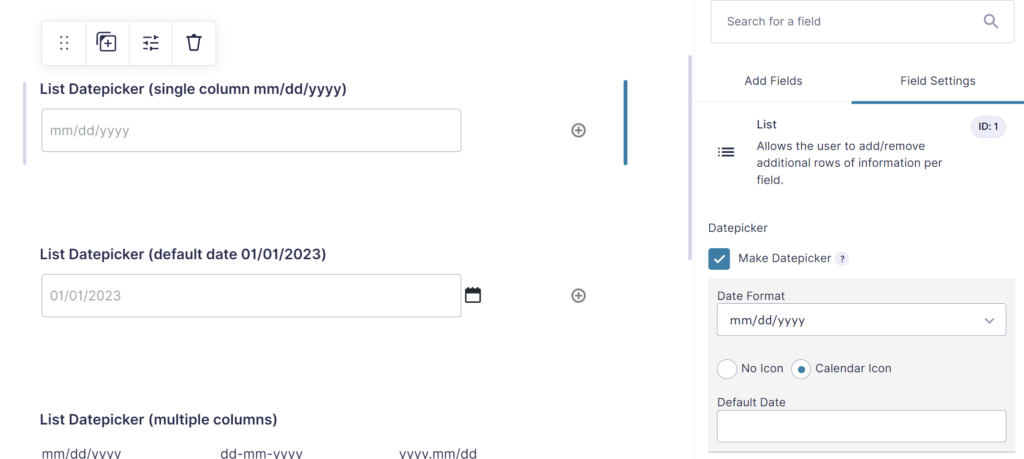
Screenshot of a Gravity Form with List Datepicker enabled.
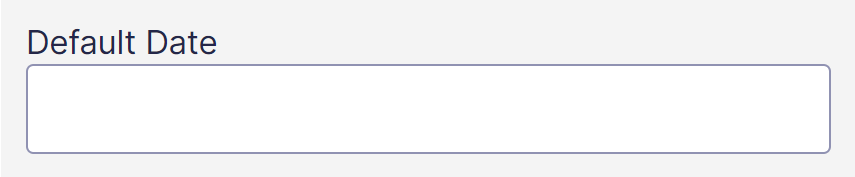
Screenshot of Default Date input.
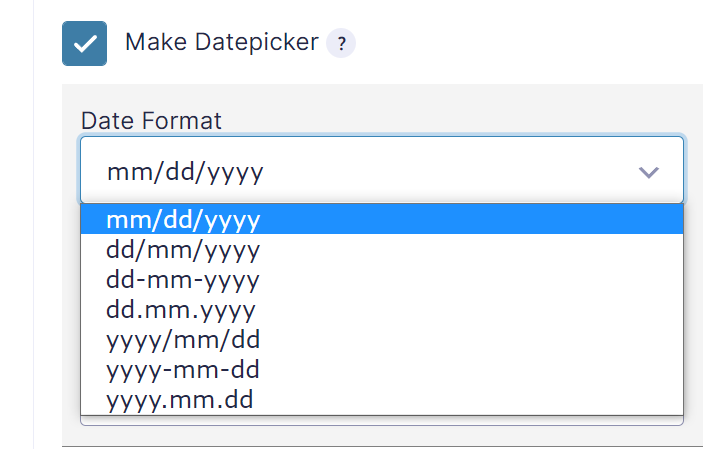
Screenshot of configuring the Date Format for the selected Gravity Forms List Field column.

Features

  • Easily add a Datepicker (calendar) to a List Field column.
  • Different Time Formats available.
  • Set a Default Date.
  • Datepicker for one or multiple columns.
  • Works great together with List Number Format & List Dropdown for more complex List Fields.
  • Supports Gravity Forms 2.5+ new frontend markup.

FAQ – List Datepicker for Gravity Forms

Can I apply the datepicker to more than one column in a List field?

Yes. We can enable the datepicker for one or multiple columns in the same List field.

Which date formats are supported?

The add-on supports all standard Gravity Forms date formats, including mm/dd/yyyy, dd/mm/yyyy, and yyyy-mm-dd.

Can I hide the calendar icon?

For sure. You can choose whether to display the calendar icon next to the date field.

Can I set a default date?

Absolutely. In addition, you can set a default date for each List column where the datepicker is enabled.

Does this work on both single-column and multi-column List fields?

Indeed, the datepicker works on any List field configuration, single or multi-column.

Start using List Datepicker for Gravity Forms today to make repetitive date entry faster, easier, and more accurate for your users.

Refund Policy
Within 30 days of your initial purchase, you are entitled to a complete refund with no hassle. In order for us to improve our Add-ons, we do ask that you provide a good justification and feedback for your request for a refund.


Proudly powered by WordPress